What's wrong with SharePoint Branding?

Joel Oleson asks an interesting question:

Why don’t we have a community around our masterpages and themes?

It’s a good question. I can download a million and one WordPress themes, but very few SharePoint ones. Why? Well, I like to answer a question with another question, so here’s a few:

  • What’s the market? Who want’s ’em? Well, amongst our customers, corporates mainly. These are the chaps who have expensively developed corporate brands. Off-the-shelf brands and themes aren’t going to meet their expectations.
  • Are there small organisations? How many small/non-corportate SharePoint systems are there? The reason so many WordPress themes get written is that there are a lot of WordPress bloggers out there, and lots of hobbyists. How many SharePoint ones are there? Yes, WSS3 is inexpensive – but to work with it, you’re raising the bar on technical expertise requirements. Most blogging plaforms – simple. SharePoint – colossal. And SharePoint Designer costs money – most of the other’s need NotePad, or have a built in editor. Once you’ve started to get into spending money like that, either companies go with the out of the box branding (“we just want the functionality”) or pay (“it must be our brand”).
  • Why is it so freakin’ complex? Core .css is 81Kb and 4350 lines long. That’s before you start looking at the other CSS files that you typically need to change – like Controls.css, Calendar.css, Portal.css, DatePicker.css, the HTML editor ones, the menus … ! My styles directory holds 220Kb’s of CSS! Compare that to a WordPress blog. I get why designers and hobbyists build WordPress themes – but what sort of masochist is going to write a SharePoint one for fun?
  • Which Master Page? The Default Master? What about the Meeting Workspace Master? And, not wanting to scare anyone, but Application.master and Simple.master, which you can’t change (but can redirect – with code). And your users will see pages that use the Application.master – document upload, recycle bin, viewing all site contents. So a ‘new master page’ is not just one, it’s many, and it takes technical cleverness to replace some of the master pages involved. Most designers are into technical cleverness – nor should they be, it ain’t there job.
  • Themes? Themes are good, but limited – there’s no out-of-box way to apply them to a hierarchy of sites, and they can’t make major structural changes to pages. Sure, they can be used sometimes, but again, takes technical expertise. And they don’t style the Date Picker; for some obscure reason, it’s not coded to support themes.

So, I guess in summary, it’s too complex for the typical design crowd, and way beyond the general Web Dev hobbyist community. Most of the designers who can do this sort of work are already doing so – for large companies who pay to have their brand, and don’t want an off the shelf one. I mean, I reckon I can rebrand a SharePoint site pretty completely – though I’ve never tried My Sites (another complexity!), and by the time I’ve done the images, the styles, changes to the master pages, tested it all, wrapped in a feature, you’re looking at, well, days, probably more than a man week, for someone who knows what they’re doing, isn’t aiming for accessibility, and is clear about their objective.

All in all, it’s harder than it oughta be.
What's wrong with SharePoint Branding?

Finally Looked at RadEditor…

Another thing on my long list of ‘things to do’ was have a look at the RadEditor control. Well, one of the guys at the SUGUK meeting last week finally gave me an excuse – he told me that it would detect if MS Word Formatted text was being pasted into it. Now that would be cool; all our customers have problems with users pasting Word formatted text directly into MOSS. Hell, we even had this problem with MCMS – some users insisted on writing every in Word, and copying and pasting text across

So although I might be the last dev on earth to do so, I thought I’d take a look. And I was impressed. Continue reading “Finally Looked at RadEditor…”

Finally Looked at RadEditor…

Link the CQWP to another XSL File

I was going to remind myself of a technique that I’d seen Liam Cleary use on his blog about importing XSL files into ItemStyles.xsl, but then I noticed that he’d linked to a far better idea from Brendon Swartz – you can change the XSL file that the Content Query Web Part presents ItemStyles for. If you export the Content Query Web Part as an XML file and edit it, you’ll see a property ItemXslLink. Simply give it a url to the new ItemStyles.xsl file.

Personally, I think this is fantastic. Frequently I have been asked to do custom roll-up of content, with customised display. If you have to add to the standard ItemStyles.xsl, then before long your ‘Presentation’ setting for your standard CQWPs is full of highly specific item styles. This way, I can isolate – nearly hide – the existance of my much more specific item styles to general users.

And I’ll say more about what I was doing with it shortly.

Link the CQWP to another XSL File

Interesting Idea for Efficiency – Avoid SPList.Items…

An interesting post by Rob Garrett about avoiding using SPList.Items.Add() – as referencing SPList.Items causes you to get all items in a list, and that can be pretty slow. He does suggest a solution.

I must confess, I’m surprised. I mean, what he describes makes sense – and also explains why have both SPList.ItemCount and SPList.Items.Count (same problem – and the former should be faster) – but surely there is some equivalent already build, some SPList.AddItem() to do it for you? Guess not.

Might be a small optimisation, but it starts to become clearer why the 2000 item recommendation…

At some point, I’ll try and generate some metrics, and then we’ll see when it becomes more efficient and how much so.

Interesting Idea for Efficiency – Avoid SPList.Items…

Automatic Thumbnail generation in SharePoint

We’ve got a customer doing a very common thing – and to my surprise, the user experience in SharePoint is pretty frustrating.

The customer has a number of publishing pages, with Images at full size and thumbnail size (for roll-up). So far, so standard. What they’d like, though, is the automatic thumbnailing of images when they’re uploaded to SharePoint. “Easy” I thought. Wrong! Continue reading “Automatic Thumbnail generation in SharePoint”

Automatic Thumbnail generation in SharePoint

Add a 'Create New Document' link to a page

Okay, so in SharePoint we’ve got document libraries. In them (provided we have the rights) we can go to the toolbar and click ‘New’, select a document type, and be shown a template document to start filling in. That’s pretty nice.

Often, though, we might want to surface those documents (or some of those documents) on a Page – either a Publishing Page or a Normal Page. We can do that with the ListView Web Part:

listview-with-add-new-link

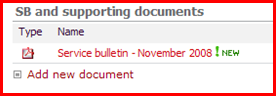
As you can see, it can show an ‘Add new document’ link. We could also get it to show a toolbar very similar to the one in the List itself, or we can configure it to show nothing at all!

However, the ‘Add New Document’ link and the toolbar have quite different functionality. The ‘New’ button on the toolbar opens a new document, and lets you fill in the template, whereas the ‘Add new Document’ link simply takes you to the file upload page – so you don’t get a nice blank templated document to fill in. Continue reading “Add a 'Create New Document' link to a page”

Add a 'Create New Document' link to a page

No federated searching of Google…

I’d a question from a customer:

I’ve installed the updates on our dev server and I’m playing around with the [federated] search, I don’t suppose you know if there is a Google connector for the search? Or is there coding involved to get the Google search results?

That seemed funny to me – Google not presenting results in XML? Well, apparently not. Google do not appear to provide an OpenSearch XML results service – at least, not for general search. Curiously, Blogs and News searches do.

There was a SOAP API that could’ve been used, but they are no longer issuing developer keys. Looks like they’re closing it down.

The best solution I can find – several suggestions of creating an intermediate web service to parse standard page requests. Which was the line I was thinking down anyway (I love regexes – which is a bit freaky. They’re like Sudoku, but fun!)

I do think it’s strange that Google don’t offer an XML service – I do get why; they make their money from advertising. But the competition offer it; my reply to my customer did end with ‘Or you could just use Live Search’.

No federated searching of Google…

Plan Your Publishing Pages

I was reading Andrew Connell’s book ‘SharePoint 2007 Web Content Management‘ and it made something crystallize for me. I’ve been pondering this for about 8 months or so, but I believe that several of our customers are using the Publishing features of MOSS incorrectly, and that simply basing sites on out-of-box Collaboration and Publishing site templates is a mistake.

(Well, at least without additional planning) Continue reading “Plan Your Publishing Pages”

Plan Your Publishing Pages

Create a lookup column through the object model

I read a post by Alexander Brütt about programmatically creating a Lookup column, and I thought I’d post my code from a slightly longer article a while back. It’s quite an interesting thing to do!

SPList targetList = site.Lists["My Lookup Target"];
SPField targetField = targetList.Fields["My Target Lookup Column"];
newList.Fields.AddLookup("NewLookup", targetList.ID, false);
SPFieldLookup lkp = (SPFieldLookup)newList.Fields["NewLookup"];
lkp.LookupField = targetField.InternalName;
lkp.Update();

Create a lookup column through the object model

Calculated Columns showing URLs

I keep forgetting how I did this and having to dig into old demo VMs – you can display hyperlinks via calculated columns:

Calculated URLs to Search Results page

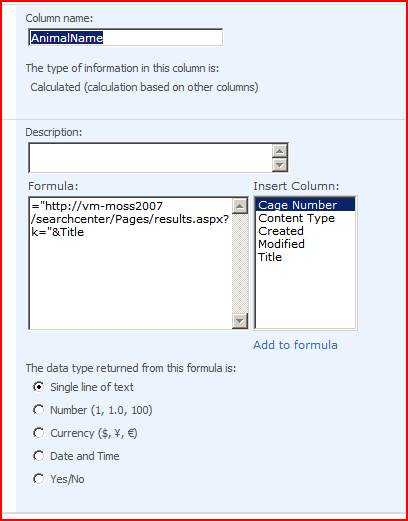
Yup, the AnimalName column is calculated, and consists of a URL and a search term which is the item’s title:

Calculated Column Configuration

Although it doesn’t show it, [ID] is also a valid column to insert.

Sadly, I’ve not figured out how to display a ‘pretty’ calculated column yet – for example one that just showed ‘Click me‘ rather than the full URL. Still, I thought that having a link to search was interesting. And naturally, if you use the DataView web part then setting up the link with a ‘pretty’ link is trivial.

Calculated Columns showing URLs