Accessibility in MOSS…

Recently I had a meeting with HiSoftware about the Accessibility Kit for SharePoint that they’ve made (and is available on CodePlex), and it was quite interesting. Making a SharePoint system accessible requires knowing how much of the system to make accessible, and to what level of accessibility. As with branding, doing the whole system would probably be prohibitively expensive. However, making certain areas (such as a WCM site) accessible is quite feasible.

Even if a SharePoint system is developed to be accessible, there is a governance issue in make sure that new content is also accessible. HiSoftware provide the Accessibility Kit (for free) to help develop an accessible site – though custom work will always be required. They also provide several commercial products to facilitate governance of new content and ensuring that it is accessible. I think that these will be useful sometimes, so it’s not a bad sales pitch. Continue reading “Accessibility in MOSS…”

Accessibility in MOSS…

Document Conversion Service and Images

It’s worth noting, the document conversion service doesn’t convert embedded images – which is a pain (and why? They’re available as image files inside the .docx file! Come on Microsoft, that’s craaaazy!)

Instead, you have to insert them as linked objects :

Objects such as images that you add to your Word 2007 document will not appear on the converted Web page if they are embedded in the document. To add these objects so that they appear on the converted Web page, first upload these objects to a document library and then insert them as linked objects (from this location) rather than embedded objects in your document.

There are some instructions here, but this is my guide:

First, find your image on your web page. In SharePoint, this might be a Picture Gallery. Copy the image by Right Click > Copy

Go to Word, and Paste > Paste Special…

The Paste Special Menu

Select that you want HTML Format :

And congratulations, you’ve inserted a link to the image on the web server, rather than the image itself:

Document Conversion Service and Images

Finding Related Pages in SharePoint…

A neat feature of the Publishing features is being able to see the items related to a page. To see this, go the the Site Actions Menu > Manage Site Content and Structure.

Site Action Menu - Manage Site Content and Structure

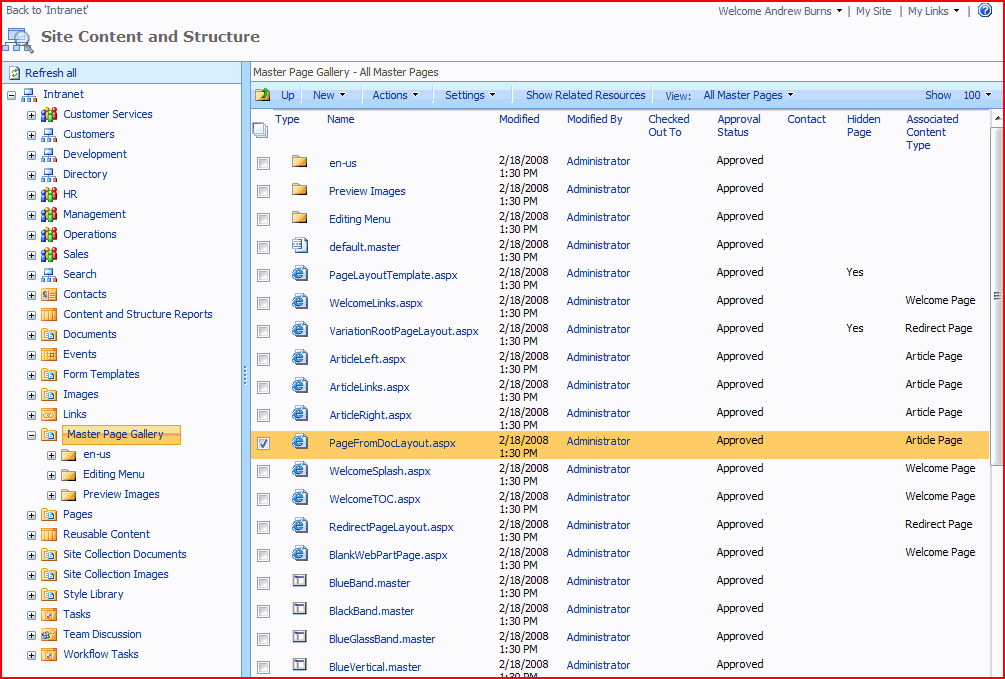
You should then see a window like this:

Site Content and Structure Page

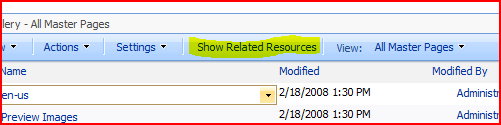
Use the left pane to browse your site collection, and the right one to select the item you want to see the related items for. Then click the ‘Related Items’ button:

site-content-and-structure-related-items-button.PNG

This should then show you the page with a third pane, showing the related items and the nature of their relationship, where they’re located, and so on…

Site Content and Structure Page - Showing Related Items

Finding Related Pages in SharePoint…

Web Part for showing subsites

This is kind of obvious, but why isn’t there a web part for showing subsites?

Sure, there is the ‘Table of Contents’ web part, but annoyingly that shows other things in the site, like lists and libraries, rather than just child sites. And there isn’t any setting I can find on it to make it behave that way – which also seems a pretty obvious feature. So annoying – 90% there, but not quite.

Well Chis Johnson has has the same though and made an example. I’m not entirely convinced about creating the output string in the property (that’s a bit bizarre Chris), but it’s a good start.

I guess it’s another bit of a gripe about out-of-box navigation in SharePoint

Web Part for showing subsites

Getting ListItems from throughout the Site Collection with SPSiteDataQuery

So, recently I was doing some work with SharePoint Web Services, getting possible values for Lookup fields. One of the functions I was using was GetListItems(), to get the values that the lookup field could take.

The method’s signature is:

Lists.GetListItems( [List], [ViewName], [Query], [ViewFields], [RowLimit], [QueryOptions], [WebID]);

I’m not going to talk about most of these parameters – you can read about them here. For my query, most of these parameters were Null (i.e. they were unused). However, the [List] parameter interested me. It’s the ‘Name’ of the list, though I prefer using a GUID (a unique ID) for the list.

The lookup column I was using was defined in a different site to the one where I was making the GetListItems call. I’d pass the GUID, and get the correct values back. My call actually was:

XmlNode resultNode = _lists.GetListItems( listGuid, null, null, viewFields, null, null, null);

So, this query was finding the correct list elsewhere in the site collection based only on the GUID. Interesting – I’m not passing a WebID, and the list is outside the site I’m currently using the web services of. This set me thinking – clearly the call was selecting by list GUID against a table of all ListItems in the site collection.

I was a little surprised – then it hit me – the Content Query Web Part also does that. But how?

Well, a bit of searching later and I found the SPSiteDataQuery object. The object is used for queries against multiple lists in multiple sites. You can specify the types of list to query, values to filter, order by, display, etc.. I’m pretty sure that this is what the Content Query Web Part uses.

Neat! Now I just need to find a reason to use it!

Getting ListItems from throughout the Site Collection with SPSiteDataQuery

Folder based Navigation in SharePoint

We have a customer who wants a fairly simple site – all it needs to be is a heirarchy of web pages.

Unfortunately, SharePoint Publishing features don’t really do this very well. Yes, in a document library it does breadcrumbs as you navigate through folders – but you can’t really do that with Pages. For a start, you can’t put folders in pages libraries!

So, instead, they’ve got this deep structure of sites – just to get the navigation. The site permissions and features are the same at all levels. This is a real administrative pain – especially if want to change the definition of the content types used in the pages libraries throughout the site.

What would be better would be to have navigation providers which show Folders in the navigation – so that they’re exposed in the left navigation (and maybe the top – I’m not sure). You could then enable folders in your page library. Users would then be able to navigate down through folders and pages. I guess there is a question as to which page should be the ‘default’ for a folder (obviously the folder itself isn’t a page that can be shown) – but perhaps something like just having a convention that the page ‘default’ is shown would be enough. Or maybe make it part of the metadata for a ‘Publishing Folder’ content type.
This would mean that the whole deep heirarchy and dozens of sites my customer is using could be dealt with in one single site. I can’t quite believe that nobody had this idea when they were planning the WCM features for MOSS. I don’t even think it’d be that hard – I just hope that I get a chance to implement this sometime…

Folder based Navigation in SharePoint

Not impressed with WordPress 2.5

I’ve just upgraded to WordPress 2.5 – my blog was complaining that I should upgrade – and it feels rather like a downgrade.

I can deal with the fact that the Admin UI isn’t as good as it was – although the Dashboard has improved – but authoring posts has got worse:

  • Uploading an image – didn’t work out of the box. I had to install a plugin to make that work. Now it reports that the upload failed, though it succeeded.
  • Image thumbnailing is not as good – my thumbnails keep getting their left and right edges cut off.
  • Creating links in the WYSIWYG text editor just shows me a blank box – I have to switch to edit HTML view and put them in there.

Come on chaps, this isn’t release ready – you shouldn’t have been advising users to upgrade yet. Everyone, steer clear until these issues are fixed. Perhaps it would be a lot easier to not use Flash, eh?

Not impressed with WordPress 2.5

Document Conversion Service doesn't map column data – Part II

(For the purposes of this post, I’ll use Pages with a capital P to mean items in SharePoint of a Page content type, or a child content type of Page. I’ll also refer to all content types in italics)

Previously, I found that the document conversion service doesn’t map site column data from the Document type to the Page type. So, what are our options?

  1. Get users to fill in the metadata for the converted document
  2. Put the metadata into the Word document
  3. Bespoke coding
  4. Don’t use the conversion service

Let’s look at each in turn.

Get users to fill in the metadata for the converted document

Well, the first option is pretty obvious – get the users to fill in the Site Columns for the converted document’s Page. In my case, this would mean filling in the AWBText column on the ConvertableDocumentPage type. This will work! Unfortunately this means that the page and document’s data is not linked – a change in the AWBText field won’t be replicated between both items, or even just pushed from the ConvertableDocument the next time it’s converted. That sucks a bit, but this might be a valid option.

Put the metadata into the Word document

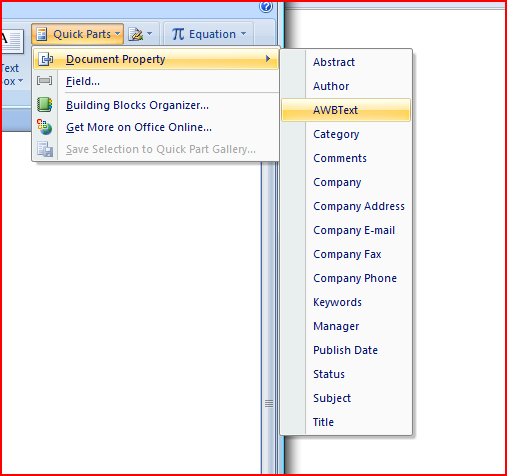
The second option is quite neat – Word document can have ‘Quick Parts’ – some of which are document properties, and this can be connected to the columns of the content type:

Insert a Quick part menu

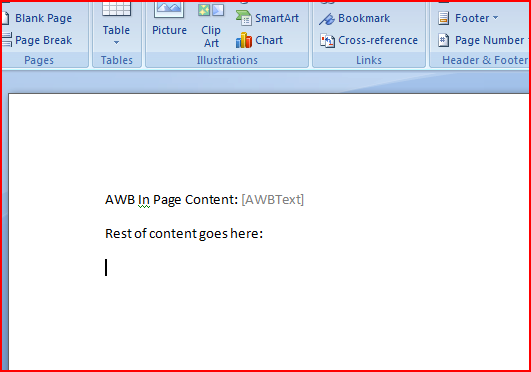
You can put these into the document itself. They’re like document ‘Fields’ in Word pre-2007, but these are much, much better. For a start, you can actually type into the quickpart and it’ll update the document properties – and when you save the document to SharePoint it’ll update the columns of the library! Very cool. Anyway, I updated my Word template from my previous example…

Word document with Quickpart

I then created a new document. Note that the AWBText field in the Document Information Panel and the Quick part is linked – I typed in the value in the document and it was reflecting the Document Information Panel.

Example document for Document conversion with QuickPart

I then converted these document. This resulted in:

Converted Document - AWBText value in Page content

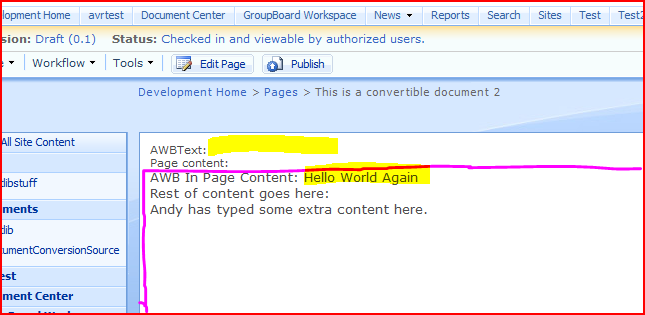
Okay, so I’ve scribbled on this a bit. The area outlined in the purple-pink colour is the content of our document that we converted. You can see that this includes the value of the ConvertableDocument‘s AWBText column. Hurrah! However, above this is the value of the AWBText column on the ConvertableDocumentPage – and it is still empty. In other words, the original document’s metadata is now in the page content – but it still isn’t stored against the Page as metadata. This isn’t really suitable for our customer – they need that column data against the Pages for their navigation. Bah!

Bespoke Coding

Okay, I started to wonder if I could fix this via custom code (i.e. some sort of Feature). I dug through some of the hidden properties of my source ConvertableDocument and destination ConvertableDocumentPage using SharePoint Manager. I knew that there must be some sort of connection as if you Edit the ConvertableDocumentPage is shows you that is has a source document, and lets you edit that document instead. Therefore, they must know where they came from.

In SharePointManager, I found some interesting fields. The ConvertableDocument content type I’d created had a property RcaPageID, which was a GUID. ‘Rca’ stands for ‘Rich Client Authoring’, which is what they seemed to call this page authoring technique until some decided to call it ‘Smart Client Authoring‘ instead. Certainly, internally it’s normally referred to as Rich Client Authoring, or ‘Rca’.

I then checked the ConvertableDocumentPage type, which had a property RcaSourceDocID . This was a GUID, and this ID matched the RcaPageID of the document we used to create the page. Thus, and I’m pretty sure about this, it’s the connection between the source Document and destination Page.

Therefore, I could build an event handler that (when a page is updated or created) gets the Page’s source document, sees what columns they share, and copies across the values of those shared columns. Actually, it’d probably have to exclude some (like title), but you get the idea. Also, it’d have to run a query across all the documents in the site collection, but I’m pretty sure that this is possible.

I like this solution, and think it’s a fairly straight forward, generic candidate for a feature, but unfortunately our customer is unable to make server configuration changes – like installing new features. So that rules that idea out… damn.

Don’t use the Document Conversion Service

I know, this seems a bit crazy – but you could author your content in Word and just copy and paste the content into your pages. This is what our customer was doing. I know, it seems a little crazy to me too, but if you lock down the styles available in a Word template, then the code you’ll copy will have consistent CSS styles in it, and you can prevent any inline CSS through that restriction too. It has no server footprint and no duplication of metadata – but you still have to store the documents (which might require column data too).

So those were the options I was able to come up with. I like the coding option – an event handler could be a very elegant way of dealing with this.

Document Conversion Service doesn't map column data – Part II

Document Conversion Service doesn't map column data – Part I

(For the purposes of this post, I’ll use Pages with a capital P to mean items in SharePoint of a Page content type, or a child content type of Page. I’ll also refer to all content types in italics)

One of our customers wants to author their Pages in SharePoint in Word. Sounds like a case for the Document Conversion Service – author the content in Word, and then convert the Document to a Page. There is a catch though – they’re wanting to capture some meta-data about the document too, such as business unit, review date, department that ‘owns’ the page, etc.. What would the Document Conversion Service do with this information? I didn’t remember seeing any way of setting up mappings between fields. Would the metadata be copied if both the Document and Page content types shared the same site column?

To find out, I did a bit of testing. Much of what I did was actually stuff like creating a new Page layout, and then customizing it. There are better articles about this that my notes, but I’ll include all the steps. (I do assume that you have the document conversion service running and enabled on your site collection though.) I did the following:

I created a new Site Column – I called it AWBText. It was just a text column.

I created a new Document content type which used that new column. I called this content type the ConvertableDocument content type:

The new Document Content Type

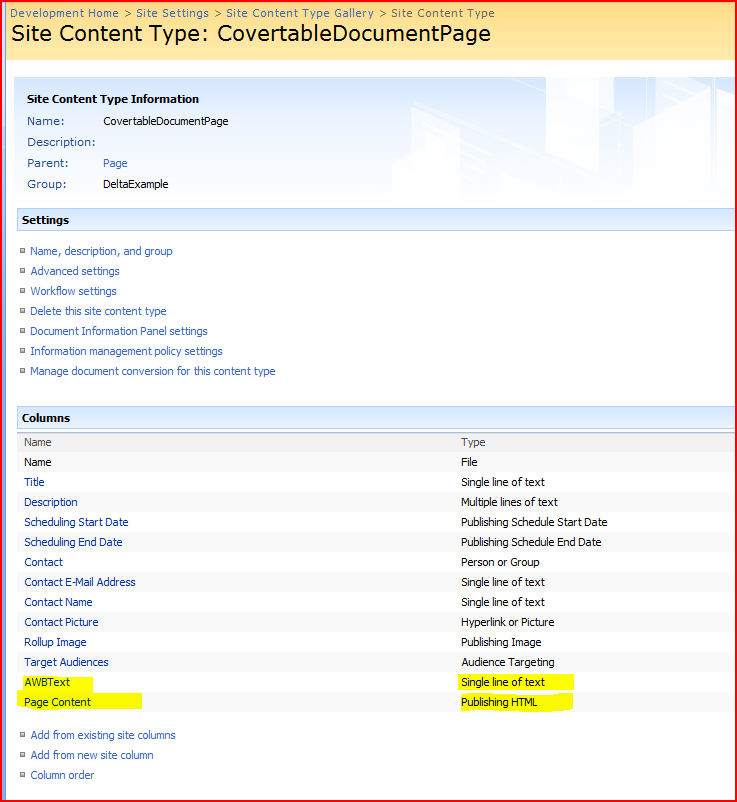
I then created a new Page content type. I called this the ConvertableDocumentPage content type:

Creating a new Page Content type

I made sure that that also used the AWBText column – and the out-of-box ‘Page Content’ column. This column will hold the content of the converted document. You should probably add another column for holding the style information, but I didn’t bother (‘cos I didn’t need it for the test). You could create your own, but I chose just to use the same ones as the Article Page content type – after all, the data (page content) is still the same, and this is why different content types can share the same columns.

The new Page content Type

So, now I’ve got my two content types I’m going to test with, and they both share the AWBText column. However, the ConvertableDocumentPage content type needs a page layout to, well, define how the ConvertableDocumentPage‘s content will be displayed. I cracked open SharePoint Designer, opened my site, and created a page layout:

Create a Page Layout - Step 1Create a Page Layout - Step 2

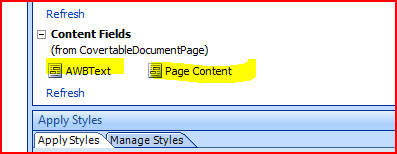
This gives you a page layout to put your content controls into. We’ve only got a couple:

Page Content Controls

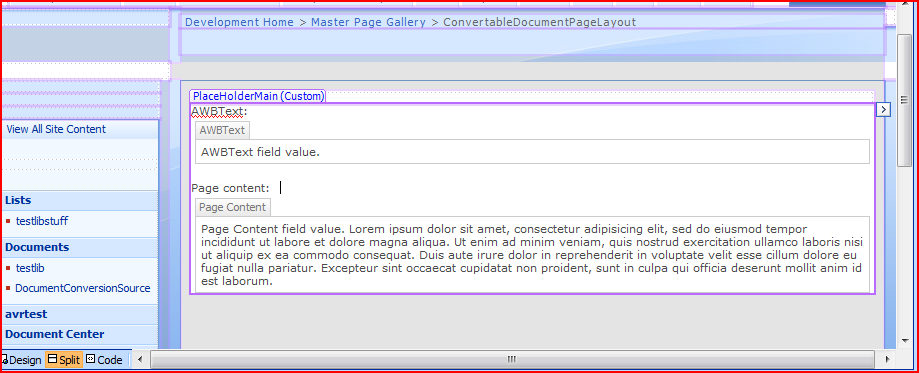
I created a page layout. Here’s the code and how it looked in SharePoint designer:

New Page Layout - CodeNew Page Layout - Design

As you can see, I’m displaying my AWBText field at the top, with the converted content from our converted ConvertableDocument below. Both fields also have labels. I published and approved the layout.

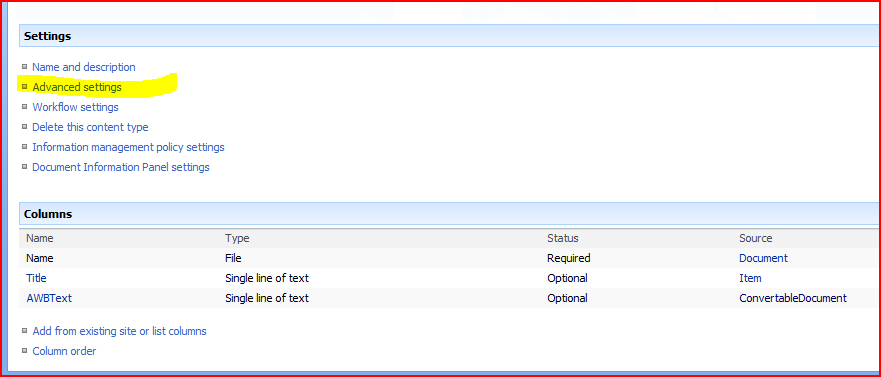
Next, I set up a template Word document – I went to the ConvertableDocument content type’s advanced settings, and edited the template.

Content Type - Advanced Settings

I then just saved the template without making any changes – I’ve found that you need to do this to get the Document information panel to work correctly.

Next up, I set up the document conversion through ConvertableDocument content type’s settings:

Manage Document Conversions - Step 1Manage Document Conversions - Step 2

Then the complex form of the conversion setup:

Manage Document Conversions - Step 3

Take a moment to look at that form. I’ve defined that I want to convert my ConvertableDocument to a page layout of ConvertableDocumentPageLayout – which implies a content type of ConvertablePageLayout. I’m putting the content of the converted content into the Page Content column, and removing any styles (because, as mentioned above, I don’t have a suitable column to put the style information into). Note that there are no settings for other data mappings – no columns of the document to columns of the page mapping.

I saved these settings, added my ConvertableDocument type to a Document Library, and added my ConvertableDocumentPage type to the ‘Pages Library’. Then I created an example document. Note the Document Information Panel at the top shows my AWBText column (and the Title column), and I’ve put in some text.

Example document for Document conversion

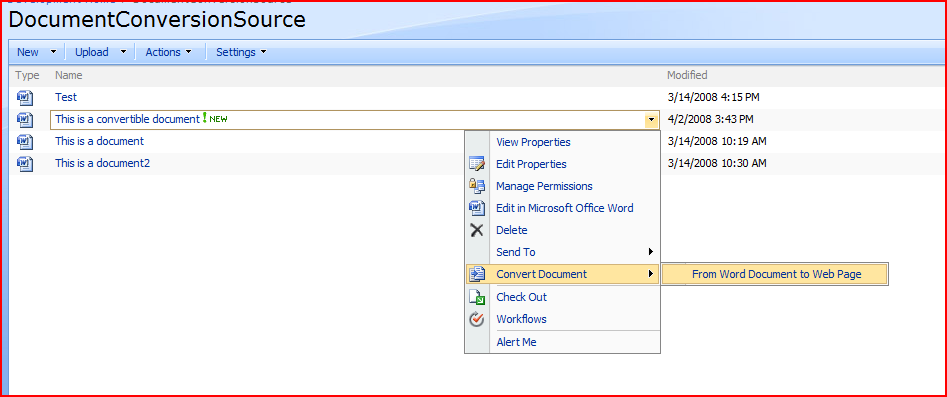
I saved this, and in the document library I chose to convert the document to a web page:

Convert a Document - Step 1Convert a Document - Step 2

This resulted in a page that looked like:

Converted Document - No AWBText value

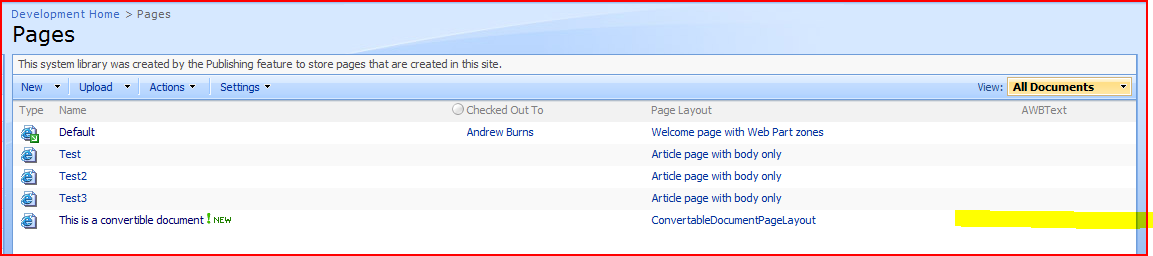
And the document library looked like:

Converted Document in document library - No AWBText value

So, as we can see, the AWBText column has not been copied across, even though it is the same column. During the configuration process, there was no option to configure mapping of fields. It looks like the Document Conversion Service doesn’t map column data. In Part II, I’ll look at some options.

Document Conversion Service doesn't map column data – Part I