Why does Microsoft treat bookmarks so badly?

I hate bookmarks in Word documents. Word links headings and the table of contents nicely, so you can click from the table of contents to a section easily. Still, Word supports them, so some folks use them, which I guess proves that “if you build it they will come” really is true irrespective of how dull the activity is.

My problems with bookmarks in Word is that they are invisible and inflexible. You can’t see them initially – and to show them requires a trip to The Office button > Word Options > Advanced > Show Document Content section > Show Bookmarks. Finding that took a fair bit of work for me – how well is someone less computer literate going to do?

Secondly, bookmarks are difficult to move. The easiest way is simply to redefine them. This is a bit sad – I’m pretty sure that back in the 1980’s I remember using a Mac word processor, which displayed a little ‘Anchor’ icon for bookmarks, and it could be dragged around. Why can’t we have that? I mean, yes, we can bookmark actual bits of text – but really, having something that applies at the line level is just as useful.

Bookmarks in SharePoint are somewhat similar, but worse. You can create bookmarks in the content editor web part – just click the ‘create hyperlink’ icon, and in the dialog supply a bookmark name. If you’d some text highlighted in the editor, well, it’ll now appear as a link (which is hardly ideal) – and if not, well, you’ve now got a bookmark you can’t see, unless you go into the HTML. Worse, though, is that Bookmarks are actually much more useful in the context of a web page, to allow you to direct users to a certain part of the page.

So here’s my request – Microsoft, if you’re going to have bookmarks, make them visible, make them easy to create, delete, move and link to.

I guess I’ll have to look into other content editor parts, just on the off-chance….

Why does Microsoft treat bookmarks so badly?

Why don't ListView Web Parts have a 'View' menu?

This was a question that came up – why can’t ListView web parts that you put on a page through the browser have a View menu? There’s no view menu, and they can’t have one. However, if you go to a List, such as a Document Library, they do have view menus.

Web Part put on Page:

View Menu - Webpart

Document Libary:

View Menu - Library

The interesting thing is, though, that the page you see in the Library uses exactly the same web part as the one you can add to a page. Therefore there is clearly some way of making the web part show that menu, but that you can’t configure that. Why not, what gives?

Well, it suddenly hit me – the views that you create for a list or library actually create new pages. They’ve their own URLs, and are actually their own pages. You can see this through SharePoint Designer. Anyway, all the View menu really does is navigate you between pages. Thus, in a Listview web part that you create on a page this menu would, instead of just changing the view in that web part, take you to another entirely different page. That’s probably not what users would expect! Consequently, the view menu is unavailable in the ListView web parts that you create!

Why don't ListView Web Parts have a 'View' menu?

Using the ASP.NET Web Site Administration Tool to test SQL connections

I’ve been setting up forms based authentication for SharePoint. This is pretty much a normal ASP.NET authentication set up, but I’ve been following the instructions from Andrew Connell, and the excellent instructions from Dan Attis.

In these instructions, we set up the ASP.NET database using aspnet_regsql and then use the Web Site Administration tool to check the connections and create users (if you want to know more, check out the articles). However, here I had a bit of a quirky problem. Both sets of instructions say to, in the Web Site Administration tool, select the Provider tab and then select Select a Different Provider For Each Feature (Advanced). Then click Test by each provider. The problem – no Test link beside either provider.

As I was having some problems, I decided to dig into this. I tracked through the code that makes up the Web Site Administration tool, and found that this link is only shown if your provider contains the text ‘Sql’. I kid you not…

Using the ASP.NET Web Site Administration Tool to test SQL connections

KPI Icons neatly designed for colour blindness

I was talking with one of our customers about SharePoint branding the other day. They’ve got some neat icons for displaying the status of things. However, the guy I was talking to wasn’t keen on them as they were the same colour (although their shape differs). This sort of led around to a discussion of the use of colour (or ‘color’) in web development.

One of my ‘neat tools to have around’ is the Color Contrast Analyzer (which I think you can get here -I must confess, I’m not sure who exactly wrote it or where exactly you’re supposed to get it from). This little tool lets you check the contrast of colour schemes so that your users will be able to use the site, even if they’re colour blind. Fair enough. The really exciting bit, though, is the ability to take screenshots and then simulate the different types of colour blindness.

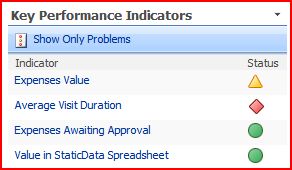
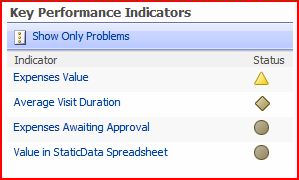
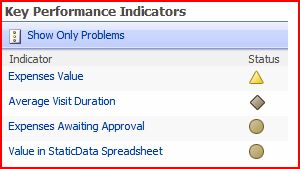
I used this to look at the SharePoint KPI icons. Similar icons to this are available in Excel 2007 for conditional formatting. I thought this was pretty interesting. For a start, it turns out that colour blindness is more complicated that just “red-green-blue” colour blindness, not least because the photoreceptors for the different colours overlap in their response to different frequencies of light. Still, this tool give a good view of the effects of the main conditions. For a full description, read this article at Wikipedia.

KPI - Normal
Normal
KPI - Greyscale
GreyScale
KPI - Deuteranopia (Red-Green Colour Blindness)
Deuteranopia (Red-Green Colour Blindness)
KPI - Protanopia (Different Form of Red-Green Colour Blindness)
Protanopia (Different Form of Red-Green Colour Blindness)
KPI - Tritanopia (Blue-Yellow Colour Blindness)
Tritanopia (Blue-Yellow Colour Blindness)

What this shows is pretty obvious – that the icons from red and green are pretty similar for red-green types of colour blindness (what a surprise), but that the shape of the icons still gives a good visual cue to the state of the KPI. Given that (according to Wikipedia) 7-10% of men are Red-green colour blind, this is important. It’s worth noting that women are very rarely colour blind, and that this probably explains my Dad’s dress sense and my Mum’s opinions on it…

KPI Icons neatly designed for colour blindness

Error "This item cannot be deleted because it is still referenced by other pages"

I was trying to delete a master page in SharePoint designer, and I got the error “This item cannot be deleted because it is still referenced by other pages”. This was strange, as we knew that the master page had been reset for all sites in the site collection. We simply couldn’t find a reference.

Well, it turns out that this is a bug, and that Katrien De Graeve has an answer – create a folder, move the master page into the folder, delete the folder. Bizarre, but it works. And I have no idea how the heck they figured that out…

Error "This item cannot be deleted because it is still referenced by other pages"

Showing Query String parameters in a page in SharePoint

I came across an interesting little problem with putting query string parameters for an HTTP request into a SharePoint page.

I was using a Dataview web part, which accepts query string parameters into the filter that it runs over the data that it’s going to display. That’s pretty cool – I had a list of items with a status column, and I wanted to be able to filter the items based on that status, and that the status would come from the query string. However, on the page, I also wanted to show a title with what was being filtered by in it. So, for example, my url might read:

http://server/site/page.aspx?status=Ready

And I wanted the title in the page to read “Filtering by ‘Ready‘”.

What I didn’t appear to be able to do was to just use the request object . Something like

<%= Request.QueryString.ToString() %>

won’t work as code blocks aren’t, apparently, allowed in the file – the error message is “code blocks are not allowed in this file”. Okay, given that SharePoint designer is supposed to open these pages up to ‘Power Users’ I do get why code blocks aren’t allowed. But I really wanted to write code, and there had to be a way to do that. Well, Kirk Allen Evans has figured out how – you have to enable them in the PageParserPaths section of the web.config file. (It’s strange how easy it is to forget the web.config file that controls SharePoint sometimes). Just to repeat his example (in case blue and red on black is difficult to read):

<PageParserPaths>
<PageParserPath VirtualPath="/pages/*" CompilationMode="Always" AllowServerSideScript="true" />
</PageParserPaths>

This example allows code blocks for all files under the /pages directory of my web application – it’s worth noting that this is for the web application in IIS, not a SharePoint site collection or the like.

Okay, so that works – great. However, there are security implications, and this is probably best only used for development environments. I’ve written a bit about under what conditions our inline code will run.

In our instance our customer is kind of reluctant to make changes on their server. Changing the web.config file would be a bit of a big deal. (As a side note, this is a bit restrictive – I think a blog posting on that is due sometime). So what could we do without a server footprint?

Well, without code in the page, we would need a web control to call in that page – that would work also. It’d be trivial to write one. However, that requires deployment, marking as safe in the web.config file, etc., so really that just pushes the problem into another file.

Thus, I ended up getting a bit ‘old skool’ – JavaScript in the page to write the value from the query string on the client. I came up with:

<script type="text/javascript">
var query = window.location;
var regex = /letter=([^&=]+)/i;
var match = regex.exec( query );
if( match != null ) {
document.write( "Filtering by '" + match[1] + "'" );
}
</script>

Made a function, this became:

function getQueryParam(key) {
var regex = new RegExp(key+"=([^&=]+)","i");
var match = regex.exec(
window.location );
if( match != null ) {
return match[1];
} else {
return null;
}
}

What this code does is it gets the page’s url (window.location), runs a regular expression looking for the ‘letter’ parameter, and if it find one, it outputs some text to the document. A bit noddy, but simple and it works – with no server footprint. Of course, you do need JavaScript enabled…

Showing Query String parameters in a page in SharePoint

More SharePoint Breadcrumb WTF

Previously I’d posted about SharePoint Breadcrumbs and how they were confusing as hell. I’d discussed how SharePoint publishing pages override the ‘PlaceHolderTitleBreadcrumb’ content control, filling it with blankness, and then supplying their own breadcrumb as part of the page content. That seemed pretty dumb to me… …much more sensible would be to override the ‘PlaceHolderTitleBreadcrumb’ with the breadcrumb we want.

Well, it transpires that I was wrong. What I’ve described is true for some page layouts… and not for others. The Default Master page defines its PlaceHolderTitleBreadcrumb ContentPlaceHolder control as:

<asp:ContentPlaceHolder id="PlaceHolderTitleBreadcrumb" runat="server">
<asp:SiteMapPath SiteMapProvider="SPContentMapProvider" id="ContentMap" SkipLinkText="" NodeStyle-CssClass="ms-sitemapdirectional" runat="server"/>
</asp:ContentPlaceHolder>

This is defining the default breadcrumb on the master page.

For the DefaultLayout.aspx layout page, it defines the content for the page to have:

<asp:Content ContentPlaceHolderId="PlaceHolderTitleBreadcrumb" runat="server"/>

That will empty the placeholder on the master page, so no breadcrumb will appear in the usual location – in fact, nothing will. (Note: you will probably want to reduce the blank space that the breadcrumb occupied – otherwise you’ll have a bit gap above your main content area). It then goes on to define (in the PlaceHolderMain Content control):

<td class="ms-pagebreadcrumb" colspan="2">
<asp:SiteMapPath ID="ContentMap" Runat="server" SiteMapProvider="CurrentNavSiteMapProviderNoEncode" RenderCurrentNodeAsLink="false" SkipLinkText="" NodeStyle-CssClass="ms-sitemapdirectional"/></td>
</tr>

There we can see the breadcrumb that appears in the page content.

However, if we look at a different page layout, such as BlankWebPartPage.aspx, we see:

<asp:Content ContentPlaceHolderId="PlaceHolderTitleBreadcrumb" runat="server">

<div class="breadcrumb">
<asp:SiteMapPath ID="siteMapPath" Runat="server" SiteMapProvider="CurrentNavSiteMapProviderNoEncode" RenderCurrentNodeAsLink="false" SkipLinkText="" CurrentNodeStyle-CssClass="breadcrumbCurrent" NodeStyle-CssClass="ms-sitemapdirectional"/>

</div>

</asp:Content>

Okay, interesting. So, what’s different about the breadcrumbs? Well, a few things, but the point relevant to whether or not the “> Pages > default.aspx” is displayed in the breadcrumbs – the SiteMapProvider. The CurrentNavSiteMapProviderNoEncode provider doesn’t seem to include the ‘Pages’ bit of the path – hence it is used by the page layouts. The Default.master’s SPContentMapProvider provides a breadcrumb that includes the ‘Pages’.

It is a bit mystifying why some page layouts blank the PlaceHolderTitleBreadcrumb while other override it – it would have been really nice if they worked consistently. And, as a side note, if you create a page layout and find that your breadcrumbs include the “> Pages > default.aspx” bit, then 1) make sure you’re providing content to override the PlaceHolderTitleBreadcrumb, and 2) make sure that it uses the CurrentNavSiteMapProviderNoEncode navigation provider.

More SharePoint Breadcrumb WTF

What the heck is going on with SharePoint Breadcrumbs?

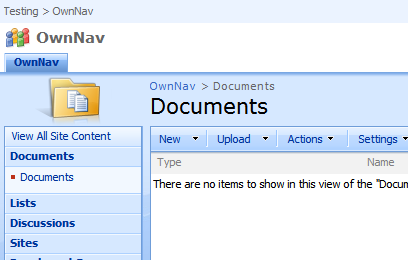
Like many web applications, SharePoint uses ‘Breadcrumbs’ for navigation. This is a set of links that both tell you where in a hierarchy you are, and were you can go to. SharePoint, though, uses two:

WSS-Breadcrumbs-OwnNav

You can see them here at the top left, and then above the word ‘Documents’. But wait, the master page shows us two breadcrumbs? You’re only in one hierarchy, so how does that work? The Planning & Architecture documentation on Technet says:

The default.master master page, which displays form and view pages, includes two breadcrumb controls, a global breadcrumb which contains sites only, and a content breadcrumb, which contains sites and the current page. Some collaboration site templates, such as the Team Site template, also include two breadcrumbs on all Web pages

However, this isn’t quite the complete story. Continue reading “What the heck is going on with SharePoint Breadcrumbs?”

What the heck is going on with SharePoint Breadcrumbs?

Internet Explorer can't open a new document in Library

Curious problem – I kept getting an error message “Internet Explorer has encountered a problem and needs to close. We are sorry for the inconvenience.” whenever I tried to open a document from our internal MOSS system. Strange.

Eventually figured it out from Geekette’s Blogette, and kbAlertz 833714.

We use Project 2003 still. This means two version of the owssupp.dll, apparently, under c:program filesMicrosoft Officeoffice11 and office12

I followed the advice from the MS Knowledgebase article, but got the same error as all the folks at kbAlertz. In the end I tried just uninstalling MS Project Professional 2003 support – and low, Internet Explorer started letting me open documents from MOSS again. And, much to my surprise, Project 2003 web access works just fine – I guess it doesn’t use that dll.

Internet Explorer can't open a new document in Library