"How to Optimize SharePoint WCM for Performance"

Really, this is just a link to the MSDN article “How to Optimize a SharePoint 2007 Web Content Management Site for Performance“. Nice easy title.

It does mention a particular irritation of mine – that many (most?) systems don’t use any kind of compression on static content. I remember seeing Apache admins complaining about people not using compression, oh, 10 years ago. In SharePoint, this is such a waste! JavaScript and CSS files are lovely and compressible – and core.js is big. So is Core.css. Doesn’t seem much reason not to enable it!

To do so, open IIS Manager, and right click on the ‘Web Sites’ folder. Select the service tab, and check the check box. Don’t go for dynamic compression; this would be a bad idea.
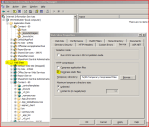
iis-compression

You’ll also want to check/edit the file types compressed. See Using HTTP Compression for details, and you’ll probably need to add the .JS and .CSS extensions.

I must sit down and give this a proper test some time. Certainly I don’t see the same sizes in the article, but then I’m looking at the file sizes on disc; in 12 Hive, and in the temporary compression cache (typically %WinDir%/IIS Temprorary Compressed Files). My numbers show Core.js to be 575Kb uncompressed, 91Kb after compression. Nice!

"How to Optimize SharePoint WCM for Performance"

Personalization Sites, Links, and Two Tabs

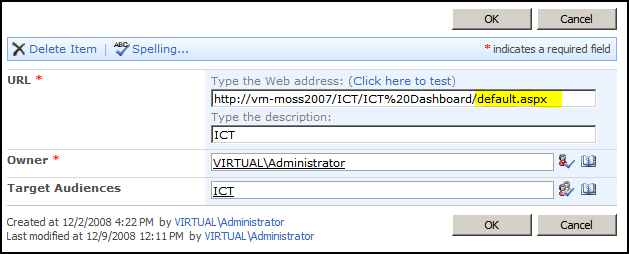
I came across an interesting problem today. I’m building a demo, and I wanted to use personalization site to ‘push’ a dashboard page to a certain set of users. I created a Personalization site (using the Personalization Site tempate), and then went to my SSP to set up a Personalization Link to it:

I then logged in as a user who belongs to the audience it was configured to show for:

Everything looked good – I had my ICT link that I’d just set up, so the audience was working correctly. However, when I clicked on it, things didn’t work so well…

Yup, two tabs were being shown. One was my Personalization Site link that I’d configured in the SSP, and the other was the navigation tab for the site itself. I only noticed ‘cos the name on the tab I’d added in the SSP (ICT) and the name of the site (ICT Dashboard) were different. Also, the Site’s own tab gave me the ‘Pin/Unpin Site’ option.

It’s a bit of a digression, but what’s the pin/unpin site stuff about then? Well, you don’t have to push personalization site links out to users (via the SSP). Instead, users can go to a personalization site and choose to add it to their My Site tabs; this is ‘pinning’ the site. After they’ve done this, they can remove the link (‘unpinning’).

However, that’s not what I wanted – I want the ICT audience to always have that link, and I don’t want another tab, or any pin/unpin options. So how do I get rid of that? There must be a way; it’s obvious that if I’m pushing a personalization site to a bunch of users that they shouldn’t get those options.

After much head scratching, I figured it out. My personalization site link in the SSP only pointed to the site, not to the actual page. I changed it to point to the page (default.aspx).

When I then navigated via that tab, I was shown only one tab – with no pin/unpin options:

Hurrah! What I think happens, then, is that the top navigation compares the URL of the current page in the personalization site with the URLs for the tabs in the user’s My Site. If none of them exactly match, then it adds a tab for the site itself, including the pin/unpin menu. Although my personalization site’s url did resolve to the same page (default.aspx) the URLs were not the same – and hence I was getting two tabs!

Personalization Sites, Links, and Two Tabs

Navigation from a 'My Site' back to a Site Collection

I don’t normally do much with My Sites to be honest – usually I’m building applications, and they’re not usually in My Sites. One of our customers asked me ‘How do users navigate back to the Intranet?’ and I’ve got to admit, I was baffled.

Well, SharePoint’s My Sites have a site-collection setting for ‘Portal Site Collection’. This setting modifies the Global Breadcrumb, and inserts another link there – so you can have a link back to your site-collection.

There a number of issues with that, though… Continue reading “Navigation from a 'My Site' back to a Site Collection”

Navigation from a 'My Site' back to a Site Collection

Calendar and Gantt views have nothing to do with Calendar or Project Lists

I know this sounds obvious, but I had a moment of understanding the other day – Calendar views and Gantt views have nothing to do with Calendar lists and Project lists!

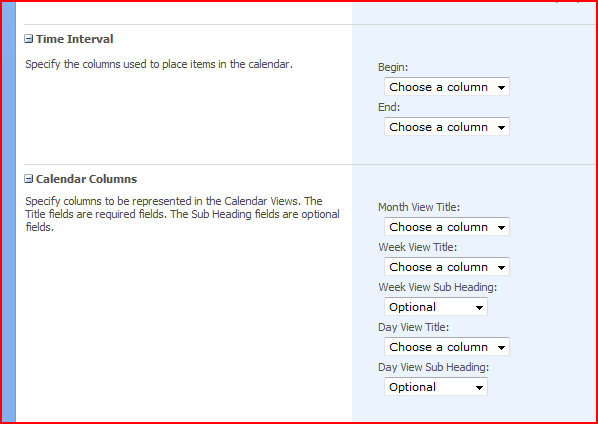
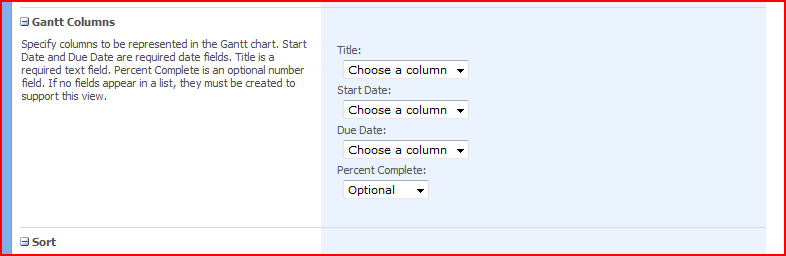
They’re just views that happen to use date columns…

So you can configure the relationship between your list columns and the views…

That’s an interesting concept. We can use this with any list! For example, the start and end dates for help desk calls, or for displaying when things happened. Neat! I can’t think why I didn’t realise this before!

Calendar and Gantt views have nothing to do with Calendar or Project Lists

Setting a Site Master on a Publishing site breaks Meeting Workspaces

So, yesterday I was wondering about custom master pages for Meeting Workspaces. I found that Meeting Workspaces use their own master page (mwsdefault.master), which is referred to in the CustomMasterUrl property of the SPWeb object. As I noted, that sounds a lot like SharePoint publishing sites (i.e. sites with the Publishing Features enabled, like a Publishing Portal or a Collaboration Site).

This rang a bell with one of my colleagues, so he dug out some details. The publishing features let you select a Site Master Page and a System Master PageContinue reading “Setting a Site Master on a Publishing site breaks Meeting Workspaces”

Setting a Site Master on a Publishing site breaks Meeting Workspaces

STSADM Error: Object not set set to an instance of an object

I’d built a .wsp (Web Solutions Package) for a customer, containing the branding I’ve been working on. However, when they tried the command:

stsadm -o addsolution -filename branding.wsp

they got the error:

Object reference not set to an instance of an object. c:branding.wsp: The Solution installation failed.

Interesting – works on my machine. They were running the command as the ‘Administrator’ user on the SharePoint system. A bit of digging, though, showed that the problem was due to either:

  • Not running under a Farm Admin account (which I understand the ‘Administrator’ user was)
  • Not having rights to the Central Admin Content Database on SQL server.

Well, we tried running the STSADM command as the service account, and that appeared to work. ‘Course, this is all over the phone so I’m not certain what permissions that account has, but it appeared to run.

STSADM Error: Object not set set to an instance of an object

Adding a SharePoint system to the Vista Start menu…

The only thing that I really like about Vista (in a ‘I wouldn’t like to go back to not having this’ way) is the search box in the start menu. To be honest, I’ve stopped clicking to start applications entirely – it works that well.

Well, today, I had a surprise. One of my colleagues asked me to test something for him, and update my Group Policy – so I did:

Then he asked me to search for something in the Vista start menu – and look what I found:

That’s right, a ‘Search SharePoint’ option. Continue reading “Adding a SharePoint system to the Vista Start menu…”

Adding a SharePoint system to the Vista Start menu…

Pages in SharePoint VI – Forms Pages

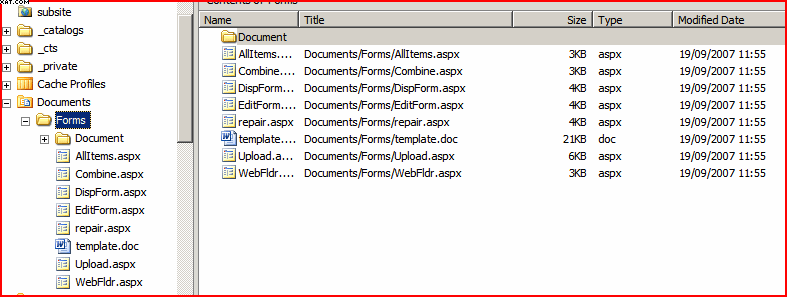
Forms pages are not really that different to normal pages, but are worth a mention. These are hidden pages inside lists and libraries, and they provide the forms for creating new (and editing existing) items. They exist in a hidden _forms folder in the list:

As you can see, the forms folder for this document library contains quite a number of forms pages! So what do they look like?

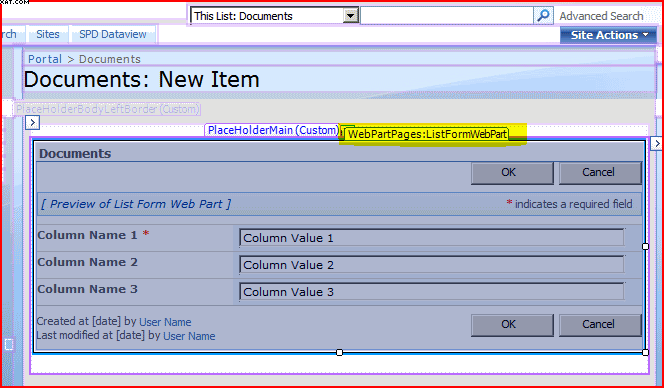
Looking in SharePoint Designer at the form page, we see a web part zone containing a web part – in this case the ListFormWebPart. So why is this interesting? Well, we could put our own web part here, should we wish to. For example, you might be recording longitude and latitude on a list item – but that isn’t very intuitive. Instead, we could write a web part to display a map, and use that to update the list item.

In short, they’re not pages I’d expect to edit often – but there is quite a lot you can do with them!

| Intro | Master Pages | Normal Pages | Publishing Pages | Application Pages | Forms Pages |

Pages in SharePoint VI – Forms Pages

Pages in SharePoint V – Application Pages

Application pages are a pain. They exist inside the _layouts directory, and are common to all the files across the farm. This makes them difficult to change, as such changes happen thoughout the system, not just one site or site collection. They’ve also got their own master page – and it’s difficult to change, which often you want to when branding a system. Essentially, you should try not to need a new master page (application pages can be modified by Themes, so that’s one way of branding them).

So what is an application page? Well, it’s a standard ASPX page. They’re usually for site administration type tasks, though there are a number of pages that users are likely to see regularly that are also application pages – such as file upload, the recycle bin and the “View all a site contents” page. Therefore, there is a problem – you can brand up your SharePoint Site, but if a user tries to upload a file they’ll drop out of that branded experience. For example, this example shows a SharePoint Site using a custom Master page (background window), but if you try to upload a document to that site you’ll see a standard upload page (foreground window). If you look in the URL for the upload page, you’ll notice it’s in the _layouts directory:

Like I say, you can change the style of this window through themes, but really that means just changing the colours – changing the structure of the page is much, much harder. Below is an example of changing the Site’s appearance through themes – you can see that this applies to the upload page too.

You shouldn’t change application pages themselves, as they are core to SharePoint and you won’t be supported by Microsoft – but you can add your own, should you want to present your own farm-wide administration pages.

| Intro | Master Pages | Normal Pages | Publishing Pages | Application Pages | Forms Pages |

Pages in SharePoint V – Application Pages