Styles in the Summary Links Web Part

So, I’d been asked to look at building a links menus something like this:

A Fake Menu with Big Buttons

I thought that this was quite nice. I wondered if I could make something similar to this using the Summary Links web part – curiously, it’s something I’ve never really used, and I though I remembered seeing that it could show images too. So, I set up some examples… Continue reading “Styles in the Summary Links Web Part”

Styles in the Summary Links Web Part

Self Referencing Lookup columns

Came across something I’d not considered – self referencing lookup columns! I was doing some testing, and this totally caught me out (and caused my Outlook plugin to crash and die).

Basically, this is a Lookup column where the List that it is looking up onto is the same as the list where the lookup column is in use. In our case we had a list called ‘Issues’, and the lookup was a multi-choice look-up called ‘Related Issues’. It would let a user select things from the Issues list. All in all, a perfectly sensible use of a multiple lookup, and one I’d not thought of!

However, this in itself wouldn’t cause my plug-in to suffer an error. The problem was with the data I was getting back from the Web Services I’m using. I use the List Webservice‘s GetListContentType method to get information about the Content Type, and I then read the information about the fields. Lookup fields normally come through with an attribute List ; this is the list that’s being looked up onto, and normally it is a GUID. However, for self-referencing lookup instead of a GUID, you get a string ‘Self’‘. Okay, I can’t argue that it’s wrong, but it’s a smidgen annoying that it is inconsistent. Couldn’t it just give me the GUID and let me figure out if that’s the same list? Or use another attribute to denote that it’s a self-reference?

I don’t get why this was built that way.

Self Referencing Lookup columns

Comparison of different ways of putting content into SharePoint 'Pages'

Previously I’ve looked at a couple of ways of entering your data into a Publishing Page. Well, it turns out that really there are 3 ways of putting content in:

  1. Writing content directly using the Content Editor control (the RichHTMLField control)
  2. Writing content in Word 2007 and using the Document Conversion service
  3. Writing content in Word 2007 and cutting and pasting(!)

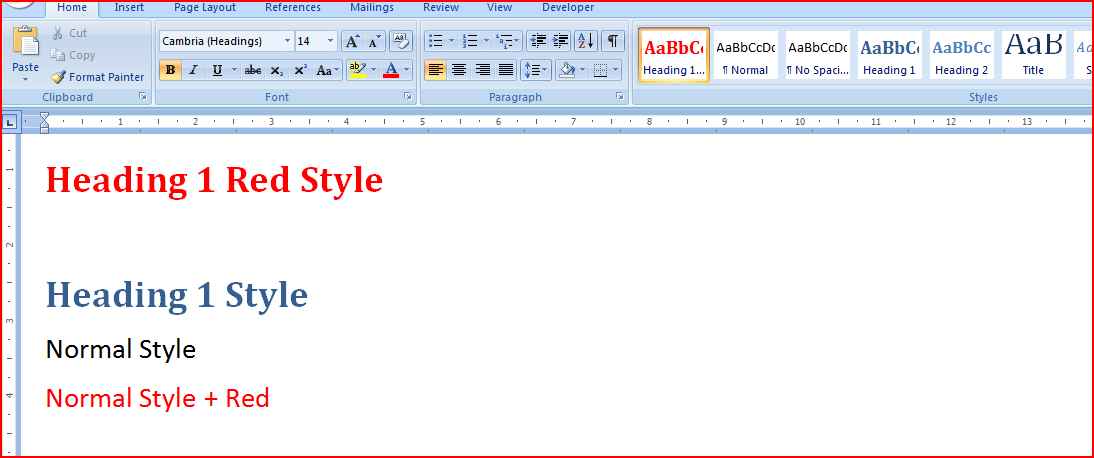
I decided to test and compare these techniques. For options 2. and 3. I used this document:

The Source Word 2007 Document

Let’s look at the results of this and the code that is behind each resulting page… Continue reading “Comparison of different ways of putting content into SharePoint 'Pages'”

Comparison of different ways of putting content into SharePoint 'Pages'

Why is Audit in SharePoint Workflows so hard?

Previously I’d pointed out an article about a problem with SharePoint workflows where the data gets ‘disconnected’ from the user interface after a number of days. Robert Bogue wrote a nice summary of it, explaining why it behaves this way and how to get around it. Anyway, I was catching up on my RSS feeds, and I came across a follow up post that I just had to respond to.

Read his post first; this is just my thoughts. Done? Good.

Robert Bogue makes some good points. I totally agree with him on the second point – Workflow History isn’t an Audit. However, this does sort of highlight the crux of the issue – that there is no Audit. One is mentioned in his previous post, but I’ve never managed to figure out what he meant by that, or to find a decent audit in Workflow that I didn’t have to build myself. And I just keep thinking that this is something that a plug-in tracking service ought to be able to provide…

I guess my ‘What were they thinking!’ isn’t that there is the auto-cleanup, but rather why didn’t Microsoft offer an audit mechanism out of the box. I asked Lawrence Liu about that once at a SUGUK meeting – he said that SharePoint Workflow “wasn’t intended to be an enterprise solution”. Fair enough, if that’s what they want to do (and to leave space for the likes of K2 and Skelta), but then stop advertising SharePoint as having user configurable workflows.

A number of our customers have gone through the logic of:

  1. SharePoint is an Enterprise level system
  2. It has workflow built into it
  3. Therefore we can use workflow to support our enterprise’s processes

They’re pretty disappointed to discover that it lacks pretty basic things like audit. I can’t say I blame them either. But I digress.

Regarding his first point about configuring the timeout – writing an application isn’t a good general option. I’ve no doubt it works, but SharePoint administrators are necessarily programmers. Even if they are, there’s no guarantee that they’re good SharePoint programmers. The setting in the manifest – that I like. Don’t depend on your users being able to code their own solutions. Further, I don’t know how this would apply to SharePoint Designer workflows, though personally I steer clear of them.

So yes, I’d agree with Robert – it’s not a ‘Huge Issue’, but it is a problem.

Why is Audit in SharePoint Workflows so hard?

List Items, Documents and Attached files

One of our customers is saving Outlook emails into SharePoint; I’ve written an Outlook plugin to do this. The emails themselves are being saved as .msg files within Document Libraries.

A Document Library containing .MSG files

However, they’d like a nice column with a little Paperclip icon if the Email has attachments. For normal Lists, there is a column like this (provided that the List allows attachments)… Continue reading “List Items, Documents and Attached files”

List Items, Documents and Attached files

Accessibility in MOSS…

Recently I had a meeting with HiSoftware about the Accessibility Kit for SharePoint that they’ve made (and is available on CodePlex), and it was quite interesting. Making a SharePoint system accessible requires knowing how much of the system to make accessible, and to what level of accessibility. As with branding, doing the whole system would probably be prohibitively expensive. However, making certain areas (such as a WCM site) accessible is quite feasible.

Even if a SharePoint system is developed to be accessible, there is a governance issue in make sure that new content is also accessible. HiSoftware provide the Accessibility Kit (for free) to help develop an accessible site – though custom work will always be required. They also provide several commercial products to facilitate governance of new content and ensuring that it is accessible. I think that these will be useful sometimes, so it’s not a bad sales pitch. Continue reading “Accessibility in MOSS…”

Accessibility in MOSS…

Document Conversion Service and Images

It’s worth noting, the document conversion service doesn’t convert embedded images – which is a pain (and why? They’re available as image files inside the .docx file! Come on Microsoft, that’s craaaazy!)

Instead, you have to insert them as linked objects :

Objects such as images that you add to your Word 2007 document will not appear on the converted Web page if they are embedded in the document. To add these objects so that they appear on the converted Web page, first upload these objects to a document library and then insert them as linked objects (from this location) rather than embedded objects in your document.

There are some instructions here, but this is my guide:

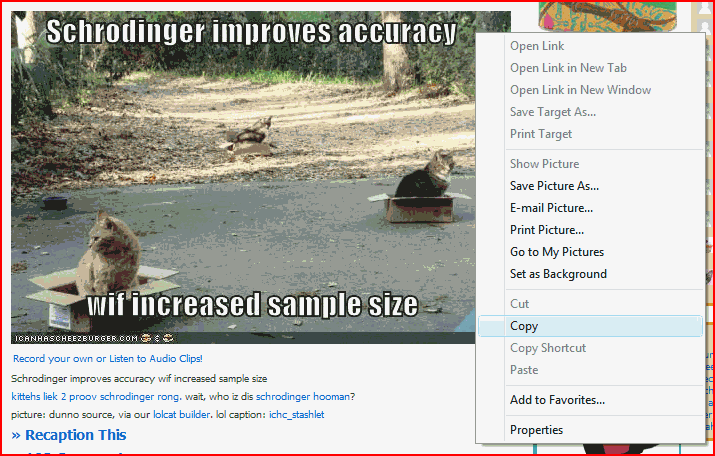
First, find your image on your web page. In SharePoint, this might be a Picture Gallery. Copy the image by Right Click > Copy

Go to Word, and Paste > Paste Special…

The Paste Special Menu

Select that you want HTML Format :

And congratulations, you’ve inserted a link to the image on the web server, rather than the image itself:

Document Conversion Service and Images

Finding Related Pages in SharePoint…

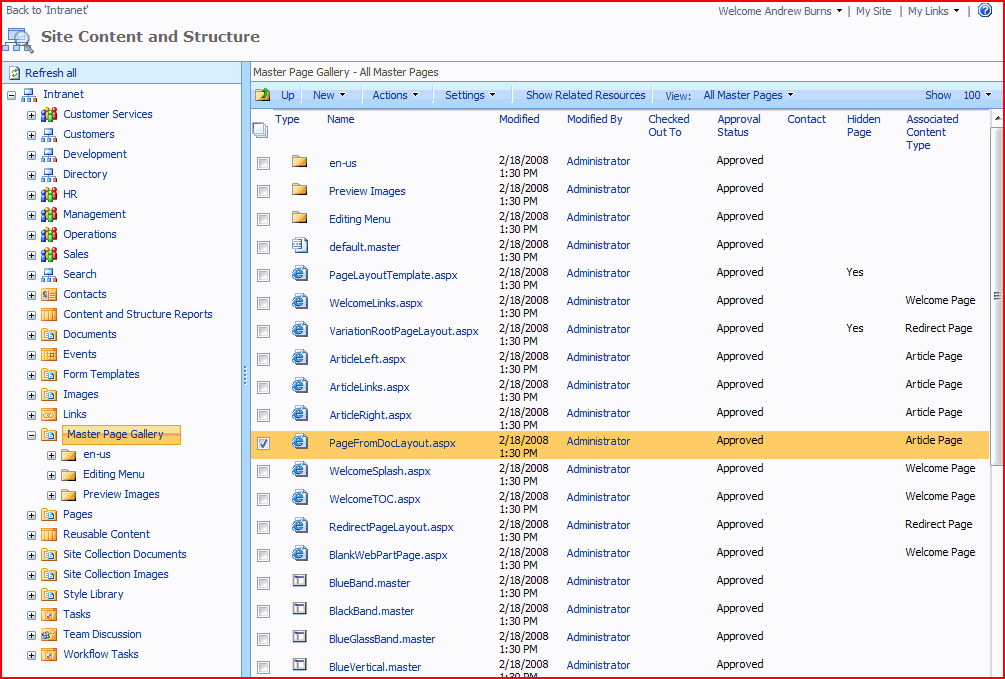
A neat feature of the Publishing features is being able to see the items related to a page. To see this, go the the Site Actions Menu > Manage Site Content and Structure.

Site Action Menu - Manage Site Content and Structure

You should then see a window like this:

Site Content and Structure Page

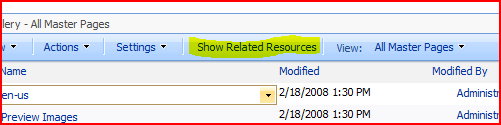
Use the left pane to browse your site collection, and the right one to select the item you want to see the related items for. Then click the ‘Related Items’ button:

site-content-and-structure-related-items-button.PNG

This should then show you the page with a third pane, showing the related items and the nature of their relationship, where they’re located, and so on…

Site Content and Structure Page - Showing Related Items

Finding Related Pages in SharePoint…

Web Part for showing subsites

This is kind of obvious, but why isn’t there a web part for showing subsites?

Sure, there is the ‘Table of Contents’ web part, but annoyingly that shows other things in the site, like lists and libraries, rather than just child sites. And there isn’t any setting I can find on it to make it behave that way – which also seems a pretty obvious feature. So annoying – 90% there, but not quite.

Well Chis Johnson has has the same though and made an example. I’m not entirely convinced about creating the output string in the property (that’s a bit bizarre Chris), but it’s a good start.

I guess it’s another bit of a gripe about out-of-box navigation in SharePoint

Web Part for showing subsites

Getting ListItems from throughout the Site Collection with SPSiteDataQuery

So, recently I was doing some work with SharePoint Web Services, getting possible values for Lookup fields. One of the functions I was using was GetListItems(), to get the values that the lookup field could take.

The method’s signature is:

Lists.GetListItems( [List], [ViewName], [Query], [ViewFields], [RowLimit], [QueryOptions], [WebID]);

I’m not going to talk about most of these parameters – you can read about them here. For my query, most of these parameters were Null (i.e. they were unused). However, the [List] parameter interested me. It’s the ‘Name’ of the list, though I prefer using a GUID (a unique ID) for the list.

The lookup column I was using was defined in a different site to the one where I was making the GetListItems call. I’d pass the GUID, and get the correct values back. My call actually was:

XmlNode resultNode = _lists.GetListItems( listGuid, null, null, viewFields, null, null, null);

So, this query was finding the correct list elsewhere in the site collection based only on the GUID. Interesting – I’m not passing a WebID, and the list is outside the site I’m currently using the web services of. This set me thinking – clearly the call was selecting by list GUID against a table of all ListItems in the site collection.

I was a little surprised – then it hit me – the Content Query Web Part also does that. But how?

Well, a bit of searching later and I found the SPSiteDataQuery object. The object is used for queries against multiple lists in multiple sites. You can specify the types of list to query, values to filter, order by, display, etc.. I’m pretty sure that this is what the Content Query Web Part uses.

Neat! Now I just need to find a reason to use it!

Getting ListItems from throughout the Site Collection with SPSiteDataQuery