Content Roll-up options Part II – Content Query Web Part

The Content Query Web Part is the Out-of-Box content roll-up web part in MOSS, and consequently it’s one of the most widely used.

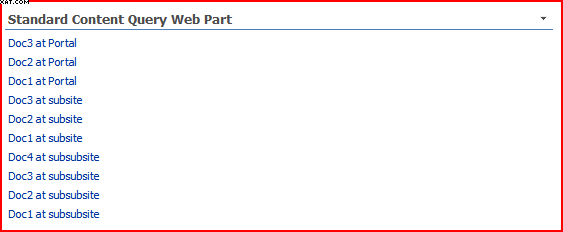
Here’s an example of one rollup up the ‘Project Documents’ type:Standard content query web part
It’s advantages are:

  • Can select from an entire Site Collection, a Site and it’s Sub-Sites, or from a List
  • Can select by List type
  • Can filter the results by Content Type, or Metadata field values
  • Can be configured to do Sorting and Grouping
  • Can display custom data – but this is a little complex

It’s disadvantages are:

  • Customising the view is possible, but tricky.The view has to be defined in XSL, and the Content Query Web part configured correctly to get the data you want to display.
  • No pagination of results – it’s just truncated.
  • The user can’t select the results order, or add his own filter.
  • You can’t query across Site collections.

All in all, I’d say that defining the styles for what you want to display puts this into more a ‘development’ task, which isn’t ideal if you’re trying to push administration out to your users a bit more.

Also, a major issue as far as I’m concerned is the lack of pagination. You can limit the number of items shown, but without an link to the next ‘page’ of items.

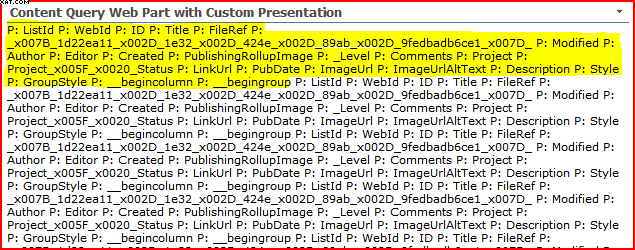
Here’s an example of a Content Query Web Part showing some custom data (highlighted in yellow):

Content Query Web Part showing custom column data.

In short: Cheap, and available, but has that ‘just a bit awkward’ feel to setting it up, and lacks some of the features you’re likely to want. Often will require someone a bit technical for customisation. Continue reading “Content Roll-up options Part II – Content Query Web Part”
Content Roll-up options Part II – Content Query Web Part

Content Roll-up options Part I – Introduction

Well, I’ve been asked to examine some of the options for doing content roll-up in SharePoint. I thought I’d present this as a bit of a mini-series, rather than one huge post.

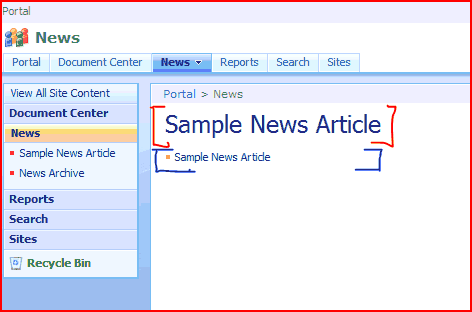
What is content roll-up? Simply, it’s about pulling data from different locations in SharePoint into a single view, and presenting it to the user in a consolidated form. This is a pretty common task in SharePoint. For example, think of things like roll-up of News items from the sites in your site collection. That’s actually built into the Collaboration site template:

News Items - and example of content roll up

I’ve bracketed both the web parts being used with red and blue – otherwise it’s not clear that there are two web parts doing content roll-up here – one for the most recent headline, and another to show a list of recent News items.

There are lots of other examples of where this is useful – consolidation of tasks for a user is another common requirement, or rolling-up all the documents of one type or another – such as expenses, etc..

Anyway, over the next week or so I’ll examine some of the solutions to content roll-up that I’ve seen. It’s not meant to be an exhaustive list – there are quite a lot of solutions to content roll-up around, and you can write your own – but why reinvent the wheel?

| Introduction | Content Query Web Part | Data View Web Part |

| Lightning Conductor Web Part | Bamboo’s List Roll-Up Web Part | Conclusions |

Content Roll-up options Part I – Introduction

Column Names when setting up the Content Query Web Part

So, I’ve been asked to do a look at content roll up options in SharePoint, such as the Content Query Web Part (CQWP), and one of the things I’ve been asked to do is to make it display custom column data. Now, there are lots of articles about this – on MSDN (here and here), Steven Van de Craen has an article about it, and there are lots of other articles about it (those were just the best resources I came across in a quick search). ‘Cos of that, I won’t repeat ’em – I’ll just summarise the steps:

  1. Add extra columns to the selected data (CommonViewFields) by exporting, editing and importing the web. part.
  2. Add a new display format to the ItemsStyle.xsl file.

Okay, so I did this, and one of my extra columns of data I wanted to present was shown (‘Project’), but the
other (‘Project Status’) wasn’t. What was going on?

Well, I sort of figured it was the space in the name – SharePoint does a funny encoding of spaces to _x0020_ which is annoying, and often causes errors. Anyway, I opened up SharePoint Manager to check what the field was called internally – and sure enough, it was called Project_x0020_Status. Fair enough, I’d got the internal name right, but using that still didn’t work.

I decided in the end to have a look at what the fields the CQWP was retrieving. But how to? I could define my own XSL, but I didn’t know what use to get the list of fields. Well, I found the answer on Bart Callaerts web site (actually, there is another good ‘how to customise the CQWP article). Anyway, I’m shamelessly plagiarising just in case that page in unavailable.

His idea was to define an Item Style to show all the columns of the retrieved items. The code for this is:

<xsl:template name="ViewFields" match="Row[@Style='ViewFields']" mode="itemstyle">
<xsl:for-each select="@*">
P: <xsl:value-of select="name()" />
</xsl:for-each>
</xsl:template>

And you can download a copy here – copying and pasting from this page can screw up so of the characters.

Anyway, I used this view to see my items:

Looking through that list of fields, I saw that the name of my column (according to the CQWP) is now Project_x005F_x0020_Status. That’s a bit strange, and I don’t know why that’s happened. I guess that Michael Hoffer’s suggestion (don’t use spaces in the names when you create the columns – add them later) is a good one – I reckon it’d have saved me this trouble!

Anyway, this suggestion worked nicely. I’ve highlighted my data in yellow:

Content Query Web Part showing custom column data.

Column Names when setting up the Content Query Web Part

Interference between SharePoint ItemEventReceivers and Web Services

So, I’ve been working on an application that uploads documents to SharePoint and sets metadata on the item via web services. I’ve made a note about how to do this before – although I’ve yet to vent my frustration at not having a web service call to upload a document in a single transaction that either fails or succeeds. Anyway, the result is that I have to upload the file and then set the metadata against it. Unfortunately, this wasn’t working for one of our customers – sometimes it would work, and sometimes it wouldn’t set the metadata. Continue reading “Interference between SharePoint ItemEventReceivers and Web Services”

Interference between SharePoint ItemEventReceivers and Web Services

Browse Directories Permission and Webs.GetWebCollection strangeness

I’ve had a support call from a client; an application that I’d written wasn’t letting some users see the subsites of a particular site. However, in the web browser, they could see (and navigate) to those sites. “Strange”, I thought, “they must’ve misconfigured their permissions”. Well, they hadn’t. Continue reading “Browse Directories Permission and Webs.GetWebCollection strangeness”

Browse Directories Permission and Webs.GetWebCollection strangeness

Managed paths and folders interferring in a Virtual Directory

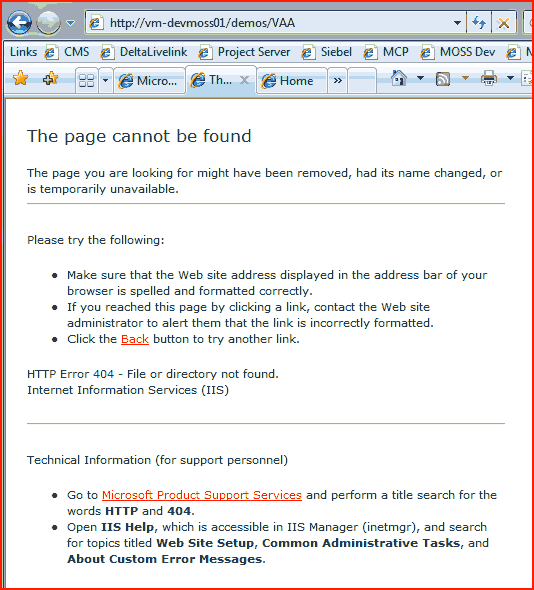
I had a call from a colleague today. He’d created a SharePoint site collection inside an existing and working web-app, using the standard ‘sites’ managed path (e.g. http://server/sites/newSiteCollection). It seemed to have created it okay, but if he went to it he got a HTTP 404 – yup, “Page not found”.

This seemed a bit weird, so I went to see what he’d done wrong. I looked in Central admin – it showed his site collection as existing, but going to it, I got a 404 too. So I created my own – and after it was create, if I went to it, it 404’d too.

(The examples below use the managed path ‘demos’ – I took the screenshot when I was reproducing the problem, having apparently fixed it for the ‘sites’ managed path already. Trust me, this happens just the same if the items involved are using the text ‘sites’).

404 Page for the newly created site collection

If you look at the screenshot you’ll see that I’m trying to go to the site collection ‘vaa’ inside the ‘demos’ managed path.

Well, at this point I tried using some other managed paths to create a site collection, and they worked fine – no 404s when you try going to them just after creation. I began to wonder if it was something about this path, so I opened IIS Manager to see if anything was going on.

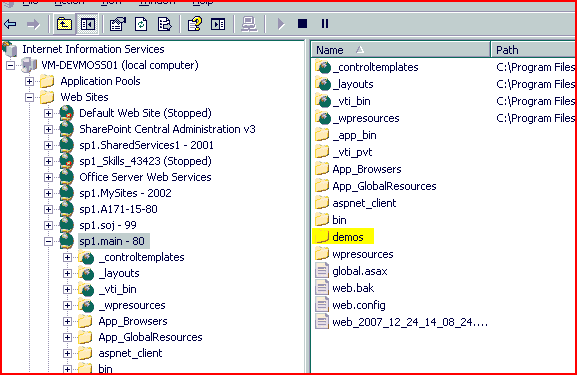
Inside my virtual directory for my web app, I found a ‘sites’ folder (or ‘demos’ in this screenshot):

Screenshot of IIS Manager showing spurious directory

That was a bit strange – normally I wouldn’t expect to see ‘sites’ folder. It seemed empty, so I deleted it, and then I could access my new site collection without getting a 404. I then created a folder to interfer with one of my working managed paths (I created a folder called ‘demos’), and suddenly I started getting 404 errors if I tried going to it.

I don’t know why there was a ‘sites’ folder in that virtual directory, but it was definitely causing problems. I guess I won’t be using a managed path of ‘bin’ or ‘aspnet_client’ then 🙂

Managed paths and folders interferring in a Virtual Directory

Can you sync a Pages library with Outlook?

An interesting question from one of my colleagues:

Can you sync the Pages list with an Outlook 2007 folder and still be able to read the HTML without the MOSS CSS and XSLT stuff?

Well, my gut feel was no, but I thought I’d take a look.

I found that the Connect to Outlook option was available on the Pages library settings, so I thought I’d give it a try.

Outlook showing the Pages library, but can't preview the page.

As we can see, we do have the Pages library synched, and you can see the pages within, but Outlook doesn’t know how to display them. I’m not surprised to be honest; I suspect that the default.aspx item actually just contains the data for the page – but isn’t yet rendered by the page layout or page. Still, one way to find out – open it and take a look:

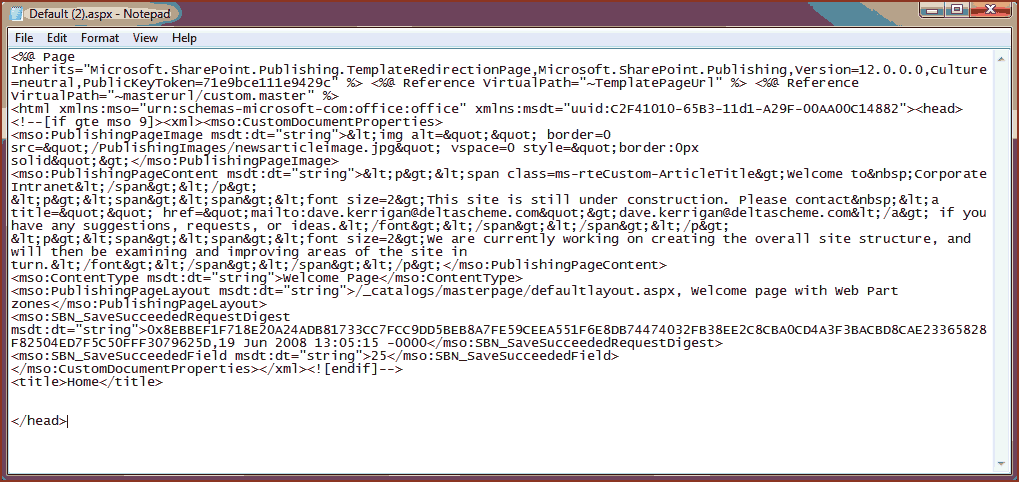
An XML file that is shown when you open the Page item from Outlook

Yup, there you go – the XML of the page ListItem, and not a nice, rendered page with all the layout, master page, styles and stuff. Not really surprising, to be honest, but it would be nice if it did. I can’t think of how it might do that though – clearly the whole browser page would need to be rendered. An alternative would be to generate your pages via the Document Conversion Service, and to synch with the source documents themselves, rather than the pages.

Can you sync a Pages library with Outlook?

Content Classes and Search

So I was playing with SharePoint search a while back, and I was wanting to display some results differently based upon what type of item the result was for.

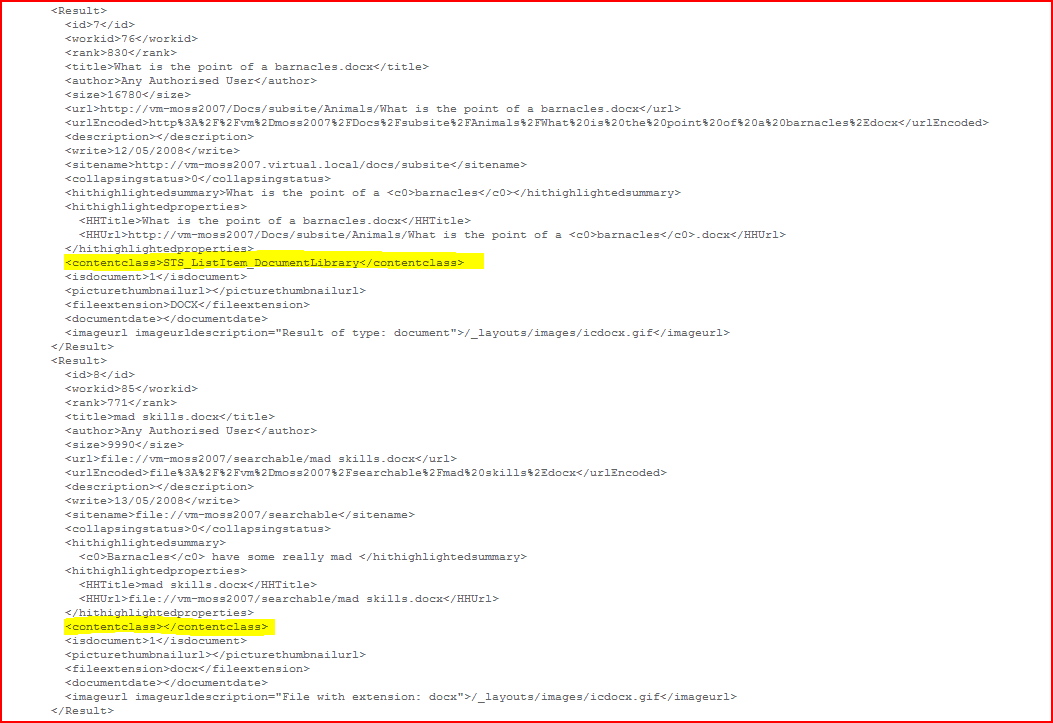
It turns out that there is a node in the results xml file that shows this – ContentClass :

Results XML showing ContentClass

As you can see, the first highlighted result is STS_ListItem_DocumentLibrary. Pretty clear what that is. Not all results actually have a content class – the second highlighted result is from a document on a file share, and it doesn’t have a ContentClass.

So what content classes are there? Well, Dan Attis has a good list, along with a caveat about Welcome pages in the results. There is a similar list here. (Nobody mentions not having a ContentClass though). But unfortunately, I don’t know how to add new content classes

Content Classes and Search

Setting the Master Page of a Team Site with a Feature

Team sites don’t have the Publishing features of MOSS enabled by default, and for WSS systems, well, you don’t have them to enable. Consequently, if you deploy a master page as a feature, you’ll have a bit of fun setting it as the master page.

You can do this though SharePoint Designer, but it’s possible you don’t want your Site owners to have SharePoint Designer, or maybe you just don’t want the hassle of the second step when you provide the master page for a site. Instead, it is possible to set the Master Page through code, and to fire this using a Feature Receiver. This features shows just that – setting the master page through code. Note that to install it, you might well need to make some changes to install.bat. Continue reading “Setting the Master Page of a Team Site with a Feature”

Setting the Master Page of a Team Site with a Feature