Adding a SharePoint system to the Vista Start menu…

The only thing that I really like about Vista (in a ‘I wouldn’t like to go back to not having this’ way) is the search box in the start menu. To be honest, I’ve stopped clicking to start applications entirely – it works that well.

Well, today, I had a surprise. One of my colleagues asked me to test something for him, and update my Group Policy – so I did:

Then he asked me to search for something in the Vista start menu – and look what I found:

That’s right, a ‘Search SharePoint’ option. Continue reading “Adding a SharePoint system to the Vista Start menu…”

Adding a SharePoint system to the Vista Start menu…

Search Date Formats…

I keep forgetting this, so a note to myself. Date formats in search results in SharePoint are defined by:

  • For Team Sites, the sites Regional Settings
  • For Collaboration Portals, the Search Center’s Regional Settings

Now, if only I can remember that this time. Often I see systems showing the dates in American date format (don’t get me started on that one!) and this is how you change the displayed format.

Of course, this raises the question of, if you have offices in, say, London and Paris, how do you support the different time zones? Hmm. I’ll have to puzzle over that.

Search Date Formats…

Adding a Custom View Style to MOSS 2007 or WSS3

Previously I’ve mentioned the intriguing idea of creating a custom view style for SharePoint 2007. Well, it turns out that instructions exist for how to do this in SharePoint 2003 – but I couldn’t find any for MOSS 2007 or WSS3. Well, it turns out that it’s not really that different, as far as I can see!

Continue reading “Adding a Custom View Style to MOSS 2007 or WSS3”

Adding a Custom View Style to MOSS 2007 or WSS3

RSA SecurID and SharePoint

I’d an interesting question from a customer the other day – they wanted Forms Authentication on extranet access to SharePoint, but using two factor authentication. The product mentioned was RSA SecurID, and this means that to authenticate yourself you need:

  • Your Username
  • A hardware device that shows a pseudo-randomly generated PIN number which changes every minute or so.

‘Cos the PIN is a pseudo-random sequence, if the token and a server are in sync, you can validate that someone has read that token inside the last minute. It’s an expensive technology – but neat!

The idea is the same as, say, a credit card. More than just saying who I am and that I have some piece of knowledge (e.g. my PIN number), I also have to have a physical object which is hard to duplicate (my credit card). This should make my identity more certain.

Anyway, how does this fit with SharePoint? Continue reading “RSA SecurID and SharePoint”

RSA SecurID and SharePoint

How well does SharePoint work with Chrome?

Well, Google has launched the next broadside in the battle between Redmond and the Googleplex – their own ‘Chrome‘ Browser. Creating a browser makes a lot of sense for Google, really – IE7 had ‘Windows Live’ as the default search provider for the Search box, so Microsoft were clearly starting to try and leverage their ownership of the desktop, and the browser on it (which, of course, is leveraging their ownership of the operating system – though having a web browser integral to the OS seems bloody stupid to me!) And yes, you can add Google as a provider, and set it as the default (I always do) – but it’s effort, and a bit scary for my granny, you know?

Anyway, I found myself wondering – how does SharePoint work with Chrome? We know Chrome is based on Firefox and Safari and other bits – but how well would it perform. The short answer – not bad…

Continue reading “How well does SharePoint work with Chrome?”

How well does SharePoint work with Chrome?

Forms Based Authentication User Management – bah!

SharePoint supports Forms Based Authentication. I suspect this isn’t news to anyone – if nothing else, I’ve posted about articles describing setting it up.

However, what SharePoint doesn’t do is give you a way of administering these users. In those articles about setting it up they all recommend using the Visual Studio ‘Configure Website’ tool. This works, but it isn’t pretty, and I wouldn’t want customers using it!

Now, it is a shame the SharePoint doesn’t have this facility – we’ve got the membership provider framework abstracting the actual storage of user details (SQL database? Active Directory? Flat file? Who cares? It all looks the same through the provider’s interface). Further, the membership provider interface gives you admin functions that you might want – like list, create, delete, update.

Thus, it seems to me that an obvious thing to provide is a user interface for administering the contents of that MembershipProvider. Sadly, it doesn’t. I suppose the problem is that a developer could extend the membership provider interface or something, but it is a pain. I figured that I can’t be the only person suffering this pain, so I decided to check on Codeplex.

(Don’t get me started on the performance of the codeplex site.)

The Community Kit for SharePoint has an FBA management, well, sub-project, I guess. I tried installing it, but soon found myself asking the same question as Wouter Van Vugt – what is the quality of this project? I mean, it installed okay, but I immediately got a NullReferenceException when I tried to use it. Looking into the code, I found some oddities too – like why is the list of users being filtered to those assigned rights to a site? Surely this should just be administered at the site collection level (well, technically, at the web-app level, but they’re usually the same thing)? That just seems an unnecessary complexity. And the Datasource control used for this lacks create, update and delete – so no clever Gridview usage.

There is also another codeplex project – Forms Base Authentication Tools and Utils for SharePoint 2007 – but it’s been in beta for over a year, and has very little activity, so I don’t know what the state of this is.

All of which, ultimately, brings me around to the idea that I’ll have to write my own (though I’m checking to see if Wouter started to do that, as he seems to have come to the same conclusion). And, actually, the crux of it isn’t a SharePoint thing – such a facility would be easy if there was a DataSource control that wrapped the MembershipProvider. I may just write a datasource to do this.

Forms Based Authentication User Management – bah!

Pages in SharePoint VI – Forms Pages

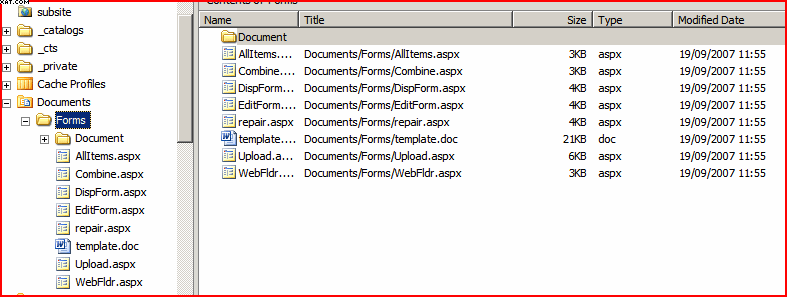
Forms pages are not really that different to normal pages, but are worth a mention. These are hidden pages inside lists and libraries, and they provide the forms for creating new (and editing existing) items. They exist in a hidden _forms folder in the list:

As you can see, the forms folder for this document library contains quite a number of forms pages! So what do they look like?

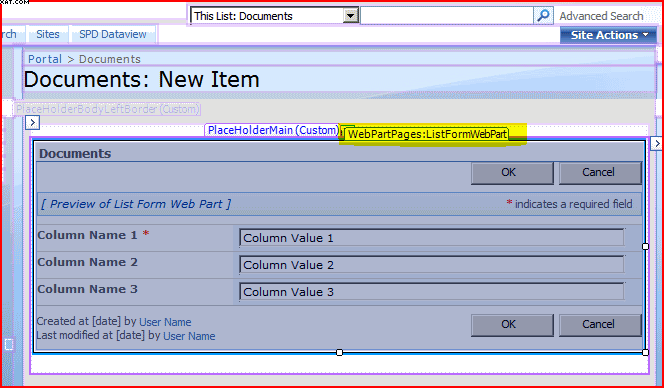
Looking in SharePoint Designer at the form page, we see a web part zone containing a web part – in this case the ListFormWebPart. So why is this interesting? Well, we could put our own web part here, should we wish to. For example, you might be recording longitude and latitude on a list item – but that isn’t very intuitive. Instead, we could write a web part to display a map, and use that to update the list item.

In short, they’re not pages I’d expect to edit often – but there is quite a lot you can do with them!

| Intro | Master Pages | Normal Pages | Publishing Pages | Application Pages | Forms Pages |

Pages in SharePoint VI – Forms Pages

Pages in SharePoint V – Application Pages

Application pages are a pain. They exist inside the _layouts directory, and are common to all the files across the farm. This makes them difficult to change, as such changes happen thoughout the system, not just one site or site collection. They’ve also got their own master page – and it’s difficult to change, which often you want to when branding a system. Essentially, you should try not to need a new master page (application pages can be modified by Themes, so that’s one way of branding them).

So what is an application page? Well, it’s a standard ASPX page. They’re usually for site administration type tasks, though there are a number of pages that users are likely to see regularly that are also application pages – such as file upload, the recycle bin and the “View all a site contents” page. Therefore, there is a problem – you can brand up your SharePoint Site, but if a user tries to upload a file they’ll drop out of that branded experience. For example, this example shows a SharePoint Site using a custom Master page (background window), but if you try to upload a document to that site you’ll see a standard upload page (foreground window). If you look in the URL for the upload page, you’ll notice it’s in the _layouts directory:

Like I say, you can change the style of this window through themes, but really that means just changing the colours – changing the structure of the page is much, much harder. Below is an example of changing the Site’s appearance through themes – you can see that this applies to the upload page too.

You shouldn’t change application pages themselves, as they are core to SharePoint and you won’t be supported by Microsoft – but you can add your own, should you want to present your own farm-wide administration pages.

| Intro | Master Pages | Normal Pages | Publishing Pages | Application Pages | Forms Pages |

Pages in SharePoint V – Application Pages

Pages in SharePoint IV – Publishing Pages

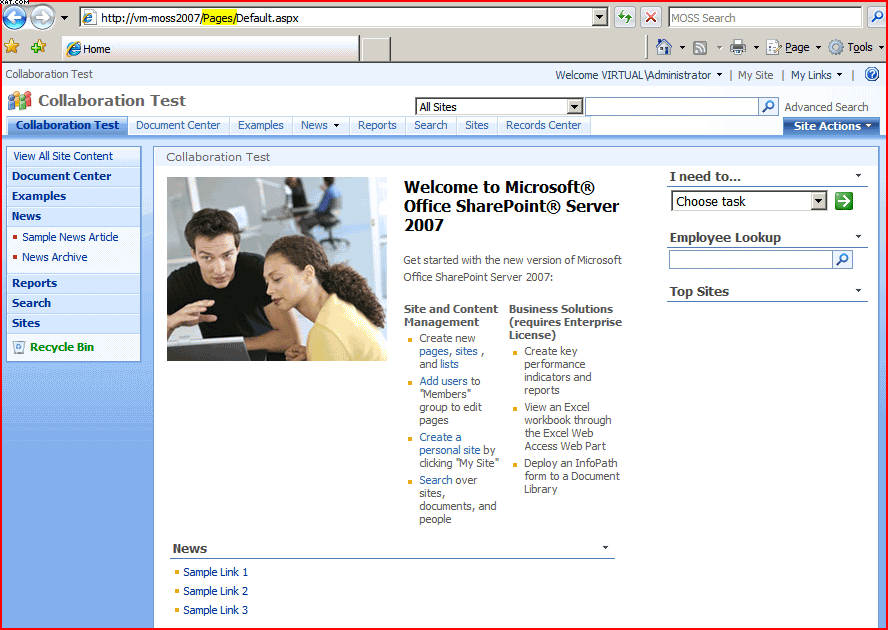
Publishing pages are specific to MOSS, as they require the publishing features! They’re not in WSS3! A good example of a publishing page is the default.aspx of a Collaboration site – that’s right, although the default page has the same name as for a team site, it is quite different:

Looks pretty much the same though, eh? That’s because it uses the same master page, but we’ll come to that in a bit.

These pages are are stored in a ‘Pages’ library (you can see this highlighted in the URL). They aren’t really like documents though; they’re much more like list items. Basically, these pages are collections of metadata columns. Different pages have different content types, such as the ‘Press Releases’ page type of the Publishing Portal site template. The other pages types that come out of the box are the ‘Article’ and ‘Welcome’ page types of a collaboration site.

These content types have different columns of data. For example, you might have a type of page for ‘Vacancies’, and that might have columns for position, salary, etc.. You might also have a type of page for ‘Products’ which might have columns for part number, cost, stock, etc..

Okay, so I’ve said that these pages are more like collections of metadata – how does this become a web page that you can see and read? Well, each page type has one or more page layouts. Lets have a look at one in SharePoint Designer:
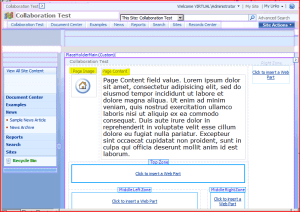
These are kind of like master pages – they define the layout of our metadata columns in an aspx page. In the one shown above there are only 2 metadata columns, which I’ve highlighted – Page Image and Page Content.

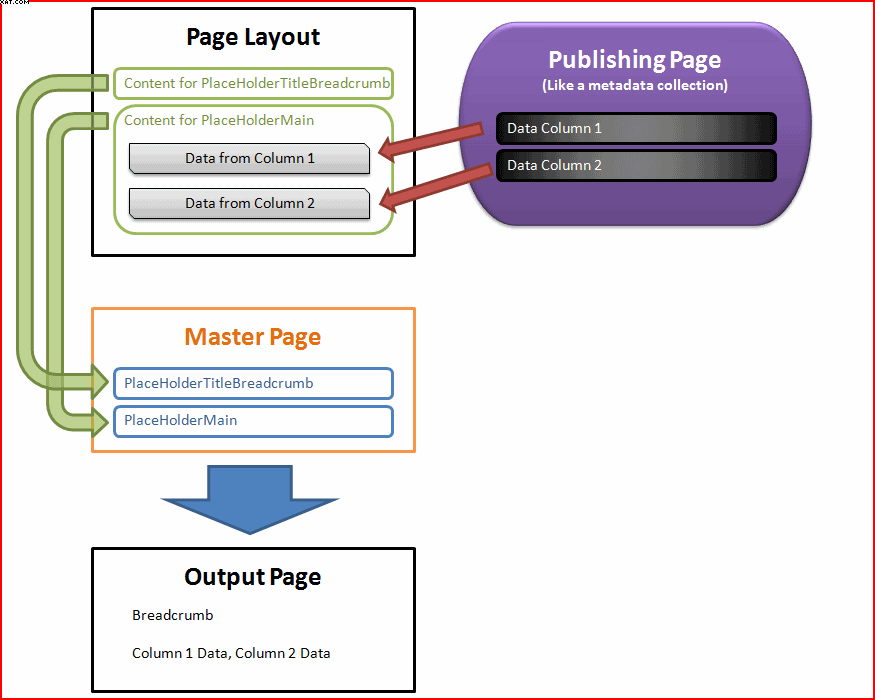
Okay, but what about the master page stuff? Well, out page layout the content controls to go into our master page. Confused? It is confusing, so here is a diagram to show this:

Here you can see the page metadata being put into the page layout, which in turn puts content into the master page, which finally generates the output that gets sent to the user.

One advantage of this approach is that you can change between different page layouts for a given publishing page type – for example, you might have ‘Product page with image on left’ and ‘Product page with image on right’ layouts. Changing the page layout does not require editing any of the content.

| Intro | Master Pages | Normal Pages | Publishing Pages | Application Pages | Forms Pages |

Pages in SharePoint IV – Publishing Pages