Since moving to working with SharePoint and in the Microsoft arena, I seem to keep coming across this phrase ‘Best Practices’. It bugs me – I’ve been working almost exclusively with SharePoint 2007 since it was out in Beta 1, and you know what? I still have no idea what best practice is. Continue reading “What the heck are 'Best Practices'?”
SP2007 Development
Finally Looked at RadEditor…
Another thing on my long list of ‘things to do’ was have a look at the RadEditor control. Well, one of the guys at the SUGUK meeting last week finally gave me an excuse – he told me that it would detect if MS Word Formatted text was being pasted into it. Now that would be cool; all our customers have problems with users pasting Word formatted text directly into MOSS. Hell, we even had this problem with MCMS – some users insisted on writing every in Word, and copying and pasting text across
So although I might be the last dev on earth to do so, I thought I’d take a look. And I was impressed. Continue reading “Finally Looked at RadEditor…”
Link the CQWP to another XSL File
I was going to remind myself of a technique that I’d seen Liam Cleary use on his blog about importing XSL files into ItemStyles.xsl, but then I noticed that he’d linked to a far better idea from Brendon Swartz – you can change the XSL file that the Content Query Web Part presents ItemStyles for. If you export the Content Query Web Part as an XML file and edit it, you’ll see a property ItemXslLink. Simply give it a url to the new ItemStyles.xsl file.
Personally, I think this is fantastic. Frequently I have been asked to do custom roll-up of content, with customised display. If you have to add to the standard ItemStyles.xsl, then before long your ‘Presentation’ setting for your standard CQWPs is full of highly specific item styles. This way, I can isolate – nearly hide – the existance of my much more specific item styles to general users.
And I’ll say more about what I was doing with it shortly.
Interesting Idea for Efficiency – Avoid SPList.Items…
An interesting post by Rob Garrett about avoiding using SPList.Items.Add() – as referencing SPList.Items causes you to get all items in a list, and that can be pretty slow. He does suggest a solution.
I must confess, I’m surprised. I mean, what he describes makes sense – and also explains why have both SPList.ItemCount and SPList.Items.Count (same problem – and the former should be faster) – but surely there is some equivalent already build, some SPList.AddItem() to do it for you? Guess not.
Might be a small optimisation, but it starts to become clearer why the 2000 item recommendation…
At some point, I’ll try and generate some metrics, and then we’ll see when it becomes more efficient and how much so.
Automatic Thumbnail generation in SharePoint
We’ve got a customer doing a very common thing – and to my surprise, the user experience in SharePoint is pretty frustrating.
The customer has a number of publishing pages, with Images at full size and thumbnail size (for roll-up). So far, so standard. What they’d like, though, is the automatic thumbnailing of images when they’re uploaded to SharePoint. “Easy” I thought. Wrong! Continue reading “Automatic Thumbnail generation in SharePoint”
Add a 'Create New Document' link to a page
Okay, so in SharePoint we’ve got document libraries. In them (provided we have the rights) we can go to the toolbar and click ‘New’, select a document type, and be shown a template document to start filling in. That’s pretty nice.
Often, though, we might want to surface those documents (or some of those documents) on a Page – either a Publishing Page or a Normal Page. We can do that with the ListView Web Part:
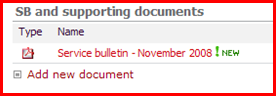
As you can see, it can show an ‘Add new document’ link. We could also get it to show a toolbar very similar to the one in the List itself, or we can configure it to show nothing at all!
However, the ‘Add New Document’ link and the toolbar have quite different functionality. The ‘New’ button on the toolbar opens a new document, and lets you fill in the template, whereas the ‘Add new Document’ link simply takes you to the file upload page – so you don’t get a nice blank templated document to fill in. Continue reading “Add a 'Create New Document' link to a page”
Create a lookup column through the object model
I read a post by Alexander Brütt about programmatically creating a Lookup column, and I thought I’d post my code from a slightly longer article a while back. It’s quite an interesting thing to do!
SPList targetList = site.Lists["My Lookup Target"];

SPField targetField = targetList.Fields["My Target Lookup Column"];

newList.Fields.AddLookup("NewLookup", targetList.ID, false);

SPFieldLookup lkp = (SPFieldLookup)newList.Fields["NewLookup"];

lkp.LookupField = targetField.InternalName;

lkp.Update();
Calculated Columns showing URLs
I keep forgetting how I did this and having to dig into old demo VMs – you can display hyperlinks via calculated columns:

Yup, the AnimalName column is calculated, and consists of a URL and a search term which is the item’s title:
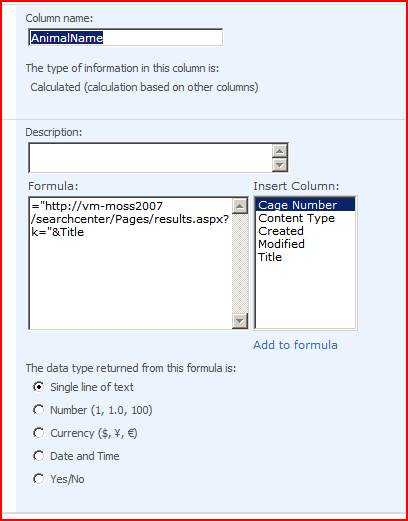
Although it doesn’t show it, [ID] is also a valid column to insert.
Sadly, I’ve not figured out how to display a ‘pretty’ calculated column yet – for example one that just showed ‘Click me‘ rather than the full URL. Still, I thought that having a link to search was interesting. And naturally, if you use the DataView web part then setting up the link with a ‘pretty’ link is trivial.
When saving data into Web Part Properties, remember [Serializable]
So, previously I’d described using a Web Part Property of an ArrayList to store a list of things. In that demo, I’d been just storing strings.
Well, my requirements got a little more complex, so I started trying to store my own objects in there – really, just objects storing data, no logic. However, when I added things to the property and ran .SetPersonalizationDirty() my data wasn’t saved. Worse, the values of other (unchanged) web part properties were lost! They kept coming through as null, rather than the values I’d set previously. There was no indication of error.
Well, here is Andy’s tip for folks who manage to forget the basics of C# development – don’t forget the [Serializable] attribute.
Without it, my data objects can’t, well, be serialized – that is, saved. So it’s unsurprising that my data wasn’t saved! What was unfortunate and threw me off the sent was that there were no errors shown, and that wiping out the values of the other web part properties did rather thrown me off the scent! I guess I was really having an off day when I wrote that…
Notes on the Microsoft.SharePoint.WebControls.DateTimeControl
It’s quite nice that this control is available to use in my own pages/web parts, but there are issues:
- As Sven De Bont noticed, it ignores regional settings for the SPWeb it is within. Set the Locale in code yourself based on the current SPContext.
- If it’s left blank, it still returns a selected date – today! You have to check the DateTimeControl.isDateEmpty property first, and if it is false then you can use the DateTimeControl.SelectedDate property.
- It has it’s own validation, and doesn’t play nicely with standard ASP.NET validators – but can be made to do so.
Here we have in microcosm my problems with Microsoft and date/times – an assumption of the local region, and date time controls that would never be empty, right? I had exactly these same problems when writing an Outlook 2003 to SharePoint 2007 integration too. Makes me a bit annoyed! Especially as we have nullable types! Quit screwing around with DateTimes being structs, make them objects and just return me a bloody null if nothing has been selected!
 Andy Burns' Blog