Column Names when setting up the Content Query Web Part

So, I’ve been asked to do a look at content roll up options in SharePoint, such as the Content Query Web Part (CQWP), and one of the things I’ve been asked to do is to make it display custom column data. Now, there are lots of articles about this – on MSDN (here and here), Steven Van de Craen has an article about it, and there are lots of other articles about it (those were just the best resources I came across in a quick search). ‘Cos of that, I won’t repeat ’em – I’ll just summarise the steps:

  1. Add extra columns to the selected data (CommonViewFields) by exporting, editing and importing the web. part.
  2. Add a new display format to the ItemsStyle.xsl file.

Okay, so I did this, and one of my extra columns of data I wanted to present was shown (‘Project’), but the
other (‘Project Status’) wasn’t. What was going on?

Well, I sort of figured it was the space in the name – SharePoint does a funny encoding of spaces to _x0020_ which is annoying, and often causes errors. Anyway, I opened up SharePoint Manager to check what the field was called internally – and sure enough, it was called Project_x0020_Status. Fair enough, I’d got the internal name right, but using that still didn’t work.

I decided in the end to have a look at what the fields the CQWP was retrieving. But how to? I could define my own XSL, but I didn’t know what use to get the list of fields. Well, I found the answer on Bart Callaerts web site (actually, there is another good ‘how to customise the CQWP article). Anyway, I’m shamelessly plagiarising just in case that page in unavailable.

His idea was to define an Item Style to show all the columns of the retrieved items. The code for this is:

<xsl:template name="ViewFields" match="Row[@Style='ViewFields']" mode="itemstyle">
<xsl:for-each select="@*">
P: <xsl:value-of select="name()" />
</xsl:for-each>
</xsl:template>

And you can download a copy here – copying and pasting from this page can screw up so of the characters.

Anyway, I used this view to see my items:
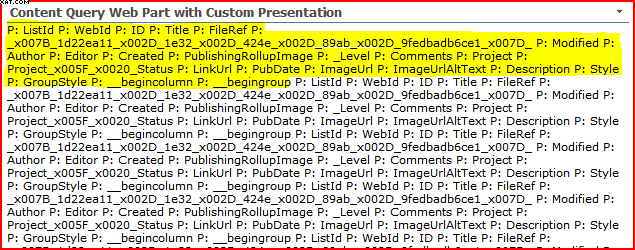
Looking through that list of fields, I saw that the name of my column (according to the CQWP) is now Project_x005F_x0020_Status. That’s a bit strange, and I don’t know why that’s happened. I guess that Michael Hoffer’s suggestion (don’t use spaces in the names when you create the columns – add them later) is a good one – I reckon it’d have saved me this trouble!

Anyway, this suggestion worked nicely. I’ve highlighted my data in yellow:

Content Query Web Part showing custom column data.

Column Names when setting up the Content Query Web Part

Interference between SharePoint ItemEventReceivers and Web Services

So, I’ve been working on an application that uploads documents to SharePoint and sets metadata on the item via web services. I’ve made a note about how to do this before – although I’ve yet to vent my frustration at not having a web service call to upload a document in a single transaction that either fails or succeeds. Anyway, the result is that I have to upload the file and then set the metadata against it. Unfortunately, this wasn’t working for one of our customers – sometimes it would work, and sometimes it wouldn’t set the metadata. Continue reading “Interference between SharePoint ItemEventReceivers and Web Services”

Interference between SharePoint ItemEventReceivers and Web Services

Browse Directories Permission and Webs.GetWebCollection strangeness

I’ve had a support call from a client; an application that I’d written wasn’t letting some users see the subsites of a particular site. However, in the web browser, they could see (and navigate) to those sites. “Strange”, I thought, “they must’ve misconfigured their permissions”. Well, they hadn’t. Continue reading “Browse Directories Permission and Webs.GetWebCollection strangeness”

Browse Directories Permission and Webs.GetWebCollection strangeness

Setting the Master Page of a Team Site with a Feature

Team sites don’t have the Publishing features of MOSS enabled by default, and for WSS systems, well, you don’t have them to enable. Consequently, if you deploy a master page as a feature, you’ll have a bit of fun setting it as the master page.

You can do this though SharePoint Designer, but it’s possible you don’t want your Site owners to have SharePoint Designer, or maybe you just don’t want the hassle of the second step when you provide the master page for a site. Instead, it is possible to set the Master Page through code, and to fire this using a Feature Receiver. This features shows just that – setting the master page through code. Note that to install it, you might well need to make some changes to install.bat. Continue reading “Setting the Master Page of a Team Site with a Feature”

Setting the Master Page of a Team Site with a Feature

Relative URLs in SharePoint Sites using $SPUrl

So, I was really stuck with a Master Page that I’ve been building as a demo. This master page was for use on a site without the publishing features, such as a Team Site.

I wanted to provide a separate CSS file and an image for with this example. However, I hit a snag – how to get relative URLs to the CSS file and image that I was putting into the site?

For Publishing sites, this isn’t normally a problem – you put things such as the master page or images or CSS near the root, and then reference them from the root of the site collection. But from the subsite I was using, this proved hard.

Well, in the end I turned up this post from Ben Robb about using $SPUrl. It turns out that this works nicely for images, and for links to other content, such as CSS files:
<link id="css1" runat="server" rel="stylesheet" type="text/css" href="<% $SPUrl:~site/_catalogs/styles/mystyles.css%>" />
or
<img id="img1" src="<% $SPUrl:~site/images/badger.png%>" />

Unfortunately, it relies on the Microsoft.SharePoint.Publishing namespace, which means that this solution isn’t WSS friendly; certainly I couldn’t get it working. Or rather, maybe it isn’t – perhaps the Microsoft.SharePoint.Publishing namespace is available in WSS3, even if the publishing features themselves aren’t. Does anybody know about that?

Relative URLs in SharePoint Sites using $SPUrl

Property bags are useful – but there isn't one on SPLists?

Edit: As Steven Van de Craen points out, you can use the Properties collection on the Root folder for the List. Neat, didn’t think of that.

I like property bags in things. Sure, they’re open to abuse, but they give an easy way of storing a little extra data, and as a developer, I find that very useful.

For those of you who are wondering what a property bag is, well, it’s a collection on a object where a programmer can just store stuff. E.g.

SPWeb site = properties.Feature.Parent as SPWeb;
site.Properties["Kumquat"] = "True";

Now, clearly the SPWeb object in SharePoint’s API doesn’t have a property called Kumquat; we’re defining a new one, and storing a string. In fact, string objects is all you can store.

Anyway, SPListItems and SPWeb both have property bags, but SPList and SPSite do not. Which is a little annoying, as I want to store some data at the list level, dammit. And I hadn’t realised this ommission until now…

Thoughts on Steven’s point – it’s a good one, and using the root folder would work. Naturally, this means that you’re storing the properties in the SPFolder object, but each list should have one of those, I think. It’s a bit of a pain as, if you’re using the Web Services then I’m sure that getting that root folder will take another call – but as I’ve not validated that the properties are available via the web services, then that might be a moot point anyway.

Property bags are useful – but there isn't one on SPLists?

Easy opening of SharePoint Designer

A tip that much has been made of, but good nonetheless – in Internet Explorer, set the Default program for editting pages to SharePoint Designer to make life easy. Go to Tools > Internet Options > Programs > HTML Editor and select SharePoint Designer.

Configuring IE options

Then in Internet Explorer you’ll have the option to open SharePoint Designer to edit the page. And that’s what it does.

Opening the page in SharePoint Designer.

Easy opening of SharePoint Designer

Why I was getting duplicate rows from the SharePoint Lists Web service

A couple of months ago I was making some calls to the SharePoint Lists Web Service, and I found that I was getting the same item back multiple times. This puzzled me – I mean, it was clearly by design, but why would anyone want a copy of the item for each value selected in a multiple-selection lookup?

It hit me last weekend (like a bolt from the blue) – you could use this to support Group By clauses on queries on a list. Yes, I know, SharePoint itself doesn’t support this functionality, but you could use the behaviour that I’d seen to support this. It’s the only explanation I’ve found that makes sense.

Now, can you turn off this behaviour, so you only get one item. That would be a lot more useful for what I was trying to do, although I now get why you might want that behaviour. Well, I don’t see a query option for it in the documentation, and cracking the service open in Lutz Reflector doesn’t show an option for it either.

I guess we’ll just have to accept the GetListItems command in the Web service API supporting Group By functionality, while SharePoint’s user interface itself does not. It’s a bit weird though that there isn’t an option I can find to turn it off though, and the Object Model behaves quite differently – it only returns one ListItem, and is unaffected by the multi-select lookup.

Why I was getting duplicate rows from the SharePoint Lists Web service

When will a page run inline code in SharePoint?

Previously, I’ve detailed my attempts to show a query string parameter in a page. This should be a simple enough to do as inline code, but as my previous attempts recorded, when I tried:

<%= Request.QueryString.ToString() %>

I got the error “code blocks are not allowed in this file”. This makes sense, as otherwise anyone with SharePoint Designer could put arbitrary code into a page and get it to run. Clearly, as this would let business users enter code, this would not be very secure.

Now, you can turn off this security restriction using Page Parser Paths, but this reduces the security of the system – again, anyone with SharePoint Designer could put code in without review/authorisation. Again, less than ideal.

Well, one of the things I learnt last week was that uncustomised pages (or ‘ghosted pages‘ for the oldies) will run inline code. Fantastic! After all, we’re going to want to package up our code for deployment from Development to Testing and Production systems, right? (Well, you should be, dammit!)

For those of you who don’t know, uncustomised pages are ones that are stored on the server’s hard drive, rather than in the database. To get onto the hard drive, someone has to install them, which means that someone has to review and approve the code. With SharePoint designer, this isn’t the case, and SharePoint Designer can only create pages that are Customized (or Ghosted), and so exist only in the database.

So overall, the process would probably become:

  1. On a development system use PageParserPaths to enable inline code. As this is a dev system, security is less of an issue, and business users won’t be making changes.
  2. Develop your pages that use inline code. You can do this in SharePoint Designer.
  3. When the pages are complete, copy them out and package into a feature. Make sure that your page that you’ve written in installed Ghosted – still the terminology they use in features.
  4. Install and activate the feature. As your page is now uncustomised (or ‘ghosted’), it will now run inline code without PageParserPaths being configured.

That’s a pretty tidy developer story!

When will a page run inline code in SharePoint?

Error: "RootWebOnly='FALSE'" is True…

I wrote a feature to deploy a couple of pages into a Pages library on a site. The idea was that these were search pages, and they’d be going into a Search Center. My feature had an Elements manifest of:

<?xml version="1.0" encoding="utf-8"?>
<Elements xmlns="http://schemas.microsoft.com/sharepoint/">
<Module Name="CustomSearchPages" Url="Pages" RootWebOnly="FALSE" Path="Pages">
<File Url="advanced.aspx" IgnoreIfAlreadyExists="TRUE" Type="GhostableInLibrary">
</File>
<File Url="contentresults.aspx" IgnoreIfAlreadyExists="TRUE" Type="GhostableInLibrary">
</File>
</Module>
</Elements>

Yet when I activated this on my Search Center, the pages weren’t installed. This was weird, ‘cos I’d done nearly exactly the same thing to install my custom Master page. I began swapping bits of the Master Page feature into my Search Pages feature to see if they worked, which at first they didn’t. Then, by accident, I tried installing my Search Pages on my root site, and they did install.

Interesting.

There followed a bit of wild, stab-in-the-dark guessing. I’d seen lots of examples of installing new page layouts, or installing new master pages. These should all go in the root site (or ‘root web’), and so their Module node would specify RootWebOnly="TRUE". I could find very few results, though, where RootWebOnly="FALSE", which is a little unusual on Google. What if the thing that made a module only install on a root site was the presence of a RootWebOnly attribute, rather than the value of it? I tried:

<Module Name="CustomSearchPages" Url="Pages" Path="Pages">

for my module tag. Well, that’s what it turned out to be. I removed the RootWebOnly="FALSE" attribute, and suddenly my pages would install. I guess I was stupid for trying to be explicit in saying that this feature was not only for the root site. I’ve gotta be honest, that sucks, and it wasted me 4 hours. Clearly, it shouldn’t just be the presence of the attribute; by setting it to False I was saying specifically that the feature was not for root sites only. Someone was shoddy in their processing of the XML.

Error: "RootWebOnly='FALSE'" is True…