Knowing when to dispose of SPWeb or SPSite objects is confusing as hell. Well, Roger Lamb has an excellent page showing patterns that can leak memory, and how to avoid them. This should be mandatory reading for SharePoint devs. (Previously mentioned here – but this is a better link)
SP2007 Development
Feature Receiver to apply master pages to normal or meeting sites
As noted previously, Meeting Workspaces use a different master page to the ‘normal’ master pages in SharePoint. This is a little annoying – if I need to apply a new master page, how would I do this?
Well, you can activate a new master page in a Feature Receiver. And we can detect the type of site we’re dealing with. Why not combine the two techniques Continue reading “Feature Receiver to apply master pages to normal or meeting sites”
Corrupt Breadcrumbs in the in PageAreaTitleFrame
I was tempted to call this “The incredible case of the bust rendering of SharePoint pages”, but it seemed a bit long, to be honest. This is a bit of a detective story (and if I’d the developer who built this in the first place, there’d be a murder) so stick with me… Continue reading “Corrupt Breadcrumbs in the in PageAreaTitleFrame”
Putting a web part zone below the quick navigation menu
Previously, I’d been asked to put a web part zone below the quick nav for SharePoint pages. As it transpires, you can’t put web part zones on master pages – but there is no reason why you shouldn’t put one in an asp:Content control (indeed, that’s how you have to place them on pages). And I’d noticed this PlaceHolderLeftActions content placeholder. So I figured, why not put my web part zone into that?
To do this, I need to modify the page that I want this zone to appear for. It could be a Page Layout for publishing pages, or just a normal default.aspx on a team site. I’m using a blank site for this. I simply added a Content control, and dropped a web part zone into it:
<asp:Content ContentPlaceHolderId="PlaceHolderLeftActions" runat="server">

<WebPartPages:WebPartZone id="g_5AD648BF053647678E80875B48A60593" runat="server" title="Zone 1">

</WebPartPages:WebPartZone>

</asp:Content>
I saved the changes, and now when I go to edit that page I see:

Great! I can drop in web parts – here I’ve used a summary links web part:

But you may find the styling leaves something to be desired – but you can design that in!
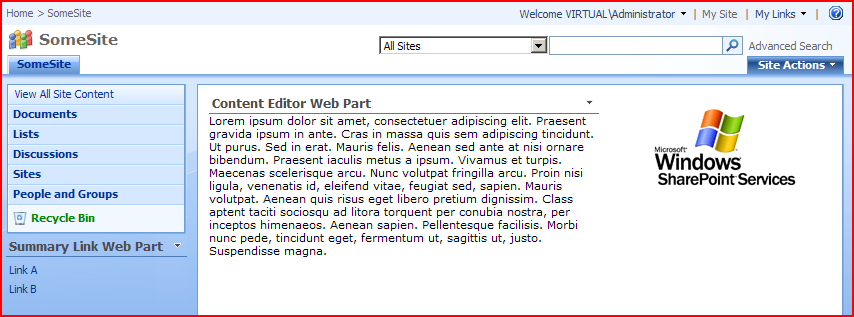
Sure, you could find that you have to do this a lot of times if you want to do this for many pages, but if you’re using the publishing features, you only have to modify each Page Layout once, which is very handy.
How to find out what type of site a site is…
I’ve built a feature to active branding on a site including master page, navigation and themes, which I’ve been talking about a bit over the last few weeks. One issue, though is that meeting workspaces have a different master page to ‘normal’ master pages, so I need to set them to use a different ‘custom’ master page when the feature is activated. This means that my feature receiver has to ‘know’ if the site it’s being activated on is a Meeting Workspace, or some other site.
What defines the ‘type’ of a site is the template that was used in it’s creation. Continue reading “How to find out what type of site a site is…”
How SharePoint Pages are associated with a Master page
So, yesterday’s discussion of the problems with master pages for Publishing and Meeting sites raised a bit of a question with my colleagues. If a site (SPWeb object in the code) has both MasterUrl and CustomMasterUrl properties, how does a page ‘know’ which one to use? Why do publishing pages use the value in CustomMasterUrl, and other pages use MasterUrl?
Well, to find the answer to that, you’ve got to look in the code of the .aspx content page. Here’s the top of one in SharePoint Designer:

Yup, there is a MasterPageFile as per standard ASP.NET. However, the value of this isn’t normal – it’s not the URL itself, but rather a token that gets replaced at runtime.
- ~masterurl/default.master is resolved to the value of the MasterUrl property (i.e. the ‘System Master Page’ on a publishing site).
- ~masterurl/custom.master is resolved to the value of the CustomMasterUrl property (i.e. the ‘Site Master Page’ on a publishing site).
If you look in, say, the default.aspx page on a team site, you’ll see that it uses ~masterurl/default.master.
If you look in, say, the default.aspx page on a meeting workspace, youll see that it uses ~masterurl/custom.master.
If you look in publishing pages, though, you have to look at the page layouts (which are the actual .aspx pages being used). These don’t have a have a MasterPageFile defined – what gives? Well, they inherit from the Microsoft.SharePoint.Publishing.PublishingLayoutPage class, which sets the master page file internally during OnPreInit! You can see in Reflector that it’s using CustomMasterUrl though.
Custom Master Pages for Meeting Workspaces
Irritatingly, in SharePoint Meeting Workspaces have a different master page to most sites (mwsdefault.master and default.master respectively). The differences are actually quite minor – the Meeting has a ‘Custom Tool Pane’ control, so you can add new pages, and a tab bar:
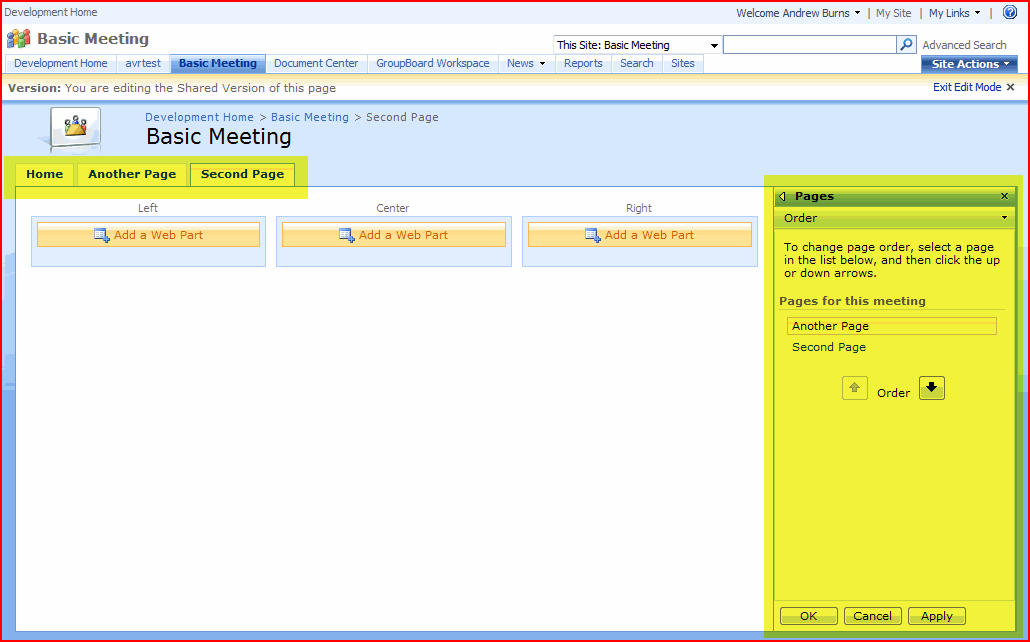
In the code, the pages are very similar, which makes it all the more irritating that they’re not simply the same. As far as I can see, there is no need for this – at least, nothing that can’t be dealt with by content placeholders – which is what they’re using to get rid of the left navigation. Anyway, I digress – the real question is can we customise them, and provide consistent branding on them? Continue reading “Custom Master Pages for Meeting Workspaces”
SharePoint throws unhandled exceptions by design
So, I was doing some testing of some branding, and I took a look at the Survey list. I tried filling out a survey and was shocked by a yellow screen of death:

This was because I’d set SharePoint up for debugging during development. The SharePoint error page appears:
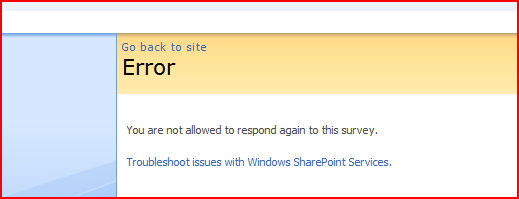
Well, the error is right – I was trying to fill in the survey twice. But it’s not like this is an unexpected error – it certainly shouldn’t be an unhandled exception!
What are the problems with this? Well, it kicks us out of the branding experience I’ve built, which is annoying. It doesn’t allow the user to navigate anywhere. And, dammit, it’s just bad practice! I mean, do these errors appear in the logs?
Don’t get me wrong, no code is perfect and exceptions will happen. That’s fine. But who the hell thought unhandled exceptions was a good bit of deliberate functionality?
Anyone else found other deliberately unhandled exceptions?
Style the DatePicker using an Alternate CSS
A while back I posted about the how daft that the datepicker control isn’t styled by themes, and is in the _layouts directory, so you shouldn’t edit them.
Well, a while later Michelle posted with a good idea of how to brand them – use an alternate CSS URL. I must confess, this tip passed me by until my recent branding efforts, and I discovered her tip.
So why does this work? Well, if we crack open the file iframe.aspx (which I still think is a bloody stupid name. I mean, the defining feature is the DatePicker control, not the bloody iframe it uses) we can see the code:
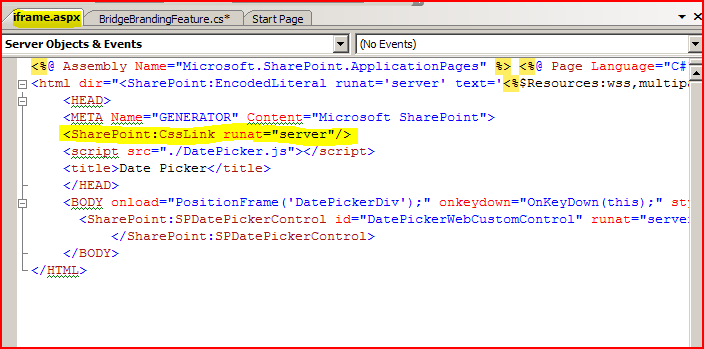
There we go – code to insert the alternate CSS url (but not themes – obviously).
So, I gave this a go:

Tada! Styled date picker, nice one Michelle. However, she notes that it has to be applied to a publishing site, or to a publishing site and all sites below it. Site collections based around a team site would be tricky. Normally, this page is used to set the alternate CSS…
[image of site]
… and, well, Team sites don’t give you that page.
However, we can achieve this in code! All the admin page does is change the SPWeb.AlternateCssUrl property for a site or set of sites. We could have a feature receiver (a bit of code that is run when a feature is activated or deactivated) to do this:
public override void FeatureActivated( SPFeatureReceiverProperties properties ) {
SPWeb site = properties.Feature.Parent as SPWeb;
site.AlternateCssUrl = "[Your URL here]";
site.update();
}
More evidence that brands are best applied by feature receivers. Maybe I should make an example of this…
Programmatically apply a Default Theme in SharePoint
As I’ve mentioned before, I’ve written a brand that is a combination of Theme and Master Page, and is designed to be activated by a feature receiver. When the feature is deactivated, it should restore the previous Master Page and Theme – but it wasn’t doing this for the default theme. Weird.
Well, here’s another good tip from Madalina you have to apply a theme of none, not Default.
web.ApplyTheme("none");
That’s the second tip of hers I’ve found on Google and used in the last 2 weeks. Maybe I should start watching that blog. Anyway, I guess that ‘none’ makes sense when you look in 12/TEMPLATES/LAYOUTS/1033/SPTHEMES.xml – the default theme has a TemplateID of ‘none’.
‘Course my next problem for my feature receiver is that Meeting Workspaces use master pages (MWSDefault.master) that are significantly different to other pages – thanks guys, that’s helpful…
 Andy Burns' Blog