What's up with the awful code in Meeting Workspaces?

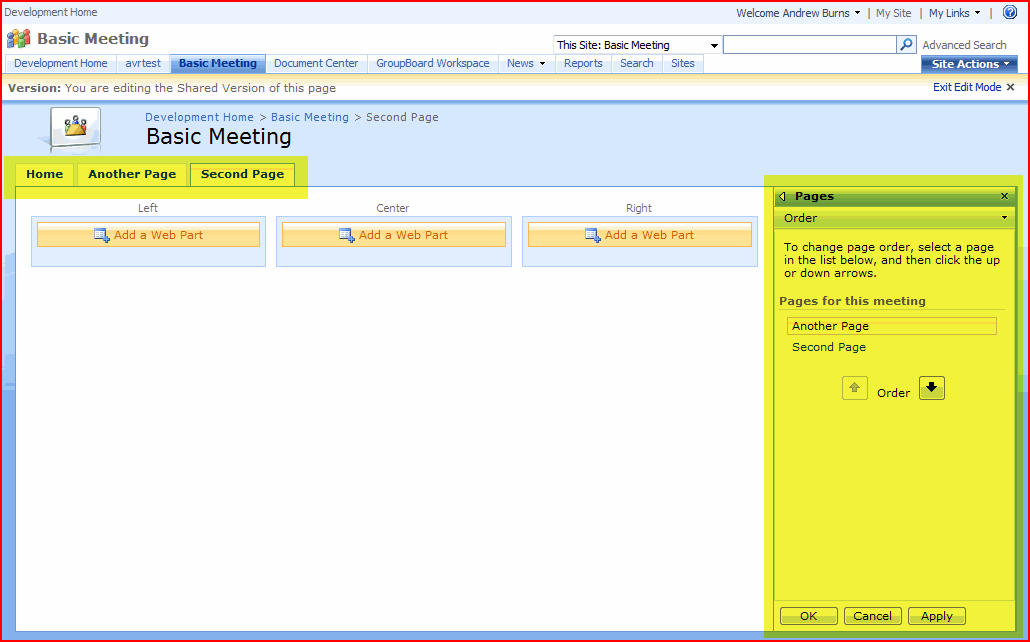
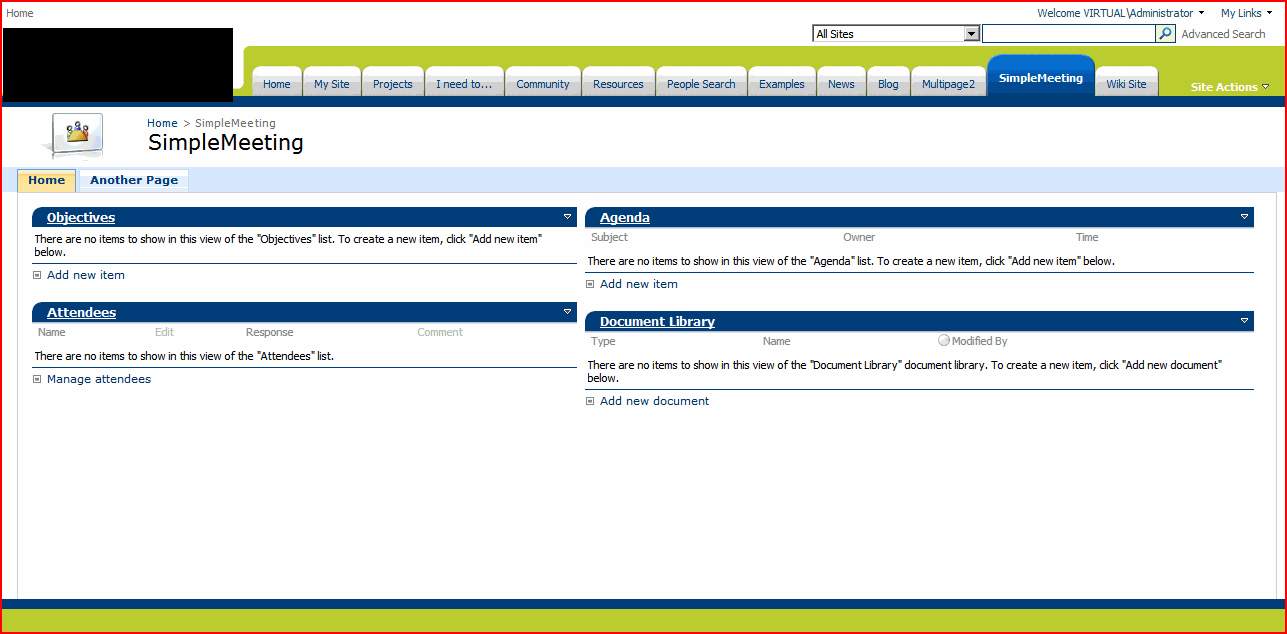
So I’ve been working on branding meeting workspaces and looking at some of the issues within them. I took a look at the branding I’d been building on a meeting workspace:

Yup, lots of nice rounded corners, but you can see that the meeting workspace tabs are currently unstyled. I decided I’d try to make them look just like the ones at the top, and replace that pale blue bar with the green one, like the one at the top. Continue reading “What's up with the awful code in Meeting Workspaces?”

What's up with the awful code in Meeting Workspaces?

Date Picker controls have variable width

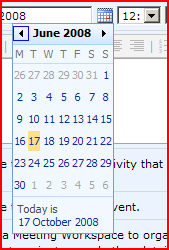
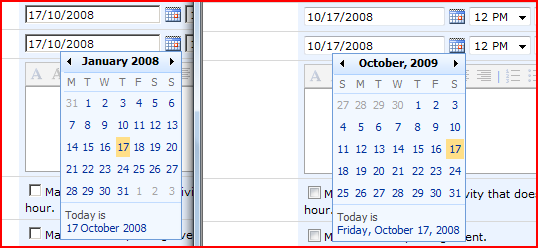
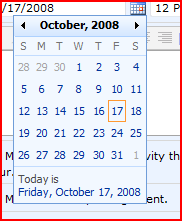
I’m beginning to hate the SharePoint DatePicker control. It displays with different widths:

What defines the width of this control? Damned if I can see – it appears to be the widest element within it. This means either:

  • the length of the date link at the bottom of the control
  • the length of one of the week rows

This is probably less of an issue for Americans (right) than the British (left) – I presume that other Europeans will have the same issue.

Certainly, this will result in some squashed looking calendars on certain months. Yet try as I might, I couldn’t get the calendar to fill an entire area.

And why does the American format give the day and the normal format not?

Date Picker controls have variable width

Setting a Site Master on a Publishing site breaks Meeting Workspaces

So, yesterday I was wondering about custom master pages for Meeting Workspaces. I found that Meeting Workspaces use their own master page (mwsdefault.master), which is referred to in the CustomMasterUrl property of the SPWeb object. As I noted, that sounds a lot like SharePoint publishing sites (i.e. sites with the Publishing Features enabled, like a Publishing Portal or a Collaboration Site).

This rang a bell with one of my colleagues, so he dug out some details. The publishing features let you select a Site Master Page and a System Master PageContinue reading “Setting a Site Master on a Publishing site breaks Meeting Workspaces”

Setting a Site Master on a Publishing site breaks Meeting Workspaces

Custom Master Pages for Meeting Workspaces

Irritatingly, in SharePoint Meeting Workspaces have a different master page to most sites (mwsdefault.master and default.master respectively). The differences are actually quite minor – the Meeting has a ‘Custom Tool Pane’ control, so you can add new pages, and a tab bar:

In the code, the pages are very similar, which makes it all the more irritating that they’re not simply the same. As far as I can see, there is no need for this – at least, nothing that can’t be dealt with by content placeholders – which is what they’re using to get rid of the left navigation. Anyway, I digress – the real question is can we customise them, and provide consistent branding on them? Continue reading “Custom Master Pages for Meeting Workspaces”

Custom Master Pages for Meeting Workspaces

Style the DatePicker using an Alternate CSS

A while back I posted about the how daft that the datepicker control isn’t styled by themes, and is in the _layouts directory, so you shouldn’t edit them.

Well, a while later Michelle posted with a good idea of how to brand them – use an alternate CSS URL. I must confess, this tip passed me by until my recent branding efforts, and I discovered her tip.

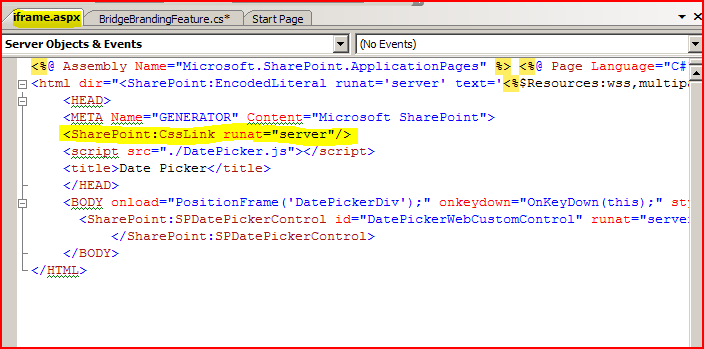
So why does this work? Well, if we crack open the file iframe.aspx (which I still think is a bloody stupid name. I mean, the defining feature is the DatePicker control, not the bloody iframe it uses) we can see the code:

There we go – code to insert the alternate CSS url (but not themes – obviously).

So, I gave this a go:

Tada! Styled date picker, nice one Michelle. However, she notes that it has to be applied to a publishing site, or to a publishing site and all sites below it. Site collections based around a team site would be tricky. Normally, this page is used to set the alternate CSS…

[image of site]

… and, well, Team sites don’t give you that page.

However, we can achieve this in code! All the admin page does is change the SPWeb.AlternateCssUrl property for a site or set of sites. We could have a feature receiver (a bit of code that is run when a feature is activated or deactivated) to do this:

public override void FeatureActivated( SPFeatureReceiverProperties properties ) {

SPWeb site = properties.Feature.Parent as SPWeb;

site.AlternateCssUrl = "[Your URL here]";

site.update();

}

More evidence that brands are best applied by feature receivers. Maybe I should make an example of this…

Style the DatePicker using an Alternate CSS

Programmatically apply a Default Theme in SharePoint

As I’ve mentioned before, I’ve written a brand that is a combination of Theme and Master Page, and is designed to be activated by a feature receiver. When the feature is deactivated, it should restore the previous Master Page and Theme – but it wasn’t doing this for the default theme. Weird.

Well, here’s another good tip from Madalina you have to apply a theme of none, not Default.

web.ApplyTheme("none");

That’s the second tip of hers I’ve found on Google and used in the last 2 weeks. Maybe I should start watching that blog. Anyway, I guess that ‘none’ makes sense when you look in 12/TEMPLATES/LAYOUTS/1033/SPTHEMES.xml – the default theme has a TemplateID of ‘none’.

‘Course my next problem for my feature receiver is that Meeting Workspaces use master pages (MWSDefault.master) that are significantly different to other pages – thanks guys, that’s helpful…

Programmatically apply a Default Theme in SharePoint

Updating the Navigation Settings in a Publishing Site

I’ve got a brand that I’m activating via a Feature Receiver – it’s a theme and masterpage combination, and I want it to work on Team sites too, so it does actually make sense to do it this way!

Part of the brand is that the tabs have rounded corners, and these don’t work very well with the dynamic drop down menus. You can turn this off in the master page for the site pages, but not for the applications pages. Instead, I figured I’d use a feature receiver to turn off the ‘Show Subsites’ and ‘Show Pages’ in a publishing site.

So, the code I had was this:

if (PublishingWeb.IsPublishingWeb(site))
{
PublishingWeb pwSite = PublishingWeb.GetPublishingWeb(site);
site.Properties[ORIG_PUB_SITES] = pwSite.IncludeSubSitesInNavigation.ToString();
site.Properties[ORIG_PUB_PAGES] = pwSite.IncludePagesInNavigation.ToString();
site.Properties.Update();

pwSite.IncludePagesInNavigation = false;
pwSite.IncludeSubSitesInNavigation = false;
pwSite.Update();
pwSite.Close();
}

However, this didn’t work. To describe the code, first, we check to see if the page is a PublishingWeb. If it is, I record original settings in the site properties (so I can restore them when the feature is deactivated). I turn off those navigation check boxes, update the record on the server and close the object.

After much investigation, I realised that updating the properties was invalidating the PublishingWeb object, somehow, and that my changes weren’t being recorded. In the end I had to change my code to:

if (PublishingWeb.IsPublishingWeb(site))
{
PublishingWeb pwSite = PublishingWeb.GetPublishingWeb(site);
bool showPages = pwSite.IncludePagesInNavigation;
bool showSub = pwSite.IncludeSubSitesInNavigation;

pwSite.IncludePagesInNavigation = false;
pwSite.IncludeSubSitesInNavigation = false;
pwSite.Update();
pwSite.Close();

site.Properties[ORIG_PUB_SITES] = showPages.ToString() ;
site.Properties[ORIG_PUB_PAGES] = showSub.ToString() ;
site.Properties.Update();
}
This worked nicely!
Updating the Navigation Settings in a Publishing Site

Changing SharePoint Menu Colours

I was looking at something a bit curious – I wanted to change the menus in SharePoint, specifically the colour down the left hand side of the menu:

As the menus are dynamic, I wasn’t able to interrogate them with the IE Dev toolbar to know what styles were being applied. I took a screenshot and tried looking for the colour of the bar in the CSS files. It wasn’t there.

Huh?

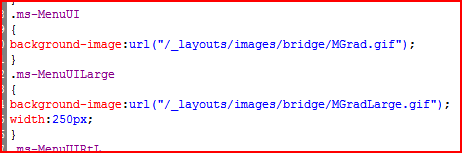
Well, I realised that I’d have to trawl through the CSS searching for a likely looking class. I tried Core.css and found the ms-MenuUI and ms-MenuUILarge classes (also defined in the in the Menu.css file, for some reason).

These use images for those bars! Ah! Changing them results in my new background image being used:

Sorted!

Changing SharePoint Menu Colours

So can you put Web Part Zones in Master Pages, or what?

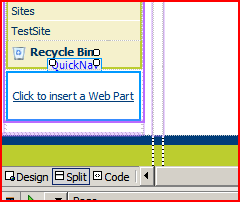
A customer wants to put a web part zone below the quick nav in their SharePoint site – not an unusual request. Naturally, I cracked open SharePoint Designer, and tried adding a web part zone – and this is what I got:

I tried to understand why this would be the case, but quite simple, couldn’t. Naturally, I then referred to the documentation (!) on MSDN. It had mentioned this at the bottom of the page.

You cannot add Web Parts in zones to a master page. You can add static Web Parts (parts outside of a zone) to a master page, but you cannot add dynamic Web Parts to master pages.

Okay, that seems clear enough – I get why you could add static web parts to a master page, but not dynamic – but what about the web part zones themselves?

You can add zones to master pages and later add Web Parts to the zone in the browser, but the Web Parts are associated with the content page.

Yup, that seems fair enough. I get that in theory. So why in practice does SharePoint Designer say I can’t?

I began looking around to see if others had tried this – and found interesting contradictions. Mirjam says you can’t – but does point out that you can override the standard quick nav in your page layout, and put a web part zone into that. Microsoft SharePoint Step by Step seems to say the same thing. Yet ASP.NET would support this just fine, and as noted the MSDN docs say it should work.

Okay, one thing left to do – actually try it. SharePoint Designer won’t let me add the web part zone by ‘drag and drop’, but I can code one by hand:

And it renders in SharePoint Designer:

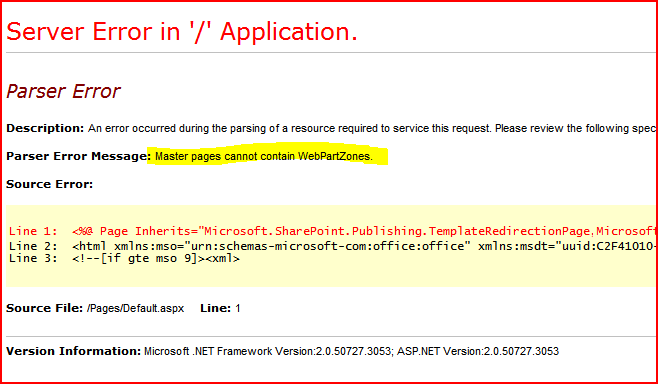
But when you try and use the page:

Well, I ain’t going to argue with a parser error – it looks like you really can’t do this, despite the MSDN docs.

So can you put Web Part Zones in Master Pages, or what?

SharePoint: Enabling Dynamic Navigation on the Left Nav Menu

I’ve been modifying SharePoint’s Left nav menu, as I’m sure I’ve mentioned. Well, here’s the before and after styling, for the curious:

The next requirement that came up was to enable Dynamic menus on the left navigation. This is actually pretty easy:

  1. Open up your master page in SharePoint Designer
  2. Find the sharepoint:aspmenu control for the left nav
  3. Set the MaximumDynamicDisplayLevels to 1 or more

As an experiment, I did this (I’ve highlighted the dynamic menu ‘cos it wasn’t really styled yet, and so wasn’t very visible):

However, we’ve just hit a snag. It started right at the point where we editted our master page.

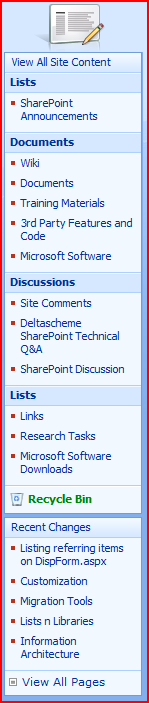
You’ll notice that the page has a ‘View All Site Content‘ link. This goes to the page viewlsts.aspx – which is an application page in the LAYOUTS directory, and so does not use our master page and will not have our dynamic menus.

Arse. Where does it get this left hand navigation then? Most Application Pages don’t have any left navigation. viewlsts.aspx defines it’s own – which happens to be identical to the default content of the default master page’s left nav.

So what can we do? We can’t modify viewlsts.aspx – it’s in the _layouts directory, and Microsoft are specific about not modifying stuff in there.

  • Remove all links to it, pretend it isn’t there. I’d sooner not – it’s a useful page.
  • Live with it. So the View All Site content page has navigation inconsistent to the rest of the site – get over it.
  • Increase the permissions to see the View All Site Content link. By default, it’s presented inside an SPSecurityTrimmedControl, just with very low permissions defined. Increase this to admin level, and then have them live with inconsistent navigation on the ‘admin’ page
  • Replace viewlsts.aspx.

We can’t modify viewlsts.aspx – but we can replace it. We could take a copy, and modify that – Microsoft don’t mind that – to use our dynamic navigation. We can put this new copy in the _layouts directory. We’ll then need to update the links in our site:

  1. One link is coded into the master page. Just update the URL the SPLinkButton to it.
  2. The other is in the Site Actions Menu. This ought to be possible, but I haven’t really had a look yet.

Hope that helps!

SharePoint: Enabling Dynamic Navigation on the Left Nav Menu