Styles in the Summary Links Web Part

So, I’d been asked to look at building a links menus something like this:

A Fake Menu with Big Buttons

I thought that this was quite nice. I wondered if I could make something similar to this using the Summary Links web part – curiously, it’s something I’ve never really used, and I though I remembered seeing that it could show images too. So, I set up some examples… Continue reading “Styles in the Summary Links Web Part”

Styles in the Summary Links Web Part

Comparison of different ways of putting content into SharePoint 'Pages'

Previously I’ve looked at a couple of ways of entering your data into a Publishing Page. Well, it turns out that really there are 3 ways of putting content in:

  1. Writing content directly using the Content Editor control (the RichHTMLField control)
  2. Writing content in Word 2007 and using the Document Conversion service
  3. Writing content in Word 2007 and cutting and pasting(!)

I decided to test and compare these techniques. For options 2. and 3. I used this document:

The Source Word 2007 Document

Let’s look at the results of this and the code that is behind each resulting page… Continue reading “Comparison of different ways of putting content into SharePoint 'Pages'”

Comparison of different ways of putting content into SharePoint 'Pages'

List Items, Documents and Attached files

One of our customers is saving Outlook emails into SharePoint; I’ve written an Outlook plugin to do this. The emails themselves are being saved as .msg files within Document Libraries.

A Document Library containing .MSG files

However, they’d like a nice column with a little Paperclip icon if the Email has attachments. For normal Lists, there is a column like this (provided that the List allows attachments)… Continue reading “List Items, Documents and Attached files”

List Items, Documents and Attached files

Document Conversion Service and Images

It’s worth noting, the document conversion service doesn’t convert embedded images – which is a pain (and why? They’re available as image files inside the .docx file! Come on Microsoft, that’s craaaazy!)

Instead, you have to insert them as linked objects :

Objects such as images that you add to your Word 2007 document will not appear on the converted Web page if they are embedded in the document. To add these objects so that they appear on the converted Web page, first upload these objects to a document library and then insert them as linked objects (from this location) rather than embedded objects in your document.

There are some instructions here, but this is my guide:

First, find your image on your web page. In SharePoint, this might be a Picture Gallery. Copy the image by Right Click > Copy

Go to Word, and Paste > Paste Special…

The Paste Special Menu

Select that you want HTML Format :

And congratulations, you’ve inserted a link to the image on the web server, rather than the image itself:

Document Conversion Service and Images

Finding Related Pages in SharePoint…

A neat feature of the Publishing features is being able to see the items related to a page. To see this, go the the Site Actions Menu > Manage Site Content and Structure.

Site Action Menu - Manage Site Content and Structure

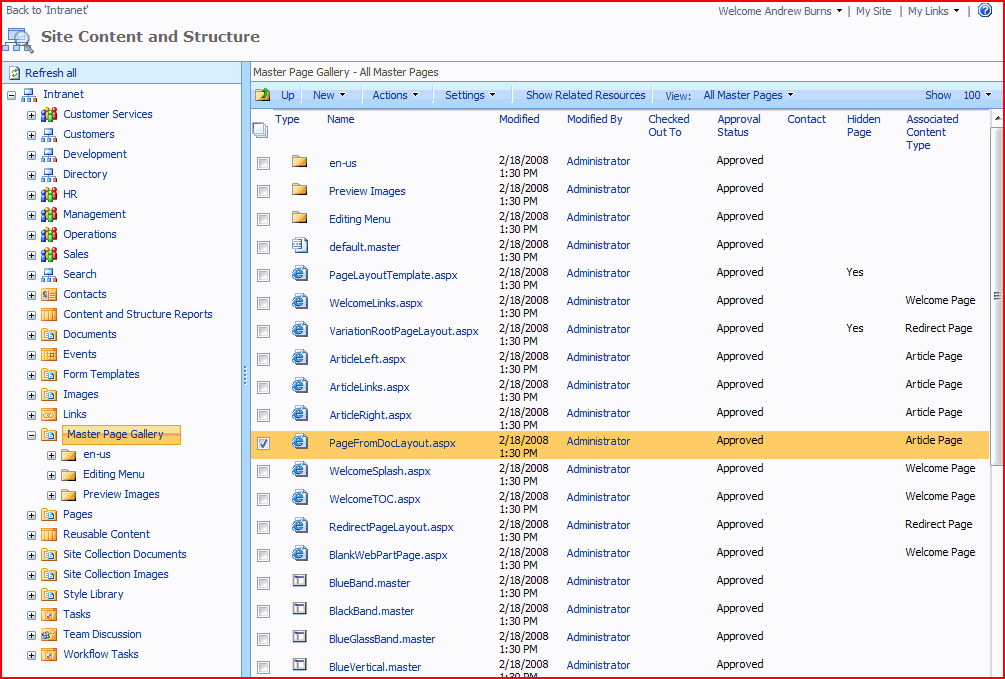
You should then see a window like this:

Site Content and Structure Page

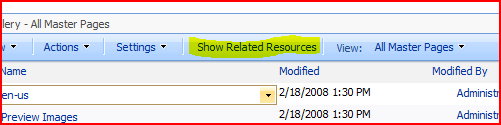
Use the left pane to browse your site collection, and the right one to select the item you want to see the related items for. Then click the ‘Related Items’ button:

site-content-and-structure-related-items-button.PNG

This should then show you the page with a third pane, showing the related items and the nature of their relationship, where they’re located, and so on…

Site Content and Structure Page - Showing Related Items

Finding Related Pages in SharePoint…

Take care when adding or removing columns from Site Content Types

As mentioned before the content types on a list are actually children of the site content types. I’ve also looked at adding columns to list content types, which naturally enough doesn’t affect their parent site content types. Anyway, there are issues to consider when dealing with adding and removing list content types – I suggest you refer to this post for more information.

So what about adding and removing columns from Site Content Types – are there issues with this? Well, yes, there are (unsurprisingly). If you add a new column to a Site Content Type, you have the option to ‘Update all content types inheriting from this type’
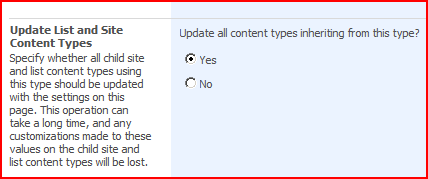
Update Child Content Types

If you select ‘no’, then the change only applies to that Site Content Type. The next time you add that site content type to a list, the new List Content Type that is created will have the new column, but pre-existing list content types that inherit from the site content type will be unchanged.

If you select ‘yes’, then the List Content Types (or other Site Content Types) that inherit from this content type will have the new column. For the List content types, this means that there will be a new column on the list. Carrying on from an earlier example, here I’ve added a new column (‘Job Title’) to the Example Travel Expenses site content type, and updated all content types inheriting from that. If we then go an look at the List Settings page, we can see our List Content Type has a new column:

Extra List Columns 2

Great! Now what happens if I remove that column from our Site Content Type? Well, again, I get the option to ‘Update all content types inheriting from this type’. If I choose no, then the existing List Content Types derived from this Site Content Type remain as they are. If I choose yes, though, I get a fairly large warning saying:

This column will be removed from all content types that are based on this type. If you are sure you want to remove this column from all content types based on this type, click OK. To remove this column from this content type only, click Cancel to close this dialog box, click No in the Update Lists and Columns section, and then click Remove.

Snappy message that:

Silly Warning Dialog

Anyway, if you click OK, that column is removed from child content types. H0wever, the column is not deleted from lists that were using those child content types. I removed the ‘Job Title’ column from my ‘Example Travel Expenses’ site content type. If we return to our list settings page, we can see that the column still exists, although it isn’t used in any content types:

Extra List Columns 3

This makes sense, as the column could actually contain data, and it could be used in multiple places throughout our sites (potentially hundreds!) However, maybe you do want to remove that column from that list, or potentially those hundreds of lists. In that case (and this is why this is important) you have to delete the ‘orphan’ column on a list by list basis. Therefore, if your content type was used in hundreds of lists, you will have to delete this extra column hundreds of times, once for each list.

Therefore, be very careful when adding or removing columns from a Site Content Type – make sure that you really want to add it (as removing it might be hard), and be aware that removing the column is not the same as deleting it in the lists that use it already.

Take care when adding or removing columns from Site Content Types

Content Types – Who's your daddy?

Content Types are great, but can cause a little confusion. Because you normally define a content type at a site level, that’s pretty much how we think of them – as centrally defined types of item. Often, we actually create these content types on the root site of a site collection, because all subsites will be able to use them then.

However, this isn’t really the case. We do have site content types – but we also have list content types. These are the content types that are actually used on the lists themselves, and they are children of those site content types. This can be most easily seen by clicking on a content type on the List Settings page.

List Content Type

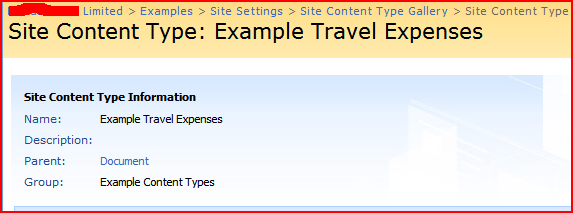
Notice that our ‘Example Travel Expenses’ content type says it has a parent of… …’Example Travel Expenses’! This is our List Content Type telling us that it’s parent is the Site Content Type of the same name. Click on it, and it’ll take you to the Site content type description, and you can work on up the chain of content types until you reach Item.

Site Content type

A consequence of this is that, as our content types are actually used by lists, I can’t think of a way to use a Site Content Type directly (though I may be wrong about that).

That are also issues related to this in terms of modifying content types, but that’s the subject for another post…

Content Types – Who's your daddy?

What happens to content types when you add a column to a list in SharePoint?

This is sort of relevant to an earlier post on the Document Information Panel, and showing fields in it.

The behaviour depends on if you’ve enabled ‘Allow management of content types’ on the Document Library Settings > Advanced Settings page.

If you’ve not allowed management of content types, well, you just add the column and it’ll appear in the document information panel. That’s great! The new column will not show as belonging to any content types, as the ‘Test‘ column is in the screenshot below:

Extra List Columns

However, if you have allowed management of content types for the library, things get a little more complicated. When you add a new column, in the ‘Additional Column Settings’, there will be an option for ‘Add to all content types’. If you check this, well, it’ll add that column to all the content types currently on that list. This will make it appear on the document information panel. This is what I did with the ‘Test2′ column above (but before I added the Picture content type to the library).

(As a side note, the content types on the list are actually ‘children’ of your Site content type rather than instances of it. This means that if you update the content type on that list, it won’t update the parent content type, or other lists that use that content type. Similarly, it mean that if you update the parent content type – say, you edit the site content type – you need to update child content types with those changes to affect lists that are using them already. But that really should be another post, sometime.)

If you don’t check that ‘Add to all content types’ option, well, it doesn’t add it to the document information panel. Finally, what if you have added a column all content types, and you add a new content type to the list? Well, your new content type will not have that new column applied to it – and the only way I can see of applying it to the new content type is actually to delete and recreate it. Of course, that means deleting a column that contains data, so that is less than ideal. This is what happened with the Picture content type – I added it afterwards, and you can see that it doesn’t use the ‘Test2‘ content type.

For that reason, be very careful when adding columns to library that is allowing management of content types. If possible, keep the columns in the Site Content Type (i.e. the parent).

What happens to content types when you add a column to a list in SharePoint?