As much as anything, this is a reminder for me. We had a customer who were trying to run a PowerShell script that, ultimately, relied on an assembly that was contained in a WSP we’d written. The script wouldn’t work, however, and it transpired that the WSP had not been deployed to the server that they were running the script on. Continue reading “WSP Not Deployed to a SharePoint App Server”
Content Type Hubs and the Blank Site Template – Fixing them
So, I’ve somehow managed to get through most of the SP2010 cycle without having to use the Enterprise Content Type hub – until last week. This was my opportunity to stumble across one of the gotchas of the ECT hub – it doesn’t work with blank sites. We had a number of site collections based on the Blank site template, and content types would not replicated to it. Other site collections based on other templates – such as Team sites – worked fine.
Interesting. And this tickled a neuron. Continue reading “Content Type Hubs and the Blank Site Template – Fixing them”
Deleting the Search Service Application hangs
So, related to my previous post, we had problems initially deleting the Search Service Application. The Search Content Application’s Database had become ‘Suspect’. I’ve had this happen a few times before (I’m not sure why – I ain’t a DB Admin) and I have a little script that I run that seems to fix this, mostly.
EXEC sp_resetstatus 'PROBLEM_DB_NAME'

GO

ALTER DATABASE PROBLEM_DB_NAME SET EMERGENCY

DBCC checkdb('PROBLEM_DB_NAME')

ALTER DATABASE PROBLEM_DB_NAME SET SINGLE_USER WITH ROLLBACK IMMEDIATE

DBCC CheckDB ('PROBLEM_DB_NAME', REPAIR_ALLOW_DATA_LOSS)

ALTER DATABASE PROBLEM_DB_NAME SET MULTI_USER

GO
No, I’m not entirely sure of the logic of how it works, and I’m pretty sure I can here DB Admins across the world screaming, but for my dev systems that I can afford to trash, it seems adequate.
Anyway, on this occasion it didn’t work, so I decided to simply delete the Search Service Application. I tried this through the UI – but it just seemed to hang. I tried again – and it seemed to hang. It wasn’t going away. I tried PowerShell – which took me a while as I’m still a fan of STSADM – and that didn’t work.
In the end I found the solution – on Donal Conlon’s blog – use STSADM -o deleteconfigurationobject
Yes, there’s a certain irony in that.
Last week I was working on a customer’s Dev system and when we tried to set up search we received the error:
“The search service is not able to connect to the machine that hosts the administration component”
Interesting. And annoying. I tried removing and recreating the search application service – and we got the same error. Weirdly, it had been working previously. Continue reading
Setting the Title field for Content Types
This is one I’ve been meaning to blog about for a while. I was using a Content Type where I was trying to set the display name of ‘Title’ field. I was happy to have a Title column, but I wanted it to have a different name.
I tried doing this declaratively:
<FieldRef ID="{fa564e0f-0c70-4ab9-b863-0177e6ddd247}" Name="Title" DisplayName="Request" Required="FALSE" />
However, I found this didn’t work in SP2010 – the field still appeared as ‘Title’. This was frustrating.
Instead, I had to set the Title’s display name in code:
foreach (SPFieldLink fldLnk in contentType.FieldLinks)
{
if (fldLnk.Id == SPBuiltInFieldId.Title)
{
fldLnk.DisplayName = "Request";
}
}
contentType.Update(false);
This was a bit strange – other fields can have a DisplayName set in CAML quite happily. This seems to just be a feature of the Title column.
EDIT: I also had to use a similar approach on setting the Title column for a content type used on a list – but using:
private void SetTitleField(SPWeb web, string listname, string contentTypeName, string newTitleName)
{
SPList list = web.Lists[listname];
SPContentType ct = list.ContentTypes[contentTypeName];

foreach (SPFieldLink fldLnk in ct.FieldLinks)
{
//Necessary to set title field - when using content types, this seems to set it to "Title" irrespective of what is set in the Content type or list's XML.
if (fldLnk.Id == SPBuiltInFieldId.Title)
{
	fldLnk.DisplayName = newTitleName;
	ct.Update(false);
	break;
}
}
foreach (SPField fld in list.Fields)
{
if (fld.Id == SPBuiltInFieldId.Title)
{
	fld.Title = newTitleName;
	fld.Update();
	break;
}
}
}
Query Throttling in SharePoint 2013
So, last week I was at the #SPEvo13 conference in London, and one innocuous session by Wayne Ewington sent shivers down my spine – about query throttling. So, what is query throttling again, and why did it was I worried? Continue reading “Query Throttling in SharePoint 2013”
Refinements panel and Custom Search Box web parts
So I’m doing some work for a customer where they want a custom Search Box web part. Essentially, they want to be able to search by particular managed properties, which is a pretty common scenario:
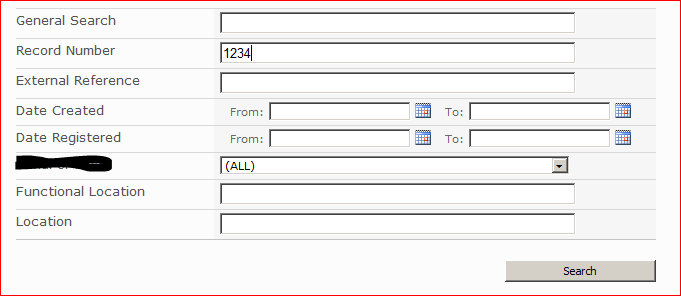 Naturally, I added this to my search results page, and removed the existing Search Box web part.
During test, the customer noticed that the ‘Show More’ links on the refinement panel had stopped working:
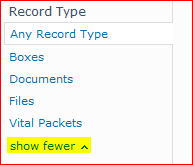 Interesting – although showing some different metadata properties, this was all pretty standard stuff. A bit of a check on Google found this interesting post by Chris Coulson. The short if it is that the Refinements panel uses JavaScript that is loaded by the Search Box web part – so you have to have a Search Box web part on the results page, even if it is hidden. Add that and the Refinement panel works again.
You can hide the web part via the web part properties > Layout > Hidden.
The Importance of knowing Regular Expressions
It’s something that always mystifies me, it does seem that a lot of developers don’t know regular expression syntax very well. This came up when I was on some SharePoint 2013 training just before Christmas.
SharePoint 2013 introduces something called “Routing Rules”. These are rules that allow you to direct traffic to different front-end servers (or pools of servers), allowing you to isolate traffic, route to better health servers, etc.. Spence Harbar has a very good article about it.
Anyway, one some of the criteria that you can match rules on are Regular Expressions. However, SharePoint does warn you that Regex routing rules are slower – this is unsurprising. But how much slower than, say, a ‘Starts with’ or ‘Ends with’ rule? And on the Ignite training I did wonder about the efficiency of their example… Continue reading “The Importance of knowing Regular Expressions”
Add a batch file to Windows 8 Start Menu
Okay – maybe I’m old school, but I still find batch files useful, so it’s annoying (one of many annoyances) that in Windows 8 you can’t pin them to the new start menu.
Well, fortunately, Flavien Charlon has the answer. Put a shortcut to your batch file in %ProgramData%MicrosoftWindowsStart MenuPrograms
You should then be able to add it from ‘All Apps’ on the start menu.
That’s one annoyance dealt with. Sadly, Windows 8 seems to have plenty more.
“I got 99 problems but a batch ain’t one”
Annoying Exporting a list to Excel
SharePoint lists have the ability to export their contents to an Excel Workbook.
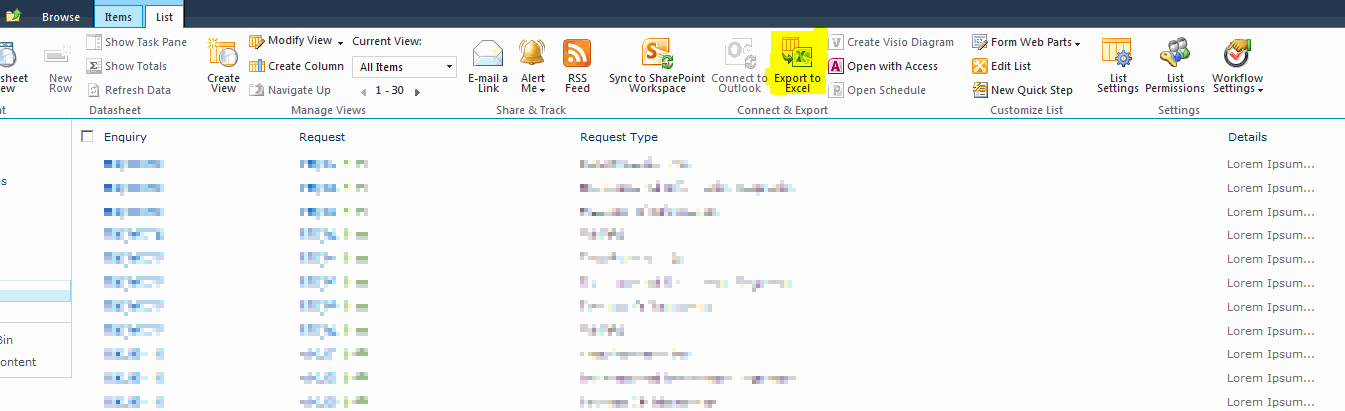
This is quite cute – it gives the users a way to get the data out into something they’re familiar with, can manipulate and can print. However, I was having an issue. Using a list based on a Custom List (above), one of my columns (Enquiry) wasn’t exported:

I wondered at first if this was because of it’s column type (Hyperlink), or because I’d created the column programmatically. Then, on a hunch really, I tried changing the column order. I added another column before it in the list view. I used the ID column, but any should work. When I exported the list – all the columns I wanted came through (but the ID column didn’t).
What I think is going on here is that if you used the same export on a document library then typically – though not always – the first column is an icon for the type of file it is. My suspicion is that some muppet, when writing the export to excel, realised that they’d have these icons, and decided to avoid them by excluding the first column. This is unfortunate for two reasons:
- Not all lists have icons – witness my Custom List
- Not all document libraries have the file icon as the first column.
For now the resolution would be to have another column as the first on your list.
 Andy Burns' Blog