Annoying Exporting a list to Excel

SharePoint lists have the ability to export their contents to an Excel Workbook.
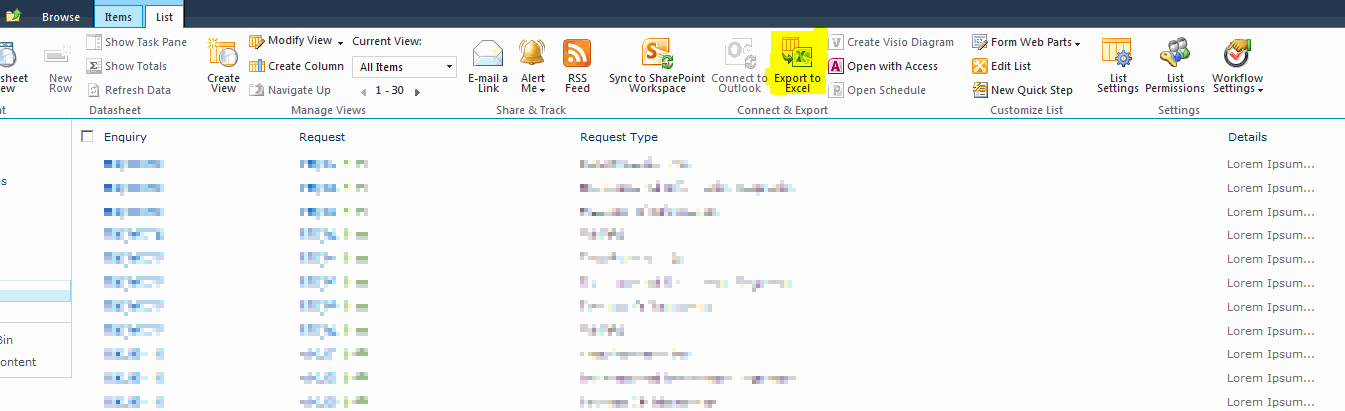
This is quite cute – it gives the users a way to get the data out into something they’re familiar with, can manipulate and can print. However, I was having an issue. Using a list based on a Custom List (above), one of my columns (Enquiry) wasn’t exported:

I wondered at first if this was because of it’s column type (Hyperlink), or because I’d created the column programmatically. Then, on a hunch really, I tried changing the column order. I added another column before it in the list view. I used the ID column, but any should work. When I exported the list – all the columns I wanted came through (but the ID column didn’t).

What I think is going on here is that if you used the same export on a document library then typically – though not always – the first column is an icon for the type of file it is. My suspicion is that some muppet, when writing the export to excel, realised that they’d have these icons, and decided to avoid them by excluding the first column. This is unfortunate for two reasons:

  • Not all lists have icons – witness my Custom List
  • Not all document libraries have the file icon as the first column.

For now the resolution would be to have another column as the first on your list.

Annoying Exporting a list to Excel

BeforeProperties and AfterProperties

I am sick of having to hunt down the link to Synergy’s post on the BeforeProperties and AfterProperties available in different events on SPListItems. For my reference, here it is:

List:

List BeforeProperties AfterProperties properties.ListItem
ItemAdding No value New value Null
ItemAdded No value New value New value
ItemUpdating No value Changed value Original value
ItemUpdated No value Changed value Changed value
ItemDeleting No value No value Original value
ItemDeleted No value No value Null

Document Library:

Library BeforeProperties AfterProperties properties.ListItem
ItemAdding No value No value Null
ItemAdded No value No value New value
ItemUpdating Original value Changed value Original value
ItemUpdated Original value Changed value Changed value
ItemDeleting No value No value Original value
ItemDeleted No value No value Null

Note: Allegedly, this does change if the event receiver is synchronous – the before properties are available. I’ve not checked this out yet.

Obviously, for SharePoint 2007 systems that doesn’t apply – as ‘*ed’ event receivers are always asynchronous.

BeforeProperties and AfterProperties

ContentIterator – Curious Behaviour, and Infinite looping

I like the ContentIterator control – it’s a nice way of being able to process a lot of items in SharePoint. However, sometimes it’s behaviour is … strange.

I had been using it to loop over some (but not all) the items in a list. Some changes meant that I was now going to loop over all the items. I had a list with 500 items that I was testing with. My code was:

ContentIterator ci = new ContentIterator("example");
SPQuery qry = new SPQuery();
qry.Query = ContentIterator.ItemEnumerationOrderByNVPField;
ci.ProcessListItems(list,qry, ProcessItem, ProcessItemError);

This would process the first 200 items, over and over. It never reached an end. Hmm. Continue reading “ContentIterator – Curious Behaviour, and Infinite looping” →

ContentIterator – Curious Behaviour, and Infinite looping

Exchange Tasks integration with iOS and OSx

Outlook has Tasks. I tend to flag emails that I need to take further action on, and they appear in my tasks list in Exchange:

iOS 5 and OSx (Mountain Lion or later) have ‘Reminders’. I figured that it must be possible to show Tasks from Exchange – after all, I could already sync Email and Calendars. So I set this up … and no tasks came through. Puzzling. Continue reading “Exchange Tasks integration with iOS and OSx” →

Exchange Tasks integration with iOS and OSx

HTML 5 – Email Address Validation Regex

And interesting one to stumble upon – the ‘official‘ regex for validating a email address:

Edit: I’ve had to break this down into parts – for some reason WordPress throws a 403 error if I don’t. I think it sees this regex as a security risk!

Before the @ sign:
^[a-zA-Z0-9.!#$%&’*+/=?^_`{|}~-]+

The @ sign and after:
@[a-zA-Z0-9-]+(?:.[a-zA-Z0-9-]+)*$

Reads like it should work pretty well to me. I didn’t realise before the @ was so generous. And you could shrink it by using a case insensitive operator.

HTML 5 – Email Address Validation Regex

Delete Event Receiver from a Content Type with Code

SharePoint allows you to attach event receivers to content types. That’s pretty handy. Unfortunately, deleting event receivers from those content types is much more hard. Perhaps this is why the Document ID feature fails to remove the content types that it adds. However, here is one possible approach.

SPContentType ctype = site.RootWeb.ContentTypes[SPBuiltInContentTypeId.Document];
if (ctype != null)
{
 if (ctype.EventReceivers != null)
 {
   bool bContinueDelete = true;
   while (bContinueDelete)
   {
     if (ctype.EventReceivers.Count < 1)
     {
       bContinueDelete = false;
     }
     else
     {
     bool bFoundOne = false;
     foreach (SPEventReceiverDefinition d in ctype.EventReceivers)
     {
         //Could match on the Type of the event receiver, but for this example, let's use name
         if (d.Name.Contains("Document ID"))
         {
           d.Delete();
           ctype.Update(true, false);
           bFoundOne = true;
           break;
         }
     }
     if (!bFoundOne)
     {
       bContinueDelete = false;
     }
   }
 }
}

More on why this is important in a later post.

Delete Event Receiver from a Content Type with Code

Change Default Save Location from iCloud

This is a note for myself, found on Mac OSx Hints.

I don’t like the iCloud UI for OSx – it’s inferior to Dropbox. As each application has it’s own iCloud storage it’s pretty hard to store a heterogeneous set of documents relating to a project or customer. For example, a Contract document and an Expenses spreadsheet would be invisible from each other’s program – and Finder.

So, the hell with iCloud by default – let’s use the filesystem. In terminal, run:

defaults write NSGlobalDomain NSDocumentSaveNewDocumentsToCloud -bool false
Change Default Save Location from iCloud

Slow Site Creation in SharePoint 2010

I have a development machine that I was creating a number of sites within. I wanted to create about 10,000 sites or so (and have done more than that in testing before without a problem). When I started the process that was creating these running on my machine it was taking about 20 seconds per site. After a mere 2000 sites, it was then talking 30 minutes per site. Something isn’t right.

I did a bit of digging and found that others have had the same problem – but no solution.

I then spoke to one of our administrators, and he suggest clearing out the ‘event cache’ table. I’d never heard of that (and I’ve no idea how he found out about it), but his advice was:

Minimise the amount of rows in the EventCache SQL table:

  • set ChangeLogRetentionPeriod to 1 day (1.00:00:00) on web application
  • set EventLogRetentionPeriod to 1 day (1.00:00:00) on web application
  • set ‘Change Log’ timer job to run daily (default is weekly)

Okay, so I did this using STSADM:

stsadm -o setproperty -pn change-log-retention-period -pv 1
stsadm -o setproperty -pn event-log-retention-period -pv 1

…and I then changed the Change Log timer job’ schedule in central admin, and set it running right away.

The timer job took about 8 minutes to run. That was a surprisingly long time.

When I then tried creating a site, it took 7 minutes. Clearly, this is still an unwell system, but that’s a lot better than 30 minutes. I’ll update if I find more.

Slow Site Creation in SharePoint 2010

Fixing Duplicate Icons in OSX Launchpad

I know, a little off-topic for a mostly SharePoint/.NET blog, but after a recent upgrade I found I had duplicate iPhoto icons in Launchpad. That frustrated me. I did a bit of Googling, and found others had the same problem, and were suggesting deleting the database that stores the Launchpad’s details. When the Dock was reloaded, it would recreate that database. Unfortunately, it would also lose the layout of all your folders and icons.

“Delete the database”, I thought, “It’s a database, how hard can it be to fix that?”

So I set out to fix the database without deleting it, and losing all my folders… Continue reading “Fixing Duplicate Icons in OSX Launchpad” →

Fixing Duplicate Icons in OSX Launchpad