Using the ASP.NET Web Site Administration Tool to test SQL connections

I’ve been setting up forms based authentication for SharePoint. This is pretty much a normal ASP.NET authentication set up, but I’ve been following the instructions from Andrew Connell, and the excellent instructions from Dan Attis.

In these instructions, we set up the ASP.NET database using aspnet_regsql and then use the Web Site Administration tool to check the connections and create users (if you want to know more, check out the articles). However, here I had a bit of a quirky problem. Both sets of instructions say to, in the Web Site Administration tool, select the Provider tab and then select Select a Different Provider For Each Feature (Advanced). Then click Test by each provider. The problem – no Test link beside either provider.

As I was having some problems, I decided to dig into this. I tracked through the code that makes up the Web Site Administration tool, and found that this link is only shown if your provider contains the text ‘Sql’. I kid you not…

Using the ASP.NET Web Site Administration Tool to test SQL connections

KPI Icons neatly designed for colour blindness

I was talking with one of our customers about SharePoint branding the other day. They’ve got some neat icons for displaying the status of things. However, the guy I was talking to wasn’t keen on them as they were the same colour (although their shape differs). This sort of led around to a discussion of the use of colour (or ‘color’) in web development.

One of my ‘neat tools to have around’ is the Color Contrast Analyzer (which I think you can get here -I must confess, I’m not sure who exactly wrote it or where exactly you’re supposed to get it from). This little tool lets you check the contrast of colour schemes so that your users will be able to use the site, even if they’re colour blind. Fair enough. The really exciting bit, though, is the ability to take screenshots and then simulate the different types of colour blindness.

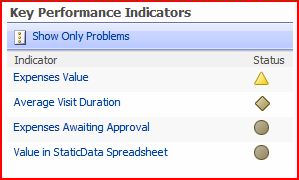
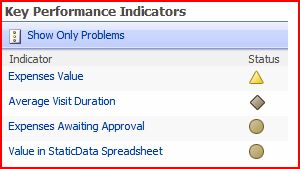
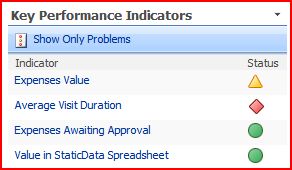
I used this to look at the SharePoint KPI icons. Similar icons to this are available in Excel 2007 for conditional formatting. I thought this was pretty interesting. For a start, it turns out that colour blindness is more complicated that just “red-green-blue” colour blindness, not least because the photoreceptors for the different colours overlap in their response to different frequencies of light. Still, this tool give a good view of the effects of the main conditions. For a full description, read this article at Wikipedia.

KPI - Normal
Normal
KPI - Greyscale
GreyScale
KPI - Deuteranopia (Red-Green Colour Blindness)
Deuteranopia (Red-Green Colour Blindness)
KPI - Protanopia (Different Form of Red-Green Colour Blindness)
Protanopia (Different Form of Red-Green Colour Blindness)
KPI - Tritanopia (Blue-Yellow Colour Blindness)
Tritanopia (Blue-Yellow Colour Blindness)

What this shows is pretty obvious – that the icons from red and green are pretty similar for red-green types of colour blindness (what a surprise), but that the shape of the icons still gives a good visual cue to the state of the KPI. Given that (according to Wikipedia) 7-10% of men are Red-green colour blind, this is important. It’s worth noting that women are very rarely colour blind, and that this probably explains my Dad’s dress sense and my Mum’s opinions on it…

KPI Icons neatly designed for colour blindness

Showing Query String parameters in a page in SharePoint

I came across an interesting little problem with putting query string parameters for an HTTP request into a SharePoint page.

I was using a Dataview web part, which accepts query string parameters into the filter that it runs over the data that it’s going to display. That’s pretty cool – I had a list of items with a status column, and I wanted to be able to filter the items based on that status, and that the status would come from the query string. However, on the page, I also wanted to show a title with what was being filtered by in it. So, for example, my url might read:

http://server/site/page.aspx?status=Ready

And I wanted the title in the page to read “Filtering by ‘Ready‘”.

What I didn’t appear to be able to do was to just use the request object . Something like

<%= Request.QueryString.ToString() %>

won’t work as code blocks aren’t, apparently, allowed in the file – the error message is “code blocks are not allowed in this file”. Okay, given that SharePoint designer is supposed to open these pages up to ‘Power Users’ I do get why code blocks aren’t allowed. But I really wanted to write code, and there had to be a way to do that. Well, Kirk Allen Evans has figured out how – you have to enable them in the PageParserPaths section of the web.config file. (It’s strange how easy it is to forget the web.config file that controls SharePoint sometimes). Just to repeat his example (in case blue and red on black is difficult to read):

<PageParserPaths>
<PageParserPath VirtualPath="/pages/*" CompilationMode="Always" AllowServerSideScript="true" />
</PageParserPaths>

This example allows code blocks for all files under the /pages directory of my web application – it’s worth noting that this is for the web application in IIS, not a SharePoint site collection or the like.

Okay, so that works – great. However, there are security implications, and this is probably best only used for development environments. I’ve written a bit about under what conditions our inline code will run.

In our instance our customer is kind of reluctant to make changes on their server. Changing the web.config file would be a bit of a big deal. (As a side note, this is a bit restrictive – I think a blog posting on that is due sometime). So what could we do without a server footprint?

Well, without code in the page, we would need a web control to call in that page – that would work also. It’d be trivial to write one. However, that requires deployment, marking as safe in the web.config file, etc., so really that just pushes the problem into another file.

Thus, I ended up getting a bit ‘old skool’ – JavaScript in the page to write the value from the query string on the client. I came up with:

<script type="text/javascript">
var query = window.location;
var regex = /letter=([^&=]+)/i;
var match = regex.exec( query );
if( match != null ) {
document.write( "Filtering by '" + match[1] + "'" );
}
</script>

Made a function, this became:

function getQueryParam(key) {
var regex = new RegExp(key+"=([^&=]+)","i");
var match = regex.exec(
window.location );
if( match != null ) {
return match[1];
} else {
return null;
}
}

What this code does is it gets the page’s url (window.location), runs a regular expression looking for the ‘letter’ parameter, and if it find one, it outputs some text to the document. A bit noddy, but simple and it works – with no server footprint. Of course, you do need JavaScript enabled…
Showing Query String parameters in a page in SharePoint

Handling Errors when doing file IO

I came across a pattern in .NET that I’d not thought of before. The scenario is, I’m reading from a file and deserializing it’s contents (a List of ‘Foo’ objects). Exceptions can be thrown at two points:

  • When I’m reading the file
  • When I’m deserialising the xml

Obviously, I want to make sure that the file handle is released if the deserialisation fails. However, I can’t deal with that in a single try block, as if the exception is in the file IO, then the file handle won’t exist to close in a finally block! Continue reading “Handling Errors when doing file IO”

Handling Errors when doing file IO

.NET Framework versions, language versions, and CLR versions – all a bit fraught…

The .NET framework is a bit confusing until you get your head round the components of it, and the way that Microsoft name things.

.NET has a thing called the common language runtime (CLR). (This is the .NET equivalent of the Java Runtime). Different versions are essentially different VMs, and can coexist. The CLR runs code that is an Intermediate Language (IL) (aka the Common Intermediate Language (CIL)). Whatever code you write in C# or VB.NET actually only gets partially compiled into IL code. It’s a lot like Java Bytecode.

The Base Classes are the library of DLLs for the framework (and are sometimes incorrectly referred to as the framework). Think of it as Win32 for .NET. These constitute the .NET API – and have different versions too. A different version of the base classes, though, does not mean a different CLR – for example, frameworks version 2, 3 and 3.5 all use the same CLR, but present a different external API and have different language features. Indeed, the base classes of framework version 3.5 are a superset of version 3, which are a superset of 2. This means framework 2 code will run on machines with the 3.5 installed.

The languages have different versions too, and this is where things start to get confusing. The different language versions have different compilers, which emit backward compatible IL. This is to be expected since there is no new version of the CLR. In plain terms this means that all the new language features can be used with older projects. E.g. C# 3.0 code can run on the .NET 2 Framework, provided you haven’t used any of the libraries that are part of a later framework. The C# 3.0 code will be partially compiled into the same version of IL code as your C# 2.0 code, so the only problems come if you are using libraries that aren’t part of that .NET Framework.

(Note to self – must remember – C# version is independent of Framework version)

So why would you want to use C# 3.0 over C# 2.0? Well, the language adds a number of new features too – such as automatic properties, relaxed delegates, object initialisers, type inference, anonymous types, extension methods, lambdas and partial methods.

Hopefully this chart might explain things a bit. I’m pretty sure it’s right, although I’m recreating it from memory and can’t entirely remember…


Framework Version 1.1

Framework Version 2.0

Framework Version 3

Framework Version 3.5

CLR

1.1

2.0

2.0

2.0

Library versions

1.1

2.0

3.0 (including 2.0 sp1)

3.5 (including 2.0 sp1 & 3.0 sp1)

Similar chart here:

http://www.leonmeijer.nl/archive/2007/06/11/50.aspx

…though the Microsoft guy who presented to me didn’t say anything about a CLR 3.0. I suppose there may be one which is backwardly compatibile?

.NET Framework versions, language versions, and CLR versions – all a bit fraught…

DateTimePicker – no BackColor property, not nullable

More Windows forms stuff. I don’t like really complex Web forms controls ‘cos sometimes they seem a bit flakey – but I’m beginning to wonder if Windows Forms stuff is any better.

Two problems with the DateTimePicker. First, it can’t have a null value. What? You might not want to have a value in it? That’s craaazzzy! Inconceivable! What do you mean that your database tables allow null values in a DateTime column?

All you can do is set ShowCheckbox to ‘true’. This will give you a little checkbox, to turn on or off the editing of the value. You could then wrap the DateTimePicker, and return yourself null if the ‘Checked’ value is false.

Secondly, it has no BackColor property, so I couldn’t colour it pink when the field was invalid, meaning it had to have a value – therefore, the checkbox mentioned above has to be ‘Checked’. I managed to get around this by subclassing the DateTimePicker – but had some problems when you then focussed on it to try to edit it. My solution (below) was to turn off any background colour during editing…

Continue reading “DateTimePicker – no BackColor property, not nullable”

DateTimePicker – no BackColor property, not nullable

TableLayoutPanel – doesn't autosize or autoscroll correctly

I’ve been doing some Windows forms programming lately – not really my thing, but needs must. I’ve got an application which needs to dynamically create a form at run time, and so I’m using a System.Windows.Forms.TableLayoutPanel.

All the controls contained by the TableLayoutPanel resize automatically, and the TableLayoutPanel automatically provides scrollbars. “Great!”, I thought, “This will deal with large forms nicely.” Wrong!

The problem is when form has too many fields – it becomes deeper than the display area of the TableLayoutPanel. This is fine – the TableLayoutPanel should automatically add a vertical scrollbar, and adjust the size of the controls it contains to fit in the smaller area. Except it doesn’t. What I actually get is this:

Problems with TableLayoutPanel

Notice that I’ve got a vertical scrollbar, but it hasn’t resized the child components. This, they overlap some of the fields – and I now have a nice horizontal scrollbar. Arse.

I eventually found that others had had this problem and told Microsoft about it. However, they’ve decided not to fix it. Thanks Microsoft, that cost me an hour and half – it’d be wise to fix it. I found the answer from the same link – add a vertical scrollbar’s width as padding on the right of the TableLayoutPanel.

TableLayoutPanel – doesn't autosize or autoscroll correctly