Modify the RichHTMLField control on your page layouts

When building an intranet, it’s important to try to get consistent styling and formatting, especially if you want to be able to update this later. How do you do this?

To create Pages in SharePoint, you have two options really:

  • Create by hand though the site’s ‘Create Page’ function. Fill in and format your text using the Content Editor Control
  • Create the content in Word, InfoPath, etc., and convert to a Web page using the Document Conversion service.

I’ve been having a bit of a look at this:

Creating Pages through the Web interface

In the SharePoint site, create a new page. Depending on the layout, often they have a RichHTMLField control. In Edit mode, this displays a content editor:
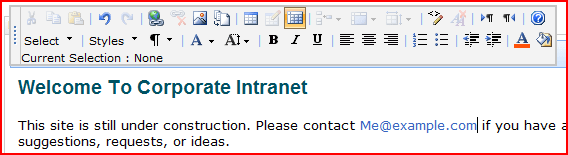
Normal Content Editor Control

and when published, it just displays that content.

However, this control has a lot of options. Editors can adjust text fonts, sizes, colours, boldness – they can even get into the HTML and edit that! I quite like this, but it’s hardly conducive to having a consistent style. What would be good would be to have a number of pre-defined styles, and lock out the other control options.

First, let’s look at removing those option buttons. It turns out that the RichHTMLField control has a number of properties you can set to disable these. This works nicely:

<PublishingWebControls:RichHtmlField id="content" FieldName="PublishingPageContent" runat="server" DisableBasicFormattingButtons="True" AllowTables="False" AllowHtmlSourceEditing="False" AllowLists="False" />

Results in:

Modified Content Editor Control

What I’ve not yet been able to figure out is how to disable the ‘standard html format’ menu thing (the paragraph sign ¶ ). I know that it’s for formatting the whole of a paragraph – but we have some problems with that, as we’ll see later. Anyway, now we’ve got those buttons disabled, user’s are MUCH more restricted in the styles that they use.

Second then, how do we define our own styles for the ‘Styles’ menu in the Content Editor? Well, this is a bit more complicated, but there is good documentation out there. Ari Bakker has some good instructions, there’s another (less consise) example from MartyG and there is good documentation on MSDN – though do not believe the top comment, I’ve had my styles working from another CSS file just fine. Do pay attention to the second comment – to see the styles in the menu, you will have to Select some text.

The steps as I found them ultimately were:

1) In your RichHTMLField set the PrefixStyleSheet=”someName”

2) In your styles (whichever one you fancy, as far as I can tell) set up your styles:

.someNameCustom-Heading1 {

...

}

.someNameCustom-Heading2{

...

}

3) Publish.

4) Make sure you’ve selected some text, then choose a style:

Editor Styles Menu

Just as a sidebar, there is a fairly good article on MSDN about “How to Create a SharePoint Server 2007 Custom Master Page and Page Layouts for a Web Content Management Site

Anyway what about the next option….

Creating Pages with the Document Conversions Service

First off, this requires that your servers are setup and running the service and your content types are configured set up for it. That’s not too surprising, and I’m not going to go into that any further. I’m also going to look solely at authoring from Word only, and not InfoPath or XML.

Now, things might get confusing here between CSS styles and Word Styles. For simplicity, from here on I’m going to refer to CSS styles with small s (styles) and Word Quick Styles with a big S and italics (Styles).

Once those are services are set up running, you face the same first problem as with the web page authoring – how do we stop users mucking around with our Styles and formatting, except that this time it’s in Word. Well, Word 2007 lets you do this. First, go to the Manage Styles Menu:

Manage Styles in Word

Then on the ‘Restrict’ tab, set the Styles you want to limit users too. This will password protect your template, so that others can’t just undo these settings. Then get users to create their pages using these Styles – they can’t create new Styles or modify the colour/boldness/formatting of the text directly..

Okay, so what happens to the Styles when we upload and convert the document. Well, that depends on the settings you configure for the conversion:

Styles Settings

You can either strip out the Styles from the document, or keep them. Okay, but what does that mean?

Well, Word has a number of ‘default’ Styles – normal, Heading 1, Heading 2, etc. – and there are style definitions of what they should look like in a stylesheet called ‘RCA.css’ (for Rich Client Authoring). In SharePoint Designer you’ll find this in ‘style library > en-us > core styles’ . This defines a the styles for a bunch of Styles
RCA Styles
Click on the image and take a look. You’ll notice that there are css styles for Heading1-P and Heading1-H – we’ll come back to why there are two of each style.

Anyway, returning to what happens to the Styles – if you decide to ‘Remove CSS <styles> section…’ you’ll get a page where your text is formatted as per the styles in RCA.css. This might be quite different to the Styles in your original Word document! Default Styles (Normal, Heading 1, etc.) will be defined by the CSS styles in RCA.css. If you have extra Styles beyond the ‘default’ ones in Word, then they will not have any style, as they don’t have any definition in the RCA.css file. For example, if I define a Styles in Word called ‘Heading 1 Red’, then my page will use css classes called Heading1Red-P and Heading1Red-H. However, in the RCA.css file, there is no definition for these classes, and hence they’ll be unformatted. You can add them though, or you can put them in another stylesheet, etc..

What if you choose to ‘Store CSS <styles>…’? Well, then the CSS definitions for the Styles get stored with the page, and the out-of-box page layouts put this content into the header – but after the RCA.css file has been referenced, so these styles take precedence. Thus, your document will be styled as defined in the document (well, more or less).

Great! Oh, wait, what if I want to change all of my Heading 1 styles and I’m storing the CSS in the page? Well, that’s a problem – ‘cos each page has it’s own definition. Because of that, I would suggest setting up templates with known Styles , locking them down, defining the css styles for those Styles in a CSS file (like rca.css), and then making sure your document conversion ‘Removes CSS‘. If you have gone down the route of having your styles stored with your page, you might be able to fix things by simply removing the FieldValue control that inserts the styles into the page – for the PageFromDocLayout that comes out-of-box, this control is the PageStylesField.

Anyway, you can see why I’m suggesting locking the Styles on your templates – otherwise you might end up with users creating new Styles which aren’t defined in RCA.css, which is pretty painful if you’re then removing the css styles during conversion .

As a side note, what about inline changes to the format of text – what if I change the format of something without creating a new style? Well, those formats are stored inline in the converted page. If, for example, you made some ‘Normal’ Style text red, you’d get the code…

<span style="color:#FF0000">Normal Style + Red</span>

… in your page. Note that this can’t be overridden by style sheets – and doesn’t seem to be removed by either of the Remove or Store CSS options mentioned above. Best to avoid allowing this (returning us to locking down your template again!)

Now, I said I’d return to the question of why two styles for each Style. Well, the short answer is I’m not sure – but it does seem that in Word when you set up a style it applies both to a paragraph (e.g. paragraph spacing), and to a bit of text (e.g. font/colour, etc.). During conversion it appears that to account for this, two styles are required. The converted document’s HTML looks like …

<p class=Normal-P style="margin-top:3pt;margin-bottom:0pt;direction:ltr;unicode-bidi:normal">

<span class=Normal-H><span class="minorAnsiTheme Normal-H">Normal Style</span></span>

</p>

…so that might give you some idea. (The text in this paragraph is actually the phrase ‘Normal Style’, and the style applied to it is ‘Normal’).

Final note – and this really caught me out – if you convert a document to a page, then you adjust the document conversion settings and you want to reconvert that page, delete and recreate the page. Updating the page does not seem to change the page, perhaps ‘cos you’ve not updated the document itself.

What about using both?

Well, that’s tricky. The structure of the HTML and the styles are different, so you can’t just apply the same styles as is in the RCA.css file. In principle you can us both in your authoring, but you probably do need to have different definitions for the ‘Heading 1’ style in your Content Editor, and ‘Heading 1’ in your RCA.css file. I’ll blog more about this shortly, but right now I’m tired!


Modify the RichHTMLField control on your page layouts

Why does Microsoft treat bookmarks so badly?

I hate bookmarks in Word documents. Word links headings and the table of contents nicely, so you can click from the table of contents to a section easily. Still, Word supports them, so some folks use them, which I guess proves that “if you build it they will come” really is true irrespective of how dull the activity is.

My problems with bookmarks in Word is that they are invisible and inflexible. You can’t see them initially – and to show them requires a trip to The Office button > Word Options > Advanced > Show Document Content section > Show Bookmarks. Finding that took a fair bit of work for me – how well is someone less computer literate going to do?

Secondly, bookmarks are difficult to move. The easiest way is simply to redefine them. This is a bit sad – I’m pretty sure that back in the 1980’s I remember using a Mac word processor, which displayed a little ‘Anchor’ icon for bookmarks, and it could be dragged around. Why can’t we have that? I mean, yes, we can bookmark actual bits of text – but really, having something that applies at the line level is just as useful.

Bookmarks in SharePoint are somewhat similar, but worse. You can create bookmarks in the content editor web part – just click the ‘create hyperlink’ icon, and in the dialog supply a bookmark name. If you’d some text highlighted in the editor, well, it’ll now appear as a link (which is hardly ideal) – and if not, well, you’ve now got a bookmark you can’t see, unless you go into the HTML. Worse, though, is that Bookmarks are actually much more useful in the context of a web page, to allow you to direct users to a certain part of the page.

So here’s my request – Microsoft, if you’re going to have bookmarks, make them visible, make them easy to create, delete, move and link to.

I guess I’ll have to look into other content editor parts, just on the off-chance….

Why does Microsoft treat bookmarks so badly?

Why don't ListView Web Parts have a 'View' menu?

This was a question that came up – why can’t ListView web parts that you put on a page through the browser have a View menu? There’s no view menu, and they can’t have one. However, if you go to a List, such as a Document Library, they do have view menus.

Web Part put on Page:

View Menu - Webpart

Document Libary:

View Menu - Library

The interesting thing is, though, that the page you see in the Library uses exactly the same web part as the one you can add to a page. Therefore there is clearly some way of making the web part show that menu, but that you can’t configure that. Why not, what gives?

Well, it suddenly hit me – the views that you create for a list or library actually create new pages. They’ve their own URLs, and are actually their own pages. You can see this through SharePoint Designer. Anyway, all the View menu really does is navigate you between pages. Thus, in a Listview web part that you create on a page this menu would, instead of just changing the view in that web part, take you to another entirely different page. That’s probably not what users would expect! Consequently, the view menu is unavailable in the ListView web parts that you create!

Why don't ListView Web Parts have a 'View' menu?

Using the ASP.NET Web Site Administration Tool to test SQL connections

I’ve been setting up forms based authentication for SharePoint. This is pretty much a normal ASP.NET authentication set up, but I’ve been following the instructions from Andrew Connell, and the excellent instructions from Dan Attis.

In these instructions, we set up the ASP.NET database using aspnet_regsql and then use the Web Site Administration tool to check the connections and create users (if you want to know more, check out the articles). However, here I had a bit of a quirky problem. Both sets of instructions say to, in the Web Site Administration tool, select the Provider tab and then select Select a Different Provider For Each Feature (Advanced). Then click Test by each provider. The problem – no Test link beside either provider.

As I was having some problems, I decided to dig into this. I tracked through the code that makes up the Web Site Administration tool, and found that this link is only shown if your provider contains the text ‘Sql’. I kid you not…

Using the ASP.NET Web Site Administration Tool to test SQL connections

Page Layouts, Breadcrumbs, and the space above the main content area of a page.

Previously, I’ve blogged about some of my investigations into how breadcrumbs work in SharePoint – and how sometimes they’re shown in the ‘Page Title Area’, and sometimes they’re put into the ‘Main Content Area’.

One of our customers was building a page layout, and wanted the breadcrumbs inside the Main content area. They put the following content controls into the page layout file:

<%-- This content tag blanks the 'title' placeholder, which is above the white 'main content area' of a page --%>
<asp:Content ContentPlaceHolderID="PlaceHolderPageTitleInTitleArea" runat="server" />

<%-- This content tag blanks the 'title breadcrumbs' placeholder, which is above the white 'main content area' of a page --%>
<asp:Content ContentPlaceHolderId="PlaceHolderTitleBreadcrumb" runat="server"/>

<%-- This is the main content for a page. This content tag is an example only.
Usually there is more formatting and web part zones, other controls, etc.--%>

<asp:Content ContentPlaceHolderID="PlaceHolderMain" runat="server">

<!-- This tag defines the breadcrumb to display. On a normal page (such as defaultlayout.aspx) it is a contained within a table -->
<asp:SiteMapPath ID="ContentMap" Runat="server" SiteMapProvider="CurrentNavSiteMapProviderNoEncode" RenderCurrentNodeAsLink="false" SkipLinkText="" NodeStyle-CssClass="ms-sitemapdirectional"/>

<!-- This tag displays the text of the page's 'Title' that is given when it is created. -->
<SharePoint:FieldValue id="PageTitle" FieldName="Title" runat="server"/>

</asp:Content>

Unfortunately, this resulted in a gap between the top of the page content area, and the bottom of the top navigation:

Page Layout Gap

So, what was missing?

Well, it turns out that another couple of content controls are relevant:

<asp:Content ContentPlaceHolderId="PlaceHolderPageImage" runat="server"><IMG src="/_layouts/images/blank.gif" width=1 height=1 alt=""></asp:Content>

<asp:Content ContentPlaceHolderId="PlaceHolderAdditionalPageHead" runat="server">
<style>
TD.ms-titleareaframe, .ms-pagetitleareaframe {
height: 10px;
}
Div.ms-titleareaframe {
height: 100%;
}
.ms-pagetitleareaframe table {
background: none;
height: 10px;
}
</style>
</asp:Content>

The first content tag blanks the ‘page icon’ placeholder, which is above and to the left the white ‘main content area’ of a page. It is set to show a 1 pixel transparent image, and it appears that this is to maintain page structure, where setting the content to nothing might allow the table cell to collapse. And I thought that 1 pixel transparent gifs were so 1992.

The second content tag reduces the space available for the ‘page title area’ through CSS. It overrides some of the styles to do this. Of course, this relies on your master page using those styles, or having that structure – so if you’re planning on creating a custom master page, you’d better think of all custom page layouts too. I’m not really convinced about that as design – it seems to me that this makes creating a new, radically different master page even harder, as the page layouts must be rebuilt too.

Page Layouts, Breadcrumbs, and the space above the main content area of a page.

Filtering ListView Web Parts and Spurious Error Messages

I was working with a customer on building a glossary in SharePoint. We had a list of terms, containing things link ‘Term’, ‘Description’ and ‘First Letter’. They wanted, on a page for the site, to show the terms, and allow filtering based on the first letter.

I set up a page with a ListView web part and a filter web part. The filter web part would supply the letter we wanted to filter by to the ListView, which would then filter on the first letter column. As a side note, I started by using the Choice Filter web part, which isn’t just a drop-down list but is rather uglier – so in the end I just used a QueryString Filter web part and built my own navigation for the filter. This was why I ended up looking at how to show query string parameters within a page.

Anyway, this worked nicely – except that the ‘First Letter’ column on a web part is a little redundant if you are filtering by that letter already. Thus, we tried removing that column from the list view web part, and got the spurious message:

This page has exceeded its data fetch limit for connected Web Parts. Try disconnecting one or more Web Parts to correct the problem

Initially I thought that this was because we had 700 items in the actual glossary I was now building against (previously I’d just prototyped it with a half dozen items) – but to not be able to filter over that is pretty rubbish. However, when I put the ‘First Letter’ column back into the ListView, the error went away. So, if you get this error, make sure the thing you are filtering by is visible as a column in the ListView.

Filtering ListView Web Parts and Spurious Error Messages

Good quick guide on "Showing list items from another site"

As usual, a good article from U2U on “Showing list items from another site“. This is very useful with the DataView web part, though as noted at the bottom there are some limitations – particularly the lack of views, and editing. It’s worth reading the article, but in short (for my own memory), in SharePoint Designer:

  1. Manage data sources
  2. Connect to another Library (by which they really mean ‘Site’ – use the site url, not the library url)
  3. Drag data in as DataView web part
  4. Use smart tags to set up columns, filters, grouping, pagination, etc..
Good quick guide on "Showing list items from another site"

KPI Icons neatly designed for colour blindness

I was talking with one of our customers about SharePoint branding the other day. They’ve got some neat icons for displaying the status of things. However, the guy I was talking to wasn’t keen on them as they were the same colour (although their shape differs). This sort of led around to a discussion of the use of colour (or ‘color’) in web development.

One of my ‘neat tools to have around’ is the Color Contrast Analyzer (which I think you can get here -I must confess, I’m not sure who exactly wrote it or where exactly you’re supposed to get it from). This little tool lets you check the contrast of colour schemes so that your users will be able to use the site, even if they’re colour blind. Fair enough. The really exciting bit, though, is the ability to take screenshots and then simulate the different types of colour blindness.

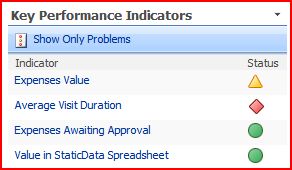
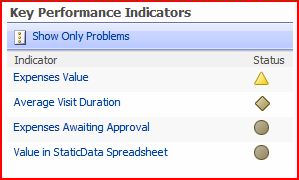
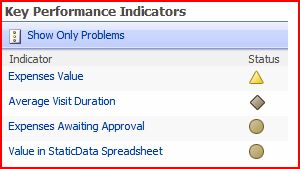
I used this to look at the SharePoint KPI icons. Similar icons to this are available in Excel 2007 for conditional formatting. I thought this was pretty interesting. For a start, it turns out that colour blindness is more complicated that just “red-green-blue” colour blindness, not least because the photoreceptors for the different colours overlap in their response to different frequencies of light. Still, this tool give a good view of the effects of the main conditions. For a full description, read this article at Wikipedia.

KPI - Normal
Normal
KPI - Greyscale
GreyScale
KPI - Deuteranopia (Red-Green Colour Blindness)
Deuteranopia (Red-Green Colour Blindness)
KPI - Protanopia (Different Form of Red-Green Colour Blindness)
Protanopia (Different Form of Red-Green Colour Blindness)
KPI - Tritanopia (Blue-Yellow Colour Blindness)
Tritanopia (Blue-Yellow Colour Blindness)

What this shows is pretty obvious – that the icons from red and green are pretty similar for red-green types of colour blindness (what a surprise), but that the shape of the icons still gives a good visual cue to the state of the KPI. Given that (according to Wikipedia) 7-10% of men are Red-green colour blind, this is important. It’s worth noting that women are very rarely colour blind, and that this probably explains my Dad’s dress sense and my Mum’s opinions on it…

KPI Icons neatly designed for colour blindness

Error "This item cannot be deleted because it is still referenced by other pages"

I was trying to delete a master page in SharePoint designer, and I got the error “This item cannot be deleted because it is still referenced by other pages”. This was strange, as we knew that the master page had been reset for all sites in the site collection. We simply couldn’t find a reference.

Well, it turns out that this is a bug, and that Katrien De Graeve has an answer – create a folder, move the master page into the folder, delete the folder. Bizarre, but it works. And I have no idea how the heck they figured that out…

Error "This item cannot be deleted because it is still referenced by other pages"