Stuff I forgot to style

SharePoint has a lot of page elements, and it’s hard to brand it all without missing things. Lists of Page elements like Heather Solomon’s CSS Reference Chart and her “Oh crap, I missed that” list help, but I still found a few that weren’t mentioned. So, I guess this is my “Thank God my testing found I’d missed that” list:

Advanced Search Page – nice grey.
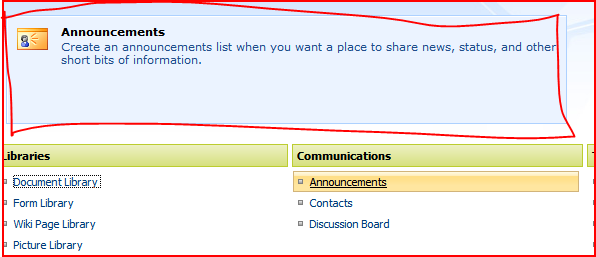
Creation Information Panel – when you hover over an item on the ‘Create’ page, you’ll see this.
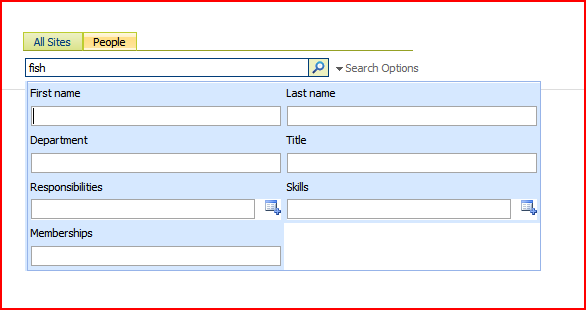
People Search Options – shown dynamically when you click the link.
Gantt views – as used in projects
Repeating Meeting Left Nav
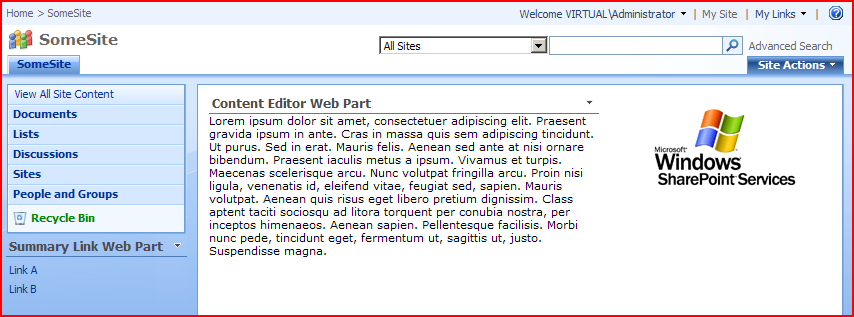
WSS Search results page – just ‘cos you’re using it doesn’t mean it isn’t there – or that it won’t be seen…
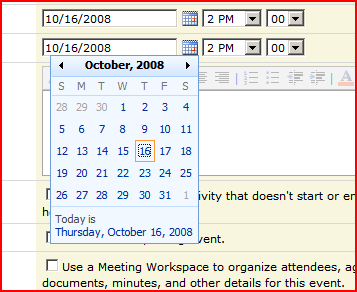
The Date Picker – and all the problems inherent in that…
Stuff I forgot to style

Setting up your content types and templates…

I received a good link in one of the comments on the blog, and I thought I’d bump this up – Sensible Document and Template Management.

I’m with Mads on this – to me the killer feature of SharePoint is how it works with Offices, and template functionality is key in that. Demos of document properties, quick parts and then the list columns in Sharepoint have a very high wow-factor (rightly so – I think it’s pretty neat too!)

However, templates are something rarely used in my experience, or not use properly anyway. Often it’s seen as an unnecessary effort, and usually everyone just starts creating their own documents from blank, or deleteing the contents from an existing document and using that one, or copying and pasting across – none of which are pretty scenarios.

Then again, often the guys actually making these templates need a good course of ‘How to use Word’. No so much with Excel – I think that people accept you need a bit of training to use it – but Word seems to be an issue.

Anyway, the point is, do try and plan building templates into your project. And that there is probably a consultancy opportunity in trying to generate these…

Setting up your content types and templates…

Feature Receiver to apply master pages to normal or meeting sites

As noted previously, Meeting Workspaces use a different master page to the ‘normal’ master pages in SharePoint. This is a little annoying – if I need to apply a new master page, how would I do this?

Well, you can activate a new master page in a Feature Receiver. And we can detect the type of site we’re dealing with. Why not combine the two techniques Continue reading “Feature Receiver to apply master pages to normal or meeting sites”

Feature Receiver to apply master pages to normal or meeting sites

Applying Themes

Themes have a couple of big advantages over Master Pages:

  • Any type of site will let you change the theme.
  • They style the Site Admin pages too.

…but there are some pain points too:

It’s certainly worth considering how your theme will be applied up front – although you could using the Alternate CSS url to ‘apply’ your theme. Personally, I think I like the idea of using a Feature.

Applying Themes

Corrupt Breadcrumbs in the in PageAreaTitleFrame

I was tempted to call this “The incredible case of the bust rendering of SharePoint pages”, but it seemed a bit long, to be honest. This is a bit of a detective story (and if I’d the developer who built this in the first place, there’d be a murder) so stick with me… Continue reading “Corrupt Breadcrumbs in the in PageAreaTitleFrame”

Corrupt Breadcrumbs in the in PageAreaTitleFrame

Putting a web part zone below the quick navigation menu

Previously, I’d been asked to put a web part zone below the quick nav for SharePoint pages. As it transpires, you can’t put web part zones on master pages – but there is no reason why you shouldn’t put one in an asp:Content control (indeed, that’s how you have to place them on pages). And I’d noticed this PlaceHolderLeftActions content placeholder. So I figured, why not put my web part zone into that?

To do this, I need to modify the page that I want this zone to appear for. It could be a Page Layout for publishing pages, or just a normal default.aspx on a team site. I’m using a blank site for this. I simply added a Content control, and dropped a web part zone into it:

<asp:Content ContentPlaceHolderId="PlaceHolderLeftActions" runat="server">
<WebPartPages:WebPartZone id="g_5AD648BF053647678E80875B48A60593" runat="server" title="Zone 1">
</WebPartPages:WebPartZone>
</asp:Content>

I saved the changes, and now when I go to edit that page I see:

Great! I can drop in web parts – here I’ve used a summary links web part:

But you may find the styling leaves something to be desired – but you can design that in!

Sure, you could find that you have to do this a lot of times if you want to do this for many pages, but if you’re using the publishing features, you only have to modify each Page Layout once, which is very handy.

Putting a web part zone below the quick navigation menu

Yes, Folders in SharePoint do suck

Like many people, one of the things I found a little hard to adjust to was not using folders in SharePoint. I mean, you can, and they do have their place, but metadata and views is much more useful. However, now when I go out to customers I notice that a lot of them have a lot of difficulty letting go of using folders for everything. Continue reading “Yes, Folders in SharePoint do suck”

Yes, Folders in SharePoint do suck

How to find out what type of site a site is…

I’ve built a feature to active branding on a site including master page, navigation and themes, which I’ve been talking about a bit over the last few weeks. One issue, though is that meeting workspaces have a different master page to ‘normal’ master pages, so I need to set them to use a different ‘custom’ master page when the feature is activated. This means that my feature receiver has to ‘know’ if the site it’s being activated on is a Meeting Workspace, or some other site.

What defines the ‘type’ of a site is the template that was used in it’s creation. Continue reading “How to find out what type of site a site is…”

How to find out what type of site a site is…