Out-of-Box Publishing Page layouts suck too

So, might not be news, but SharePoint’s out of box Page Layouts suck. I’ve already described how the page layouts have an image on branding, introducing styles to change the navigation, etc.. This has led me to the conclusion that you shouldn’t use the out-of-box publishing sites – start from a minimal publishing site, and build from the ground up.

But what of customers who have naively thought that, I don’t know, a Collaboration Site Template might be a good template to use for the collaboration site? Well, this is the problem I’ve got now; a customer has used the out-of-box page layouts extensively, and now wants the styles of the text and so on to be consistent. How can I do that? Continue reading “Out-of-Box Publishing Page layouts suck too”

Out-of-Box Publishing Page layouts suck too

Polling Web Part by Phil Wicklund

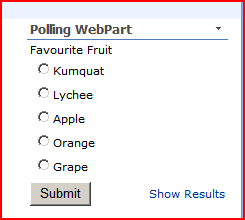
I’ve just downloaded (from codeplex) and had a look at the Polling Web Part by Phil Wicklund. We’ve a customer who wants exactly this sort of functionality – surveys are too heavy weight; they just want a little radio-button panel. That’s what the Polling Web Part does:

question

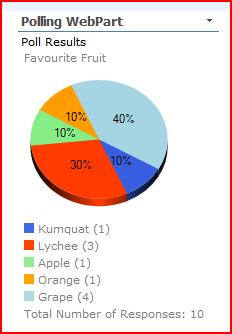
Cool. And it shows it’s results as:

results

Hmm. So how does it store it’s data? Well, that seems to me a little strange – each poll, options and responses are a single row in a list:

polls-list

Bit strange if you ask me. Some consequences of this are that:

  • You can’t have more than 5 options
  • You can’t be sure that someone doesn’t respond twice (although it appears that a cookie is set to prevent that from being too easy).
  • Curiously, you can’t tell the web part to point to a particular poll question. It appears to always point to the latest. It’d be nice to have a drop down to select the poll in the Web Part Toolbox menu.

I must confess that I’d have considered having different polls in different lists, and reading the values available out of a Choice column on that list. Each response would be a List Item, so you’d know if someone has already created one. Still, Phil’s approach is probably quicker to process.

Other thoughts – well, it’d be nice to have bar chart rendering too.

All of which is, I must point out, quite picky. It does what it does well, and is free, and the source code is available; I may try and have a look at that at some time.

Polling Web Part by Phil Wicklund

Linking list data and summing over it with XSL and the Dataview Web Part

Thrilling title, eh? So, previously I’ve talked about merged lists in the Dataview web part. This time, I was after something slightly different – rather than merging two lists, I wanted to join them.

Joining is pretty easy, actually, but the process is a little bizarre. I ended up using the post ‘Performing Joins with SharePoint Lists‘ by Sahil Malik. The thing that confused me was that when I was I expected to provide the ‘keys’ of my lists when I created the new Datasource – but actually, you define it when you insert your ‘joined subview’.

Anyway, the scenario was that there are customer purchases for ‘Credits’ to do things. Operatives then do things for them, and these actions subtract time off those pools of credits. The need was for a way to:

  • Record purchases of pools of credits. Customers may purchase multiple times, but under different agreements (or invoices, or whatever)
  • Record actions and the number of credits that they cost
  • Remaining total.

I solved this with a Dataview web part, and two lists. Continue reading “Linking list data and summing over it with XSL and the Dataview Web Part”

Linking list data and summing over it with XSL and the Dataview Web Part

SharePoint Designer – grrr….

SharePoint designer is so like a wife – I love it to bits, sometimes I hate it, and I fervently hope for a cuter version in the future! No, I’m kidding.

But SPD currently has this persistence in adding a   in front of my page’s title field. I don’t need that non-breaking space. I don’t want that non-breaking space. But I keep deleting it, and Designer keeps adding it back in.

For me, it’s a sign one of the two big problems with SharePoint Designer – robustness. When I’m in Visual Studio, I’m comfortable; it’s pretty reliable, normally, and behaves in ways I understand. Even the things that can blow it up are pretty well understood. Much as I hate to admit it, I do think that the reason that C# won out over Java was simpler, robust tooling – Visual Studio.

However, with SharePoint designer all sorts of weird stuff happens… Continue reading “SharePoint Designer – grrr….”

SharePoint Designer – grrr….

Deploy Publishing Pages and Content Types as a feature

Aka “CAML is the bastard spawn of Satan”.

So, I’m writing a site definition to create a Publishing site. This is a bit of a first for me. One of the things I want to do is deploy a new Publishing Page Content type, and associate some layouts with it.

I started by following Andrew Connell’s instructions for a Minimal Site Definition (as in his book). This all seemed to go pretty well; testing created a new, minimal site.

Next up I wanted to deploy the Content Type and associated page layouts. Well, there wasn’t much information in his book on this – like him, I’d figured I’d write a separate Feature for deploying just the content type and page layouts – but there was very little information in his book about this. Continue reading “Deploy Publishing Pages and Content Types as a feature”

Deploy Publishing Pages and Content Types as a feature

Show a Page's Contact and Picture on a Publishing Page

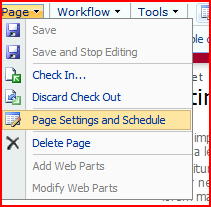
So, one of our customers is really keen that the new Page Layouts I’m writing show the page’s contact on the page. For those of you who perhaps haven’t had need to use this, the Contact field is a standard field on Publishing Pages (i.e. the Page content type). You can interact with it via the page settings:

page-settings-on-a-publishing-page

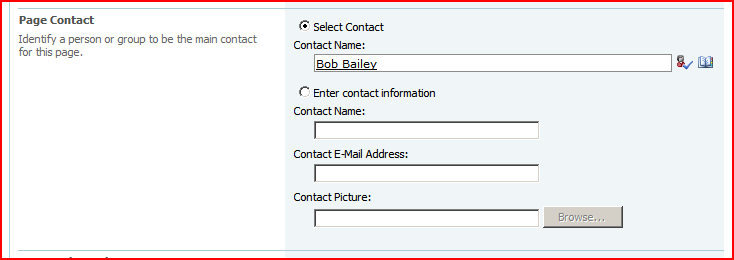
… which shows a page with…

page-settings-for-contact

These fields are to allow you to select another SharePoint user, or manually enter someone’s details (if they’re not a SharePoint user!) Further, these fields are available in SharePoint designer:

contact-page-fields-in-sharepoint-designer-toolbox

So this looks like it’s shaping up to be a very brief blog post. Open up SharePoint designer, edit the page layout, drag the Contact field onto the page. With that, we get:

contact-field-as-displayed-on-page

Great! Well, no, there are two problems with that…

Continue reading “Show a Page's Contact and Picture on a Publishing Page”

Show a Page's Contact and Picture on a Publishing Page

Missing Web Part Titles in Search Center Pages

I just had a really weird error – I’d built some search pages for a customer. There was a custom results page, and a custom ‘Advanced Search’ page. When I went into Edit mode, to change the web parts, they didn’t have a title bar – including the ‘Modify this web part’ link. WTF?

Well, they’d been customized using SharePoint Designer, so I figured I’d copy their code from the customer system into a VM of mine, and check that the pages broke on my system. They didn’t. WTF x2 ?

So, the page page code, inside the same master page, in two different systems works differently. To check I wasn’t going nuts, I tried a WinMerge compare on the two files – and found this chunk of XML in my non-working version on the customer site:

<!--[if gte mso 9]><xml>
<o:CustomDocumentProperties>
<o:PublishingContactPicture msdt:dt="string" dt="string">, </o:PublishingContactPicture><o:PublishingContact dt="string"></o:PublishingContact>
</o:CustomDocumentProperties></xml><![endif]-->

Yes, although I’d cut and pasted the code, it was different. I came to the conclusion that this code is created or used by SharePoint Designer itself. I decided to delete it, save the changes to the customer’s page, and refresh my pages. It worked; now when I edit the page, lo, there are titles and the ‘Modify this web part’ menu. I have no idea what this XML is about, but I’m about 70% confident that it’s the culprit. I reckon that there’s a 30% chance that it was just being customized in SharePoint Designer again that fixed it, but I couldn’t see anything else related to the code that was likely to be a problem.

Missing Web Part Titles in Search Center Pages

CQWP: Show the first item in each group

So, we have a customer who has a library of Newsletters.

library-of-newsletters

These newsletters belong to different regions, and they have a date on which they should be ‘published’ – or at least, a date at which they’re the most recent item. So, we have two columns to capture that – News Region and Publish Date.

The customer wanted a web part on a page that would show the most recently ‘published’ item for each of those regions. Something like:

result

I did this with the Content Query Web Part (CQWP) – but how?

Well, first I set my CQWP to query the list of newsletters. They have a specific content type that I queried for. I filtered items with a Publish Date in the future out – although not a secure way of preventing users seeing these items, at least it doesn’t make the obvious.

Next, I set the CQWP to group by News Region, and Sort by descenting Publish Date. So far, so standard – but it would also return multiple items for each region, and display their title, not their region.

This called for a special Itemstyle, which I added using the technique mentioned before for putting ItemStyles into a different file. This made sense; we’re not going to use this style extensively, so it’s best to keep it separate.

Next, I modified my CommonViewFields to bring in the News Region column. I’ve mentioned this before.

Then I wrote my XSL:

xsl

Take a look at it – it’s cool.

Looking at the code, you can see I read the News Region that we’re looking at into a variable. I then count up the number of preceding nodes which also have the same value for their News Region.

The first node with a particular News Region value will always be the one with the latest Publish Date that isn’t in the future – therefore, the most recent one for that region. The count statement won’t count nodes for other regions, either. So, if it’s the first, we display it – using the News Region text, rather than the title. Simple!

(But a bugger of an XSL query to figure out)
CQWP: Show the first item in each group