No Thumbnails for Custom Picture Library Definition

I’ve got a Custom Picture Library definition – it encapsulates much of the same functionality I described a few days ago for Document Libraries. I built it, then ran Solution Generator against it to create the List definition and schema.

It all seemed to work alright, but when I tried uploading an image, it didn’t create my thumbnails, or the _w and _t folders the thumbnails are hidden in! This was a problem.

Well, I cracked open reflector (how did we do .NET development before it?) and dug around. Didn’t find much, except that the Upload.aspx page decides if it is for a Picture Library based on the List Template‘s Type attribute (ordinarily 109).

The Type attribute of a List Template tag says this:

Provides a unique identifier for the template. This identifier must be unique within the feature, but need not be unique across all feature definitions or site definitions.

This attribute corresponds to the Type attribute of the List element

Hmm. Interesting. I had changed my List Template‘s Type – I’ve been keeping all of mine unique in my solution, as I do have multiple lists based on the same out-of-box type (e.g. multiple lists based upon the ‘Custom List’ type). As I was suspicious, I changed this back to 109, and tried again. My thumbnails now worked.

I guess that this mean that the thumbnailing done during the upload process is contingent on the list’s Type being 109 still. As a consequence, I guess that a feature can only have one custom Picture Library definition (as “This identifier must be unique within the feature”).

No Thumbnails for Custom Picture Library Definition

Simplified People and Groups pages in SharePoint

One of my pet peeves with SharePoint is the People and Groups pages. These are pretty damn complicated.

standard-perms-page

You typically get groups for:

  • Owners
  • Members
  • Visitors

And often you can have

  • Approvers
  • Moderators
  • Designers
  • Individual users granted rights directly on the site (rather than being in a group)

… and so on. And if individual sites start to break from inheritance and define their own groups, you get even more groups. It’s possible (especially if the administrator of the system doesn’t understand what they’re doing – which is often the case) to end up with 3 times as many groups as sites!

Frankly, this is enough to confuse me, never mind users. Trips into the People and Groups pages often takes me some time to understand what I’m seeing. And the worst part is that often users just want to be able ‘Give Fred access to this site’. They don’t care about other groups or other sites, permissions levels, or any of that jazz.

The case management system we’re working on at the moment has this sort of requirement. Each case is a site, and we want ‘Case Owners‘ to be able to add/remove ‘Case Owners‘ or ‘Case Workers‘. They don’t need access to other groups. They don’t need the ability to send emails, call people, remove users from the site collection, or any of the other (confusing) options on the menus. So, I built my own administration pages… Continue reading “Simplified People and Groups pages in SharePoint”

Simplified People and Groups pages in SharePoint

Show Site, List or Item information on Pages

I’ve seen a few questions on Twitter over the last few weeks about how to show properties from Sites or Publishing pages within pages. Actually, this is very easy.

Obviously, if you’re working with Publishing Pages, you’ve got all your publishing controls, which you can see in SharePoint Designer…

publishing-controls-in-SharePoint-Designer

But what about site information, such as the Site Title? Or other Page Information, such as the Last Modified time? Well, I want to introduce 4 other controls – ProjectProperty, ListProperty, ListItemProperty and FieldValue Continue reading “Show Site, List or Item information on Pages”

Show Site, List or Item information on Pages

Use jQuery to populate and hide fields in an EditForm.aspx

We’ve got an interesting requirement. We’re using a SharePoint list to store documents which are related to K2 SmartObjects. One of my colleagues is building a custom user control that’s going to show information from this SmartObjects, and associated documents. We want to allow users to

  • click to add a document to our smart object entity
  • upload a file to a library
  • fill in some details
  • automatically associate that file by a GUID

Sounds complicated? Actually, it’s not so hard! Continue reading “Use jQuery to populate and hide fields in an EditForm.aspx”

Use jQuery to populate and hide fields in an EditForm.aspx

The Summary Toolbar in a ListView Web Part

Yesterday I was describing adding a ListView Web Part pointing at a specific view. I had a ListView Web Part which showed the right columns, but also showed the full toolbar:

case-comments-listview-2

…and I had a ListView which showed the Summary Toolbar, but didn’t show the right columns:

case-comments-listview-1

The Web Parts are defined identically, except for the BaseViewID property. So, what gives? Continue reading “The Summary Toolbar in a ListView Web Part”

The Summary Toolbar in a ListView Web Part

Pointing the ListViewWebPart at a particular view

So yesterday I described adding a ListViewWebPart to a Site Definition. This works – but how do you point the web part at a particular view?

This took a little figuring out. My ListViews were being defined in my ONET.xml file as:

<View List="Comments" BaseViewID="0" WebPartZoneId="Left">

Clearly the BaseViewID was a likely candidate – but what did it point to, and how could I define a view for my ListView? As is stood, My ListView kept appearing as:

case-comments-listview-1

Well, BaseViewID isn’t well documented, but it is actually the ID number of a view in the List Definition. I can’t say that I was able to see how to define a view for out ListView within our Site Definition itself.

If we open up our List Definition’s schema.xml file we see:

case-comments-list-definition-views

You can see that each of the views is assigned assigned a BaseViewID. I tried changing my BaseViewID to ‘1’ and my web part’s view changed to:

case-comments-listview-2

Great! This show’s the extra column I wanted – but it also shows the toolbar, which I didn’t. I really wanted the Summary Toolbar (the ‘Add new Item’ link, as in the top screenshot), but I’ll describe how I got that tomorrow.

Pointing the ListViewWebPart at a particular view

Pointing ListViewWebParts at lists

I was creating a site definition recently, and I wanted to use a ListView web part in it. List View Web Parts are a little strange; unlike other web parts they’re represented by a ‘View’ element inside the ‘File’ element for a page; it’s sort of saying that we want a view onto a list shown on this page. Looking at the out-of-box site definitions, they show things like:

<View List="104" BaseViewID="0" WebPartZoneID="Left" />

Here the ‘List’ attribute is the ‘Type’ id of the List, as defined in the list definition. Great – but what if (as in my case) you have two separate lists of the same type?

Well, it turns out that it also accepts a relative URL too. As the documentation says…

List – Optional Integer or Text. Specifies the type of list. This value can be either the ID of the template for a list (an integer), or the URL to a list provisioned in the site (a string). Best practice is to use Text, because Integer might not be specific enough (e.g., if there are two announcements lists in the site and you specify List=104).

So we can use:

<View List="Comments" BaseViewID="0" WebPartZoneID="Left" WebPartOrder="1" />

Here the ‘List’ attribute is set to ‘Comments’, which is the URL to my ‘Comments’ list (no, it isn’t the name – ‘cos this list’s display name is ‘Case Comments’). And this works nicely. This is actually how some of the out-of-box site defintions work, but most of them refer to their lists by type.

Pointing ListViewWebParts at lists

List Definitions don't need their own forms…

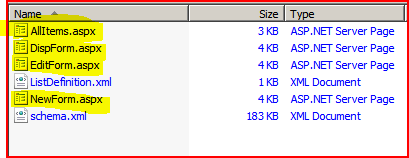
List definitions don’t need their own forms – if you’re happy with the out of box ones. Mostly, if you use something like the solution generator to create your List definition, it will create a number of forms by default for you:

as-created-by-solution-generator

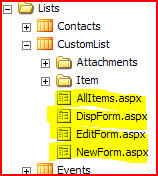
These are then deployed into your list:

when-deployed-as-seen-in-sharepoint-designer

However, you don’t actually need these in your definition, unless you’re providing your own custom forms! Continue reading “List Definitions don't need their own forms…”

List Definitions don't need their own forms…

Application Pages like a Site's Pages

SharePoint has many types of pages, but one that interests me at the moment is the Application Pages. These live in the _Layouts directory, which is a virtual directory mapped to every site.

Thus, EVERY site can have pages in the _layouts directory.

One such page, for example, is the ‘View all site contents’ page:

viewlsts-page

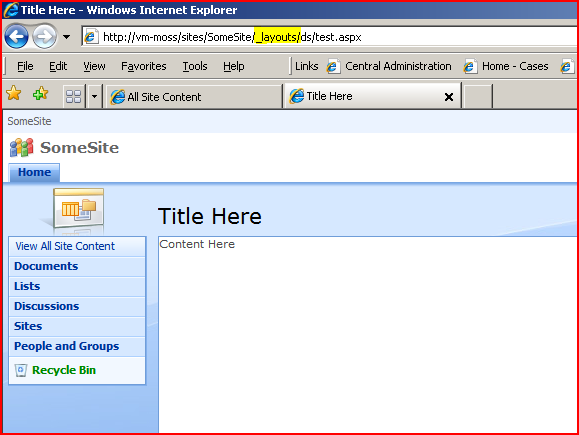
This page looks like a site page, but you’ll notice in the URL the _layouts part. It’s not part of the SharePoint virtual file system; it’s a physical file in 12 Hive and, for the record, you shouldn’t modify these. You can add to them though, and my question was, could I easily add a page in here myself.

The short answer – yes:

my-test-page

I created myself a folder in the _layouts directory (to keep my work separate), and then created this page (which might make a good template) based on the View all site content page. A good foundation for pages which might look like they’re in a site – but aren’t! Here it is as a template.

I did try adding a Web Part Manager and web part zone to the page too, but although I could swap into Edit mode and see my web part zones, I couldn’t actually add any web parts to them. To be honest, I’m not that bothered, it doesn’t seem that useful a thing to have on such pages.

Application Pages like a Site's Pages

UpdateListItems Web Service fails when using item level permissions

This tip come from one of my colleagues, but it’s a good ‘un:
For those of you familiar with the Lists.asmx web service in SharePoint, you’ll know that the UpdateListItems() method allows you to apply metadata to a list item. The following XML provides a simple example of how I’ve been using it so far….
<Method ID='1' Cmd='Update'>
<Field Name='ID' />
<Field Name='FileRef'>http://site/library/folder1/folder2/mydoc.pdf</Field>
<Field Name='ContentType'>Invoice</Field>
<Field Name='InvoiceNumber'>12345</Field>
</Method>
Under normal circumstances, the above XML works just fine. However, if you enable fine grained permissions [Item Level Permissions] in a document library it will break with a permissions related error (even though you have permissions to perform the action!) Continue reading “UpdateListItems Web Service fails when using item level permissions”
UpdateListItems Web Service fails when using item level permissions