Feature Receiver to apply master pages to normal or meeting sites

As noted previously, Meeting Workspaces use a different master page to the ‘normal’ master pages in SharePoint. This is a little annoying – if I need to apply a new master page, how would I do this?

Well, you can activate a new master page in a Feature Receiver. And we can detect the type of site we’re dealing with. Why not combine the two techniques Continue reading “Feature Receiver to apply master pages to normal or meeting sites”

Feature Receiver to apply master pages to normal or meeting sites

Applying Themes

Themes have a couple of big advantages over Master Pages:

  • Any type of site will let you change the theme.
  • They style the Site Admin pages too.

…but there are some pain points too:

It’s certainly worth considering how your theme will be applied up front – although you could using the Alternate CSS url to ‘apply’ your theme. Personally, I think I like the idea of using a Feature.

Applying Themes

Corrupt Breadcrumbs in the in PageAreaTitleFrame

I was tempted to call this “The incredible case of the bust rendering of SharePoint pages”, but it seemed a bit long, to be honest. This is a bit of a detective story (and if I’d the developer who built this in the first place, there’d be a murder) so stick with me… Continue reading “Corrupt Breadcrumbs in the in PageAreaTitleFrame”

Corrupt Breadcrumbs in the in PageAreaTitleFrame

Putting a web part zone below the quick navigation menu

Previously, I’d been asked to put a web part zone below the quick nav for SharePoint pages. As it transpires, you can’t put web part zones on master pages – but there is no reason why you shouldn’t put one in an asp:Content control (indeed, that’s how you have to place them on pages). And I’d noticed this PlaceHolderLeftActions content placeholder. So I figured, why not put my web part zone into that?

To do this, I need to modify the page that I want this zone to appear for. It could be a Page Layout for publishing pages, or just a normal default.aspx on a team site. I’m using a blank site for this. I simply added a Content control, and dropped a web part zone into it:

<asp:Content ContentPlaceHolderId="PlaceHolderLeftActions" runat="server">
<WebPartPages:WebPartZone id="g_5AD648BF053647678E80875B48A60593" runat="server" title="Zone 1">
</WebPartPages:WebPartZone>
</asp:Content>

I saved the changes, and now when I go to edit that page I see:

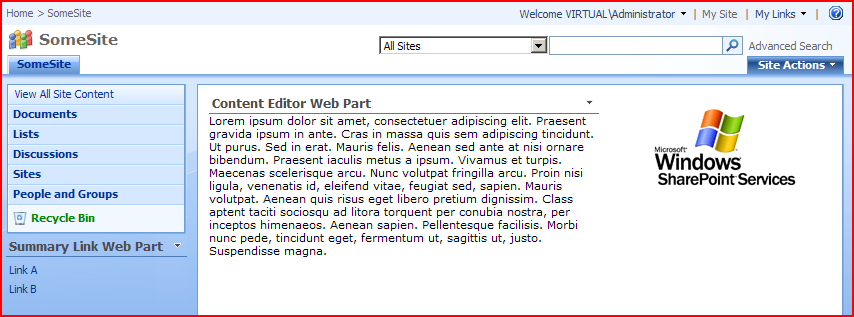
Great! I can drop in web parts – here I’ve used a summary links web part:

But you may find the styling leaves something to be desired – but you can design that in!

Sure, you could find that you have to do this a lot of times if you want to do this for many pages, but if you’re using the publishing features, you only have to modify each Page Layout once, which is very handy.

Putting a web part zone below the quick navigation menu

Yes, Folders in SharePoint do suck

Like many people, one of the things I found a little hard to adjust to was not using folders in SharePoint. I mean, you can, and they do have their place, but metadata and views is much more useful. However, now when I go out to customers I notice that a lot of them have a lot of difficulty letting go of using folders for everything. Continue reading “Yes, Folders in SharePoint do suck”

Yes, Folders in SharePoint do suck

How to find out what type of site a site is…

I’ve built a feature to active branding on a site including master page, navigation and themes, which I’ve been talking about a bit over the last few weeks. One issue, though is that meeting workspaces have a different master page to ‘normal’ master pages, so I need to set them to use a different ‘custom’ master page when the feature is activated. This means that my feature receiver has to ‘know’ if the site it’s being activated on is a Meeting Workspace, or some other site.

What defines the ‘type’ of a site is the template that was used in it’s creation. Continue reading “How to find out what type of site a site is…”

How to find out what type of site a site is…

How SharePoint Pages are associated with a Master page

So, yesterday’s discussion of the problems with master pages for Publishing and Meeting sites raised a bit of a question with my colleagues. If a site (SPWeb object in the code) has both MasterUrl and CustomMasterUrl properties, how does a page ‘know’ which one to use? Why do publishing pages use the value in CustomMasterUrl, and other pages use MasterUrl?

Well, to find the answer to that, you’ve got to look in the code of the .aspx content page. Here’s the top of one in SharePoint Designer:

Yup, there is a MasterPageFile as per standard ASP.NET. However, the value of this isn’t normal – it’s not the URL itself, but rather a token that gets replaced at runtime.

  • ~masterurl/default.master is resolved to the value of the MasterUrl property (i.e. the ‘System Master Page’ on a publishing site).
  • ~masterurl/custom.master is resolved to the value of the CustomMasterUrl property (i.e. the ‘Site Master Page’ on a publishing site).

If you look in, say, the default.aspx page on a team site, you’ll see that it uses ~masterurl/default.master.

If you look in, say, the default.aspx page on a meeting workspace, youll see that it uses ~masterurl/custom.master.

If you look in publishing pages, though, you have to look at the page layouts (which are the actual .aspx pages being used). These don’t have a have a MasterPageFile defined – what gives? Well, they inherit from the Microsoft.SharePoint.Publishing.PublishingLayoutPage class, which sets the master page file internally during OnPreInit! You can see in Reflector that it’s using CustomMasterUrl though.

How SharePoint Pages are associated with a Master page

What's up with the awful code in Meeting Workspaces?

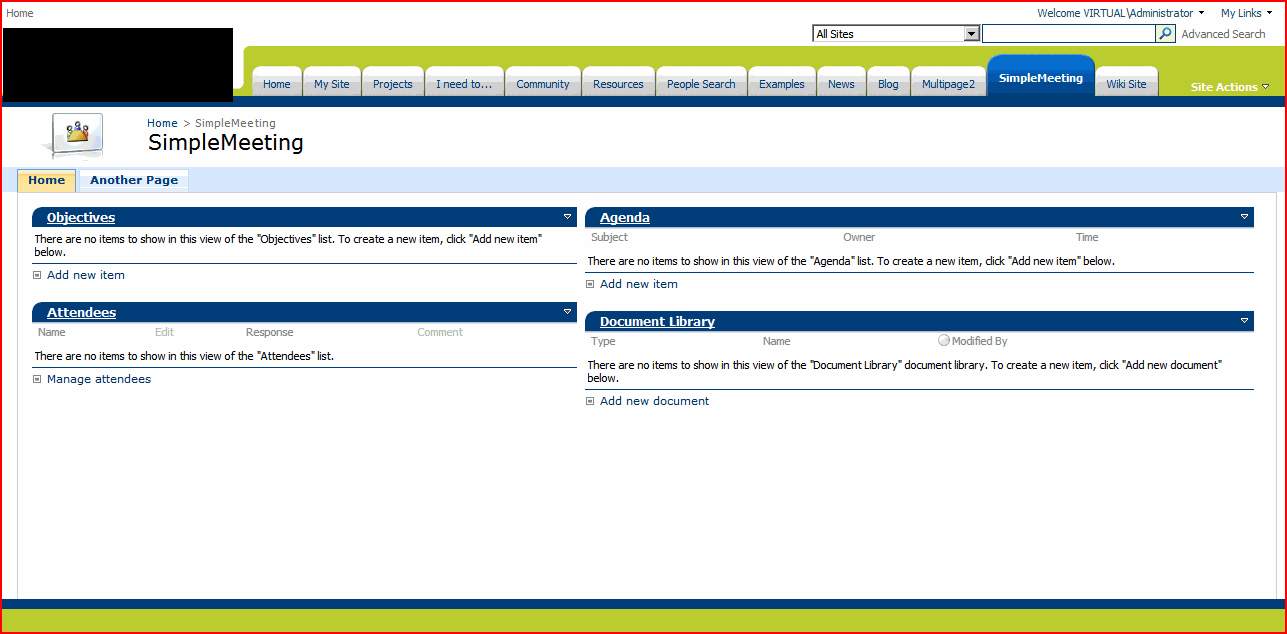
So I’ve been working on branding meeting workspaces and looking at some of the issues within them. I took a look at the branding I’d been building on a meeting workspace:

Yup, lots of nice rounded corners, but you can see that the meeting workspace tabs are currently unstyled. I decided I’d try to make them look just like the ones at the top, and replace that pale blue bar with the green one, like the one at the top. Continue reading “What's up with the awful code in Meeting Workspaces?”

What's up with the awful code in Meeting Workspaces?