Redirect OSSSearchResults.aspx to another page

As promised yesterday, here’s some prototype code to redirect calls to OSSSearchResults.aspx to another page:

namespace SearchRedirector
{
    public class HTTPModule : IHttpModule
    {
        public void Init(HttpApplication context)
        {
            context.PreRequestHandlerExecute += new EventHandler(RegisterPreInitRequestHandler);
        }

        void RegisterPreInitRequestHandler(object sender, EventArgs e)
        {
            Page page = HttpContext.Current.CurrentHandler as Page;
            if (page != null)
            {
                page.PreInit += new EventHandler(page_PreInit);
            }
        }

        void page_PreInit(object sender, EventArgs e)
        {
            Page page = sender as Page;
            if (page != null)
            {
                if (page.Request.Url.AbsolutePath.Contains("OSSSearchResults.aspx"))
                {
                    page.Response.Redirect("/SearchCenter/Pages/results.aspx" + page.Request.Url.Query , true);
                }
            }
        }
        public void Dispose()
        {
        }
    }
}

This seems to work pretty well, although for some reason it’s tricky getting the debugging in Visual Studio to break into the code working consistently.

The guts of this is in the page_PreInit function, where we’re checking to see if the page is the OSS Search results, and if so, we redirect, passing the appropriate query string params.

Obviously, for a production system you’ll need to add a lot more configuration around this – what page(s) we’re forwarding to, what context(s) we should forward for, and so on. There are probably more efficient ways of checking if the page is an OSS results page than a string Contains() too.

Redirect OSSSearchResults.aspx to another page

Search Scopes and Site/List Context…

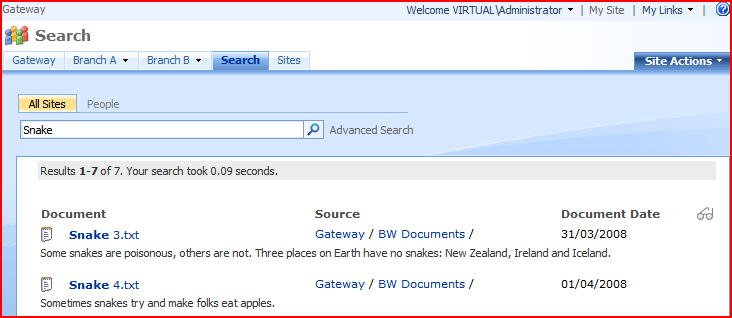
Came across an interesting problem from a customer – they’ve got a customised master page which doesn’t have ‘Site’ or ‘List’ level searches. They’ve got search scopes (such as ‘People’ or ‘Documents’ or ‘All Sites’), but across their entire SharePoint system. For example, this search:

will take us to our customised results page:

Note the Document Date column, and navigation breadcrumbs – these are custom.

The customer has added the search box web part to some pages, though, and this does display ‘Site’ or ‘List’ level scopes. Running a search against these scopes:

Takes us to this search page:

Yup, that’s the WSS3 standard search results page. You can see this in the So, can I change that?

Well… no. Proving that nothing is new under the sun, Mark Arend has a good post about this problem of contextual and custom search scopes. His explanation makes sense, too, but like he says, it doesn’t really justify the issue.

One option that he doesn’t mention is that you could use an HTTPModule to intercept the call to the OSSSearchResults page and forward it to our own custom results page. I might prototype that and post about it tomorrow.

Let’s hope that SharePoint vNext fixes this, ‘cos inconsistent search results depended upon contextual vs custom scopes will just confuse.

Search Scopes and Site/List Context…

Adding a SharePoint system to the Vista Start menu…

The only thing that I really like about Vista (in a ‘I wouldn’t like to go back to not having this’ way) is the search box in the start menu. To be honest, I’ve stopped clicking to start applications entirely – it works that well.

Well, today, I had a surprise. One of my colleagues asked me to test something for him, and update my Group Policy – so I did:

Then he asked me to search for something in the Vista start menu – and look what I found:

That’s right, a ‘Search SharePoint’ option. Continue reading “Adding a SharePoint system to the Vista Start menu…”

Adding a SharePoint system to the Vista Start menu…

Search Date Formats…

I keep forgetting this, so a note to myself. Date formats in search results in SharePoint are defined by:

  • For Team Sites, the sites Regional Settings
  • For Collaboration Portals, the Search Center’s Regional Settings

Now, if only I can remember that this time. Often I see systems showing the dates in American date format (don’t get me started on that one!) and this is how you change the displayed format.

Of course, this raises the question of, if you have offices in, say, London and Paris, how do you support the different time zones? Hmm. I’ll have to puzzle over that.

Search Date Formats…

Content Classes and Search

So I was playing with SharePoint search a while back, and I was wanting to display some results differently based upon what type of item the result was for.

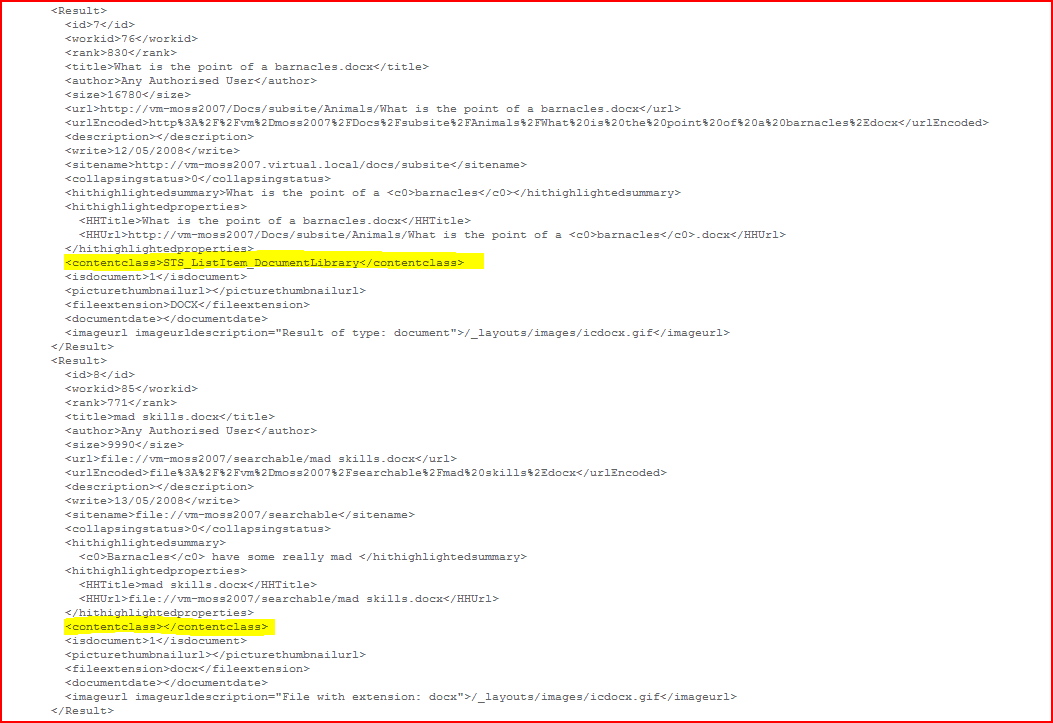
It turns out that there is a node in the results xml file that shows this – ContentClass :

Results XML showing ContentClass

As you can see, the first highlighted result is STS_ListItem_DocumentLibrary. Pretty clear what that is. Not all results actually have a content class – the second highlighted result is from a document on a file share, and it doesn’t have a ContentClass.

So what content classes are there? Well, Dan Attis has a good list, along with a caveat about Welcome pages in the results. There is a similar list here. (Nobody mentions not having a ContentClass though). But unfortunately, I don’t know how to add new content classes

Content Classes and Search

How do I get rid of the Action Links on my Search Results Page?

I wanted to get rid of the Action Links on a standard Search Results page in SharePoint:

Standard Search Results Action Links

So I opened up my search page in SharePoint Designer. This always looks a bit cluttered, but I went to my Core Search Results Web Part to modify it’s ShowActionLinks property.

SharePoint Designer view of Results page, showing that ShowActionLinks is already False

I’ve scribbled on this to highlight the obvious web parts on the page. The Core Results web part is highlighted in cyan. Anyway, if you look at the code in the top of the screenshot you can see that the ShowActionLinks setting is already False. Eh? Continue reading “How do I get rid of the Action Links on my Search Results Page?”

How do I get rid of the Action Links on my Search Results Page?

Saving SharePoint Searches

One of my colleagues was asking how to save a SharePoint Search. It’s a bit of a question of how many ways to skin a cat…

The important thing to remember is that a simple search is just a URL, and specifies the search term and scope in the k and s parameters respectively. E.g. This search url:

http://deltamoss01/searchcenter/Pages/Results.aspx?k=Badgers&s=All%20Sites

would run a search for badgers in the All Sites scope.

It is worth noting, however, that this is saving the search, not a set of search results. As the index is updated, the results on this page may vary. Also, advanced searches don’t pass their parameters as GET parameters (i.e. within the URL), so you can’t save these the same way. I’ve not yet found a way to save them.

As another note, the standard Search results page shows the ‘Alert Me’ link:

The Alert Me Link

This lets you set up email alerts about new items that match a search:

Alert Me Configuration Page

Really, that’s pretty neat. Continue reading “Saving SharePoint Searches”

Saving SharePoint Searches

Advanced Search – Losing Parameters

I have a bit of a problem with Advanced Search in SharePoint – it’s very awkward to use.

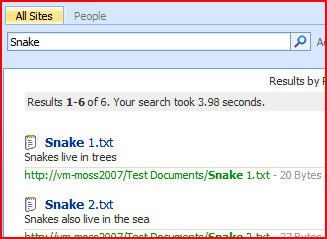
When I perform a standard search in SharePoint, it shows me what I’ve been searching for:

Search Results showing Search Term of Snake

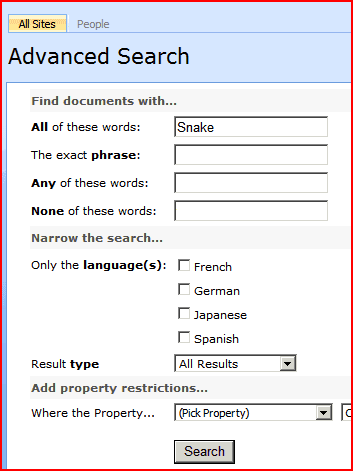
That’s good – it’s useful to know what you’ve searched for. If I then click on ‘Advanced’ the advanced search page opens showing my search term, and a number of other fields I can fill in for a more specific search.

Advanced Search Screen with Search term of Snake

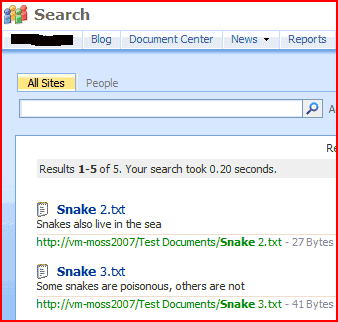
If I then run that search, though, I get the following results page:

Search results, but with no apparent search term

Okay, now that is a little odd looking. There is no search term in the search input box. This is perhaps not surprising – the advanced search screen can express more complex queries than the text input box of the simple search control. However, there is nothing to tell you what the results are of. You have no idea what the search was that gave these results!

Worse happens if you try to go back to your advanced search page. Unless you use the browser’s Back button, you will lose your current query. There is no obvious way of ‘refining’ an advanced query.

It looks like this is happening because the simple Search box passes it’s parameters in the URL as GET parameters, but the Advance Search page uses a postback-then-forward approach.

Is it too much to ask for to have a web part that describes what the conditions of an advanced search are, and to store that query to pass back to the Advanced Search page, should the user wish to refine their query.

Advanced Search – Losing Parameters

SharePoint Search doesn't have Wildcard searching

Yesterday I described Search Stemming and how to set it up. I thought I’d have a look at Wildcard searching and discovered (to my shock) SharePoint Search doesn’t have general wildcard searching.

This isn’t news – the normally evangalistic Patrick Tisseghem posted about this a year and a half ago, and plenty of folks have expressed their surprise at this. I can’t say I blame them. There are third party products that given general wildcard searching, but I’ve not see or used any of them, and some of them get mixed reviews.

You might have noticed that I spoke specifically about general wildcard searching. Well, you can do wildcard searching when you’re search for a property of a particular value. For example, a search for Title:Water would return results about water, waterloo, watergate, watering, Muddy Waters, etc.. Perhaps a comparison would be useful to make things clearer. Continue reading “SharePoint Search doesn't have Wildcard searching”

SharePoint Search doesn't have Wildcard searching

Search Stemming in SharePoint

So, my playing with search recently has shown that the search stemming in SharePoint is turned off by default. Search stemming is what takes a search term like ‘Fill‘ and also matches against ‘Filling‘ and ‘Filled‘. This is different to wildcards – ‘Fill*‘ would also match words like ‘Fillet‘. Here is an example of searching for Apple and Apples without stemming… Continue reading “Search Stemming in SharePoint”

Search Stemming in SharePoint