Folder based Navigation in SharePoint

We have a customer who wants a fairly simple site – all it needs to be is a heirarchy of web pages.

Unfortunately, SharePoint Publishing features don’t really do this very well. Yes, in a document library it does breadcrumbs as you navigate through folders – but you can’t really do that with Pages. For a start, you can’t put folders in pages libraries!

So, instead, they’ve got this deep structure of sites – just to get the navigation. The site permissions and features are the same at all levels. This is a real administrative pain – especially if want to change the definition of the content types used in the pages libraries throughout the site.

What would be better would be to have navigation providers which show Folders in the navigation – so that they’re exposed in the left navigation (and maybe the top – I’m not sure). You could then enable folders in your page library. Users would then be able to navigate down through folders and pages. I guess there is a question as to which page should be the ‘default’ for a folder (obviously the folder itself isn’t a page that can be shown) – but perhaps something like just having a convention that the page ‘default’ is shown would be enough. Or maybe make it part of the metadata for a ‘Publishing Folder’ content type.
This would mean that the whole deep heirarchy and dozens of sites my customer is using could be dealt with in one single site. I can’t quite believe that nobody had this idea when they were planning the WCM features for MOSS. I don’t even think it’d be that hard – I just hope that I get a chance to implement this sometime…

Folder based Navigation in SharePoint

Document Conversion Service doesn't map column data – Part II

(For the purposes of this post, I’ll use Pages with a capital P to mean items in SharePoint of a Page content type, or a child content type of Page. I’ll also refer to all content types in italics)

Previously, I found that the document conversion service doesn’t map site column data from the Document type to the Page type. So, what are our options?

  1. Get users to fill in the metadata for the converted document
  2. Put the metadata into the Word document
  3. Bespoke coding
  4. Don’t use the conversion service

Let’s look at each in turn.

Get users to fill in the metadata for the converted document

Well, the first option is pretty obvious – get the users to fill in the Site Columns for the converted document’s Page. In my case, this would mean filling in the AWBText column on the ConvertableDocumentPage type. This will work! Unfortunately this means that the page and document’s data is not linked – a change in the AWBText field won’t be replicated between both items, or even just pushed from the ConvertableDocument the next time it’s converted. That sucks a bit, but this might be a valid option.

Put the metadata into the Word document

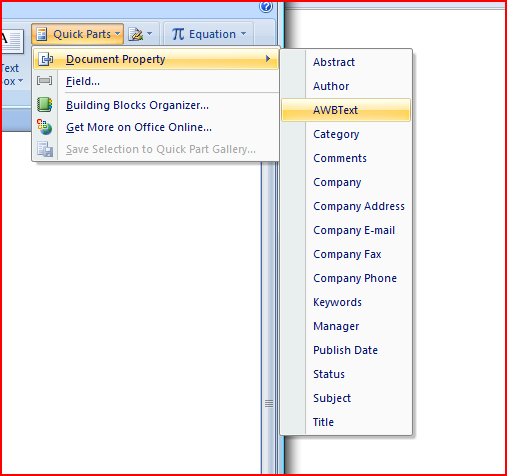
The second option is quite neat – Word document can have ‘Quick Parts’ – some of which are document properties, and this can be connected to the columns of the content type:

Insert a Quick part menu

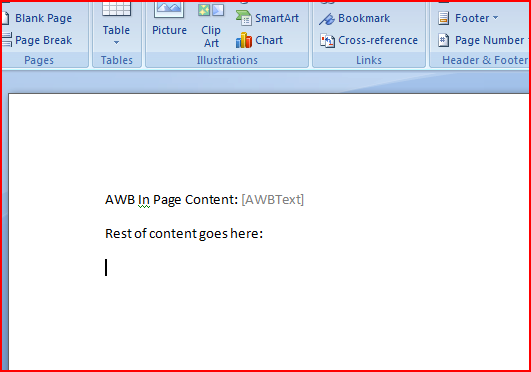
You can put these into the document itself. They’re like document ‘Fields’ in Word pre-2007, but these are much, much better. For a start, you can actually type into the quickpart and it’ll update the document properties – and when you save the document to SharePoint it’ll update the columns of the library! Very cool. Anyway, I updated my Word template from my previous example…

Word document with Quickpart

I then created a new document. Note that the AWBText field in the Document Information Panel and the Quick part is linked – I typed in the value in the document and it was reflecting the Document Information Panel.

Example document for Document conversion with QuickPart

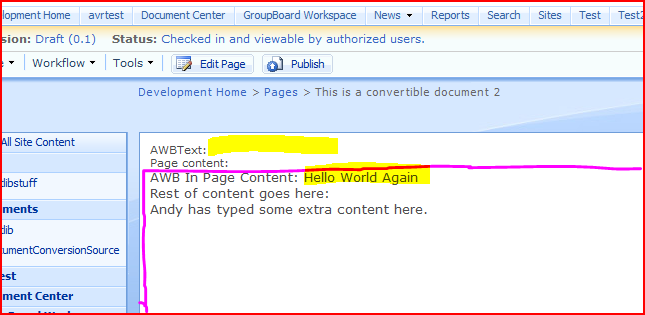
I then converted these document. This resulted in:

Converted Document - AWBText value in Page content

Okay, so I’ve scribbled on this a bit. The area outlined in the purple-pink colour is the content of our document that we converted. You can see that this includes the value of the ConvertableDocument‘s AWBText column. Hurrah! However, above this is the value of the AWBText column on the ConvertableDocumentPage – and it is still empty. In other words, the original document’s metadata is now in the page content – but it still isn’t stored against the Page as metadata. This isn’t really suitable for our customer – they need that column data against the Pages for their navigation. Bah!

Bespoke Coding

Okay, I started to wonder if I could fix this via custom code (i.e. some sort of Feature). I dug through some of the hidden properties of my source ConvertableDocument and destination ConvertableDocumentPage using SharePoint Manager. I knew that there must be some sort of connection as if you Edit the ConvertableDocumentPage is shows you that is has a source document, and lets you edit that document instead. Therefore, they must know where they came from.

In SharePointManager, I found some interesting fields. The ConvertableDocument content type I’d created had a property RcaPageID, which was a GUID. ‘Rca’ stands for ‘Rich Client Authoring’, which is what they seemed to call this page authoring technique until some decided to call it ‘Smart Client Authoring‘ instead. Certainly, internally it’s normally referred to as Rich Client Authoring, or ‘Rca’.

I then checked the ConvertableDocumentPage type, which had a property RcaSourceDocID . This was a GUID, and this ID matched the RcaPageID of the document we used to create the page. Thus, and I’m pretty sure about this, it’s the connection between the source Document and destination Page.

Therefore, I could build an event handler that (when a page is updated or created) gets the Page’s source document, sees what columns they share, and copies across the values of those shared columns. Actually, it’d probably have to exclude some (like title), but you get the idea. Also, it’d have to run a query across all the documents in the site collection, but I’m pretty sure that this is possible.

I like this solution, and think it’s a fairly straight forward, generic candidate for a feature, but unfortunately our customer is unable to make server configuration changes – like installing new features. So that rules that idea out… damn.

Don’t use the Document Conversion Service

I know, this seems a bit crazy – but you could author your content in Word and just copy and paste the content into your pages. This is what our customer was doing. I know, it seems a little crazy to me too, but if you lock down the styles available in a Word template, then the code you’ll copy will have consistent CSS styles in it, and you can prevent any inline CSS through that restriction too. It has no server footprint and no duplication of metadata – but you still have to store the documents (which might require column data too).

So those were the options I was able to come up with. I like the coding option – an event handler could be a very elegant way of dealing with this.

Document Conversion Service doesn't map column data – Part II

Document Conversion Service doesn't map column data – Part I

(For the purposes of this post, I’ll use Pages with a capital P to mean items in SharePoint of a Page content type, or a child content type of Page. I’ll also refer to all content types in italics)

One of our customers wants to author their Pages in SharePoint in Word. Sounds like a case for the Document Conversion Service – author the content in Word, and then convert the Document to a Page. There is a catch though – they’re wanting to capture some meta-data about the document too, such as business unit, review date, department that ‘owns’ the page, etc.. What would the Document Conversion Service do with this information? I didn’t remember seeing any way of setting up mappings between fields. Would the metadata be copied if both the Document and Page content types shared the same site column?

To find out, I did a bit of testing. Much of what I did was actually stuff like creating a new Page layout, and then customizing it. There are better articles about this that my notes, but I’ll include all the steps. (I do assume that you have the document conversion service running and enabled on your site collection though.) I did the following:

I created a new Site Column – I called it AWBText. It was just a text column.

I created a new Document content type which used that new column. I called this content type the ConvertableDocument content type:

The new Document Content Type

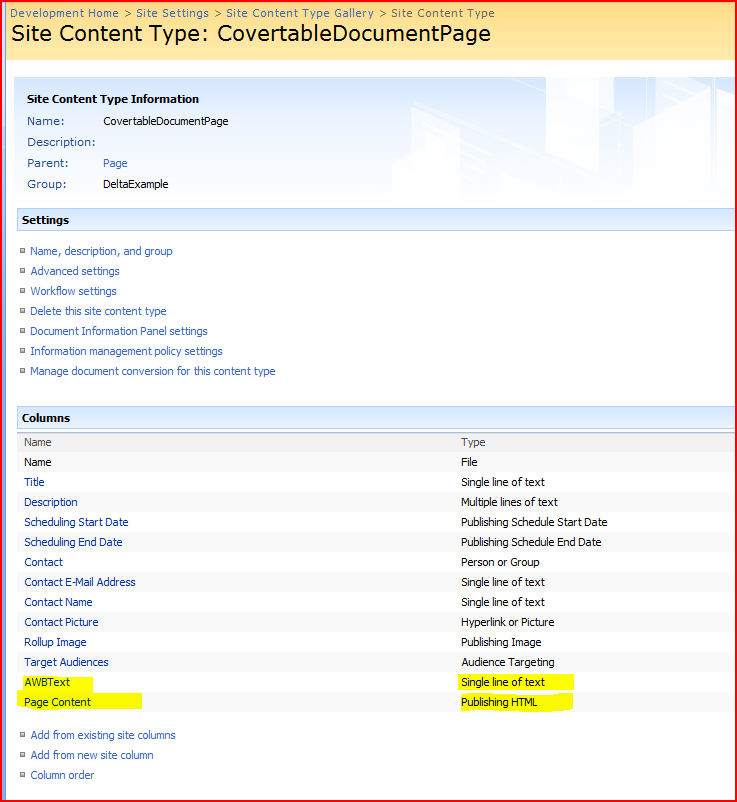
I then created a new Page content type. I called this the ConvertableDocumentPage content type:

Creating a new Page Content type

I made sure that that also used the AWBText column – and the out-of-box ‘Page Content’ column. This column will hold the content of the converted document. You should probably add another column for holding the style information, but I didn’t bother (‘cos I didn’t need it for the test). You could create your own, but I chose just to use the same ones as the Article Page content type – after all, the data (page content) is still the same, and this is why different content types can share the same columns.

The new Page content Type

So, now I’ve got my two content types I’m going to test with, and they both share the AWBText column. However, the ConvertableDocumentPage content type needs a page layout to, well, define how the ConvertableDocumentPage‘s content will be displayed. I cracked open SharePoint Designer, opened my site, and created a page layout:

Create a Page Layout - Step 1Create a Page Layout - Step 2

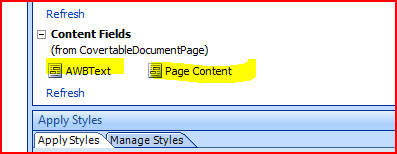
This gives you a page layout to put your content controls into. We’ve only got a couple:

Page Content Controls

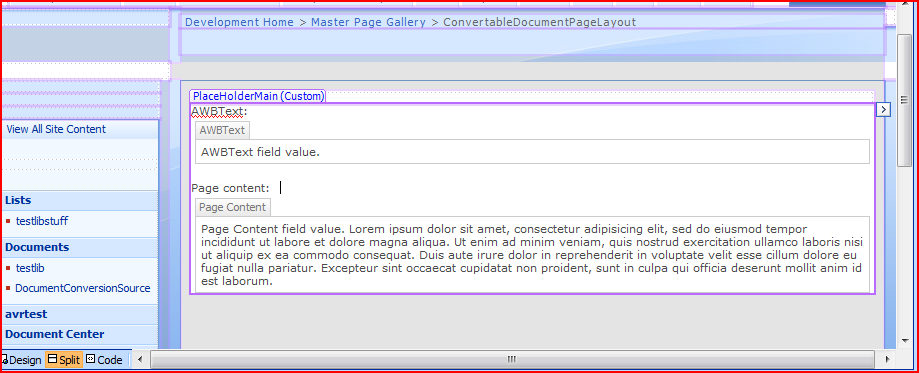
I created a page layout. Here’s the code and how it looked in SharePoint designer:

New Page Layout - CodeNew Page Layout - Design

As you can see, I’m displaying my AWBText field at the top, with the converted content from our converted ConvertableDocument below. Both fields also have labels. I published and approved the layout.

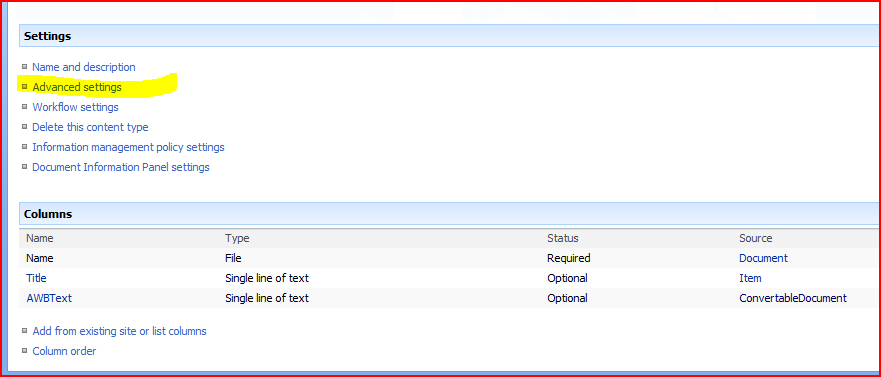
Next, I set up a template Word document – I went to the ConvertableDocument content type’s advanced settings, and edited the template.

Content Type - Advanced Settings

I then just saved the template without making any changes – I’ve found that you need to do this to get the Document information panel to work correctly.

Next up, I set up the document conversion through ConvertableDocument content type’s settings:

Manage Document Conversions - Step 1Manage Document Conversions - Step 2

Then the complex form of the conversion setup:

Manage Document Conversions - Step 3

Take a moment to look at that form. I’ve defined that I want to convert my ConvertableDocument to a page layout of ConvertableDocumentPageLayout – which implies a content type of ConvertablePageLayout. I’m putting the content of the converted content into the Page Content column, and removing any styles (because, as mentioned above, I don’t have a suitable column to put the style information into). Note that there are no settings for other data mappings – no columns of the document to columns of the page mapping.

I saved these settings, added my ConvertableDocument type to a Document Library, and added my ConvertableDocumentPage type to the ‘Pages Library’. Then I created an example document. Note the Document Information Panel at the top shows my AWBText column (and the Title column), and I’ve put in some text.

Example document for Document conversion

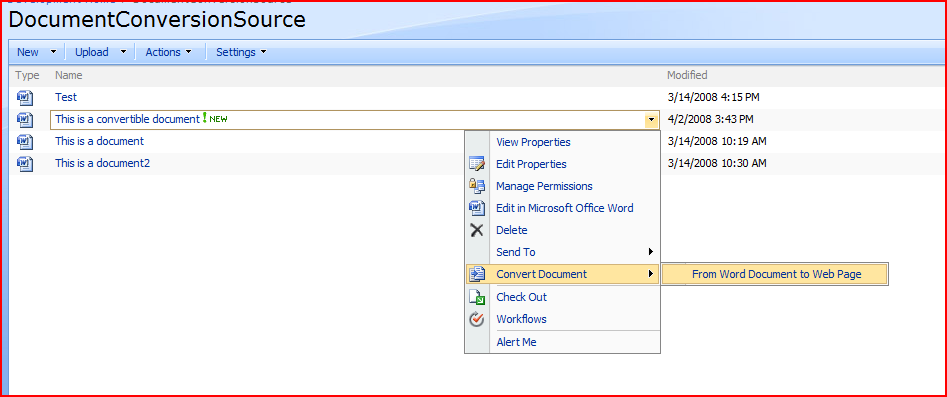
I saved this, and in the document library I chose to convert the document to a web page:

Convert a Document - Step 1Convert a Document - Step 2

This resulted in a page that looked like:

Converted Document - No AWBText value

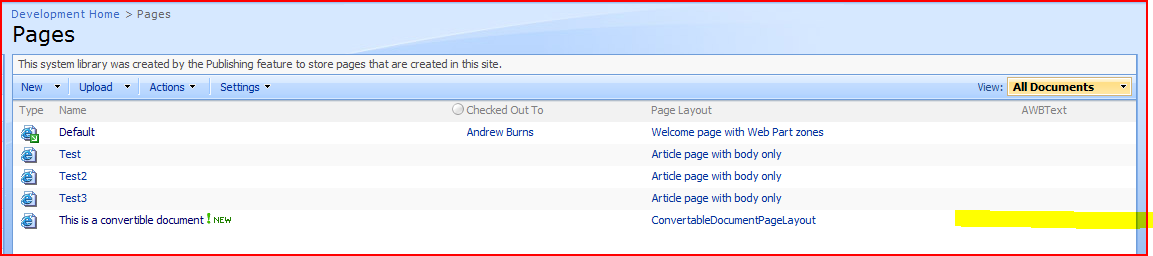
And the document library looked like:

Converted Document in document library - No AWBText value

So, as we can see, the AWBText column has not been copied across, even though it is the same column. During the configuration process, there was no option to configure mapping of fields. It looks like the Document Conversion Service doesn’t map column data. In Part II, I’ll look at some options.
Document Conversion Service doesn't map column data – Part I

Take care when adding or removing columns from Site Content Types

As mentioned before the content types on a list are actually children of the site content types. I’ve also looked at adding columns to list content types, which naturally enough doesn’t affect their parent site content types. Anyway, there are issues to consider when dealing with adding and removing list content types – I suggest you refer to this post for more information.

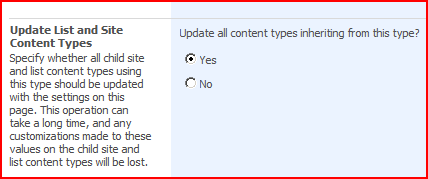
So what about adding and removing columns from Site Content Types – are there issues with this? Well, yes, there are (unsurprisingly). If you add a new column to a Site Content Type, you have the option to ‘Update all content types inheriting from this type’

Update Child Content Types

If you select ‘no’, then the change only applies to that Site Content Type. The next time you add that site content type to a list, the new List Content Type that is created will have the new column, but pre-existing list content types that inherit from the site content type will be unchanged.

If you select ‘yes’, then the List Content Types (or other Site Content Types) that inherit from this content type will have the new column. For the List content types, this means that there will be a new column on the list. Carrying on from an earlier example, here I’ve added a new column (‘Job Title’) to the Example Travel Expenses site content type, and updated all content types inheriting from that. If we then go an look at the List Settings page, we can see our List Content Type has a new column:

Extra List Columns 2

Great! Now what happens if I remove that column from our Site Content Type? Well, again, I get the option to ‘Update all content types inheriting from this type’. If I choose no, then the existing List Content Types derived from this Site Content Type remain as they are. If I choose yes, though, I get a fairly large warning saying:

This column will be removed from all content types that are based on this type. If you are sure you want to remove this column from all content types based on this type, click OK. To remove this column from this content type only, click Cancel to close this dialog box, click No in the Update Lists and Columns section, and then click Remove.

Snappy message that:

Silly Warning Dialog

Anyway, if you click OK, that column is removed from child content types. H0wever, the column is not deleted from lists that were using those child content types. I removed the ‘Job Title’ column from my ‘Example Travel Expenses’ site content type. If we return to our list settings page, we can see that the column still exists, although it isn’t used in any content types:

Extra List Columns 3

This makes sense, as the column could actually contain data, and it could be used in multiple places throughout our sites (potentially hundreds!) However, maybe you do want to remove that column from that list, or potentially those hundreds of lists. In that case (and this is why this is important) you have to delete the ‘orphan’ column on a list by list basis. Therefore, if your content type was used in hundreds of lists, you will have to delete this extra column hundreds of times, once for each list.

Therefore, be very careful when adding or removing columns from a Site Content Type – make sure that you really want to add it (as removing it might be hard), and be aware that removing the column is not the same as deleting it in the lists that use it already.

Take care when adding or removing columns from Site Content Types

Content Types – Who's your daddy?

Content Types are great, but can cause a little confusion. Because you normally define a content type at a site level, that’s pretty much how we think of them – as centrally defined types of item. Often, we actually create these content types on the root site of a site collection, because all subsites will be able to use them then.

However, this isn’t really the case. We do have site content types – but we also have list content types. These are the content types that are actually used on the lists themselves, and they are children of those site content types. This can be most easily seen by clicking on a content type on the List Settings page.

List Content Type

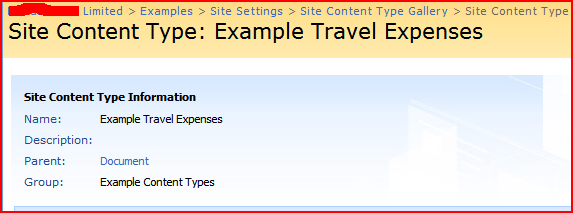
Notice that our ‘Example Travel Expenses’ content type says it has a parent of… …’Example Travel Expenses’! This is our List Content Type telling us that it’s parent is the Site Content Type of the same name. Click on it, and it’ll take you to the Site content type description, and you can work on up the chain of content types until you reach Item.

Site Content type

A consequence of this is that, as our content types are actually used by lists, I can’t think of a way to use a Site Content Type directly (though I may be wrong about that).

That are also issues related to this in terms of modifying content types, but that’s the subject for another post…

Content Types – Who's your daddy?

What happens to content types when you add a column to a list in SharePoint?

This is sort of relevant to an earlier post on the Document Information Panel, and showing fields in it.

The behaviour depends on if you’ve enabled ‘Allow management of content types’ on the Document Library Settings > Advanced Settings page.

If you’ve not allowed management of content types, well, you just add the column and it’ll appear in the document information panel. That’s great! The new column will not show as belonging to any content types, as the ‘Test‘ column is in the screenshot below:

Extra List Columns

However, if you have allowed management of content types for the library, things get a little more complicated. When you add a new column, in the ‘Additional Column Settings’, there will be an option for ‘Add to all content types’. If you check this, well, it’ll add that column to all the content types currently on that list. This will make it appear on the document information panel. This is what I did with the ‘Test2′ column above (but before I added the Picture content type to the library).

(As a side note, the content types on the list are actually ‘children’ of your Site content type rather than instances of it. This means that if you update the content type on that list, it won’t update the parent content type, or other lists that use that content type. Similarly, it mean that if you update the parent content type – say, you edit the site content type – you need to update child content types with those changes to affect lists that are using them already. But that really should be another post, sometime.)

If you don’t check that ‘Add to all content types’ option, well, it doesn’t add it to the document information panel. Finally, what if you have added a column all content types, and you add a new content type to the list? Well, your new content type will not have that new column applied to it – and the only way I can see of applying it to the new content type is actually to delete and recreate it. Of course, that means deleting a column that contains data, so that is less than ideal. This is what happened with the Picture content type – I added it afterwards, and you can see that it doesn’t use the ‘Test2‘ content type.

For that reason, be very careful when adding columns to library that is allowing management of content types. If possible, keep the columns in the Site Content Type (i.e. the parent).

What happens to content types when you add a column to a list in SharePoint?

Missing Content Type fields in the Document Information Panel

The Document Information Panel is great – it allows you to surface metadata to be filled in about a Word 2007 document in the client.

Document Information Panel Correct

This is great, but I had a bit of a puzzling problem. I’ve set Libraries up to use this features many times now, and it’s pretty straight forward – I’ve added columns to the library, and then the template document for the library has included those columns. Thus, you just go into your document library, click new, and you get a blank word document with the correct document information panel thing. Sometimes I’ve modified that template, but that’s pretty straight forward through the Library Settings pages (Document Library Settings > Advanced Settings > Edit Template).

This time, though, I was using content types (i.e. setting up the library properly), rather than just adding columns directly to a list. Content Types encapsulate (amongst other things) their own set of metadata to be captured – so in other words, they define columns to be added to a list. That’s fine (and very useful).

However, when I went to my document library, clicked ‘New’ and selected my Content Type, I got a blank word document with only one field in the document information panel – title. The blankness was expected (I’d not defined my own template) but none of the other bits of metadata I’d defined for my content type were there. This was a bit of a puzzle. What was different?

Well, after much thinking, I realised something – Content Types ‘inherit’ from each other. My Content Type derived from the Document content type, which specified just one field of metadata – Title. Then it hit me – content types themselves have document templates. My new content type was inheriting from Document, and it was still using the Document content type’s template document. I specified my own template document for my content type and suddenly I had all of my fields available in the document information panel.

It is interesting that there is this difference between the document information panel fields being defined by the library when just using the default ‘Document‘ content type and no others, and the fields being defined by the content type you’ve created if you’re using other types (I.e. you’ve enabled ‘Allow management of content types’ on the Document Library Settings > Advanced Settings page).

Related to this, then, is the question of what happen if you add a column to a list. However, I’ll cover this in another post.

Missing Content Type fields in the Document Information Panel

Forms Based Authentication in SharePoint

As mentioned recently, I set up an FBA SharePoint site following the instructions from Dan Attis and Andrew Connell. I tried Dan Attis’ instructions first, but they didn’t actually work – for some reason, when I’d try to log in, I’d just be returned to the “Sign in” page. I repeated setting everything up using Andrew Connell’s instructions, which worked! The only differences I could see were Andrew’s instructions to add the alternate authentication provider to both the intranet and internet IIS web sites, and that Andrew’s set up started with the intranet site. I believe that second difference a red herring – either I made a mistake following Dan’s instructions and couldn’t figure out what (most likely), or the alternate authentication provider really does need to be in both sites’ (and the central admin site’s ) setups.

Andrew’s instructions also go into the question of allowing annonymous access to parts of the site. As a big note for myself though:

You must be logged in as an administrator via Forms authentication to set the annonymous access settings.

I keep forgetting that.

I also have been having a look at the Community Kit for SharePoint. This is sort of a bunch of ‘bits’ that are useful in creating an online community of one sort or another, and the part I’ve been looking at is the Intranet/Extranet Edition. This provides a number of features for giving you web parts for login, membership creation, password reset, and so on. They’re very neat, but the whole thing seems to be stuck at a pre-beta stage, and I have had some issues with them. I’m hoping that they’re still under development – if all else fails and I have to, I’d look at fixing/debugging myself. It’d be good to get this to a full release.

Forms Based Authentication in SharePoint

Why don't ListView Web Parts have a 'View' menu?

This was a question that came up – why can’t ListView web parts that you put on a page through the browser have a View menu? There’s no view menu, and they can’t have one. However, if you go to a List, such as a Document Library, they do have view menus.

Web Part put on Page:

View Menu - Webpart

Document Libary:

View Menu - Library

The interesting thing is, though, that the page you see in the Library uses exactly the same web part as the one you can add to a page. Therefore there is clearly some way of making the web part show that menu, but that you can’t configure that. Why not, what gives?

Well, it suddenly hit me – the views that you create for a list or library actually create new pages. They’ve their own URLs, and are actually their own pages. You can see this through SharePoint Designer. Anyway, all the View menu really does is navigate you between pages. Thus, in a Listview web part that you create on a page this menu would, instead of just changing the view in that web part, take you to another entirely different page. That’s probably not what users would expect! Consequently, the view menu is unavailable in the ListView web parts that you create!

Why don't ListView Web Parts have a 'View' menu?

Error "Converting the document to a page failed. The converter framework returned the following error: CE_OTHER"

One of the neat features of SharePoint that doesn’t get a lot of press is the Document Conversion Service. This is a feature that takes a document (e.g. a Word document) and converts it to a Page for publishing (provided your servers are setup and your content types are configured set up for it, and this whole process is called Smart Client Authoring. It’s a lot like the Authoring Connector in MCMS – it gives users a ‘friendly’ way of authoring (although given that SharePoint uses a rich text control that is almost the same as a Word toolbar, I’m not sure how much of a sell it is. People do seem to like authoring web page content in Word though).

When I was testing it here I found that I kept getting an error whenever I was trying to convert a document:

Converting the document to a page failed. The converter framework returned the following error: CE_OTHER

Another nice, descriptive error from SharePoint. The logs didn’t really give me much of a clue either. However, I did find a nice explanation on the SharePoint ECM blog by Robert Orleth.

CE_OTHER is a fairly generic error code (not covered by the more explicit error code, hence the name). It means that something went wrong trying to fire up the converter. I’ve seen this in two major cases:
1. when trying to do the conversion on a DC (domain controller) – that’s not supported because the converter is executed in the context of a very unprivileged local account, and there are no local accounts on DCs.
2. when the server is locked down and the users group doesn’t have the privilege to logon locally. In order not to have to undo your lockdown, go to the group policy settings and allow the local account “HVU_” to logon locally. The password to that account is set randomly every time the document conversion services start and the account has no rights to see anything except the directory that the conversion is happening in, so that’s not exposing your server to a big risk.

I tried setting up the conversion on another machine which is not a domain controller – and it worked nicely. I guess that I need to investigate whether the converter can be run as a more privileged account – a single machine setup including domain controller is very useful for demos. I’ll investigate sometime… …comment here if you try it and get it working like that.

Error "Converting the document to a page failed. The converter framework returned the following error: CE_OTHER"