Missing Content Type fields in the Document Information Panel

The Document Information Panel is great – it allows you to surface metadata to be filled in about a Word 2007 document in the client.

Document Information Panel Correct

This is great, but I had a bit of a puzzling problem. I’ve set Libraries up to use this features many times now, and it’s pretty straight forward – I’ve added columns to the library, and then the template document for the library has included those columns. Thus, you just go into your document library, click new, and you get a blank word document with the correct document information panel thing. Sometimes I’ve modified that template, but that’s pretty straight forward through the Library Settings pages (Document Library Settings > Advanced Settings > Edit Template).

This time, though, I was using content types (i.e. setting up the library properly), rather than just adding columns directly to a list. Content Types encapsulate (amongst other things) their own set of metadata to be captured – so in other words, they define columns to be added to a list. That’s fine (and very useful).

However, when I went to my document library, clicked ‘New’ and selected my Content Type, I got a blank word document with only one field in the document information panel – title. The blankness was expected (I’d not defined my own template) but none of the other bits of metadata I’d defined for my content type were there. This was a bit of a puzzle. What was different?

Well, after much thinking, I realised something – Content Types ‘inherit’ from each other. My Content Type derived from the Document content type, which specified just one field of metadata – Title. Then it hit me – content types themselves have document templates. My new content type was inheriting from Document, and it was still using the Document content type’s template document. I specified my own template document for my content type and suddenly I had all of my fields available in the document information panel.

It is interesting that there is this difference between the document information panel fields being defined by the library when just using the default ‘Document‘ content type and no others, and the fields being defined by the content type you’ve created if you’re using other types (I.e. you’ve enabled ‘Allow management of content types’ on the Document Library Settings > Advanced Settings page).

Related to this, then, is the question of what happen if you add a column to a list. However, I’ll cover this in another post.

Missing Content Type fields in the Document Information Panel

Error: "The document information panel was unable to load"

I was building a demo where I was wanting to show the document information panel in Word 2007 (which I think is one of the neatest features about it!) . It should look like:

Document Information Panel Correct

But instead I was getting “The document information panel was unable to load“.

Document Information Panel Error

I couldn’t see a reason for this, but investigation found this post which shows the same error, and a solution in the comments:

The System Event Nofication Service (SENS) uses the same communication “channels” (not the correct word, but works) as does office products do in communicating with the server.
Stop and disable the SENS service on the server and everything will work perfectly.

So, open a command prompt and type:
net stop sens

Bit strange, but that fixed it for me. Also note the comment at the bottom that the Document Conversions service doesn’t work on a single server demo system like this.

Error: "The document information panel was unable to load"

Fixing the comparison operators on the DataView web part filter dialog (maybe)

As mentioned previously, I was having some problems with not having the right operators in the Filter Criteria dialog of a DataForm Web Part. Although the field I was trying to filter by was a date, I was only being shown the options as if it was a string:

Broken DataForm Filter Criteria Dialog

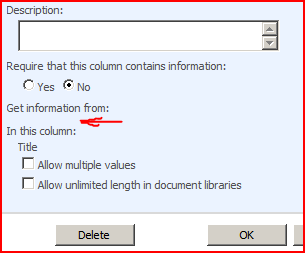
Well, proving that invention is 99% perspiration, I managed to find a solution. On the list on my customer’s system there was a Lookup column which referred to a list that no longer existed. Note the lack of List name for where it’s getting information:

Broken Lookup Column Details on a List

When I removed that column from the list, I could filter correctly again:

Working DataForm Filter Criteria Dialog

This is despite the fact that the broken lookup column is not used either in the display on the DataForm webpart, or in it’s filter. Merely its presence is enough to screw things up. Note that this is a different solution to other ideas that have been suggested elsewhere.

Fixing the comparison operators on the DataView web part filter dialog (maybe)

Wrong comparison operators on datetime field with Dataview WebPart

This was a weird error – but I’m not the first one to see it. When using a dataview web part, and trying to do a comparison with a date column, the filter dialog wouldn’t let me choose certain comparisons. The ‘Less than’, ‘Less than or equal to’, ‘Greater than’ and ‘Greater than or equal to’ options were all unavailable, and options like ‘begins with’ were available. It’s very strange, as it’s almost like the date was a text column – except that isn’t, and that another user did get those options.

I’m not sure if this is a security related issue as the linked post seems to suggest, but it’s really weird that the two users with the same permissions looking at the same system see this field in such different ways. I don’t have a resolution, I’m afraid.

Wrong comparison operators on datetime field with Dataview WebPart

Can't open a new window in link format settings in Dataview WebPart

I’m using a dataview web part, and have set one of the columns to be a link using the formatting tools. This works just fine! However, when I try to set a target for the link of _blank (to create a new browser window and open the link in that), well, the page doesn’t save correctly. No _blank is put into the links, and you have to reload the page in SharePoint Designer ‘cos it’s gone funny.

Again, I’ve not got a solution to this – although the customer in question might not be using SP1 yet.

Can't open a new window in link format settings in Dataview WebPart

More SharePoint Breadcrumb WTF

Previously I’d posted about SharePoint Breadcrumbs and how they were confusing as hell. I’d discussed how SharePoint publishing pages override the ‘PlaceHolderTitleBreadcrumb’ content control, filling it with blankness, and then supplying their own breadcrumb as part of the page content. That seemed pretty dumb to me… …much more sensible would be to override the ‘PlaceHolderTitleBreadcrumb’ with the breadcrumb we want.

Well, it transpires that I was wrong. What I’ve described is true for some page layouts… and not for others. The Default Master page defines its PlaceHolderTitleBreadcrumb ContentPlaceHolder control as:

<asp:ContentPlaceHolder id="PlaceHolderTitleBreadcrumb" runat="server">
<asp:SiteMapPath SiteMapProvider="SPContentMapProvider" id="ContentMap" SkipLinkText="" NodeStyle-CssClass="ms-sitemapdirectional" runat="server"/>
</asp:ContentPlaceHolder>

This is defining the default breadcrumb on the master page.

For the DefaultLayout.aspx layout page, it defines the content for the page to have:

<asp:Content ContentPlaceHolderId="PlaceHolderTitleBreadcrumb" runat="server"/>

That will empty the placeholder on the master page, so no breadcrumb will appear in the usual location – in fact, nothing will. (Note: you will probably want to reduce the blank space that the breadcrumb occupied – otherwise you’ll have a bit gap above your main content area). It then goes on to define (in the PlaceHolderMain Content control):

<td class="ms-pagebreadcrumb" colspan="2">
<asp:SiteMapPath ID="ContentMap" Runat="server" SiteMapProvider="CurrentNavSiteMapProviderNoEncode" RenderCurrentNodeAsLink="false" SkipLinkText="" NodeStyle-CssClass="ms-sitemapdirectional"/></td>
</tr>

There we can see the breadcrumb that appears in the page content.

However, if we look at a different page layout, such as BlankWebPartPage.aspx, we see:

<asp:Content ContentPlaceHolderId="PlaceHolderTitleBreadcrumb" runat="server">

<div class="breadcrumb">
<asp:SiteMapPath ID="siteMapPath" Runat="server" SiteMapProvider="CurrentNavSiteMapProviderNoEncode" RenderCurrentNodeAsLink="false" SkipLinkText="" CurrentNodeStyle-CssClass="breadcrumbCurrent" NodeStyle-CssClass="ms-sitemapdirectional"/>

</div>

</asp:Content>

Okay, interesting. So, what’s different about the breadcrumbs? Well, a few things, but the point relevant to whether or not the “> Pages > default.aspx” is displayed in the breadcrumbs – the SiteMapProvider. The CurrentNavSiteMapProviderNoEncode provider doesn’t seem to include the ‘Pages’ bit of the path – hence it is used by the page layouts. The Default.master’s SPContentMapProvider provides a breadcrumb that includes the ‘Pages’.

It is a bit mystifying why some page layouts blank the PlaceHolderTitleBreadcrumb while other override it – it would have been really nice if they worked consistently. And, as a side note, if you create a page layout and find that your breadcrumbs include the “> Pages > default.aspx” bit, then 1) make sure you’re providing content to override the PlaceHolderTitleBreadcrumb, and 2) make sure that it uses the CurrentNavSiteMapProviderNoEncode navigation provider.

More SharePoint Breadcrumb WTF

Error "Converting the document to a page failed. The converter framework returned the following error: CE_OTHER"

One of the neat features of SharePoint that doesn’t get a lot of press is the Document Conversion Service. This is a feature that takes a document (e.g. a Word document) and converts it to a Page for publishing (provided your servers are setup and your content types are configured set up for it, and this whole process is called Smart Client Authoring. It’s a lot like the Authoring Connector in MCMS – it gives users a ‘friendly’ way of authoring (although given that SharePoint uses a rich text control that is almost the same as a Word toolbar, I’m not sure how much of a sell it is. People do seem to like authoring web page content in Word though).

When I was testing it here I found that I kept getting an error whenever I was trying to convert a document:

Converting the document to a page failed. The converter framework returned the following error: CE_OTHER

Another nice, descriptive error from SharePoint. The logs didn’t really give me much of a clue either. However, I did find a nice explanation on the SharePoint ECM blog by Robert Orleth.

CE_OTHER is a fairly generic error code (not covered by the more explicit error code, hence the name). It means that something went wrong trying to fire up the converter. I’ve seen this in two major cases:
1. when trying to do the conversion on a DC (domain controller) – that’s not supported because the converter is executed in the context of a very unprivileged local account, and there are no local accounts on DCs.
2. when the server is locked down and the users group doesn’t have the privilege to logon locally. In order not to have to undo your lockdown, go to the group policy settings and allow the local account “HVU_” to logon locally. The password to that account is set randomly every time the document conversion services start and the account has no rights to see anything except the directory that the conversion is happening in, so that’s not exposing your server to a big risk.

I tried setting up the conversion on another machine which is not a domain controller – and it worked nicely. I guess that I need to investigate whether the converter can be run as a more privileged account – a single machine setup including domain controller is very useful for demos. I’ll investigate sometime… …comment here if you try it and get it working like that.

Error "Converting the document to a page failed. The converter framework returned the following error: CE_OTHER"

The Curious Incident of Saving a Word document to MOSS in the night-time…

Well, okay, night-time has little to do with it.

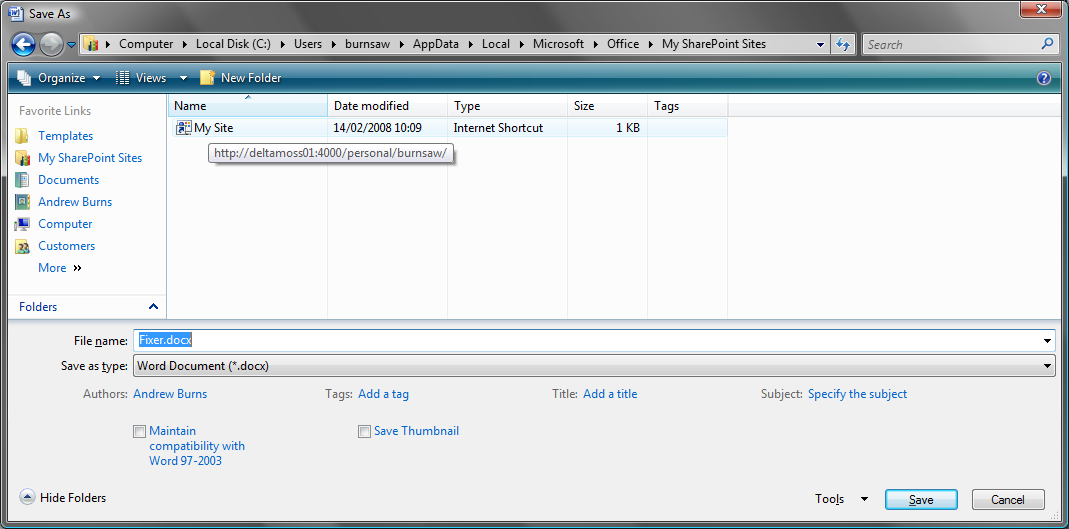
When I try to save aWord document, I get shown the ‘Save As’ dialog.

Word Save As dialog

On it there is the ‘Favorite’ panel (UK English clearly doesn’t apply) and the option of ‘My SharePoint Sites’. Great! Wrong! If I click on the the ‘My Site’ shortcut, it changes the name of my document (‘fixer.docx’ in this case’), and if I double click, it tries to save the document as a file called .docx. The error I then get it ‘Word did not save the document.http://moss:4000/personal/burnsaw/.docx&#8217;.

Well, I can see why the error in saving, but huh? What happened to the file name? It wasn’t even the wrong file name of ‘My Site’ – there was no file name at all!

Step two was to repeat, but try using the Word’s ‘Publish > Document Management System’, but got the same result.

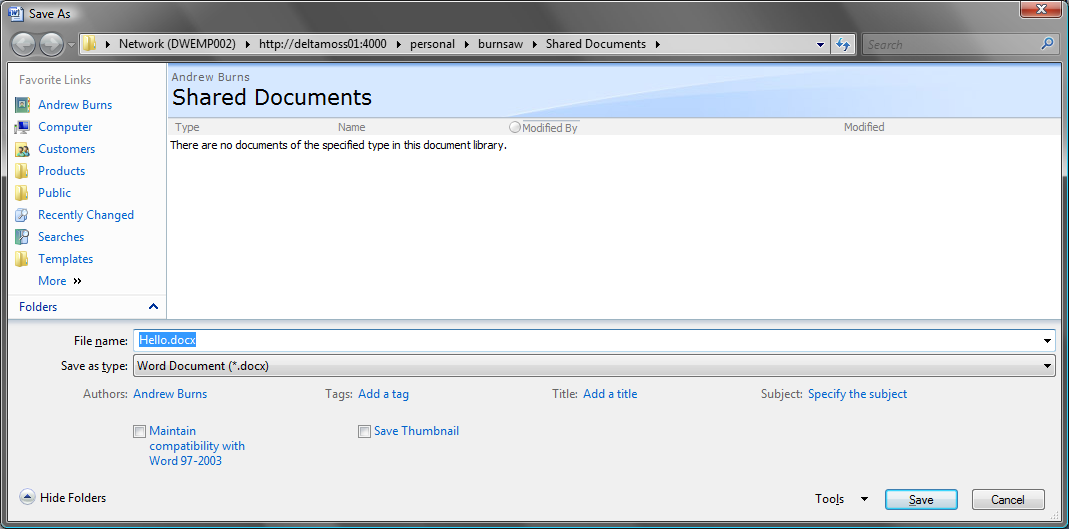
Step three was to open up a new document from the library, and try saving back. This highlighted another problem we’ve got – users getting prompted for network credentials when opening a document from SharePoint (this doesn’t happen every time, just the first time each user session). That accepted, it worked and opened a Word document. I typed some text, and did a ‘Save As’. I was shown this dialog:

Word Save As for SharePoint dialog

Hmm. That’s more promising, and it does save to that library correctly. So what do I notice? Well, the address bar is quite different, which is unsurprising as the top one is looking at a folder of local shortcuts. But the URL it’s pointing to is correct.

I don’t know what is going on here, but it has that irritating WebDav feel to it.

The Curious Incident of Saving a Word document to MOSS in the night-time…