Pages in SharePoint IV – Publishing Pages

Publishing pages are specific to MOSS, as they require the publishing features! They’re not in WSS3! A good example of a publishing page is the default.aspx of a Collaboration site – that’s right, although the default page has the same name as for a team site, it is quite different:
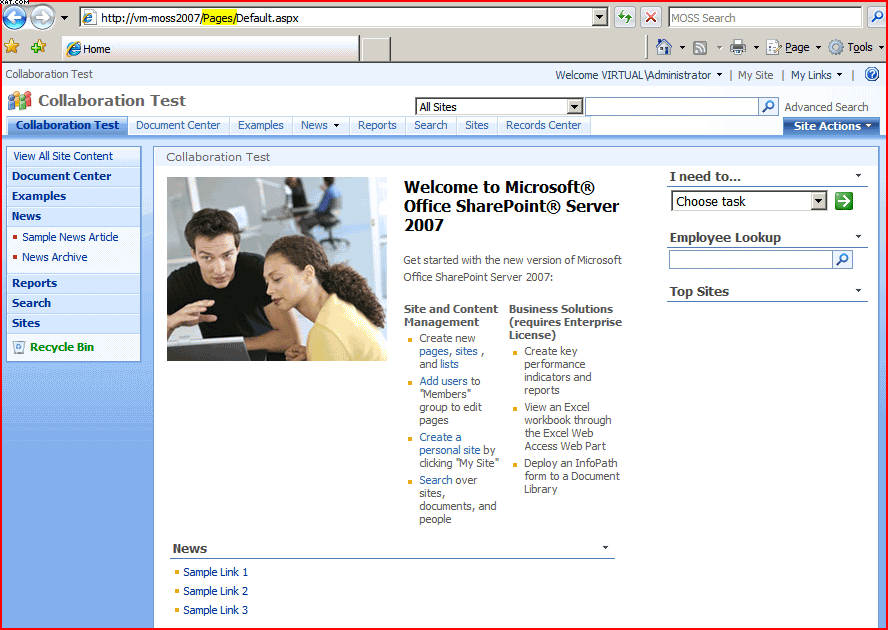
Looks pretty much the same though, eh? That’s because it uses the same master page, but we’ll come to that in a bit.

These pages are are stored in a ‘Pages’ library (you can see this highlighted in the URL). They aren’t really like documents though; they’re much more like list items. Basically, these pages are collections of metadata columns. Different pages have different content types, such as the ‘Press Releases’ page type of the Publishing Portal site template. The other pages types that come out of the box are the ‘Article’ and ‘Welcome’ page types of a collaboration site.

These content types have different columns of data. For example, you might have a type of page for ‘Vacancies’, and that might have columns for position, salary, etc.. You might also have a type of page for ‘Products’ which might have columns for part number, cost, stock, etc..

Okay, so I’ve said that these pages are more like collections of metadata – how does this become a web page that you can see and read? Well, each page type has one or more page layouts. Lets have a look at one in SharePoint Designer:

These are kind of like master pages – they define the layout of our metadata columns in an aspx page. In the one shown above there are only 2 metadata columns, which I’ve highlighted – Page Image and Page Content.

Okay, but what about the master page stuff? Well, out page layout the content controls to go into our master page. Confused? It is confusing, so here is a diagram to show this:
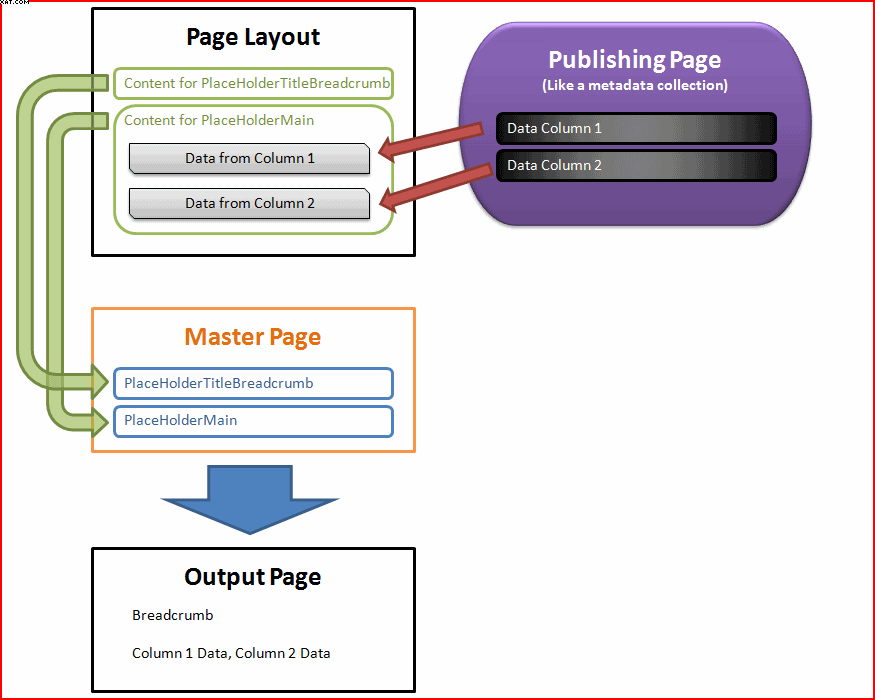
Here you can see the page metadata being put into the page layout, which in turn puts content into the master page, which finally generates the output that gets sent to the user.

One advantage of this approach is that you can change between different page layouts for a given publishing page type – for example, you might have ‘Product page with image on left’ and ‘Product page with image on right’ layouts. Changing the page layout does not require editing any of the content.

| Intro | Master Pages | Normal Pages | Publishing Pages | Application Pages | Forms Pages |
Pages in SharePoint IV – Publishing Pages

Pages in SharePoint III – ‘Normal’ Pages

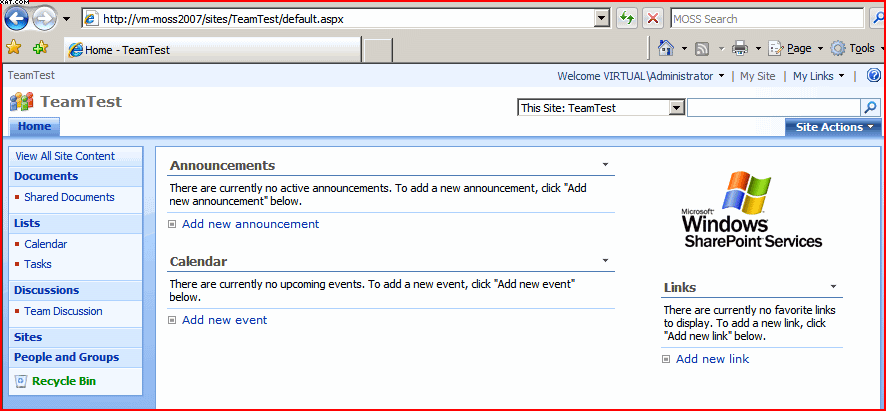
‘Normal’ pages are just ASPX pages. They usually (but don’t have to) use a master page, and we’ll consider them in that way. First let’s look at a good example – the Default.aspx of a Team Site.

The Homepage of a Team Site

Looking at this in SharePoint Designer we see the following:

On the left we see that our page just exists underneath our Team site – it isn’t in a Library or anything. On the right we see SharePoint Designer shows us the master page that the page uses at the top of the page, and what the page would look like. You can see the PlaceHolderMain placeholder is highlighted, and unlike the master page, this one has content. I’ve also circled where the PlaceHolderTitleBreadcrumb placeholder is, and this is now empty. So where did this content come from?

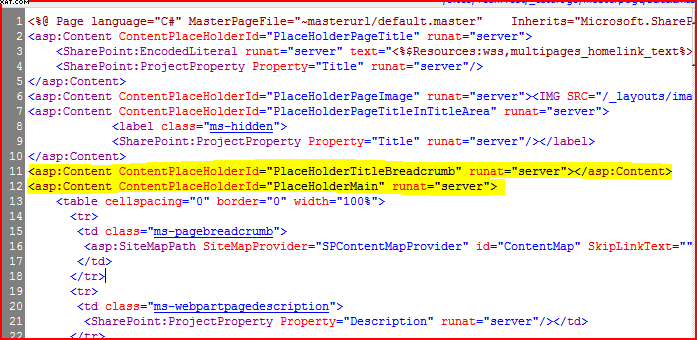
If an aspx page uses a master page then it says so in it’s code, and it defines a number of content controls. These content controls match up with the placeholder’s in the master page, and define the content to put in there. If we look at the code (don’t panic!):

Here we see the content being defined for the our PlaceHolderTitleBreadcrumb (the new content is ‘nothing’, and so our breadcrumb is effectively being erased), and our PlaceHolderMain (which contains lots of code for 2 web-part zones, etc.).

So, just to reiterate, a typical page in SharePoint defines content that is put into a master page. The process is something like this:

| Intro | Master Pages | Normal Pages | Publishing Pages | Application Pages | Forms Pages |

Pages in SharePoint III – ‘Normal’ Pages

Pages in SharePoint II – Master Pages

Master Pages are actually an ASP.NET 2.0 technology. They allow you to create a page with a number of ‘placeholders’ (there are a lot of these). Below is a view of the default.master page for a team site.

You can see that the master page already has controls for navigation, search, site actions, etc. built in. I’ve also selected one of the placeholders – PlaceHolderTitleBreadcrumb. These placeholders give locations on the page for other .aspx pages to put content into. For example, the default.aspx page for a Team site puts content into the PlaceHolderMain and PlaceHolderTitleBreadcrumb placeholders, amongst others – we’ll look at this below. Now, the observant of you will notice that the PlaceHolderTitleBreadcrumb placeholder shown above already has content – the breadcrumb to the page’s location. A placeholder can define default content, but the page that then uses the master page can override it, and put it’s own content in. For example, in our master page the PlaceholderMain has no content, but this will almost always be overridden.

Master pages normally exist in a Master Page gallery, which is hidden from normal users. You might have many master pages, though you normally only use 1 on each site. By changing the master page you’re using you can make major changes to the layout, look and format of your site.

| Intro | Master Pages | Normal Pages | Publishing Pages | Application Pages | Forms Pages |
Pages in SharePoint II – Master Pages

Pages in SharePoint – Introduction

Right, I’ve had to explain this to various co-workers, and it is fundamental to how SharePoint works, so here we go with how pages work in SharePoint.

Let’s start with the hardest part. There are many types of page in SharePoint, and they’re all referred to as pages. You’ve got:

  • Normal pages. These just live in a site; they don’t exist in a Library, they are specific to that site, and they don’t require the publishing features. An example is the Default.aspx of a Team Site (though NOT of a collaboration or publishing site – see below).
  • Publishing pages. These are a special type of page. They require the Publishing Features of MOSS, and so aren’t in WSS. Publishing pages have a content type, and always exist in the Pages library of a site.
  • Application pages. These are administrative style pages, and exist in the _layouts directory. They are common to all sites/site collections across the entire farm. Consequently, these files should not be changed (though you can add new ones if you want)
  • Forms pages. These are a bit different – they’re the pages for viewing and manipulating items in a list. They exist in the hidden Forms folder in the list itself.
  • Master pages. Not really pages, but more like a framework that other pages can put their content into. They do have default content though, and this is often used for things like navigation, the Site Actions menu, etc..

There are other complexities, but this is enough to be getting on with for now. Let’s look at each of these page types, starting with Master pages.

| Intro | Master Pages | Normal Pages | Publishing Pages | Application Pages | Forms Pages |

Pages in SharePoint – Introduction

Inserting Images into Word for the Document Conversion Service

Previously, I’ve mentioned how the Document Conversion Service doesn’t extract images and about how you have to insert them as linked objects. Well, it turns out that there are easier ways to link objects in than I’d explained previously. Continue reading “Inserting Images into Word for the Document Conversion Service”

Inserting Images into Word for the Document Conversion Service

Browse Directories Permission and Webs.GetWebCollection strangeness

I’ve had a support call from a client; an application that I’d written wasn’t letting some users see the subsites of a particular site. However, in the web browser, they could see (and navigate) to those sites. “Strange”, I thought, “they must’ve misconfigured their permissions”. Well, they hadn’t. Continue reading “Browse Directories Permission and Webs.GetWebCollection strangeness”

Browse Directories Permission and Webs.GetWebCollection strangeness

Managed paths and folders interferring in a Virtual Directory

I had a call from a colleague today. He’d created a SharePoint site collection inside an existing and working web-app, using the standard ‘sites’ managed path (e.g. http://server/sites/newSiteCollection). It seemed to have created it okay, but if he went to it he got a HTTP 404 – yup, “Page not found”.

This seemed a bit weird, so I went to see what he’d done wrong. I looked in Central admin – it showed his site collection as existing, but going to it, I got a 404 too. So I created my own – and after it was create, if I went to it, it 404’d too.

(The examples below use the managed path ‘demos’ – I took the screenshot when I was reproducing the problem, having apparently fixed it for the ‘sites’ managed path already. Trust me, this happens just the same if the items involved are using the text ‘sites’).

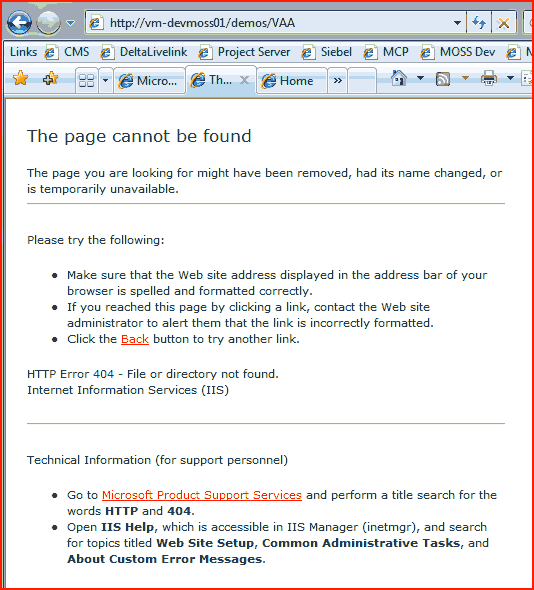
404 Page for the newly created site collection

If you look at the screenshot you’ll see that I’m trying to go to the site collection ‘vaa’ inside the ‘demos’ managed path.

Well, at this point I tried using some other managed paths to create a site collection, and they worked fine – no 404s when you try going to them just after creation. I began to wonder if it was something about this path, so I opened IIS Manager to see if anything was going on.

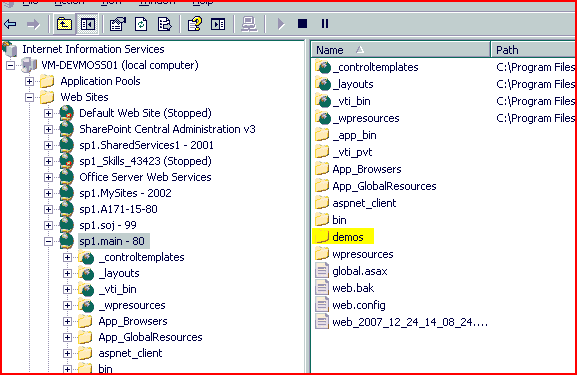
Inside my virtual directory for my web app, I found a ‘sites’ folder (or ‘demos’ in this screenshot):

Screenshot of IIS Manager showing spurious directory

That was a bit strange – normally I wouldn’t expect to see ‘sites’ folder. It seemed empty, so I deleted it, and then I could access my new site collection without getting a 404. I then created a folder to interfer with one of my working managed paths (I created a folder called ‘demos’), and suddenly I started getting 404 errors if I tried going to it.

I don’t know why there was a ‘sites’ folder in that virtual directory, but it was definitely causing problems. I guess I won’t be using a managed path of ‘bin’ or ‘aspnet_client’ then 🙂

Managed paths and folders interferring in a Virtual Directory

Is the SharePoint Administrative Model really working?

I like the Admin model in SharePoint. We have a structure of Farm administrators, who keep the system running, backed up and reliable. Then we’ve got Site Collection admins, and Site Admins.

Delegation of administrative responsibility is, in my eyes, a Good Thing. IT departments are busy, and have to prioritise work, which can make them seem unresponsive to an individual user’s/team’s needs. By giving the users the right to administer their team’s/department/group’s site, they can get on with getting things done without having to bug IT all the time – which ultimately annoys both parties.

However, I’m not convinced it is working. Continue reading “Is the SharePoint Administrative Model really working?”

Is the SharePoint Administrative Model really working?

The curious incident of the date column in the night-time

I have been tearing my hair out over a problem with dates and timezones. We have a site column ‘Document Date’ that we are using in our search results page. It only holds a date.

Our client noticed that some dates appeared on the search results page as a day earlier than the value in the lists themselves. For example, the list would show a document date of the 8th of May, but the search results would show the 7th of May. Curious, and the start of a bit of a detective story… Continue reading “The curious incident of the date column in the night-time”

The curious incident of the date column in the night-time

Setting the date format on SharePoint's Central Admin Site

This blew me away – Central Admin in SharePoint 2007 doesn’t have any ‘Regional Settings’. Now, at one level, this might make sense – perhaps you always want it to match, say, the server time, or UTC time. I’m not convinced, but it might make sense.

<rant>What absolutely doesn’t make sense is that the date format it uses is the stupid American ‘mm/dd/yyyy‘ format. Why can the US not accept that the rest of the Gregorian calendar using world (i.e. nearly everywhere else) uses a format of ‘dd/mm/yyyy‘? I mean, isn’t sensible to have a format that offers a gradiated precision of time, rather than dumping the most specific part of it in the middle? Or, if we wanted to accept that central admin will probably only be used by techies, what’s wrong with ‘yyyy-mm-dd‘? Hell, I’d nearly prefer Javascript’s ‘milliseconds since the start of 1970‘ format (nearly, but not quite).

Make the format configurable, or use a standard format like ‘yyyy-mm-dd’. </rant>

I did find some solutions though – I particularly like the way that is transpires that the regional settings page is there, but that you have to enter the URL by hand…

Setting the date format on SharePoint's Central Admin Site