Showing Query String parameters in a page in SharePoint

I came across an interesting little problem with putting query string parameters for an HTTP request into a SharePoint page.

I was using a Dataview web part, which accepts query string parameters into the filter that it runs over the data that it’s going to display. That’s pretty cool – I had a list of items with a status column, and I wanted to be able to filter the items based on that status, and that the status would come from the query string. However, on the page, I also wanted to show a title with what was being filtered by in it. So, for example, my url might read:

http://server/site/page.aspx?status=Ready

And I wanted the title in the page to read “Filtering by ‘Ready‘”.

What I didn’t appear to be able to do was to just use the request object . Something like

<%= Request.QueryString.ToString() %>

won’t work as code blocks aren’t, apparently, allowed in the file – the error message is “code blocks are not allowed in this file”. Okay, given that SharePoint designer is supposed to open these pages up to ‘Power Users’ I do get why code blocks aren’t allowed. But I really wanted to write code, and there had to be a way to do that. Well, Kirk Allen Evans has figured out how – you have to enable them in the PageParserPaths section of the web.config file. (It’s strange how easy it is to forget the web.config file that controls SharePoint sometimes). Just to repeat his example (in case blue and red on black is difficult to read):

<PageParserPaths>
<PageParserPath VirtualPath="/pages/*" CompilationMode="Always" AllowServerSideScript="true" />
</PageParserPaths>

This example allows code blocks for all files under the /pages directory of my web application – it’s worth noting that this is for the web application in IIS, not a SharePoint site collection or the like.

Okay, so that works – great. However, there are security implications, and this is probably best only used for development environments. I’ve written a bit about under what conditions our inline code will run.

In our instance our customer is kind of reluctant to make changes on their server. Changing the web.config file would be a bit of a big deal. (As a side note, this is a bit restrictive – I think a blog posting on that is due sometime). So what could we do without a server footprint?

Well, without code in the page, we would need a web control to call in that page – that would work also. It’d be trivial to write one. However, that requires deployment, marking as safe in the web.config file, etc., so really that just pushes the problem into another file.

Thus, I ended up getting a bit ‘old skool’ – JavaScript in the page to write the value from the query string on the client. I came up with:

<script type="text/javascript">
var query = window.location;
var regex = /letter=([^&=]+)/i;
var match = regex.exec( query );
if( match != null ) {
document.write( "Filtering by '" + match[1] + "'" );
}
</script>

Made a function, this became:

function getQueryParam(key) {
var regex = new RegExp(key+"=([^&=]+)","i");
var match = regex.exec(
window.location );
if( match != null ) {
return match[1];
} else {
return null;
}
}

What this code does is it gets the page’s url (window.location), runs a regular expression looking for the ‘letter’ parameter, and if it find one, it outputs some text to the document. A bit noddy, but simple and it works – with no server footprint. Of course, you do need JavaScript enabled…
Showing Query String parameters in a page in SharePoint

More SharePoint Breadcrumb WTF

Previously I’d posted about SharePoint Breadcrumbs and how they were confusing as hell. I’d discussed how SharePoint publishing pages override the ‘PlaceHolderTitleBreadcrumb’ content control, filling it with blankness, and then supplying their own breadcrumb as part of the page content. That seemed pretty dumb to me… …much more sensible would be to override the ‘PlaceHolderTitleBreadcrumb’ with the breadcrumb we want.

Well, it transpires that I was wrong. What I’ve described is true for some page layouts… and not for others. The Default Master page defines its PlaceHolderTitleBreadcrumb ContentPlaceHolder control as:

<asp:ContentPlaceHolder id="PlaceHolderTitleBreadcrumb" runat="server">
<asp:SiteMapPath SiteMapProvider="SPContentMapProvider" id="ContentMap" SkipLinkText="" NodeStyle-CssClass="ms-sitemapdirectional" runat="server"/>
</asp:ContentPlaceHolder>

This is defining the default breadcrumb on the master page.

For the DefaultLayout.aspx layout page, it defines the content for the page to have:

<asp:Content ContentPlaceHolderId="PlaceHolderTitleBreadcrumb" runat="server"/>

That will empty the placeholder on the master page, so no breadcrumb will appear in the usual location – in fact, nothing will. (Note: you will probably want to reduce the blank space that the breadcrumb occupied – otherwise you’ll have a bit gap above your main content area). It then goes on to define (in the PlaceHolderMain Content control):

<td class="ms-pagebreadcrumb" colspan="2">
<asp:SiteMapPath ID="ContentMap" Runat="server" SiteMapProvider="CurrentNavSiteMapProviderNoEncode" RenderCurrentNodeAsLink="false" SkipLinkText="" NodeStyle-CssClass="ms-sitemapdirectional"/></td>
</tr>

There we can see the breadcrumb that appears in the page content.

However, if we look at a different page layout, such as BlankWebPartPage.aspx, we see:

<asp:Content ContentPlaceHolderId="PlaceHolderTitleBreadcrumb" runat="server">

<div class="breadcrumb">
<asp:SiteMapPath ID="siteMapPath" Runat="server" SiteMapProvider="CurrentNavSiteMapProviderNoEncode" RenderCurrentNodeAsLink="false" SkipLinkText="" CurrentNodeStyle-CssClass="breadcrumbCurrent" NodeStyle-CssClass="ms-sitemapdirectional"/>

</div>

</asp:Content>

Okay, interesting. So, what’s different about the breadcrumbs? Well, a few things, but the point relevant to whether or not the “> Pages > default.aspx” is displayed in the breadcrumbs – the SiteMapProvider. The CurrentNavSiteMapProviderNoEncode provider doesn’t seem to include the ‘Pages’ bit of the path – hence it is used by the page layouts. The Default.master’s SPContentMapProvider provides a breadcrumb that includes the ‘Pages’.

It is a bit mystifying why some page layouts blank the PlaceHolderTitleBreadcrumb while other override it – it would have been really nice if they worked consistently. And, as a side note, if you create a page layout and find that your breadcrumbs include the “> Pages > default.aspx” bit, then 1) make sure you’re providing content to override the PlaceHolderTitleBreadcrumb, and 2) make sure that it uses the CurrentNavSiteMapProviderNoEncode navigation provider.

More SharePoint Breadcrumb WTF

Error "Converting the document to a page failed. The converter framework returned the following error: CE_OTHER"

One of the neat features of SharePoint that doesn’t get a lot of press is the Document Conversion Service. This is a feature that takes a document (e.g. a Word document) and converts it to a Page for publishing (provided your servers are setup and your content types are configured set up for it, and this whole process is called Smart Client Authoring. It’s a lot like the Authoring Connector in MCMS – it gives users a ‘friendly’ way of authoring (although given that SharePoint uses a rich text control that is almost the same as a Word toolbar, I’m not sure how much of a sell it is. People do seem to like authoring web page content in Word though).

When I was testing it here I found that I kept getting an error whenever I was trying to convert a document:

Converting the document to a page failed. The converter framework returned the following error: CE_OTHER

Another nice, descriptive error from SharePoint. The logs didn’t really give me much of a clue either. However, I did find a nice explanation on the SharePoint ECM blog by Robert Orleth.

CE_OTHER is a fairly generic error code (not covered by the more explicit error code, hence the name). It means that something went wrong trying to fire up the converter. I’ve seen this in two major cases:
1. when trying to do the conversion on a DC (domain controller) – that’s not supported because the converter is executed in the context of a very unprivileged local account, and there are no local accounts on DCs.
2. when the server is locked down and the users group doesn’t have the privilege to logon locally. In order not to have to undo your lockdown, go to the group policy settings and allow the local account “HVU_” to logon locally. The password to that account is set randomly every time the document conversion services start and the account has no rights to see anything except the directory that the conversion is happening in, so that’s not exposing your server to a big risk.

I tried setting up the conversion on another machine which is not a domain controller – and it worked nicely. I guess that I need to investigate whether the converter can be run as a more privileged account – a single machine setup including domain controller is very useful for demos. I’ll investigate sometime… …comment here if you try it and get it working like that.

Error "Converting the document to a page failed. The converter framework returned the following error: CE_OTHER"

What the heck is going on with SharePoint Breadcrumbs?

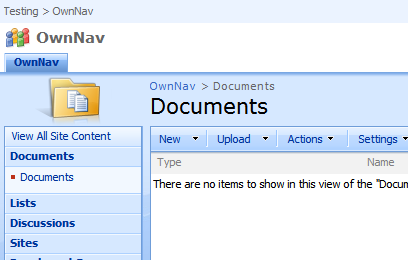
Like many web applications, SharePoint uses ‘Breadcrumbs’ for navigation. This is a set of links that both tell you where in a hierarchy you are, and were you can go to. SharePoint, though, uses two:

WSS-Breadcrumbs-OwnNav

You can see them here at the top left, and then above the word ‘Documents’. But wait, the master page shows us two breadcrumbs? You’re only in one hierarchy, so how does that work? The Planning & Architecture documentation on Technet says:

The default.master master page, which displays form and view pages, includes two breadcrumb controls, a global breadcrumb which contains sites only, and a content breadcrumb, which contains sites and the current page. Some collaboration site templates, such as the Team Site template, also include two breadcrumbs on all Web pages

However, this isn’t quite the complete story. Continue reading “What the heck is going on with SharePoint Breadcrumbs?”

What the heck is going on with SharePoint Breadcrumbs?

Options for Branding SharePoint

Okay, so I’ve been tasked with looking at branding in SharePoint – again! What do I know about branding? I can change some colours and CSS, but that isn’t the same thing.

Anyway, I’m increasingly taken with Themes over Master Pages. You can do a lot with a theme, and one of it’s main disadvantages as far as I’m concerned (the inability to apply a theme across a hierarchy) can be overcome with extensions (though I’d prefer a Site Admin page option).

Another thing that I recently realised (and then discovered that I’ve probably read about too) is that you can ‘apply’ a theme to all subsites by setting the ‘Alternate CSS URL’ on the Site Settings > Master Page page. You can find the URL to a theme on a site that has that theme applied, and then paste it into the alternate CSS URL field, and apply to all children. Cool! And if you apply a theme to one of these children? Well, the theme will override the Alternate CSS – so your theme will apply.

All of which kind of confuses the heck outta people. You’ve got styles coming from, potentially, the CORE.CSS, alternate CSS, themes, masterpage’s CSS files, the master page itself, and the page. I think it works out as:

CSS Inheritance in SharePoint

…where the lower items win. It’s worth noting that the overriding of styles isn’t that fixed – your master page could pull in the themes, core.css, etc. in a different order if you wanted it to, but this is typically how it seems to be. Just remember that last wins.

And the best bit – generating Themes now has tools, such as SharePoint Skinner, and Serves SharePoint Theme Generator (though it’s more about just the colours).

New Master Pages are just awkward, though – so many required placeholders, CSS and structural quirks, controls generating things that they shouldn’t. I don’t think I’d go there again unless 1) it’s a WCM site or 2) I really need to change the page structure.

Options for Branding SharePoint

The Curious Incident of Saving a Word document to MOSS in the night-time…

Well, okay, night-time has little to do with it.

When I try to save aWord document, I get shown the ‘Save As’ dialog.

Word Save As dialog

On it there is the ‘Favorite’ panel (UK English clearly doesn’t apply) and the option of ‘My SharePoint Sites’. Great! Wrong! If I click on the the ‘My Site’ shortcut, it changes the name of my document (‘fixer.docx’ in this case’), and if I double click, it tries to save the document as a file called .docx. The error I then get it ‘Word did not save the document.http://moss:4000/personal/burnsaw/.docx&#8217;.

Well, I can see why the error in saving, but huh? What happened to the file name? It wasn’t even the wrong file name of ‘My Site’ – there was no file name at all!

Step two was to repeat, but try using the Word’s ‘Publish > Document Management System’, but got the same result.

Step three was to open up a new document from the library, and try saving back. This highlighted another problem we’ve got – users getting prompted for network credentials when opening a document from SharePoint (this doesn’t happen every time, just the first time each user session). That accepted, it worked and opened a Word document. I typed some text, and did a ‘Save As’. I was shown this dialog:

Word Save As for SharePoint dialog

Hmm. That’s more promising, and it does save to that library correctly. So what do I notice? Well, the address bar is quite different, which is unsurprising as the top one is looking at a folder of local shortcuts. But the URL it’s pointing to is correct.

I don’t know what is going on here, but it has that irritating WebDav feel to it.

The Curious Incident of Saving a Word document to MOSS in the night-time…

Site Definitions vs Site Templates

I have some curious blanks in my memory when dealing with SharePoint, such as the meaning ‘ghosted’ and ‘unghosted’ – please use ‘customized’ or ‘uncustomized’. (I don’t see where the undead enter into it all). One such blank is Site Templates vs Site Definitions. It’s discussed a bit on MSDN (for 2003, but the same applies for 2007) where the bottom section is most useful, and Robert Bogue has written a very good article. The short of it:

Site Templates Site Definitions
+ Simple to create – Requires actual development
+ Doesn’t require administrator – Requires administrator
– Risk of customization, and so worse performance + Better performance
– Can’t define list templates + Deep and full control

Must have a go at doing some of this sometime

Site Definitions vs Site Templates

Changing the SmallSearchInputBox delegate control

A colleague of mine was wanting to make some changes to the SmallSearchInputBox delegate control in SharePoint 2007. That’s the control that appears on most pages, looking like:

SmallSearchInputBox

This control is a ‘Delegate control’ – that is, you can create features to override the currently used control. What my colleague wanted to do was not display the ‘Scope’ drop down list, the Advanced Search link, and to include prompt text (something like ‘Enter Search…’). A quick dig into the FEATURES folder in 12 Hive showed that the control had a number of properties.

(The features that this information applies to are the OSearchBasicFeature and OSearchEnhancedFeature. Both contain files called ‘SearchArea.xml’, and that contains the code below. I found the folders with this in:

%12 Hive%TemplateFeaturesOSearchBasicFeature

%12 Hive%TemplateFeaturesOSearchEnhancedFeature )

<?xml version="1.0" encoding="utf-8" ?>
<Elements xmlns="http://schemas.microsoft.com/sharepoint/">
<Control
Id="SmallSearchInputBox"
Sequence="25"
ControlClass="Microsoft.SharePoint.Portal.WebControls.SearchBoxEx" ControlAssembly="Microsoft.SharePoint.Portal, Version=12.0.0.0, Culture=neutral, PublicKeyToken=71e9bce111e9429c">
<Property Name="GoImageUrl">/_layouts/images/gosearch.gif</Property>
<Property Name="GoImageUrlRTL">/_layouts/images/goRTL.gif</Property>
<Property Name="GoImageActiveUrl">/_layouts/images/gosearch.gif</Property>
<Property Name="GoImageActiveUrlRTL">/_layouts/images/goRTL.gif</Property>
<Property Name="UseSiteDefaults">true</Property>
<Property Name="FrameType">None</Property>
<Property Name="ShowAdvancedSearch">true</Property>
</Control>
</Elements>

This shows a property ShowAdvancedSearch which sounded pretty promising for turning off the Advanced Search link. We decided to see what other properties were available, and found a good article by Clint Cherry about the SmallSearchInputBox control, and the MSDN docs. The Property tags in the XML for the delegate control set the properties of the web control class – e.g. GoImageUrl matches the GoImageUrl property on the class. Much to our pleasure, we found the QueryPromptString displays text in the search control which vanishes when it receives focus, and the DropDownMode property allows us to turn off the scope dropdown list. Hurrah!

For the values that you can set the drop down mode to, see the MSDN docs again

Changing the SmallSearchInputBox delegate control

Why SharePoint Records Management will struggle…

I recently got a lot of my old APS photos scanned, and I’ve been working my way through them all, trying to sort them out and arrange them. I’ve been doing this by, well, putting them in folders such as ‘2003-06 – French Alps Kayaking’. At the same time, though, I wanted to give my friends copies of the photo’s which they were in, and I did this by, well, creating another folder for each of them, and copying pictures into them too. Not dreadfully sophisticated.

A couple of my friends asked why I didn’t just use some albuming application, or something like Flickr, and tag the images. That way, I could browse by multiple criteria. And I’ve gotta say, it would be neat. However, I want to be able to look at these photos when I’m an old man. I mean, my grandfather was showing me pictures of when he was a kid – so that’s about 75 years ago. Does anyone consider 75 year survival times for digital media? Nope. But I suspect that file systems and JPEGs, even if they aren’t still in use, will be easier to migrate. Flickr? Well, obviously, no website has ‘Established 1932’ on it. I’m not sure I’d trust something like that to still be around. Other tagging and abluming products – again, I’m not convinced. I decided I’d stick with just folders.

This set me thinking about Record Management, and taxonomy vs tagging. Continue reading “Why SharePoint Records Management will struggle…”

Why SharePoint Records Management will struggle…

Uploading Files to SharePoint using the Web Services

Thankfully, someone seems to have looked at other ways of uploading files via the web services – this time using a direct PUT command. That is an approach which is a little odd, to be honest, and I suppose not really Web Services so much as plain old web-server. Still, I’m going to have a look at this approach – and it’d be great if it works.

Uploading Files to SharePoint using the Web Services