Relative URLs in SharePoint Sites using $SPUrl

So, I was really stuck with a Master Page that I’ve been building as a demo. This master page was for use on a site without the publishing features, such as a Team Site.

I wanted to provide a separate CSS file and an image for with this example. However, I hit a snag – how to get relative URLs to the CSS file and image that I was putting into the site?

For Publishing sites, this isn’t normally a problem – you put things such as the master page or images or CSS near the root, and then reference them from the root of the site collection. But from the subsite I was using, this proved hard.

Well, in the end I turned up this post from Ben Robb about using $SPUrl. It turns out that this works nicely for images, and for links to other content, such as CSS files:
<link id="css1" runat="server" rel="stylesheet" type="text/css" href="<% $SPUrl:~site/_catalogs/styles/mystyles.css%>" />
or
<img id="img1" src="<% $SPUrl:~site/images/badger.png%>" />

Unfortunately, it relies on the Microsoft.SharePoint.Publishing namespace, which means that this solution isn’t WSS friendly; certainly I couldn’t get it working. Or rather, maybe it isn’t – perhaps the Microsoft.SharePoint.Publishing namespace is available in WSS3, even if the publishing features themselves aren’t. Does anybody know about that?
Relative URLs in SharePoint Sites using $SPUrl

Is the SharePoint Administrative Model really working?

I like the Admin model in SharePoint. We have a structure of Farm administrators, who keep the system running, backed up and reliable. Then we’ve got Site Collection admins, and Site Admins.

Delegation of administrative responsibility is, in my eyes, a Good Thing. IT departments are busy, and have to prioritise work, which can make them seem unresponsive to an individual user’s/team’s needs. By giving the users the right to administer their team’s/department/group’s site, they can get on with getting things done without having to bug IT all the time – which ultimately annoys both parties.

However, I’m not convinced it is working. Continue reading “Is the SharePoint Administrative Model really working?”

Is the SharePoint Administrative Model really working?

Property bags are useful – but there isn't one on SPLists?

Edit: As Steven Van de Craen points out, you can use the Properties collection on the Root folder for the List. Neat, didn’t think of that.

I like property bags in things. Sure, they’re open to abuse, but they give an easy way of storing a little extra data, and as a developer, I find that very useful.

For those of you who are wondering what a property bag is, well, it’s a collection on a object where a programmer can just store stuff. E.g.

SPWeb site = properties.Feature.Parent as SPWeb;
site.Properties["Kumquat"] = "True";

Now, clearly the SPWeb object in SharePoint’s API doesn’t have a property called Kumquat; we’re defining a new one, and storing a string. In fact, string objects is all you can store.

Anyway, SPListItems and SPWeb both have property bags, but SPList and SPSite do not. Which is a little annoying, as I want to store some data at the list level, dammit. And I hadn’t realised this ommission until now…

Thoughts on Steven’s point – it’s a good one, and using the root folder would work. Naturally, this means that you’re storing the properties in the SPFolder object, but each list should have one of those, I think. It’s a bit of a pain as, if you’re using the Web Services then I’m sure that getting that root folder will take another call – but as I’ve not validated that the properties are available via the web services, then that might be a moot point anyway.

Property bags are useful – but there isn't one on SPLists?

Limiting the levels shown in SharePoint Breadcrumbs

This was such a good question, I thought I’d reply in a post about it:

I am trying to limit the depth of the breadcrumbs. I have a sub sub sub subsite that I want breadcrumbs to show from that site and down one more level. I can make the breadcrumbs invisible using SPD but I wonder if I can make them limited … like we could in WSS 2. – Jo Arnspiger

Well, there are a couple of ways that spring to mind (there are many approaches, but these are probably the best two) – one that uses SharePoint Designer, and one that uses SharePoint’s own navigation configuration.

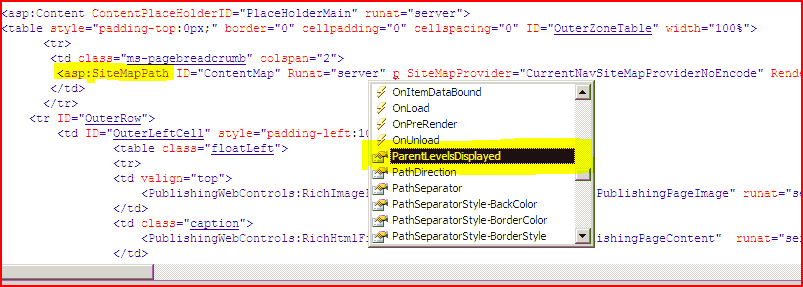
First off, let’s look at the SharePoint Designer route. If you go to your master page or page layout, you’ll see an ASP control called the SiteMapPath control. It has a property called ParentLevelsDisplayed.

A SiteMapPath control showing the ParentLevelsDisplayed property.

Set that to a number, and that should be the maximum number of levels shown. If you set it to -1, it will show however many levels there are, which is it’s default. (I’ve not tried it, but I’m pretty sure that’s the case). That’s probably what you want, but there is a problem – it’s not just your master page which defines the SiteMapPath control. There is one on most of the Publishing Page layouts that come out of the box too. Still, if you’re happy taking a little time to change all of them, then that’s probably fine.

The other problem is a little more fundamental – this setting will apply across your entire site collection. Well, okay, maybe not, but it’ll apply for all pages using that master page or page layouts…

Alternatively, you could change the Site’s navigation settings to get what you want. At the ‘sub sub sub subsite‘ you could change the site’s navigation setting to not inherit it’s top navigation settings from the parent site. This will add a level to the ‘Global Navigation’ breadcrumb, but also make all URLs below the ‘sub sub sub subsite‘ start at that level. See my previous article for an explanation.

The down side about this approach, though, is that it means all of your top navigation tabs will change – you really are breaking with the ‘navigation context’ of the parent site. (That’s my term – I didn’t know what else to call it.) There is an example of this on the article linked to above.

A final note, these approaches do have two slightly different results – the first route is a ‘only show the last X items’, while the second is ‘chop all breadcrumbs below this site to start here’.

Anyway Jo, I hope that one of those is suitable.

Limiting the levels shown in SharePoint Breadcrumbs

Easy opening of SharePoint Designer

A tip that much has been made of, but good nonetheless – in Internet Explorer, set the Default program for editting pages to SharePoint Designer to make life easy. Go to Tools > Internet Options > Programs > HTML Editor and select SharePoint Designer.

Configuring IE options

Then in Internet Explorer you’ll have the option to open SharePoint Designer to edit the page. And that’s what it does.

Opening the page in SharePoint Designer.

Easy opening of SharePoint Designer

Why I was getting duplicate rows from the SharePoint Lists Web service

A couple of months ago I was making some calls to the SharePoint Lists Web Service, and I found that I was getting the same item back multiple times. This puzzled me – I mean, it was clearly by design, but why would anyone want a copy of the item for each value selected in a multiple-selection lookup?

It hit me last weekend (like a bolt from the blue) – you could use this to support Group By clauses on queries on a list. Yes, I know, SharePoint itself doesn’t support this functionality, but you could use the behaviour that I’d seen to support this. It’s the only explanation I’ve found that makes sense.

Now, can you turn off this behaviour, so you only get one item. That would be a lot more useful for what I was trying to do, although I now get why you might want that behaviour. Well, I don’t see a query option for it in the documentation, and cracking the service open in Lutz Reflector doesn’t show an option for it either.

I guess we’ll just have to accept the GetListItems command in the Web service API supporting Group By functionality, while SharePoint’s user interface itself does not. It’s a bit weird though that there isn’t an option I can find to turn it off though, and the Object Model behaves quite differently – it only returns one ListItem, and is unaffected by the multi-select lookup.

Why I was getting duplicate rows from the SharePoint Lists Web service

When will a page run inline code in SharePoint?

Previously, I’ve detailed my attempts to show a query string parameter in a page. This should be a simple enough to do as inline code, but as my previous attempts recorded, when I tried:

<%= Request.QueryString.ToString() %>

I got the error “code blocks are not allowed in this file”. This makes sense, as otherwise anyone with SharePoint Designer could put arbitrary code into a page and get it to run. Clearly, as this would let business users enter code, this would not be very secure.

Now, you can turn off this security restriction using Page Parser Paths, but this reduces the security of the system – again, anyone with SharePoint Designer could put code in without review/authorisation. Again, less than ideal.

Well, one of the things I learnt last week was that uncustomised pages (or ‘ghosted pages‘ for the oldies) will run inline code. Fantastic! After all, we’re going to want to package up our code for deployment from Development to Testing and Production systems, right? (Well, you should be, dammit!)

For those of you who don’t know, uncustomised pages are ones that are stored on the server’s hard drive, rather than in the database. To get onto the hard drive, someone has to install them, which means that someone has to review and approve the code. With SharePoint designer, this isn’t the case, and SharePoint Designer can only create pages that are Customized (or Ghosted), and so exist only in the database.

So overall, the process would probably become:

  1. On a development system use PageParserPaths to enable inline code. As this is a dev system, security is less of an issue, and business users won’t be making changes.
  2. Develop your pages that use inline code. You can do this in SharePoint Designer.
  3. When the pages are complete, copy them out and package into a feature. Make sure that your page that you’ve written in installed Ghosted – still the terminology they use in features.
  4. Install and activate the feature. As your page is now uncustomised (or ‘ghosted’), it will now run inline code without PageParserPaths being configured.

That’s a pretty tidy developer story!

When will a page run inline code in SharePoint?

How do I get rid of the Action Links on my Search Results Page?

I wanted to get rid of the Action Links on a standard Search Results page in SharePoint:

Standard Search Results Action Links

So I opened up my search page in SharePoint Designer. This always looks a bit cluttered, but I went to my Core Search Results Web Part to modify it’s ShowActionLinks property.

SharePoint Designer view of Results page, showing that ShowActionLinks is already False

I’ve scribbled on this to highlight the obvious web parts on the page. The Core Results web part is highlighted in cyan. Anyway, if you look at the code in the top of the screenshot you can see that the ShowActionLinks setting is already False. Eh? Continue reading “How do I get rid of the Action Links on my Search Results Page?”

How do I get rid of the Action Links on my Search Results Page?

Saving SharePoint Searches

One of my colleagues was asking how to save a SharePoint Search. It’s a bit of a question of how many ways to skin a cat…

The important thing to remember is that a simple search is just a URL, and specifies the search term and scope in the k and s parameters respectively. E.g. This search url:

http://deltamoss01/searchcenter/Pages/Results.aspx?k=Badgers&s=All%20Sites

would run a search for badgers in the All Sites scope.

It is worth noting, however, that this is saving the search, not a set of search results. As the index is updated, the results on this page may vary. Also, advanced searches don’t pass their parameters as GET parameters (i.e. within the URL), so you can’t save these the same way. I’ve not yet found a way to save them.

As another note, the standard Search results page shows the ‘Alert Me’ link:

The Alert Me Link

This lets you set up email alerts about new items that match a search:

Alert Me Configuration Page

Really, that’s pretty neat. Continue reading “Saving SharePoint Searches”

Saving SharePoint Searches

Advanced Search – Losing Parameters

I have a bit of a problem with Advanced Search in SharePoint – it’s very awkward to use.

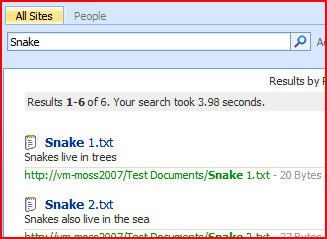
When I perform a standard search in SharePoint, it shows me what I’ve been searching for:

Search Results showing Search Term of Snake

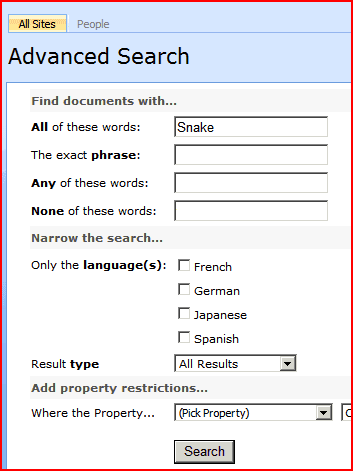
That’s good – it’s useful to know what you’ve searched for. If I then click on ‘Advanced’ the advanced search page opens showing my search term, and a number of other fields I can fill in for a more specific search.

Advanced Search Screen with Search term of Snake

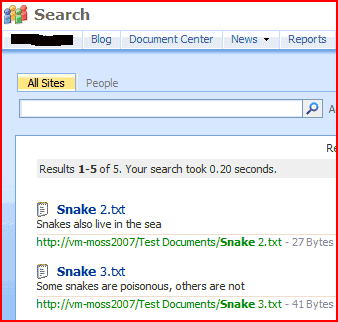
If I then run that search, though, I get the following results page:

Search results, but with no apparent search term

Okay, now that is a little odd looking. There is no search term in the search input box. This is perhaps not surprising – the advanced search screen can express more complex queries than the text input box of the simple search control. However, there is nothing to tell you what the results are of. You have no idea what the search was that gave these results!

Worse happens if you try to go back to your advanced search page. Unless you use the browser’s Back button, you will lose your current query. There is no obvious way of ‘refining’ an advanced query.

It looks like this is happening because the simple Search box passes it’s parameters in the URL as GET parameters, but the Advance Search page uses a postback-then-forward approach.

Is it too much to ask for to have a web part that describes what the conditions of an advanced search are, and to store that query to pass back to the Advanced Search page, should the user wish to refine their query.

Advanced Search – Losing Parameters