Programmatically apply a Default Theme in SharePoint

As I’ve mentioned before, I’ve written a brand that is a combination of Theme and Master Page, and is designed to be activated by a feature receiver. When the feature is deactivated, it should restore the previous Master Page and Theme – but it wasn’t doing this for the default theme. Weird.

Well, here’s another good tip from Madalina you have to apply a theme of none, not Default.

web.ApplyTheme("none");

That’s the second tip of hers I’ve found on Google and used in the last 2 weeks. Maybe I should start watching that blog. Anyway, I guess that ‘none’ makes sense when you look in 12/TEMPLATES/LAYOUTS/1033/SPTHEMES.xml – the default theme has a TemplateID of ‘none’.

‘Course my next problem for my feature receiver is that Meeting Workspaces use master pages (MWSDefault.master) that are significantly different to other pages – thanks guys, that’s helpful…

Programmatically apply a Default Theme in SharePoint

Updating the Navigation Settings in a Publishing Site

I’ve got a brand that I’m activating via a Feature Receiver – it’s a theme and masterpage combination, and I want it to work on Team sites too, so it does actually make sense to do it this way!

Part of the brand is that the tabs have rounded corners, and these don’t work very well with the dynamic drop down menus. You can turn this off in the master page for the site pages, but not for the applications pages. Instead, I figured I’d use a feature receiver to turn off the ‘Show Subsites’ and ‘Show Pages’ in a publishing site.

So, the code I had was this:

if (PublishingWeb.IsPublishingWeb(site))
{
PublishingWeb pwSite = PublishingWeb.GetPublishingWeb(site);
site.Properties[ORIG_PUB_SITES] = pwSite.IncludeSubSitesInNavigation.ToString();
site.Properties[ORIG_PUB_PAGES] = pwSite.IncludePagesInNavigation.ToString();
site.Properties.Update();

pwSite.IncludePagesInNavigation = false;
pwSite.IncludeSubSitesInNavigation = false;
pwSite.Update();
pwSite.Close();
}

However, this didn’t work. To describe the code, first, we check to see if the page is a PublishingWeb. If it is, I record original settings in the site properties (so I can restore them when the feature is deactivated). I turn off those navigation check boxes, update the record on the server and close the object.

After much investigation, I realised that updating the properties was invalidating the PublishingWeb object, somehow, and that my changes weren’t being recorded. In the end I had to change my code to:

if (PublishingWeb.IsPublishingWeb(site))
{
PublishingWeb pwSite = PublishingWeb.GetPublishingWeb(site);
bool showPages = pwSite.IncludePagesInNavigation;
bool showSub = pwSite.IncludeSubSitesInNavigation;

pwSite.IncludePagesInNavigation = false;
pwSite.IncludeSubSitesInNavigation = false;
pwSite.Update();
pwSite.Close();

site.Properties[ORIG_PUB_SITES] = showPages.ToString() ;
site.Properties[ORIG_PUB_PAGES] = showSub.ToString() ;
site.Properties.Update();
}
This worked nicely!

Updating the Navigation Settings in a Publishing Site

Changing SharePoint Menu Colours

I was looking at something a bit curious – I wanted to change the menus in SharePoint, specifically the colour down the left hand side of the menu:

As the menus are dynamic, I wasn’t able to interrogate them with the IE Dev toolbar to know what styles were being applied. I took a screenshot and tried looking for the colour of the bar in the CSS files. It wasn’t there.

Huh?

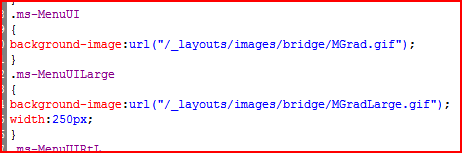
Well, I realised that I’d have to trawl through the CSS searching for a likely looking class. I tried Core.css and found the ms-MenuUI and ms-MenuUILarge classes (also defined in the in the Menu.css file, for some reason).

These use images for those bars! Ah! Changing them results in my new background image being used:

Sorted!

Changing SharePoint Menu Colours

So can you put Web Part Zones in Master Pages, or what?

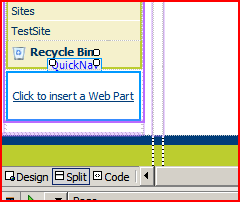
A customer wants to put a web part zone below the quick nav in their SharePoint site – not an unusual request. Naturally, I cracked open SharePoint Designer, and tried adding a web part zone – and this is what I got:

I tried to understand why this would be the case, but quite simple, couldn’t. Naturally, I then referred to the documentation (!) on MSDN. It had mentioned this at the bottom of the page.

You cannot add Web Parts in zones to a master page. You can add static Web Parts (parts outside of a zone) to a master page, but you cannot add dynamic Web Parts to master pages.

Okay, that seems clear enough – I get why you could add static web parts to a master page, but not dynamic – but what about the web part zones themselves?

You can add zones to master pages and later add Web Parts to the zone in the browser, but the Web Parts are associated with the content page.

Yup, that seems fair enough. I get that in theory. So why in practice does SharePoint Designer say I can’t?

I began looking around to see if others had tried this – and found interesting contradictions. Mirjam says you can’t – but does point out that you can override the standard quick nav in your page layout, and put a web part zone into that. Microsoft SharePoint Step by Step seems to say the same thing. Yet ASP.NET would support this just fine, and as noted the MSDN docs say it should work.

Okay, one thing left to do – actually try it. SharePoint Designer won’t let me add the web part zone by ‘drag and drop’, but I can code one by hand:

And it renders in SharePoint Designer:

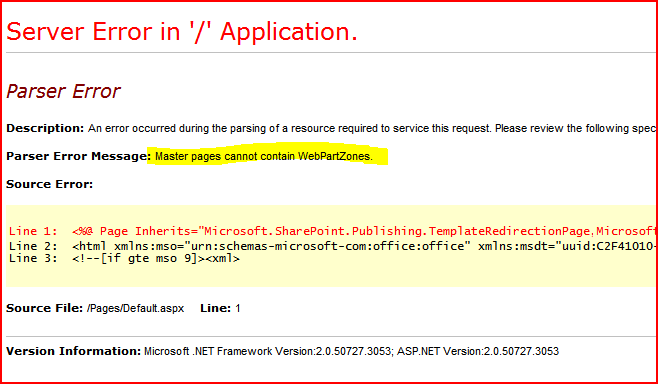
But when you try and use the page:

Well, I ain’t going to argue with a parser error – it looks like you really can’t do this, despite the MSDN docs.

So can you put Web Part Zones in Master Pages, or what?

SharePoint: Enabling Dynamic Navigation on the Left Nav Menu

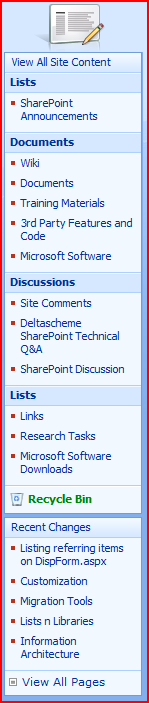
I’ve been modifying SharePoint’s Left nav menu, as I’m sure I’ve mentioned. Well, here’s the before and after styling, for the curious:

The next requirement that came up was to enable Dynamic menus on the left navigation. This is actually pretty easy:

  1. Open up your master page in SharePoint Designer
  2. Find the sharepoint:aspmenu control for the left nav
  3. Set the MaximumDynamicDisplayLevels to 1 or more

As an experiment, I did this (I’ve highlighted the dynamic menu ‘cos it wasn’t really styled yet, and so wasn’t very visible):

However, we’ve just hit a snag. It started right at the point where we editted our master page.

You’ll notice that the page has a ‘View All Site Content‘ link. This goes to the page viewlsts.aspx – which is an application page in the LAYOUTS directory, and so does not use our master page and will not have our dynamic menus.

Arse. Where does it get this left hand navigation then? Most Application Pages don’t have any left navigation. viewlsts.aspx defines it’s own – which happens to be identical to the default content of the default master page’s left nav.

So what can we do? We can’t modify viewlsts.aspx – it’s in the _layouts directory, and Microsoft are specific about not modifying stuff in there.

  • Remove all links to it, pretend it isn’t there. I’d sooner not – it’s a useful page.
  • Live with it. So the View All Site content page has navigation inconsistent to the rest of the site – get over it.
  • Increase the permissions to see the View All Site Content link. By default, it’s presented inside an SPSecurityTrimmedControl, just with very low permissions defined. Increase this to admin level, and then have them live with inconsistent navigation on the ‘admin’ page
  • Replace viewlsts.aspx.

We can’t modify viewlsts.aspx – but we can replace it. We could take a copy, and modify that – Microsoft don’t mind that – to use our dynamic navigation. We can put this new copy in the _layouts directory. We’ll then need to update the links in our site:

  1. One link is coded into the master page. Just update the URL the SPLinkButton to it.
  2. The other is in the Site Actions Menu. This ought to be possible, but I haven’t really had a look yet.

Hope that helps!

SharePoint: Enabling Dynamic Navigation on the Left Nav Menu

Rounded Corners are cool in SharePoint, apparently

I’m not a designer; I neither wear cool enough glasses, a turtleneck, nor sport an iPhone. But I do have to build other peoples designs, and I’ve noticed something – every design I get handed has rounded corners all over it.

I do see their point – SharePoint is a bit, well, ‘Square’. “Boxy but good”.

So instead we have designs with corners, well, all over them. Here’s the one I’ve been working on:

Things to note there – Rounded corners on the tabs in the top nav, and a rounded corner (only one) on the web part title. How did I do this? Continue reading “Rounded Corners are cool in SharePoint, apparently”

Rounded Corners are cool in SharePoint, apparently

PlaceholderLeftActions – what is it?

I’ve been doing some branding for the last week or so, and today was the turn of the left nav menu. I’ve gotta admit, I don’t like doing this – it’s complex, fiddly, and leaves me with what I call “SharePoint Branding Tourettes”.

While going through the code for the left side of the page, I came across the PlaceHolderLeftActions placeholder. By default, it’s empty.

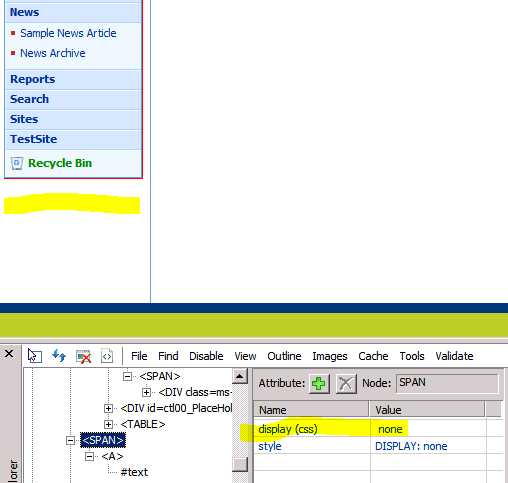
It was a bit of a puzzle to me though – it sits just underneath the normal left navigation area of the page, and I couldn’t think of anything that puts content down there. Just to check though, I took a look in IE Explorer:

I’ve highlighted where the content goes, and you can see from the IE dev bar, there is a hidden link there (to the List Settings page, if you’re interested).

Hmm. So some stuff uses it. I tried different lists in case they all used hidden content – and fairly rapidly came across another – Wiki pages:

I guess the real annoyance here is that it is so hard to see what pages in SharePoint use what placeholders. It’s not like you can just search over the file system, even. I guess it’s a matter for experience.

Anybody else know what the PlaceHolderLeftActions is used for? I might try and build up a library.

PlaceholderLeftActions – what is it?

Remove a Separator Character from the Global Links

I ain’t dead, just flat out busy. I’m working on a branding project at the moment, which I hope to write some more about. But here’s a tricky little problem that I was struggling with.

Our customer wanted to remove the ‘Help’ and ‘My sites’ links from the Global Links in the top right of the page (the Mysite link is going elsewhere on the page), so I removed these items from my new master page. I ended up with something like this:

I’ve highlighted the problem in yellow – a spurious trailing ‘|’ character which is being used as a seperator between links. I didn’t want this though! Looking at the code in my master page, though, showed that this link was being generated by a Delegate control:

Oookay. Not sure why the default value for this is coming from a delegate control, but there you go. Let’s have a look at the code for that delegate control:

Right, so the code is held in a control template -fair enough, let’s look in there:

There we go – a literal control. I have no idea what’s putting that separator character into the literal – and I don’t want to define my own delegate control to override the current delegate control.

So what to do? Well, simple answer – I copied the MyLinksMenuControl into my master page (but without any damn asp:Literal control). All this raises two questions though:

  1. Why are some of the Global links (though not all) rendered via Delegate controls?
  2. Who thought that rendering the control with a separator was a good idea?

All in all, it seems to be absurdly complex and highly effort-filled if you want to change anything here.

Remove a Separator Character from the Global Links

Workflow Error: System.InvalidOperationException and the Correlation Token

I got a slightly obscure error message when trying to run a DeleteTask activity in my workflow:

System.InvalidOperationException: Correlation value specified does not match the already initialized correlation value on declaration taskToken for activity deleteTask1.

Hmm. I checked the correlation token though – and it was fine. And what’s it doing initialising another token? Found the answer though, courtesy of Matt Morse – I’d not set the task ID property for the delete task activity.

This did lead me around to wondering why I have to? I mean, we’ve a correlation token for the task. The correlation token contains the TaskID. And yet I have to specify both of these things to the DeleteTask activity to identify the task I want deleted? Something ain’t right there…

Workflow Error: System.InvalidOperationException and the Correlation Token

Modify ListItem Display to show referencing items…

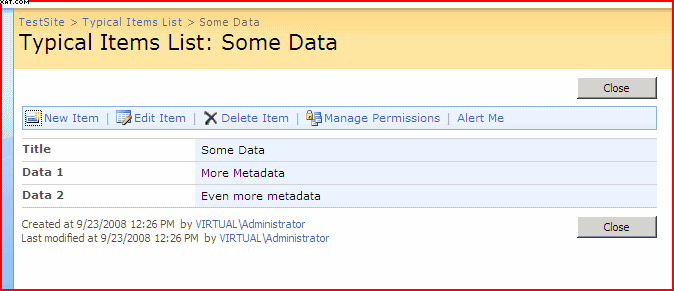
SharePoint is made up of lists of items, where an item is a set of data. Here is the standard display of an item’s properties:

As you can see, we’ve got a item, and it has some fields of data, and they’re being displayed inside a web part. Those fields are columns on the list:

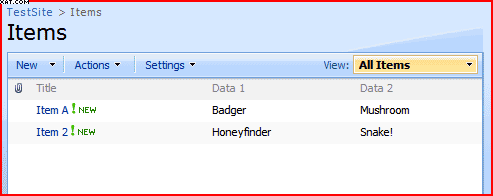
All very familiar, I’m sure. It gets interesting when we start using Lookup columns, though. These are columns that refer to items in other lists. For example, this is a list of documents, but they refer to items in the above list (that’s what the Item Ref column is doing):

Cool, but wouldn’t it be great if I could show a list of items referring to a particular item on it’s display page? For example, in this case wouldn’t it be good to show a list of ‘Item Documents’ on the DispForm.aspx page used to show the Item’s properties? Well, you can:

(Edit: one of my colleagues points out that Microsoft did this in one of the Fab 40 templates – but I didn’t know).

So how does it work? Continue reading “Modify ListItem Display to show referencing items…”

Modify ListItem Display to show referencing items…