Duplicate rows from the SharePoint Lists webservice.

Edit: I’ve since learned more about this behaviour – but it’s still not very obvious

I found what I can only describe as a but in the Lists.asmx web service in SharePoint. I was using Lists.GetListItems to get a list of the folders in a Document Library, and I found that I was getting one of the folders twice. However, when I looked in SharePoint, there was only one, and my program showed that both these folders were supposed to be at the same URL. WTF?

Naturally, I went back and had a look at the XML I was getting back from the web service. I expected to get two, so I was somewhat surprised to get 3…

GetListItems Response XML Showing 3 records

As you can see, 2 records have the same URL, the same internal ID (both of which have to be unique!), and the only difference is in the AWBMultiLookup column. This set alarm bells ringing. Firstly, I was surprised to see it in the results. In GetListItems you can define the fields you want returned in the responses (the ‘view fields’ ). I had only asked for the URL, the ‘link file name’ (the item’s name), and it’s ID. I’d expect to get some other details (the web services always seem to include more), but not field data.

Secondly, AWBMultiLookup is a multi-select lookup column. In other words, it looks up data from another list, and you can can select zero to many items from it. For my folder, I’d selected 2 options from this column (‘A’ and ‘C’), and now I have 2 records with the only difference being the value of the AWBMultiLookup column – ‘A’ or ‘C’. On a hunch, I went and selected a third option (‘B’), and my XML I was getting back became:

GetListItems Response XML Showing 4 records

Yup, now I got 3 records with different values of AWBMultiLookup, rather than just the one. Clearly, and incredibly, the web service was returning a seperate ‘item’ for each value of the multi-select lookup column that was selected. I can’t think of a situation where that would be the desired behaviour – and everywhere else in the system, multiple values are just encoded into one string. Hence, I’m calling that a bug.

However, this raised a question. Elsewhere in the system I get just the one folder and it was definitely getting the multi-select lookup field correctly. I ran that code and found that the XML I got back was:

Results of GetListItem with a Multiple lookup where all values are returned in one attribute

Yup, you’ll notice that the results from GetListItems this time shows all the values for the multi-select lookup in one attribute. What gives? What’s different about this query to the other one where multiple items would be returned?

Well, the only difference that seemed like it could be relevant is that this second query requests the ‘AWBMultiLookup‘ column in the ‘view fields’. I decided that I’d test this by modifying the view fields for my first query to include the AWBMultiLookup column like so:

View Fields changed to get the multi-select lookup

Having done this, my query now worked as I’d expected it to in the first place:

GetListItemsResponseXML with defined view including multiple lookup

Notice that all values are now encoded in the one attribute, and that I’m getting the two records I’d originally expected.

Or course, this doesn’t help me. When my application is browsing across folders I don’t actually know what the columns against folder really are, so even if I was happy to request the multi-select lookup fields (despite their being superfluous ), I can’t, ‘cos I don’t know what they are yet. I’ve gotta admit, though, that I’ve lost my temper at whoever made the web services work that way. It’s worth noting that the SharePoint API doesn’t behave similarly

One thing I haven’t checked yet is what happens if you hav many multi-select lookups. Combinatorial explosion anyone?
Duplicate rows from the SharePoint Lists webservice.

Visual Studio Comments

I didn’t realise this, but Visual Studio allows you to see comments beginning TODO, HACK and UNDONE in the task list pane. That’s really quite neat, though it’s unfortunate that the list only contains items for files that are currently op open in the IDE. You can also add your own ‘tokens’ via the Options > Task List dialog. Vish has a pretty good summary. It’s just a shame that the task list isn’t for all files, irrespective of whether they’re open or not. Still, a neat feature that I didn’t know about.

Visual Studio Comments

You can do a lot with page layouts…

I’ve been blogging a fair bit lately about Page Layouts – how they affect styles to hide bits of the page, how they are used to replace breadcrumbs and the like – but you can do a heck of a lot with them.

Quite a lot of your default master page is in ContentPlaceHolder controls. Those ContentPlaceHolder controls have default content – but your page layout can define Content controls which place content into those placeholders, overriding them. Of course, you still need to have all of the appropriate controls on a page – just removing the ‘Site Actions’ menu for everyone isn’t a good idea – but you can do a lot.

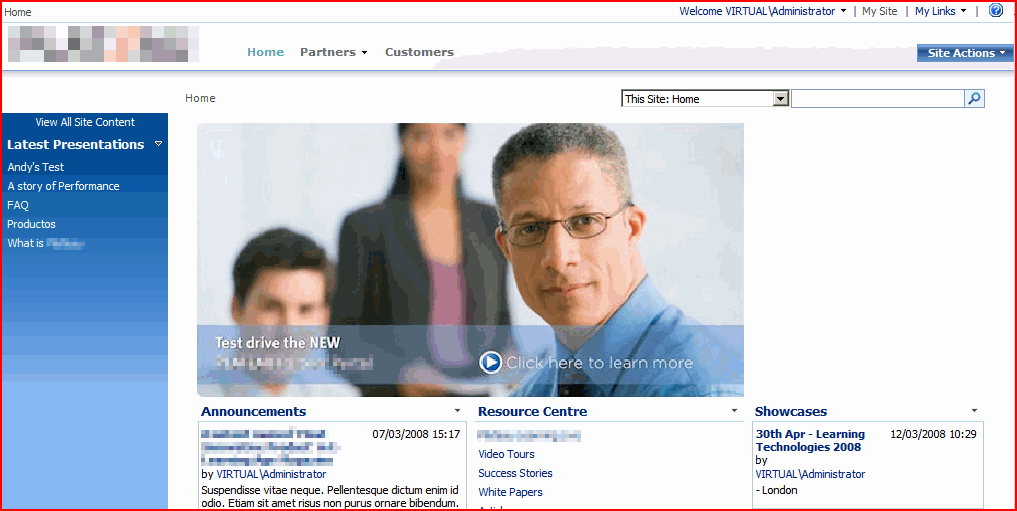
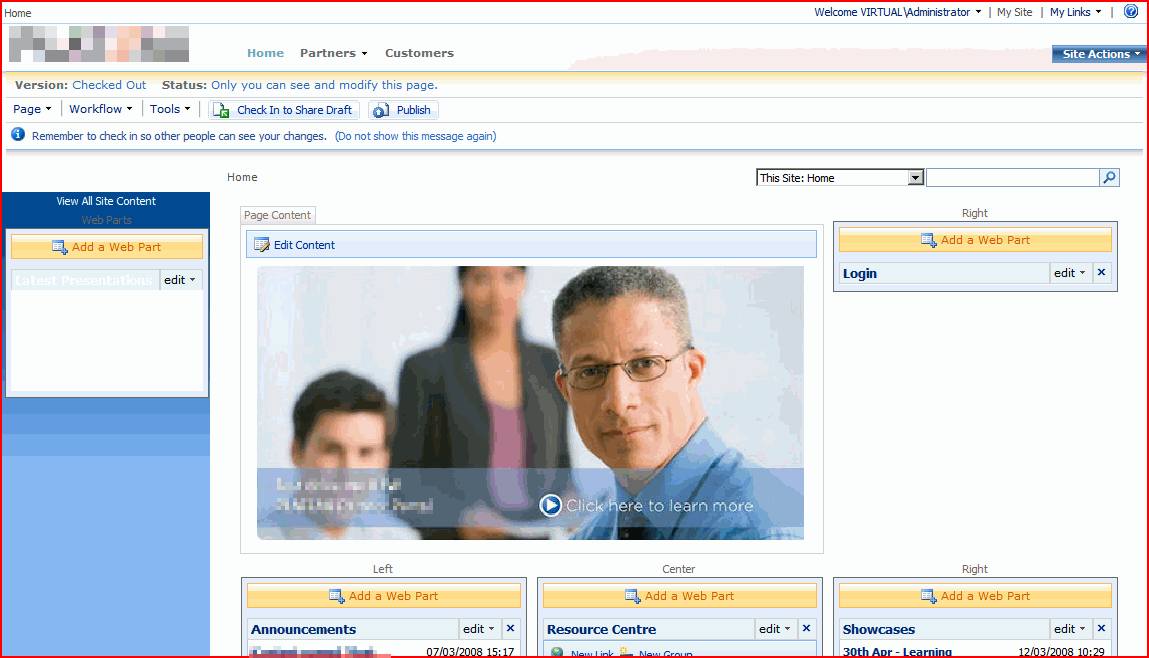
This sort of came up at the last SharePoint User Group meeting – Colin Byrne was demonstrating Silverlight in SharePoint (which apparently doesn’t work all that well yet, but shows promise). One of the demos he has showed replacing the left navigation with a Silverlight control, but used a neww Master Page do to that. I thought of a demo I’d done recently where I’d done similar – but with a Page Layout. I used this to replace the left navigation menu with a Web Part Zone:

Normal View

Page Extensively Modified by a Page Layout

Edit View

Page Extensively Modified by a Page Layout - Edit View

Believe it or not, this is actually the default master with a particular Page Layout that I made, and the ‘Simple’ theme applied. Actually, there are lots of bits of the page modified by the Page Layout. The ‘Site Actions’ menu and Top Navigation Bar have been moved up, for example. The Left navigation has been replaced by a Web Part Zone, and I’ve dropped a Content Query Web Part in there for a giggle. And the Search box has been moved down the page too.

You could do all of this with a Master Page of course – and in real life, you’d probably want to for most of those modifications. For some things, though, like replacing certain navigation controls (which is what some of the out-of-box page layouts do with title breadcrumbs) then I think that a page layout might be exactly what you want – so that you can have different forms of navigation for different pages using the same Master Page.

Anyway, I was surprised by how easy it was to do this. Given that the Master Page defines default content, much of what I did was just copy that default content into the Content control for the location that I wanted to put the control into – and voila!

You can do a lot with page layouts…

VMWARE: WinXP Pro SP2 License Key doesn't work with MSDN Disc

I was trying an installation of a volume license edition of Windows XP Professional from MSDN disc 2430.2 (January 2007) to a new VMWare virtual machine. Our license key didn’t work though, despite use checking the key repeatedly, and trying every WinXP license key in the building.

In the end, on the advice of another developer, I started again with a new VM. I left the memory at 256Mb (my previous one was 1024Mb), removed the floppy, and previously I was running the ISO image from a CD, and this time I ran it from a hard disc. This worked. I don’t know which of these three factors was the relevant one, but if you’re doing an installation like that, I recommend trying those things.

VMWARE: WinXP Pro SP2 License Key doesn't work with MSDN Disc

Pimp my SharePoint Part II – Beyond Just Colours

Previously I’ve written about branding in SharePoint and the technologies involved. However, there is more to branding than just the technologies used and the colours you want, which was what that post focussed on. Really, it’s more a question of style and content than just colour and pictures. This makes it all a good deal more complicated though, which emphasises the need for proper management of the work and for it to be treated as a proper project.

To recap on the technologies used in MOSS branding, briefly:

  • Master Pages – can change everything
  • Themes – can change the colour of elements and the background images.
  • Web Parts – can change the layouts of pages and some of the appearance.
  • Combination thereof.

The two main technologies discussed in branding are Master Pages and Themes, and a good description is:

[Themes are] Akin to painting a house new colors and changing the pictures on the walls. [Master Pages are] Akin to remodelling the whole house
Heather Solomon

Well, recent experience of branding and some interesting slides by Heather Solomon have driven home some other points. Note that these apply to MOSS but not WSS (which only has ‘basic’ pages). The ultra high level view of what I’ve learnt is:

  • Just saying ‘X days to do branding’ is not a good idea.
  • Branding encompasses more than I’d previously really thought about, both in a business and technology senses.
  • It’s more of a ‘Pick and Mix’ affair than ‘small, medium or large’
  • Specification and scope is vitally important.
  • Therefore, branding should be treated as a proper project in its own right, with requirements, specification, design and testing phases.

Continue reading “Pimp my SharePoint Part II – Beyond Just Colours”

Pimp my SharePoint Part II – Beyond Just Colours

Use Reflection to find a calling method

Reflection is a great way of finding the calling method in another method. I found this post which provided a good template for what I was trying to do (build a logging class that would automatically log the method and object that created the log entry). My code ended up being:

StackTrace stackTrace = new StackTrace();
// Calling Method and Object are only one frame up.
StackFrame stackFrame = stackTrace.GetFrame(1);
MethodBase methodBase = stackFrame.GetMethod();
string method = methodBase.Name;
string obj = methodBase.DeclaringType.Name;

Neat! I the write obj and method into my log…

Use Reflection to find a calling method

Restrict or Permit formatting changes in Word Documents

Word 2007 lets you restrict the styles and formatting people can use in documents based on a particular template. I suspect that this will be useful for me in restricting the styles used in SharePoint’s Rich Client Authoring (aka Smart Client Authoring – I wish they’d pick a terminology).

Just as a quick example, though, you get do this through the manage styles dialog. To open this, open the styles menu from the ribbon, and select the manage styles option: Continue reading “Restrict or Permit formatting changes in Word Documents”

Restrict or Permit formatting changes in Word Documents

Take care when adding or removing columns from Site Content Types

As mentioned before the content types on a list are actually children of the site content types. I’ve also looked at adding columns to list content types, which naturally enough doesn’t affect their parent site content types. Anyway, there are issues to consider when dealing with adding and removing list content types – I suggest you refer to this post for more information.

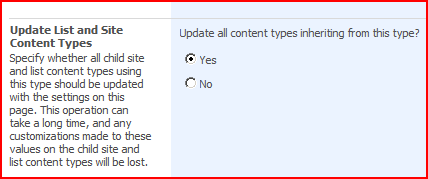
So what about adding and removing columns from Site Content Types – are there issues with this? Well, yes, there are (unsurprisingly). If you add a new column to a Site Content Type, you have the option to ‘Update all content types inheriting from this type’

Update Child Content Types

If you select ‘no’, then the change only applies to that Site Content Type. The next time you add that site content type to a list, the new List Content Type that is created will have the new column, but pre-existing list content types that inherit from the site content type will be unchanged.

If you select ‘yes’, then the List Content Types (or other Site Content Types) that inherit from this content type will have the new column. For the List content types, this means that there will be a new column on the list. Carrying on from an earlier example, here I’ve added a new column (‘Job Title’) to the Example Travel Expenses site content type, and updated all content types inheriting from that. If we then go an look at the List Settings page, we can see our List Content Type has a new column:

Extra List Columns 2

Great! Now what happens if I remove that column from our Site Content Type? Well, again, I get the option to ‘Update all content types inheriting from this type’. If I choose no, then the existing List Content Types derived from this Site Content Type remain as they are. If I choose yes, though, I get a fairly large warning saying:

This column will be removed from all content types that are based on this type. If you are sure you want to remove this column from all content types based on this type, click OK. To remove this column from this content type only, click Cancel to close this dialog box, click No in the Update Lists and Columns section, and then click Remove.

Snappy message that:

Silly Warning Dialog

Anyway, if you click OK, that column is removed from child content types. H0wever, the column is not deleted from lists that were using those child content types. I removed the ‘Job Title’ column from my ‘Example Travel Expenses’ site content type. If we return to our list settings page, we can see that the column still exists, although it isn’t used in any content types:

Extra List Columns 3

This makes sense, as the column could actually contain data, and it could be used in multiple places throughout our sites (potentially hundreds!) However, maybe you do want to remove that column from that list, or potentially those hundreds of lists. In that case (and this is why this is important) you have to delete the ‘orphan’ column on a list by list basis. Therefore, if your content type was used in hundreds of lists, you will have to delete this extra column hundreds of times, once for each list.

Therefore, be very careful when adding or removing columns from a Site Content Type – make sure that you really want to add it (as removing it might be hard), and be aware that removing the column is not the same as deleting it in the lists that use it already.

Take care when adding or removing columns from Site Content Types

Content Types – Who's your daddy?

Content Types are great, but can cause a little confusion. Because you normally define a content type at a site level, that’s pretty much how we think of them – as centrally defined types of item. Often, we actually create these content types on the root site of a site collection, because all subsites will be able to use them then.

However, this isn’t really the case. We do have site content types – but we also have list content types. These are the content types that are actually used on the lists themselves, and they are children of those site content types. This can be most easily seen by clicking on a content type on the List Settings page.

List Content Type

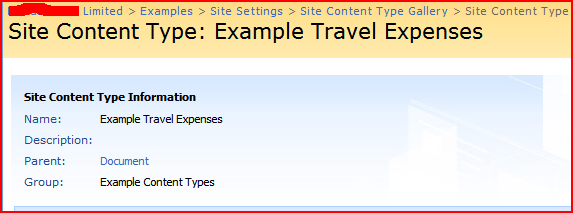
Notice that our ‘Example Travel Expenses’ content type says it has a parent of… …’Example Travel Expenses’! This is our List Content Type telling us that it’s parent is the Site Content Type of the same name. Click on it, and it’ll take you to the Site content type description, and you can work on up the chain of content types until you reach Item.

Site Content type

A consequence of this is that, as our content types are actually used by lists, I can’t think of a way to use a Site Content Type directly (though I may be wrong about that).

That are also issues related to this in terms of modifying content types, but that’s the subject for another post…

Content Types – Who's your daddy?