Saving SharePoint Searches

One of my colleagues was asking how to save a SharePoint Search. It’s a bit of a question of how many ways to skin a cat…

The important thing to remember is that a simple search is just a URL, and specifies the search term and scope in the k and s parameters respectively. E.g. This search url:

http://deltamoss01/searchcenter/Pages/Results.aspx?k=Badgers&s=All%20Sites

would run a search for badgers in the All Sites scope.

It is worth noting, however, that this is saving the search, not a set of search results. As the index is updated, the results on this page may vary. Also, advanced searches don’t pass their parameters as GET parameters (i.e. within the URL), so you can’t save these the same way. I’ve not yet found a way to save them.

As another note, the standard Search results page shows the ‘Alert Me’ link:

The Alert Me Link

This lets you set up email alerts about new items that match a search:

Alert Me Configuration Page

Really, that’s pretty neat. Continue reading “Saving SharePoint Searches”

Saving SharePoint Searches

Advanced Search – Losing Parameters

I have a bit of a problem with Advanced Search in SharePoint – it’s very awkward to use.

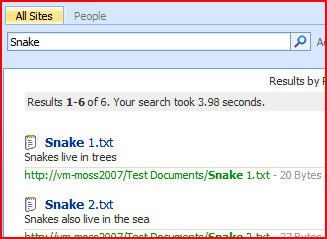
When I perform a standard search in SharePoint, it shows me what I’ve been searching for:

Search Results showing Search Term of Snake

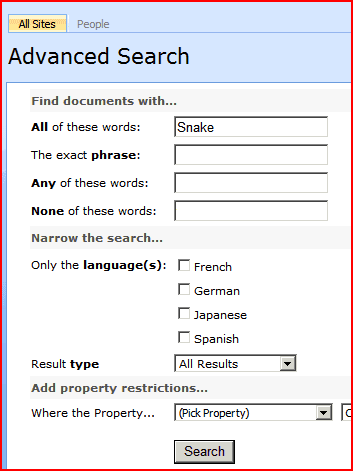
That’s good – it’s useful to know what you’ve searched for. If I then click on ‘Advanced’ the advanced search page opens showing my search term, and a number of other fields I can fill in for a more specific search.

Advanced Search Screen with Search term of Snake

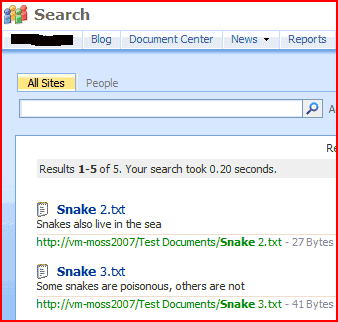
If I then run that search, though, I get the following results page:

Search results, but with no apparent search term

Okay, now that is a little odd looking. There is no search term in the search input box. This is perhaps not surprising – the advanced search screen can express more complex queries than the text input box of the simple search control. However, there is nothing to tell you what the results are of. You have no idea what the search was that gave these results!

Worse happens if you try to go back to your advanced search page. Unless you use the browser’s Back button, you will lose your current query. There is no obvious way of ‘refining’ an advanced query.

It looks like this is happening because the simple Search box passes it’s parameters in the URL as GET parameters, but the Advance Search page uses a postback-then-forward approach.

Is it too much to ask for to have a web part that describes what the conditions of an advanced search are, and to store that query to pass back to the Advanced Search page, should the user wish to refine their query.

Advanced Search – Losing Parameters

Error: "RootWebOnly='FALSE'" is True…

I wrote a feature to deploy a couple of pages into a Pages library on a site. The idea was that these were search pages, and they’d be going into a Search Center. My feature had an Elements manifest of:

<?xml version="1.0" encoding="utf-8"?>
<Elements xmlns="http://schemas.microsoft.com/sharepoint/">
<Module Name="CustomSearchPages" Url="Pages" RootWebOnly="FALSE" Path="Pages">
<File Url="advanced.aspx" IgnoreIfAlreadyExists="TRUE" Type="GhostableInLibrary">
</File>
<File Url="contentresults.aspx" IgnoreIfAlreadyExists="TRUE" Type="GhostableInLibrary">
</File>
</Module>
</Elements>

Yet when I activated this on my Search Center, the pages weren’t installed. This was weird, ‘cos I’d done nearly exactly the same thing to install my custom Master page. I began swapping bits of the Master Page feature into my Search Pages feature to see if they worked, which at first they didn’t. Then, by accident, I tried installing my Search Pages on my root site, and they did install.

Interesting.

There followed a bit of wild, stab-in-the-dark guessing. I’d seen lots of examples of installing new page layouts, or installing new master pages. These should all go in the root site (or ‘root web’), and so their Module node would specify RootWebOnly="TRUE". I could find very few results, though, where RootWebOnly="FALSE", which is a little unusual on Google. What if the thing that made a module only install on a root site was the presence of a RootWebOnly attribute, rather than the value of it? I tried:

<Module Name="CustomSearchPages" Url="Pages" Path="Pages">

for my module tag. Well, that’s what it turned out to be. I removed the RootWebOnly="FALSE" attribute, and suddenly my pages would install. I guess I was stupid for trying to be explicit in saying that this feature was not only for the root site. I’ve gotta be honest, that sucks, and it wasted me 4 hours. Clearly, it shouldn’t just be the presence of the attribute; by setting it to False I was saying specifically that the feature was not for root sites only. Someone was shoddy in their processing of the XML.

Error: "RootWebOnly='FALSE'" is True…

Regular Expression Validated Column in SharePoint

What a great discovery – a Regular Expression Validated column on Codeplex. I’ve been talking about writing one of these for about 6 months – and Gael Duhamel has written one for me! Kudos!

I’ve not tried it yet, but I’m putting it to the top of my ‘things to try’ list. As my colleagues know I love regular expressions, and I rather feel this should be OOB.

Regular Expression Validated Column in SharePoint

SharePoint Search doesn't have Wildcard searching

Yesterday I described Search Stemming and how to set it up. I thought I’d have a look at Wildcard searching and discovered (to my shock) SharePoint Search doesn’t have general wildcard searching.

This isn’t news – the normally evangalistic Patrick Tisseghem posted about this a year and a half ago, and plenty of folks have expressed their surprise at this. I can’t say I blame them. There are third party products that given general wildcard searching, but I’ve not see or used any of them, and some of them get mixed reviews.

You might have noticed that I spoke specifically about general wildcard searching. Well, you can do wildcard searching when you’re search for a property of a particular value. For example, a search for Title:Water would return results about water, waterloo, watergate, watering, Muddy Waters, etc.. Perhaps a comparison would be useful to make things clearer. Continue reading “SharePoint Search doesn't have Wildcard searching”

SharePoint Search doesn't have Wildcard searching

Search Stemming in SharePoint

So, my playing with search recently has shown that the search stemming in SharePoint is turned off by default. Search stemming is what takes a search term like ‘Fill‘ and also matches against ‘Filling‘ and ‘Filled‘. This is different to wildcards – ‘Fill*‘ would also match words like ‘Fillet‘. Here is an example of searching for Apple and Apples without stemming… Continue reading “Search Stemming in SharePoint”

Search Stemming in SharePoint

Create an Image only Search Scope in Sharepoint

Previously I’d looked at having a search that shows thumbnails of images in SharePoint. I modified the results page to do this – but the results themselves would still show non-Picture items (e.g. documents, pages, etc.). In this post, I’ll configure up a new Search Scope for images only. Continue reading “Create an Image only Search Scope in Sharepoint”

Create an Image only Search Scope in Sharepoint

Showing Thumbnails in Search

One of my colleagues was asking about building a search which would show thumbnails for images, and whether that was possible. I decided to try a 5 minute prototype, so I took a copy of the results.aspx page in my Search Center, and started hacking…

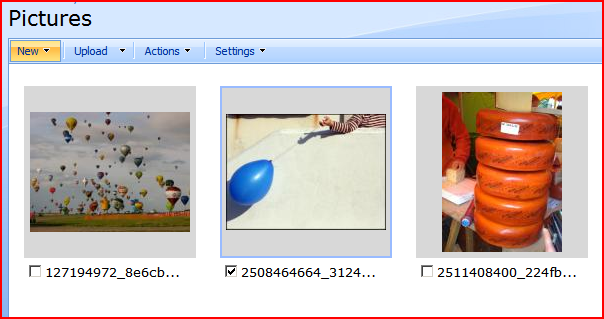
I have a Picture library with some images in it (they’re pinched from Flickr, so sorry for the copyright thing to their respective owners – but they’re lovely looking test data). You might notice that the images in the pictures Library are already thumbnailed:

Picture Library with Sample pictures

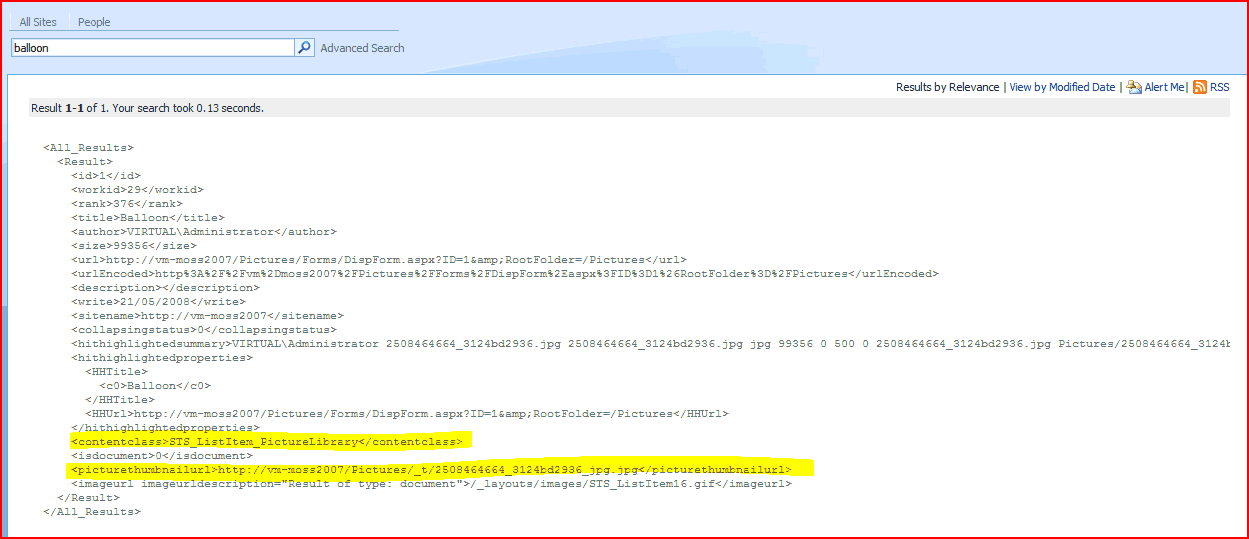
Firstly, I took a look at all the xml I was getting back from the search results. (You can add to that.)

Search results XML

Great! So I’m getting the thumbnail for the picture through in the search results, and I can also identify what pictures are by the ContentClass. Nice one!

Normal Results pages XSL

The first thing I noticed on opening up the XSL for the normal results page was that there is a section about showing a thumbnail. Normal search results don’t show a thumbnail though – so what gives?

Well, there are a few conditions before it’ll show the thumbnails – the ContentClass of the result (which is okay), the presence of a thumbnail URL, and the variable $IsThisListScope being true. I’m not sure what the $IsThisListScope variable is for, but I decided to delete it from the condition. As the other parts are met the results should show thumbnails for items which have them (i.e. Pictures).

Redesigned XSL

And if I perform a search for, say, balloons, then I get some results with thumbnails:

Results page showing Thumbnails.

Now, it’s worth noting, this page will still show non-pictures results – just my results didn’t have any. The next step would be to create a scope to only include images.

Showing Thumbnails in Search

The curious incident of the date column in the night-time

I have been tearing my hair out over a problem with dates and timezones. We have a site column ‘Document Date’ that we are using in our search results page. It only holds a date.

Our client noticed that some dates appeared on the search results page as a day earlier than the value in the lists themselves. For example, the list would show a document date of the 8th of May, but the search results would show the 7th of May. Curious, and the start of a bit of a detective story… Continue reading “The curious incident of the date column in the night-time”

The curious incident of the date column in the night-time