Fast access items in an SPListCollection

What’s the fastest way to access an SPList in an SPListCollection? Well, I can see two alternative ways of getting the list, so I thought I’d test them…

First off, we could get the item by just trying to get it and catching the exception if we fail:

SPList listVariable;
try {
listVariable = mySite.Lists["ListIWant"];
} catch (Exception e) {}

Or we could loop through the lists:

SPList listVariable;
foreach( SPList tempList in mySite.Lists){
if(tempList.Title == "ListIWant") {
listVariable = tempList;
break;
}
}

So, to test this, I built a little test application on the console.

What I found was that loop was always faster. I didn’t try with really large numbers of lists (I only tried up to 20), but I did find that for any probability of the list existing, looping through all the lists was much, much faster (at least 4 times, when the probability of the list we’re looking for was 1; i.e. the list definitely existed!)

There did seem to be a slight load time the first time we accessed the SPWeb.Lists collection, but you have to do that for either method.

Fast access items in an SPListCollection

WSS Practice: Working with ListItems

I’m preparing for the WSS Application Developer’s exam, and looking through the thing’s you’re supposed to know about, I decided I needed some practice. I’m starting with the very basics – creating, updating and deleting List Items… Continue reading “WSS Practice: Working with ListItems”

WSS Practice: Working with ListItems

WSS Practice: Finally used SPJobDefinition…

One task that I’ve been threatening to do for ages is to build a SharePoint Timer Job. Often a solution needs a bit of code to run periodically, but so far it wasn’t something that I’d tried. Well, I had a go today following Andrew Connell’s MSDN article, and it was very good. Here are my notes though…

Continue reading “WSS Practice: Finally used SPJobDefinition…”

WSS Practice: Finally used SPJobDefinition…

Build page layouts without Breadcrumbs or a Title

Right, so SharePoint uses pages and page layouts – I won’t talk about the different types, but ask a couple of questions that’ve come up a few times.

  • If I create a new page layout in SharePoint, how do I get rid of the breadcrumbs?
  • How can I get breadcrumbs, but like the home page?

Here’s how… Continue reading “Build page layouts without Breadcrumbs or a Title”

Build page layouts without Breadcrumbs or a Title

Make SharePoint open Excel files on a specific Worksheet

We’ve a customer who wants Excel Workbooks in one of their libraries to always open on a specific worksheet. Normally, Excel opens from SharePoint showing whatever the last selected tab was, but they’d like theirs to always open on the first worksheet.

I was curious, so I set up a document library with a template XSLX file. In it, the 4th worksheet was the active one when I saved the workbook as the template.

I created a new document in the library with that template. When Excel opened, it showed me the 4th tab, as expected. I saved the document, and downloaded a copy. I reopened the document from SharePoint, selected the first tab, saved the document and downloaded a second copy.

So, now I have 2 XLSX file for the same workbook, but with different tabs selected. I changed their extensions to .zip, and unzipped them. Next, I ran WinMerge on the folders they unzipped to to see what the differences were.

There weren’t many really – most were related to ‘last saved time’ and things like that. There were three XML files in the archive that seemed relevant – 2 for the worksheets (the one that was selected and the one that is now), and the Workbook xml.

Here are the differences for one of the WorkSheets:

Yup, the difference is the tabSelected=1 attribute. If it there, that’s the selected tab.

Or is it? The WorkBook xml also contains a difference:

This is a little more complicated – activeTab seems to be the index number into the Sheets node, if you treat it as a zero-based array. And if the first tab is selected, there doesn’t seem to be an activeTab element at all. Still, not too bad, I’m sure I could work with that.

So, how would this help? Well, if the customer is really keen that the first tab is always selected, then we could write an event receiver that captures a document uploaded to their library and then:

  • Checks it really is an Excel 2007 file
  • If it is, opens it up
  • Edits the XML we’ve just seen
  • Resaves the file.

Pretty straight forward, really.

Make SharePoint open Excel files on a specific Worksheet

Redirect OSSSearchResults.aspx to another page

As promised yesterday, here’s some prototype code to redirect calls to OSSSearchResults.aspx to another page:

namespace SearchRedirector
{
    public class HTTPModule : IHttpModule
    {
        public void Init(HttpApplication context)
        {
            context.PreRequestHandlerExecute += new EventHandler(RegisterPreInitRequestHandler);
        }

        void RegisterPreInitRequestHandler(object sender, EventArgs e)
        {
            Page page = HttpContext.Current.CurrentHandler as Page;
            if (page != null)
            {
                page.PreInit += new EventHandler(page_PreInit);
            }
        }

        void page_PreInit(object sender, EventArgs e)
        {
            Page page = sender as Page;
            if (page != null)
            {
                if (page.Request.Url.AbsolutePath.Contains("OSSSearchResults.aspx"))
                {
                    page.Response.Redirect("/SearchCenter/Pages/results.aspx" + page.Request.Url.Query , true);
                }
            }
        }
        public void Dispose()
        {
        }
    }
}

This seems to work pretty well, although for some reason it’s tricky getting the debugging in Visual Studio to break into the code working consistently.

The guts of this is in the page_PreInit function, where we’re checking to see if the page is the OSS Search results, and if so, we redirect, passing the appropriate query string params.

Obviously, for a production system you’ll need to add a lot more configuration around this – what page(s) we’re forwarding to, what context(s) we should forward for, and so on. There are probably more efficient ways of checking if the page is an OSS results page than a string Contains() too.

Redirect OSSSearchResults.aspx to another page

Search Scopes and Site/List Context…

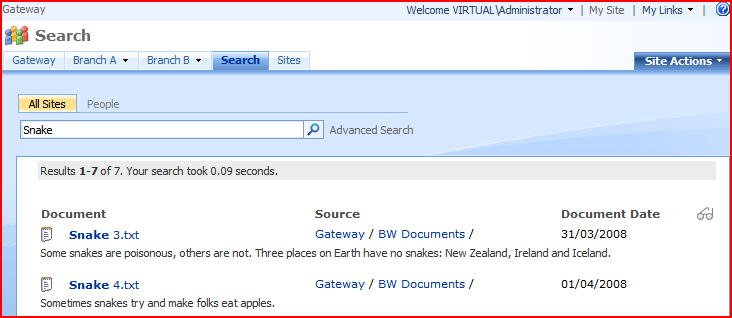
Came across an interesting problem from a customer – they’ve got a customised master page which doesn’t have ‘Site’ or ‘List’ level searches. They’ve got search scopes (such as ‘People’ or ‘Documents’ or ‘All Sites’), but across their entire SharePoint system. For example, this search:

will take us to our customised results page:

Note the Document Date column, and navigation breadcrumbs – these are custom.

The customer has added the search box web part to some pages, though, and this does display ‘Site’ or ‘List’ level scopes. Running a search against these scopes:

Takes us to this search page:

Yup, that’s the WSS3 standard search results page. You can see this in the So, can I change that?

Well… no. Proving that nothing is new under the sun, Mark Arend has a good post about this problem of contextual and custom search scopes. His explanation makes sense, too, but like he says, it doesn’t really justify the issue.

One option that he doesn’t mention is that you could use an HTTPModule to intercept the call to the OSSSearchResults page and forward it to our own custom results page. I might prototype that and post about it tomorrow.

Let’s hope that SharePoint vNext fixes this, ‘cos inconsistent search results depended upon contextual vs custom scopes will just confuse.

Search Scopes and Site/List Context…