Application Pages like a Site's Pages

SharePoint has many types of pages, but one that interests me at the moment is the Application Pages. These live in the _Layouts directory, which is a virtual directory mapped to every site.

Thus, EVERY site can have pages in the _layouts directory.

One such page, for example, is the ‘View all site contents’ page:

viewlsts-page

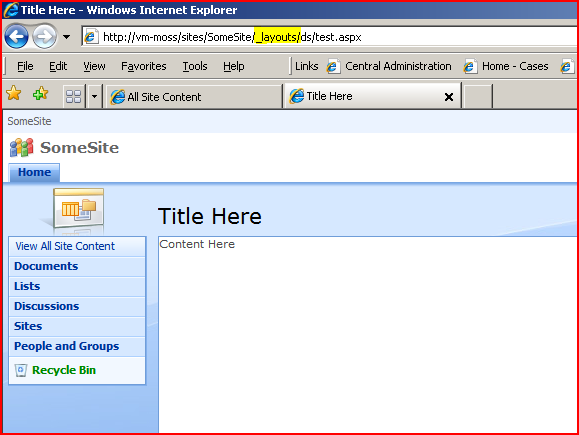
This page looks like a site page, but you’ll notice in the URL the _layouts part. It’s not part of the SharePoint virtual file system; it’s a physical file in 12 Hive and, for the record, you shouldn’t modify these. You can add to them though, and my question was, could I easily add a page in here myself.

The short answer – yes:
my-test-page

I created myself a folder in the _layouts directory (to keep my work separate), and then created this page (which might make a good template) based on the View all site content page. A good foundation for pages which might look like they’re in a site – but aren’t! Here it is as a template.

I did try adding a Web Part Manager and web part zone to the page too, but although I could swap into Edit mode and see my web part zones, I couldn’t actually add any web parts to them. To be honest, I’m not that bothered, it doesn’t seem that useful a thing to have on such pages.

Application Pages like a Site's Pages

UpdateListItems Web Service fails when using item level permissions

This tip come from one of my colleagues, but it’s a good ‘un:
For those of you familiar with the Lists.asmx web service in SharePoint, you’ll know that the UpdateListItems() method allows you to apply metadata to a list item. The following XML provides a simple example of how I’ve been using it so far….
<Method ID='1' Cmd='Update'>
<Field Name='ID' />
<Field Name='FileRef'>http://site/library/folder1/folder2/mydoc.pdf</Field>
<Field Name='ContentType'>Invoice</Field>
<Field Name='InvoiceNumber'>12345</Field>
</Method>
Under normal circumstances, the above XML works just fine. However, if you enable fine grained permissions [Item Level Permissions] in a document library it will break with a permissions related error (even though you have permissions to perform the action!) Continue reading “UpdateListItems Web Service fails when using item level permissions”
UpdateListItems Web Service fails when using item level permissions

Contextual Search Results Page Redirection via HTTPModule

So, I’m continuing my efforts at finding a way to handling Contextual Searching.

To describe the issue again, SharePoint allows you to search ‘This List’ or ‘This Site’. Unfortunately, these searches always show the ‘OSSSearchResults.aspx‘ results page, which is built into SharePoint, can’t be modified, and this means that you can’t use your normal ‘Search Center’ experience, which is usually modified and optimized for your users.

This is a shame, so I’ve been looking at ways of overcoming this problem. Continue reading “Contextual Search Results Page Redirection via HTTPModule”

Contextual Search Results Page Redirection via HTTPModule

Why I hate (and love) Site Definitions

I love the idea of site definitions. The idea that we can just say ‘give me a site for X’ and in a puff of magic smoke have a site with a feature rich experience just appear – that’s neat! And with SharePoint’s Feature mechanism and object model, we should be able to to a lot with them.

Strangely, after two and a half years working with SharePoint, I’d never built a site definition. (I don’t know how I managed that!) Recently, though, I’ve written several, and all I can say is that I’m older, and greyer than I was before. The reality of Site Definition development did not live up to my hopes. Continue reading “Why I hate (and love) Site Definitions”

Why I hate (and love) Site Definitions

ContentTypeRef vs ContentTypeBinding

Interesting question came up as a result of a post of Chris O’Briens:

Interesting you raise ContentTypeBinding. I use this in other areas (e.g. associating content types with Pages libraries). Don’t think it had occurred to me that I could use it here also.

Which kinda makes me wonder why the schema provides two ways of doing the same thing, but that could lead to whole ‘nother discussion 😉

Well, I get interested by questions like that. As far as I can tell…:

  • ContentTypeBinding elements exist in the Elements of a feature. They’re so that a feature can bind a new content type to a list
  • ContentTypeRef elements exist in the schema of a List definition (List > MetaData > ContentTypes > ContentTypeRef)

So, you can use the ContentTypeRef to create a list with a content type, or you can use a ContentTypeBinding to add it later. And you should be able to do it in the same feature – you could use a ListInstance to create a list using your definition, and then bind your content type. And yes, it does rather look like all three bits could be in the one Feature.

  1. List to define the list
  2. ListInstance to create one in your site
  3. ContentTypeBinding to add your content type.

I wonder what happens if you try to create a list definition without a content type reference? Might try that for a giggle sometime.

Side note: the Property element on a File element in a publishing site with the key PublishingAssociatedContentType is for associating the file (a page layout) with a page content type, not for associating the page content type to the Pages library. You have to do that as well, using a ContentTypeBinding element. (Thanks Waldeck, that was driving me nuts!)

ContentTypeRef vs ContentTypeBinding

Putting Custom Web Parts in ONET.xml

So yesterday I was trying to add a content editor webpart to a page I was deploying through ONET.XML. I wondered how to add custom web parts, and how you’d know what the XML for them was.

Turns out it isn’t very hard. An example:

<webParts>
<webPart xmlns="http://schemas.microsoft.com/WebPart/v3">
<metaData>
<type name="SourceCode.Solutions.GenericCaseWebParts.CaseSSRSReportViewer" />
<importErrorMessage>Cannot import this Web Part.</importErrorMessage>
</metaData>
<data>
<properties>
<property name="TitleUrl" type="string" />
<property name="TitleIconImageUrl" type="string" />
<property name="ReportServerUrl" type="string">http://vm-moss:8088/ReportServer</property>
<property name="Parameters" type="string">&lt;ReportParameters&gt;&lt;Parameter Name="CaseId" MultiValue="false" Value="[Case Id]" /&gt;&lt;/ReportParameters&gt;</property>
<property name="ChromeState" type="chromestate">Normal</property>
<property name="Title" type="string">Context Info</property>
<property name="ReportPath" type="string">/Reports/Case Details</property>
<!-- Snip -->
</properties>
</data>
</webPart>
</webParts>

As you can see, at the top we define the class to use, then we set various properties (I’ve trimmed that set quite a lot). But how did I get the XML? Well… I set the web part up in SharePoint and exported the web part to a file; this was the XML I needed to put into my ONET.xml. Copy and paste… job done.

Putting Custom Web Parts in ONET.xml

Putting CEWP into a page in ONET.XML

When you provision sites you can provide various pages (normal pages, not just publishing ones!) However, what if you want to put web parts onto those pages?

Well, you could build multiple pages for your different site configurations. Or you could use a feature receiver to add it programmatically. Or, you could add it via your site configuration. Continue reading “Putting CEWP into a page in ONET.XML”

Putting CEWP into a page in ONET.XML

Newsticker Web Part for SharePoint

I’ve written a web part that provides a ‘newsticker’ for SharePoint, although it’ll actually query for news, documents, or anything else you can query for with the Content Query Web Part (CQWP). In fact, it’s just a configuration of the CQWP, which also uses jQuery for animation and stuff. Typically web sites use this for displaying news or announcements, but you can use it to query for any SharePoint content type(s), as you would with the Content Query Web Part.

The Content Query Ticker Web Part looks like this in operation…

$(document).ready(function(){$(“#demoTicker”).cqticker(4000);});

  • Group 1 : Item A – Some Description
  • Group 1 : Item B – Some Other Description
  • Group 2 : Item C – Yet Another Description

It does require MOSS 2007, and you do need to enable the Publishing Infrastructure on your site collection.

For more details, see this page.

Newsticker Web Part for SharePoint

Putting actions into the PlaceHolderLeftActions

The Wiki and Blog sites have pages that make use of the PlaceHolderLeftActions content placeholder. I’ve mentioned this before regarding putting a web part zone below the quick launch menu. This time I wanted to list some actions for our ‘case’ system.

placeholderleftnavactions

The code to do this? Not very hard. Naturally, we’ll actually have some code to generate our actions and links…

<asp:Content ContentPlaceHolderId="PlaceHolderLeftActions" runat="server">
<DIV class="ms-quicklaunchouter">
<DIV class="ms-quickLaunch" style="WIDTH: 100%">
<DIV class="ms-quicklaunchheader">Case Actions</DIV>
<div>
<TABLE class="ms-navitem" cellSpacing="0" cellPadding="0" width="100%" border="0">
<TR><TD style="WIDTH: 100%">
<A class="ms-navitem" href="http://vm-moss/Default.aspx">Action 1</A>
</TD></TR></TABLE>
<TABLE class="ms-navitem" cellSpacing="0" cellPadding="0" width="100%" border="0">
<TR><TD style="WIDTH: 100%">
<A class="ms-navitem" href="http://vm-moss/Default.aspx">Action 2</A>
</TD></TR></TABLE>
</div>
</DIV>
</DIV>
</asp:Content>

Putting actions into the PlaceHolderLeftActions

Declaratively Point a Site Collection at a Search Center

Yesterday I wrote about the SmallSearchInputBox, how scopes only appear if you set a search center for the site collection, and how to set the Search Center in code.

Well, as is typically the way with CAML, I figured out how to do this declaratively later. Or, more specifically, I found that there is a feature I could call declaratively that would do what I want:

search-center-url-feature

<!-- SearchCenter Url feature -->
<Feature ID="7AC8CC56-D28E-41f5-AD04-D95109EB987A" >
<Properties xmlns="http://schemas.microsoft.com/sharepoint/">
<Property Key="SearchCenterUrl" Value="~SiteCollection/Search/" />
</Properties>
</Feature>

Yup, all I need to do is put that into my site definition…

Declaratively Point a Site Collection at a Search Center