Programmatically Create Content Types

This is an example of programmatically creating a content type (based on the Document content type) and adding it to a list. I’ve not added any extra columns or anything – but we could have.

string name = ...
SPList list = ...
SPContentType baseContentType = web.ContentTypes[SPBuiltInContentTypeId.Document];
SPContentType type = new SPContentType(baseContentType,web.ContentTypes,name);
list.ContentTypes.Add(type);
list.Update();

Programmatically Create Content Types

Programmatically create documents in Libraries

One thing that it can be useful to do sometimes is create documents in a library, possibly with some metadata. I find that I sometimes end up doing this from a console app, just to put in some example information:

string filePath = ...
string newName = ...
SPList library = ...
using (FileStream fs = new FileStream(filePath,FileMode.Open)){
SPFile file = library.RootFolder.Files.Add( newName ,fs, true );
SPListItem item = file.Item;
item["SomeField"] = "SomeValue";
item.Update();
}

Programmatically create documents in Libraries

How I simplified the Users and Group UI – Conclusion

So, I thought a little wrap up of what we’ve seen and how I figured all this out. Much of what we’ve looked it is just a simplified version of the standard ‘People and Groups’ pages, and a lot of digging around with reflector was involved!

We’ve seen:

  • That listing users is fairly simple using some ‘magic values’, but that supporting the ‘View Selector’ is a bit more complex!
  • That resolving the MembershipGroupId GET parameter is important, but pretty simple, and that there are many ways you could choose to do this.
  • That adding users is pretty simple too – it’s just the sort of SharePoint API code you’d get asked about in the WSS3 App Dev exam.
  • That removing users is a bit yucky – JavaScript to get the IDs of selected users – but again, the code itself is pretty straightforward.

Now the moment you’ve been waiting for – the code for the 3 pages we’ve used itself. Note that I’ve also used a custom Master page for my sites – you’ll want to build your own, with your own navigation, etc..

  • Introduction
  • How to Display a list of users
  • How to Find the MembershipGroupId
  • How to Add Users
  • How to Remove Users
  • Conclusion
  • How I simplified the Users and Group UI – Conclusion

    How I simplified the Users and Group UI – Removing Users

    The final component in my users and groups UI is the ability to remove users. This is based very much on how SharePoint works – and it’s a little ugly. My apologies -but this is how SharePoint does it.

    Our ListView shows our users. Each user has a checkbox next to them:

    ListView

    I’ve added a ‘Remove Users’ LinkButton to my fake ‘toolbar’:

    Title and View Controls

    That LinkButton is defined in my page as:

    <asp:LinkButton UseSubmitBehavior="false" id="BtnRemoveUsersFromGroup" runat="server"
    Text="Remove Users"
    OnClick="BtnRemoveUsersFromGroup_Click"
    OnClientClick="return BtnRemoveUsersClick();"
    />

    So, on click it runs some client script, and then posts back a click event. So, how do you know which users have been selected within the postback? You could have zero-to-N checkboxes! Continue reading “How I simplified the Users and Group UI – Removing Users”

    How I simplified the Users and Group UI – Removing Users

    How I simplified the Users and Group UI – Adding Users

    So, in the previous posts we’ve looked at how to resolve a MembershipGroupId for a group (or at least, one way of doing so), and how to list users. Now, how do we add new users to our group?

    Well, on our ‘list of users’ page, I have what looks like a a SharePoint toolbar. It’s actually just a table cunningly formatted to look like a toolbar, and the ‘Add users’ link on it is a LinkButton. In the codebehind it’s click event is:

    protected void BtnAddUsersToGroup_Click(object sender, EventArgs e)
    {
    int iGroup = (int)ViewState[GROUP];
    SPUtility.Redirect("SimpleUG/AddUsers.aspx?MembershipGroupId=" + iGroup, SPRedirectFlags.RelativeToLayoutsPage, this.Context);
    }

    So, all we’re doing is going to a page called ‘AddUsers’ and passing the MembershipGroupId again. Continue reading “How I simplified the Users and Group UI – Adding Users”

    How I simplified the Users and Group UI – Adding Users

    How I simplified the Users and Group UI – Resolve the MembershipGroupID

    So, one of the things I skipped over in my last post was just how you get the MembershipGroupID for the group you want the users to administer. Well, there are lots of options – all you’ve got to do is get to your page with the ListView with the correct value for the GET parameter MembershipGroupId.

    If you knew the ID in advance, you could hard code it. I didn’t, so I used a redirect page. Continue reading “How I simplified the Users and Group UI – Resolve the MembershipGroupID”

    How I simplified the Users and Group UI – Resolve the MembershipGroupID

    How I simplified the Users and Group UI – Listing Users

    Listing users in my page was actually the easiest bit of the whole solution. In the ASP of my page, I added:

    <SharePoint:ListView id="UserListView" ListID="UserInfo" runat="server"/>

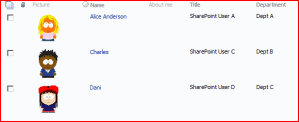
    And my page showed:

    ListView

    This is a SharePoint ListView, and the id and ListID appear to be ‘magic’ values. If set as above, the web part will display the users in the group specified by the MembershipGroupId GET parameter for the page. Try it – go to the normal users and groups pages, to to view the members of a group, and try replacing the integer ID of the group. (Not all are used)

    So, that bit of magic shows me the list of users. In my page’s OnLoad event I also read the MembershipGroupId parameter and used that to read the name of the group we’re editting, which I then used in the PageTitle area. We’ll see this later.

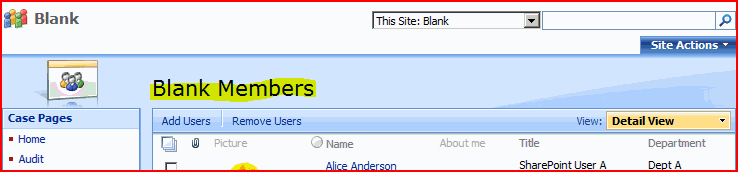
    Title and View Controls

    (My Site is called ‘Blank’ and we’re editing the ‘Blank Members’ group)

    That’s all I needed really, but as a bonus I’m also going to describe how I added the View Control. Continue reading “How I simplified the Users and Group UI – Listing Users”

    How I simplified the Users and Group UI – Listing Users

    How I simplified the Users and Group UI – Intro

    Previously, I’d blogged about a simplified Users and Groups UI for SharePoint. I really annoys me that the standard one is so complex – I’m a techy, and a specialist, and it confuses me! I’m not sure what chance non-specialist admins will have.

    The worst part is, though, often users just want to add or remove users from a pretty limited set of groups. I mean, this is implied by the standard ‘Visitors/Members/Owners’ groups on a site. Unfortunately, there are often a lot of other groups, and other complexities shown through the standard user interface in SharePoint.

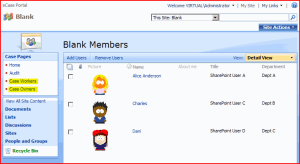
    For a Case Management system we’ve been working on, I built a simplified user interface. The idea was to make it easy for non-techies to add and remove users from specific groups. They weren’t to have access to all groups, and this wasn’t to replace the ordinary People and Groups pages – so more technical staff could still use those too. What I came up with is shown below.
    case-permissions-page

    It appears similar, initially – but the navigation on the left is the same as for the rest of our case site. Only the relevant groups (“Case Workers” and “Case Owners“) are linked to on the left, and these links are only shown to users who can edit the groups (Home and Audit aren’t related to people and groups). Also, the menus on this page only let users add or remove users – which is all they should need to do.

    Note that the “Case Workers” and “Case Owners” groups are just the groups we happened to be using – you could build this to work for others, depending on your needs.

    I built this user interface using 3 application pages put into the _layouts directory. They’re actually Code Behind ASPX pages, and so this is a Visual Studio solution, though some sections of the application could be built in SharePoint Designer.

    The pages themselves are for:

    • Listing the users and letting admins remove users.
    • A page for adding new users.
    • A redirect page for identifying the correct ID for the group we want to edit.

    The solution is a little complicated, so I’m going to break it down into pieces:
    How I simplified the Users and Group UI – Intro

    Escape and Unescape Internal Names

    If you’re a SharePoint Dev you’re bound to come across the curious escaping used in some text. Text like:

    Hello World

    Gets encoded to:

    Hello_x0020_World

    So what’s the _x0020_ number about? Well, hex 20 is the UTF value for a space, and x0020 represents that space. I guess the underscores are delimiters. The reason for this escaping is that XML element names can’t have a space.

    How would I encode or decode this? Well, the clue is in the phrase ‘XML element names’. You can use:

    Both are static.

    Escape and Unescape Internal Names

    Pre-filling fields on EditForm.aspx

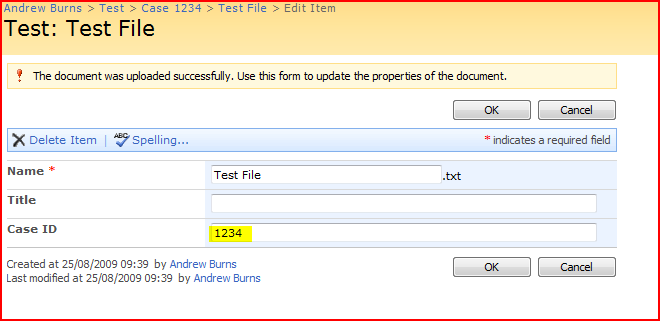
    I’ve just been looking at an interesting problem that a colleague has had. We’ve a customer who wants to ‘inherit’ metadata values from Folders in a SharePoint Document Library to Documents uploaded to within it. For example, if the Folder has column ‘Case ID’, they want the value of the ‘Case ID’ column of any Document within it to be automatically set to the same value. And another twist – we won’t know the columns beforehand.

    The problem is, they want this value to be pre-populated before the EditForm.aspx page is displayed.

    AutoPopulated Field

    Here, for example, the Case ID is autopopulated from the parent folder. So, what’s the best way of doing that? Continue reading “Pre-filling fields on EditForm.aspx”

    Pre-filling fields on EditForm.aspx