Replacement Content Editors

I mentioned before about looking at other content editors for SharePoint 2007. Well, it came as a bit of a surprise for one of my colleagues to discover that you could do this!

Anyway… so I had a look at other content editors. Well, the one replacement that I could find. Telerik make a variety of controls that can be used in MOSS, including a free ‘RadEditor Lite‘ and then the full ‘RadEditor‘ (which has a free trial). A comparison is available. I’ve used their controls before – they’re pretty good, and their forums and support are very good (which is probably more important when you’re developing). Some of their controls I’ve used before had their quirks – but that’s true of all ‘rich’ controls in web applications, in my experience. The Telerik ones were better than most.

I must actually give it a go sometime. There are extensive instructions on the Telerik site.

Replacement Content Editors

Wrong comparison operators on datetime field with Dataview WebPart

This was a weird error – but I’m not the first one to see it. When using a dataview web part, and trying to do a comparison with a date column, the filter dialog wouldn’t let me choose certain comparisons. The ‘Less than’, ‘Less than or equal to’, ‘Greater than’ and ‘Greater than or equal to’ options were all unavailable, and options like ‘begins with’ were available. It’s very strange, as it’s almost like the date was a text column – except that isn’t, and that another user did get those options.

I’m not sure if this is a security related issue as the linked post seems to suggest, but it’s really weird that the two users with the same permissions looking at the same system see this field in such different ways. I don’t have a resolution, I’m afraid.

Wrong comparison operators on datetime field with Dataview WebPart

Forms Based Authentication in SharePoint

As mentioned recently, I set up an FBA SharePoint site following the instructions from Dan Attis and Andrew Connell. I tried Dan Attis’ instructions first, but they didn’t actually work – for some reason, when I’d try to log in, I’d just be returned to the “Sign in” page. I repeated setting everything up using Andrew Connell’s instructions, which worked! The only differences I could see were Andrew’s instructions to add the alternate authentication provider to both the intranet and internet IIS web sites, and that Andrew’s set up started with the intranet site. I believe that second difference a red herring – either I made a mistake following Dan’s instructions and couldn’t figure out what (most likely), or the alternate authentication provider really does need to be in both sites’ (and the central admin site’s ) setups.

Andrew’s instructions also go into the question of allowing annonymous access to parts of the site. As a big note for myself though:

You must be logged in as an administrator via Forms authentication to set the annonymous access settings.

I keep forgetting that.

I also have been having a look at the Community Kit for SharePoint. This is sort of a bunch of ‘bits’ that are useful in creating an online community of one sort or another, and the part I’ve been looking at is the Intranet/Extranet Edition. This provides a number of features for giving you web parts for login, membership creation, password reset, and so on. They’re very neat, but the whole thing seems to be stuck at a pre-beta stage, and I have had some issues with them. I’m hoping that they’re still under development – if all else fails and I have to, I’d look at fixing/debugging myself. It’d be good to get this to a full release.

Forms Based Authentication in SharePoint

Modify the RichHTMLField control on your page layouts

When building an intranet, it’s important to try to get consistent styling and formatting, especially if you want to be able to update this later. How do you do this?

To create Pages in SharePoint, you have two options really:

  • Create by hand though the site’s ‘Create Page’ function. Fill in and format your text using the Content Editor Control
  • Create the content in Word, InfoPath, etc., and convert to a Web page using the Document Conversion service.

I’ve been having a bit of a look at this:

Creating Pages through the Web interface

In the SharePoint site, create a new page. Depending on the layout, often they have a RichHTMLField control. In Edit mode, this displays a content editor:
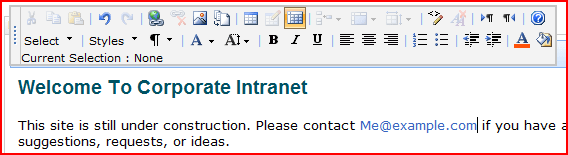
Normal Content Editor Control

and when published, it just displays that content.

However, this control has a lot of options. Editors can adjust text fonts, sizes, colours, boldness – they can even get into the HTML and edit that! I quite like this, but it’s hardly conducive to having a consistent style. What would be good would be to have a number of pre-defined styles, and lock out the other control options.

First, let’s look at removing those option buttons. It turns out that the RichHTMLField control has a number of properties you can set to disable these. This works nicely:

<PublishingWebControls:RichHtmlField id="content" FieldName="PublishingPageContent" runat="server" DisableBasicFormattingButtons="True" AllowTables="False" AllowHtmlSourceEditing="False" AllowLists="False" />

Results in:

Modified Content Editor Control

What I’ve not yet been able to figure out is how to disable the ‘standard html format’ menu thing (the paragraph sign ¶ ). I know that it’s for formatting the whole of a paragraph – but we have some problems with that, as we’ll see later. Anyway, now we’ve got those buttons disabled, user’s are MUCH more restricted in the styles that they use.

Second then, how do we define our own styles for the ‘Styles’ menu in the Content Editor? Well, this is a bit more complicated, but there is good documentation out there. Ari Bakker has some good instructions, there’s another (less consise) example from MartyG and there is good documentation on MSDN – though do not believe the top comment, I’ve had my styles working from another CSS file just fine. Do pay attention to the second comment – to see the styles in the menu, you will have to Select some text.

The steps as I found them ultimately were:

1) In your RichHTMLField set the PrefixStyleSheet=”someName”

2) In your styles (whichever one you fancy, as far as I can tell) set up your styles:

.someNameCustom-Heading1 {

...

}

.someNameCustom-Heading2{

...

}

3) Publish.

4) Make sure you’ve selected some text, then choose a style:

Editor Styles Menu

Just as a sidebar, there is a fairly good article on MSDN about “How to Create a SharePoint Server 2007 Custom Master Page and Page Layouts for a Web Content Management Site

Anyway what about the next option….

Creating Pages with the Document Conversions Service

First off, this requires that your servers are setup and running the service and your content types are configured set up for it. That’s not too surprising, and I’m not going to go into that any further. I’m also going to look solely at authoring from Word only, and not InfoPath or XML.

Now, things might get confusing here between CSS styles and Word Styles. For simplicity, from here on I’m going to refer to CSS styles with small s (styles) and Word Quick Styles with a big S and italics (Styles).

Once those are services are set up running, you face the same first problem as with the web page authoring – how do we stop users mucking around with our Styles and formatting, except that this time it’s in Word. Well, Word 2007 lets you do this. First, go to the Manage Styles Menu:

Manage Styles in Word

Then on the ‘Restrict’ tab, set the Styles you want to limit users too. This will password protect your template, so that others can’t just undo these settings. Then get users to create their pages using these Styles – they can’t create new Styles or modify the colour/boldness/formatting of the text directly..

Okay, so what happens to the Styles when we upload and convert the document. Well, that depends on the settings you configure for the conversion:

Styles Settings

You can either strip out the Styles from the document, or keep them. Okay, but what does that mean?

Well, Word has a number of ‘default’ Styles – normal, Heading 1, Heading 2, etc. – and there are style definitions of what they should look like in a stylesheet called ‘RCA.css’ (for Rich Client Authoring). In SharePoint Designer you’ll find this in ‘style library > en-us > core styles’ . This defines a the styles for a bunch of Styles
RCA Styles
Click on the image and take a look. You’ll notice that there are css styles for Heading1-P and Heading1-H – we’ll come back to why there are two of each style.

Anyway, returning to what happens to the Styles – if you decide to ‘Remove CSS <styles> section…’ you’ll get a page where your text is formatted as per the styles in RCA.css. This might be quite different to the Styles in your original Word document! Default Styles (Normal, Heading 1, etc.) will be defined by the CSS styles in RCA.css. If you have extra Styles beyond the ‘default’ ones in Word, then they will not have any style, as they don’t have any definition in the RCA.css file. For example, if I define a Styles in Word called ‘Heading 1 Red’, then my page will use css classes called Heading1Red-P and Heading1Red-H. However, in the RCA.css file, there is no definition for these classes, and hence they’ll be unformatted. You can add them though, or you can put them in another stylesheet, etc..

What if you choose to ‘Store CSS <styles>…’? Well, then the CSS definitions for the Styles get stored with the page, and the out-of-box page layouts put this content into the header – but after the RCA.css file has been referenced, so these styles take precedence. Thus, your document will be styled as defined in the document (well, more or less).

Great! Oh, wait, what if I want to change all of my Heading 1 styles and I’m storing the CSS in the page? Well, that’s a problem – ‘cos each page has it’s own definition. Because of that, I would suggest setting up templates with known Styles , locking them down, defining the css styles for those Styles in a CSS file (like rca.css), and then making sure your document conversion ‘Removes CSS‘. If you have gone down the route of having your styles stored with your page, you might be able to fix things by simply removing the FieldValue control that inserts the styles into the page – for the PageFromDocLayout that comes out-of-box, this control is the PageStylesField.

Anyway, you can see why I’m suggesting locking the Styles on your templates – otherwise you might end up with users creating new Styles which aren’t defined in RCA.css, which is pretty painful if you’re then removing the css styles during conversion .

As a side note, what about inline changes to the format of text – what if I change the format of something without creating a new style? Well, those formats are stored inline in the converted page. If, for example, you made some ‘Normal’ Style text red, you’d get the code…

<span style="color:#FF0000">Normal Style + Red</span>

… in your page. Note that this can’t be overridden by style sheets – and doesn’t seem to be removed by either of the Remove or Store CSS options mentioned above. Best to avoid allowing this (returning us to locking down your template again!)

Now, I said I’d return to the question of why two styles for each Style. Well, the short answer is I’m not sure – but it does seem that in Word when you set up a style it applies both to a paragraph (e.g. paragraph spacing), and to a bit of text (e.g. font/colour, etc.). During conversion it appears that to account for this, two styles are required. The converted document’s HTML looks like …

<p class=Normal-P style="margin-top:3pt;margin-bottom:0pt;direction:ltr;unicode-bidi:normal">

<span class=Normal-H><span class="minorAnsiTheme Normal-H">Normal Style</span></span>

</p>

…so that might give you some idea. (The text in this paragraph is actually the phrase ‘Normal Style’, and the style applied to it is ‘Normal’).

Final note – and this really caught me out – if you convert a document to a page, then you adjust the document conversion settings and you want to reconvert that page, delete and recreate the page. Updating the page does not seem to change the page, perhaps ‘cos you’ve not updated the document itself.

What about using both?

Well, that’s tricky. The structure of the HTML and the styles are different, so you can’t just apply the same styles as is in the RCA.css file. In principle you can us both in your authoring, but you probably do need to have different definitions for the ‘Heading 1’ style in your Content Editor, and ‘Heading 1’ in your RCA.css file. I’ll blog more about this shortly, but right now I’m tired!

Modify the RichHTMLField control on your page layouts

Filtering ListView Web Parts and Spurious Error Messages

I was working with a customer on building a glossary in SharePoint. We had a list of terms, containing things link ‘Term’, ‘Description’ and ‘First Letter’. They wanted, on a page for the site, to show the terms, and allow filtering based on the first letter.

I set up a page with a ListView web part and a filter web part. The filter web part would supply the letter we wanted to filter by to the ListView, which would then filter on the first letter column. As a side note, I started by using the Choice Filter web part, which isn’t just a drop-down list but is rather uglier – so in the end I just used a QueryString Filter web part and built my own navigation for the filter. This was why I ended up looking at how to show query string parameters within a page.

Anyway, this worked nicely – except that the ‘First Letter’ column on a web part is a little redundant if you are filtering by that letter already. Thus, we tried removing that column from the list view web part, and got the spurious message:

This page has exceeded its data fetch limit for connected Web Parts. Try disconnecting one or more Web Parts to correct the problem

Initially I thought that this was because we had 700 items in the actual glossary I was now building against (previously I’d just prototyped it with a half dozen items) – but to not be able to filter over that is pretty rubbish. However, when I put the ‘First Letter’ column back into the ListView, the error went away. So, if you get this error, make sure the thing you are filtering by is visible as a column in the ListView.

Filtering ListView Web Parts and Spurious Error Messages

Good quick guide on "Showing list items from another site"

As usual, a good article from U2U on “Showing list items from another site“. This is very useful with the DataView web part, though as noted at the bottom there are some limitations – particularly the lack of views, and editing. It’s worth reading the article, but in short (for my own memory), in SharePoint Designer:

  1. Manage data sources
  2. Connect to another Library (by which they really mean ‘Site’ – use the site url, not the library url)
  3. Drag data in as DataView web part
  4. Use smart tags to set up columns, filters, grouping, pagination, etc..
Good quick guide on "Showing list items from another site"

Showing Query String parameters in a page in SharePoint

I came across an interesting little problem with putting query string parameters for an HTTP request into a SharePoint page.

I was using a Dataview web part, which accepts query string parameters into the filter that it runs over the data that it’s going to display. That’s pretty cool – I had a list of items with a status column, and I wanted to be able to filter the items based on that status, and that the status would come from the query string. However, on the page, I also wanted to show a title with what was being filtered by in it. So, for example, my url might read:

http://server/site/page.aspx?status=Ready

And I wanted the title in the page to read “Filtering by ‘Ready‘”.

What I didn’t appear to be able to do was to just use the request object . Something like

<%= Request.QueryString.ToString() %>

won’t work as code blocks aren’t, apparently, allowed in the file – the error message is “code blocks are not allowed in this file”. Okay, given that SharePoint designer is supposed to open these pages up to ‘Power Users’ I do get why code blocks aren’t allowed. But I really wanted to write code, and there had to be a way to do that. Well, Kirk Allen Evans has figured out how – you have to enable them in the PageParserPaths section of the web.config file. (It’s strange how easy it is to forget the web.config file that controls SharePoint sometimes). Just to repeat his example (in case blue and red on black is difficult to read):

<PageParserPaths>
<PageParserPath VirtualPath="/pages/*" CompilationMode="Always" AllowServerSideScript="true" />
</PageParserPaths>

This example allows code blocks for all files under the /pages directory of my web application – it’s worth noting that this is for the web application in IIS, not a SharePoint site collection or the like.

Okay, so that works – great. However, there are security implications, and this is probably best only used for development environments. I’ve written a bit about under what conditions our inline code will run.

In our instance our customer is kind of reluctant to make changes on their server. Changing the web.config file would be a bit of a big deal. (As a side note, this is a bit restrictive – I think a blog posting on that is due sometime). So what could we do without a server footprint?

Well, without code in the page, we would need a web control to call in that page – that would work also. It’d be trivial to write one. However, that requires deployment, marking as safe in the web.config file, etc., so really that just pushes the problem into another file.

Thus, I ended up getting a bit ‘old skool’ – JavaScript in the page to write the value from the query string on the client. I came up with:

<script type="text/javascript">
var query = window.location;
var regex = /letter=([^&=]+)/i;
var match = regex.exec( query );
if( match != null ) {
document.write( "Filtering by '" + match[1] + "'" );
}
</script>

Made a function, this became:

function getQueryParam(key) {
var regex = new RegExp(key+"=([^&=]+)","i");
var match = regex.exec(
window.location );
if( match != null ) {
return match[1];
} else {
return null;
}
}

What this code does is it gets the page’s url (window.location), runs a regular expression looking for the ‘letter’ parameter, and if it find one, it outputs some text to the document. A bit noddy, but simple and it works – with no server footprint. Of course, you do need JavaScript enabled…

Showing Query String parameters in a page in SharePoint

More SharePoint Breadcrumb WTF

Previously I’d posted about SharePoint Breadcrumbs and how they were confusing as hell. I’d discussed how SharePoint publishing pages override the ‘PlaceHolderTitleBreadcrumb’ content control, filling it with blankness, and then supplying their own breadcrumb as part of the page content. That seemed pretty dumb to me… …much more sensible would be to override the ‘PlaceHolderTitleBreadcrumb’ with the breadcrumb we want.

Well, it transpires that I was wrong. What I’ve described is true for some page layouts… and not for others. The Default Master page defines its PlaceHolderTitleBreadcrumb ContentPlaceHolder control as:

<asp:ContentPlaceHolder id="PlaceHolderTitleBreadcrumb" runat="server">
<asp:SiteMapPath SiteMapProvider="SPContentMapProvider" id="ContentMap" SkipLinkText="" NodeStyle-CssClass="ms-sitemapdirectional" runat="server"/>
</asp:ContentPlaceHolder>

This is defining the default breadcrumb on the master page.

For the DefaultLayout.aspx layout page, it defines the content for the page to have:

<asp:Content ContentPlaceHolderId="PlaceHolderTitleBreadcrumb" runat="server"/>

That will empty the placeholder on the master page, so no breadcrumb will appear in the usual location – in fact, nothing will. (Note: you will probably want to reduce the blank space that the breadcrumb occupied – otherwise you’ll have a bit gap above your main content area). It then goes on to define (in the PlaceHolderMain Content control):

<td class="ms-pagebreadcrumb" colspan="2">
<asp:SiteMapPath ID="ContentMap" Runat="server" SiteMapProvider="CurrentNavSiteMapProviderNoEncode" RenderCurrentNodeAsLink="false" SkipLinkText="" NodeStyle-CssClass="ms-sitemapdirectional"/></td>
</tr>

There we can see the breadcrumb that appears in the page content.

However, if we look at a different page layout, such as BlankWebPartPage.aspx, we see:

<asp:Content ContentPlaceHolderId="PlaceHolderTitleBreadcrumb" runat="server">

<div class="breadcrumb">
<asp:SiteMapPath ID="siteMapPath" Runat="server" SiteMapProvider="CurrentNavSiteMapProviderNoEncode" RenderCurrentNodeAsLink="false" SkipLinkText="" CurrentNodeStyle-CssClass="breadcrumbCurrent" NodeStyle-CssClass="ms-sitemapdirectional"/>

</div>

</asp:Content>

Okay, interesting. So, what’s different about the breadcrumbs? Well, a few things, but the point relevant to whether or not the “> Pages > default.aspx” is displayed in the breadcrumbs – the SiteMapProvider. The CurrentNavSiteMapProviderNoEncode provider doesn’t seem to include the ‘Pages’ bit of the path – hence it is used by the page layouts. The Default.master’s SPContentMapProvider provides a breadcrumb that includes the ‘Pages’.

It is a bit mystifying why some page layouts blank the PlaceHolderTitleBreadcrumb while other override it – it would have been really nice if they worked consistently. And, as a side note, if you create a page layout and find that your breadcrumbs include the “> Pages > default.aspx” bit, then 1) make sure you’re providing content to override the PlaceHolderTitleBreadcrumb, and 2) make sure that it uses the CurrentNavSiteMapProviderNoEncode navigation provider.

More SharePoint Breadcrumb WTF

What the heck is going on with SharePoint Breadcrumbs?

Like many web applications, SharePoint uses ‘Breadcrumbs’ for navigation. This is a set of links that both tell you where in a hierarchy you are, and were you can go to. SharePoint, though, uses two:

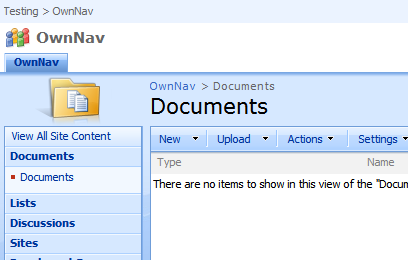
WSS-Breadcrumbs-OwnNav

You can see them here at the top left, and then above the word ‘Documents’. But wait, the master page shows us two breadcrumbs? You’re only in one hierarchy, so how does that work? The Planning & Architecture documentation on Technet says:

The default.master master page, which displays form and view pages, includes two breadcrumb controls, a global breadcrumb which contains sites only, and a content breadcrumb, which contains sites and the current page. Some collaboration site templates, such as the Team Site template, also include two breadcrumbs on all Web pages

However, this isn’t quite the complete story. Continue reading “What the heck is going on with SharePoint Breadcrumbs?”

What the heck is going on with SharePoint Breadcrumbs?

Uploading Files to SharePoint using the Web Services

Thankfully, someone seems to have looked at other ways of uploading files via the web services – this time using a direct PUT command. That is an approach which is a little odd, to be honest, and I suppose not really Web Services so much as plain old web-server. Still, I’m going to have a look at this approach – and it’d be great if it works.

Uploading Files to SharePoint using the Web Services