Why does Microsoft treat bookmarks so badly?

I hate bookmarks in Word documents. Word links headings and the table of contents nicely, so you can click from the table of contents to a section easily. Still, Word supports them, so some folks use them, which I guess proves that “if you build it they will come” really is true irrespective of how dull the activity is.

My problems with bookmarks in Word is that they are invisible and inflexible. You can’t see them initially – and to show them requires a trip to The Office button > Word Options > Advanced > Show Document Content section > Show Bookmarks. Finding that took a fair bit of work for me – how well is someone less computer literate going to do?

Secondly, bookmarks are difficult to move. The easiest way is simply to redefine them. This is a bit sad – I’m pretty sure that back in the 1980’s I remember using a Mac word processor, which displayed a little ‘Anchor’ icon for bookmarks, and it could be dragged around. Why can’t we have that? I mean, yes, we can bookmark actual bits of text – but really, having something that applies at the line level is just as useful.

Bookmarks in SharePoint are somewhat similar, but worse. You can create bookmarks in the content editor web part – just click the ‘create hyperlink’ icon, and in the dialog supply a bookmark name. If you’d some text highlighted in the editor, well, it’ll now appear as a link (which is hardly ideal) – and if not, well, you’ve now got a bookmark you can’t see, unless you go into the HTML. Worse, though, is that Bookmarks are actually much more useful in the context of a web page, to allow you to direct users to a certain part of the page.

So here’s my request – Microsoft, if you’re going to have bookmarks, make them visible, make them easy to create, delete, move and link to.

I guess I’ll have to look into other content editor parts, just on the off-chance….
Why does Microsoft treat bookmarks so badly?

Problems with the extensibility.dll in Outlook add-ins

On and off I’ve been writing an Office add-in for Outlook. We’ve reached the point of testing, but when we installed it on a clean machine, it wouldn’t run. There was an error message complaining about not having the Extensibility.dll installed. “Odd” we thought. We’d been careful to install the Outlook PIAs (Primary Interop Assemblies), and no-one had heard of this assembly before.

Well, it appears that this assembly is installed with Visual Studio, but it isn’t installed with the PIAs. Nice. Fortunately Gunnar Peipman has an extremely timely post on this – I’d been looking at the Extensibility.dll in the GAC, but apparently there is one under Common Files too. I’m not sure where is has to go though – the GAC, the application folder, or into the common files directory. I’ll report back when I figure this out…

What I’d really like to know, though, is why this file isn’t part of the PIAs? I mean, what are you going to do with them if you aren’t writing an add-in?

Problems with the extensibility.dll in Outlook add-ins

The Curious Incident of Saving a Word document to MOSS in the night-time…

Well, okay, night-time has little to do with it.

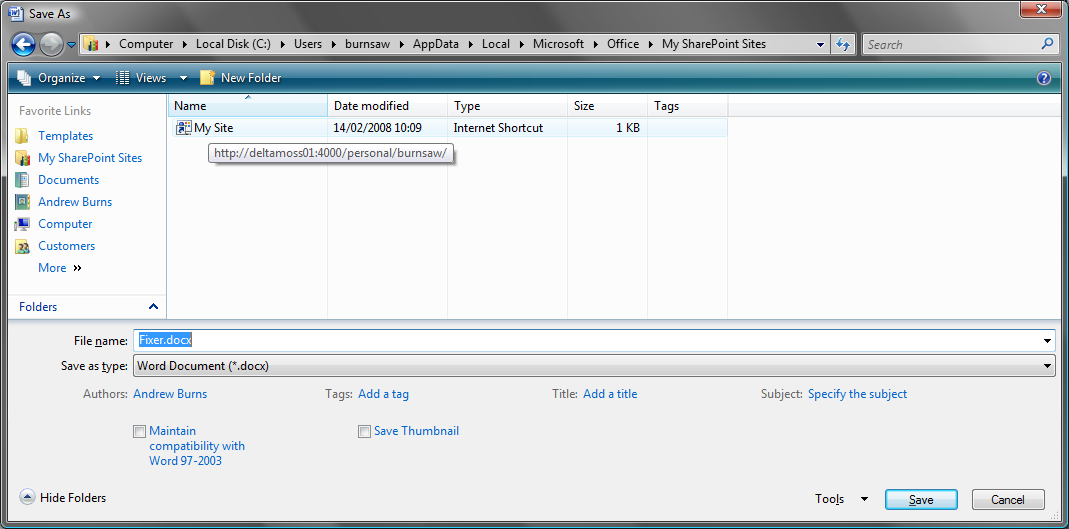
When I try to save aWord document, I get shown the ‘Save As’ dialog.

Word Save As dialog

On it there is the ‘Favorite’ panel (UK English clearly doesn’t apply) and the option of ‘My SharePoint Sites’. Great! Wrong! If I click on the the ‘My Site’ shortcut, it changes the name of my document (‘fixer.docx’ in this case’), and if I double click, it tries to save the document as a file called .docx. The error I then get it ‘Word did not save the document.http://moss:4000/personal/burnsaw/.docx’.

Well, I can see why the error in saving, but huh? What happened to the file name? It wasn’t even the wrong file name of ‘My Site’ – there was no file name at all!

Step two was to repeat, but try using the Word’s ‘Publish > Document Management System’, but got the same result.

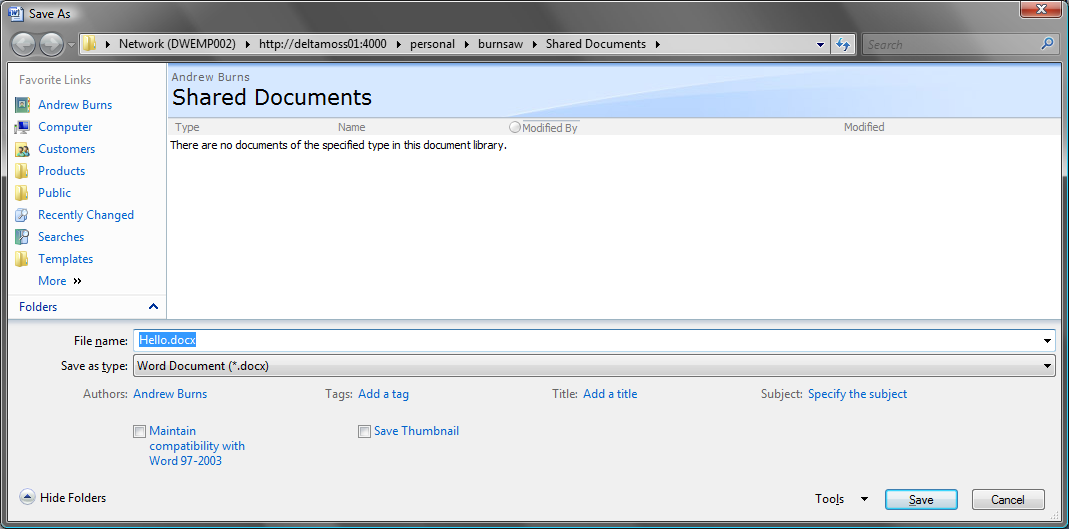
Step three was to open up a new document from the library, and try saving back. This highlighted another problem we’ve got – users getting prompted for network credentials when opening a document from SharePoint (this doesn’t happen every time, just the first time each user session). That accepted, it worked and opened a Word document. I typed some text, and did a ‘Save As’. I was shown this dialog:

Word Save As for SharePoint dialog

Hmm. That’s more promising, and it does save to that library correctly. So what do I notice? Well, the address bar is quite different, which is unsurprising as the top one is looking at a folder of local shortcuts. But the URL it’s pointing to is correct.

I don’t know what is going on here, but it has that irritating WebDav feel to it.

The Curious Incident of Saving a Word document to MOSS in the night-time…

The registry and "Word could not create work file"

I had an interesting problem earlier this week. I had a MOSS VM that seemed to work okay, except whenever I tried to create a document using the template on a Document Library. Then I would get the error:

Word could not create work file. Check the temp environment variable.

Okay. So I did – and the temp variable was just fine. Odd, I thought. Eventually, after digging through news groups and so on, I found a suggestion to check parts of the registry. Well, actually, one of my colleagues found it. The value in the key

HKEY_CURRENT_USERSoftwareMicrosoftWindowsCurrentVersionExplorerUser Shell Folderscache

was wrong – it pointed to an invalid directory. Not sure why, but I’d been monkeying around with some stuff which could’ve mucked it up. Anyway, fixed up the filepath in that key, and it was fine – I could create documents from Document Library templates.

The registry and "Word could not create work file"

MCMS PowerPoint Slide Shows being converted from PPS to PPT

So I found that PowerPoint slide shows that had been added into MCMS were being retrieved as just plain PowerPoint files. What this really meant was that the file’s mime-type and extension had been changed from ‘PPS’ to ‘PPT’.

This was a pain – it’s just not as pretty as having the file open as a presentation.

It turns out the culprit for this was IIS – it didn’t have a mime-type defined for ‘.pps’. I fixed this using the advice from Microsoft’s support pages – PowerPoint Show (*.pps) file copies as a PowerPoint (.ppt) file from an IIS Web server.

What the article doesn’t mention, though, is that for MCMS, this change needs applied not to the website, but to the ‘NR/rdonlyres’ directory within the MCMS site.

MCMS PowerPoint Slide Shows being converted from PPS to PPT