Setting the date format on SharePoint's Central Admin Site

This blew me away – Central Admin in SharePoint 2007 doesn’t have any ‘Regional Settings’. Now, at one level, this might make sense – perhaps you always want it to match, say, the server time, or UTC time. I’m not convinced, but it might make sense.

<rant>What absolutely doesn’t make sense is that the date format it uses is the stupid American ‘mm/dd/yyyy‘ format. Why can the US not accept that the rest of the Gregorian calendar using world (i.e. nearly everywhere else) uses a format of ‘dd/mm/yyyy‘? I mean, isn’t sensible to have a format that offers a gradiated precision of time, rather than dumping the most specific part of it in the middle? Or, if we wanted to accept that central admin will probably only be used by techies, what’s wrong with ‘yyyy-mm-dd‘? Hell, I’d nearly prefer Javascript’s ‘milliseconds since the start of 1970‘ format (nearly, but not quite).

Make the format configurable, or use a standard format like ‘yyyy-mm-dd’. </rant>

I did find some solutions though – I particularly like the way that is transpires that the regional settings page is there, but that you have to enter the URL by hand…

Setting the date format on SharePoint's Central Admin Site

Hit Highlighting in SharePoint Search Document Titles

I came across an interesting behaviour in a search results page I’ve been working on. I’d added some code to do search highlighting on the results of a query. Here’s an example of the results I got for a search for ‘Barnacles’:

Search Results showing Hit Highlighting in the Titles and Description of documents

The observant amongst you will notice that the titles all contain the word ‘Barnacles’, but only some are highlighted – specifically where the word barnacles is not the last word before the dot-extension of the file name. I did some further testing and found that the search does recognise the word ‘Barnacles’ in the file name, but the hit highlighting doesn’t seem to. Continue reading “Hit Highlighting in SharePoint Search Document Titles”

Hit Highlighting in SharePoint Search Document Titles

Breadcrumb Path Separator and Path Direction

There are several settings you can apply to breadcrumbs in MOSS, although really some of these are really ASP.NET settings rather than most specific. Previously I’ve mentioned using different SiteMapProviders and rendering the current location as a link. Let’s have a look at another couple of settings:

Examples of various breadcrumb settings and different SiteMapProvider's output

(Yes, this screenshot shows some other settings – they’re mentioned in the other articles)

Looking at the screenshot we can see how the Path Separator setting allows us to set what we want shown between nodes – rather than ” > ” I’ve used “:”. Not sure when/why you’d want to change that, but I’m sure I’ll be given a design where that is useful sometime!

There’s also the Path Direction setting, which allows us to set whether the breadcrumb should have the current node on the left or right of the breadcrumb – hence the two settings, RootToCurrent and CurrentToRoot. Note, though, that the default path separator doesn’t swap from ” > ” to ” < “.

Breadcrumb Path Separator and Path Direction

Hit Highlighting inside Adobe PDFs using SharePoint Search

So, I’ve posting about some work I’ve been doing with SharePoint Search. Now, to pull it all together – I’ve been trying to do hit highlighting inside Adobe Reader, so if a user clicks on a search result Adobe Reader opens and automatically searches for occurances of the search term. Doing this requires knowing your file extension (so you only process PDFs this way), knowing the query string parameter for what is being searched for, and that you can pass parameters into Acrobat Reader. I’m not going to go too much into that last part, but you can find documentation about this on Adobe’s website (pdf). Continue reading “Hit Highlighting inside Adobe PDFs using SharePoint Search”

Hit Highlighting inside Adobe PDFs using SharePoint Search

Using a Query String parameter in the Search Results Web Part

Further work on fixing a colleague’s code. Like some of the posts I’ve found, he seems to have thought that to get the query string parameter he’d have to use Javascript – something like this. However, I found myself thinking of the Data View web part – it allows parameters based on the query string. Most people know about that. What I found, and what I think some folks don’t realise, is that the Search Core Results Web Part allows you to have query string parameters too… Continue reading “Using a Query String parameter in the Search Results Web Part”

Using a Query String parameter in the Search Results Web Part

What columns can I use in my Search Results?

In a previous post I described adding the FileExtension column to the XML you get back from a SharePoint search, so that you can use it in your results page. This raises the question – what columns are available for use in the Selected Columns setting on the Core Search Web Part?

Well, these columns are Managed Properties, and they’re configured on the Shared Service Provider (SSP)… Continue reading “What columns can I use in my Search Results?”

What columns can I use in my Search Results?

How do I get the File Extension in my Search Results?

Following on from my previous post, I’ve been looking some more at the code that one of my colleagues has created for styling up some search results. In it he needs the file extension for the item resulting, and he does this by, um, assuming that it’s the last 3 letters of the items URL. Yes, I am not amused. For example, if you look at the results from my last post… Continue reading “How do I get the File Extension in my Search Results?”

How do I get the File Extension in my Search Results?

How do I get the XML of my search results?

So I’ve just started customising SharePoint Search results for the first time. It’s an area that I’ve never really touched before, to be honest – I’ve set up the crawling, and that’s the limit. Now I find myself reverse engineering a colleagues code in order to fix it.

Well, from what I can fathom, SharePoint search results actually come from the Search.asmx webservice in the _vti_bin of your site. The results are actually returned as XML, and in the web parts (not sure which ones, but certainly the Search Core Results web part) you then render this XML to HTML via XSLT. (If that means nothing to you, I’m afraid you’ll have to look it up. That concept is a whole can of worms. Maybe even a crate of worms. Anyway…)

An obvious question is, what does that source XML look like. Well, it’s whatever you get back from the web service, and there are various ways of find that, but I found a neat little solution on a post from Tobias Zimmergren’s blog (in fact, it’s an interesting looking series for a search rookie like myself – I think I’ll have to read that). I’ll blatantly plagiarise that in a bit. Basically, his idea was to define some XSLT that just emits the XML unaltered, and then look at what you’re getting back from the search service on the search results page.

So, to test, I copied the normal search results page (mine was in a search center) to give myself somewhere isolated to test in. I went to it – and it was all empty. Not surprising – there were no web parts. I added a Search Core Results web part:
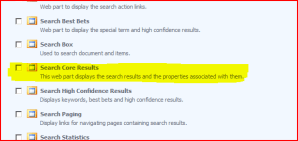
Adding a Search Core Results Web Part

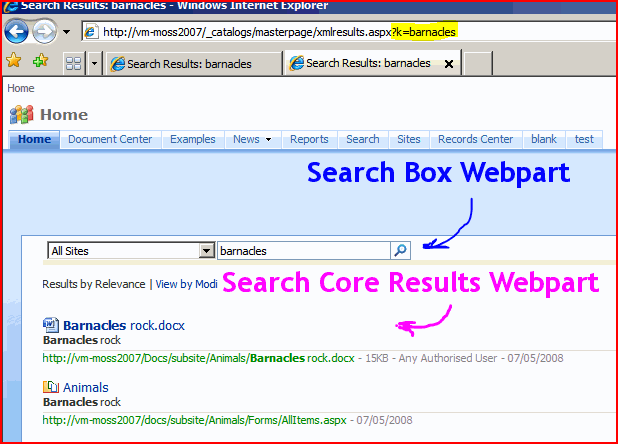
You might want to add a Search Box web part to give yourself somewhere to enter your search terms, though I’m a bit of a geek and was typing directly into the URL of the browser. For example,
?k=barnacles
will search for documents about, um, barnacles.
Results Page with Search Box and Core Results Web parts

Fine. Now we need to apply the XSLT. Edit the Search Core Results Web Part:

Editing the Web Part

and edit the XSL:

The XSL Editor

Blatant Plagiarism alert – Tobias’ XSL was just:

<xsl:stylesheet version="1.0" xmlns:xsl="http://www.w3.org/1999/XSL/Transform">
<xsl:output method="xml" version="1.0" encoding="UTF-8" indent="yes"/>
<xsl:template match="/">
<xmp><xsl:copy-of select="*"/></xmp>
</xsl:template>
</xsl:stylesheet>

Note: Don’t just copy the above text – use this link. WordPress has changed the speechmarks in the code above, and it won’t work.

Apply it and voila – XML:

The Search Results page showing XML

Now I can get on with Styling it.

How do I get the XML of my search results?

Breadcrumbs – Rendering the current link

So one of yesterdays posts brought up a question about rendering the link to the current site. This sort of set me investigating.

There are a number of settings you can use with the ASP:SiteMapPath control. One is the RenderCurrentLink option. This defines whether the current location indicator in the breadcrumb should be shown as a link.

Examples of various breadcrumb settings and different SiteMapProvider's output

(Yes, this screenshot shows other settings – I’ll discuss them in other posts)

Looking at the top 4 rows you can see the effect of the the RenderCurrentLink option – it determines whether the last item is displayed as a link or not.

Breadcrumbs – Rendering the current link

My Breadcrumbs have "> Pages > default.aspx" in them

I’ve written about this before, but really it was just an addendum to another point I was trying to make. It might be worth bringing out as a post in itself.

ASP.NET navigation controls take data from a navigation provider, and render it into HTML. The breadcrumbs used in SharePoint use the one navigation control, but give it different navigation providers…

… the point relevant to whether or not the “> Pages > default.aspx” is displayed in the breadcrumbs is the SiteMapProvider. The CurrentNavSiteMapProviderNoEncode provider doesn’t seem to include the ‘Pages’ bit of the path – hence it is used by the page layouts. The Default.master’s SPContentMapProvider provides a breadcrumb that includes the ‘Pages’.

So, if your page is using a breadcrumb such as…

<asp:SiteMapPath id="ContentMap" SiteMapProvider="SPContentMapProvider" SkipLinkText="" NodeStyle-CssClass="ms-sitemapdirectional" runat="server"/>

… then your breadcrumb will include the “> Pages > default.aspx”. Note that this is the default content of the breadcrumb in default.master. Thus, if you’re creating a brand new page layout, you’ll probably want to override that content using an ASP.NET Content control something like this…

<asp:Content ContentPlaceHolderId="PlaceHolderTitleBreadcrumb" runat="server">

<asp:SiteMapPath ID="siteMapPath" SiteMapProvider="CurrentNavSiteMapProviderNoEncode" RenderCurrentNodeAsLink="false" SkipLinkText="" NodeStyle-CssClass="ms-sitemapdirectional" Runat="server"/>

</asp:Content>

This code defines a content control that overrides the default content for the Title Breadcrumb. It uses the CurrentNavSiteMapProviderNoEncode (nice name!) navigation provider, and so won’t show the “> Pages > default.aspx” bit in the breadcrumb.

So, in short, when you’re creating a new Page Layout, make sure you override the Title Breadcrumb with something that uses the CurrentNavSiteMapProviderNoEncode provider.

My Breadcrumbs have "> Pages > default.aspx" in them