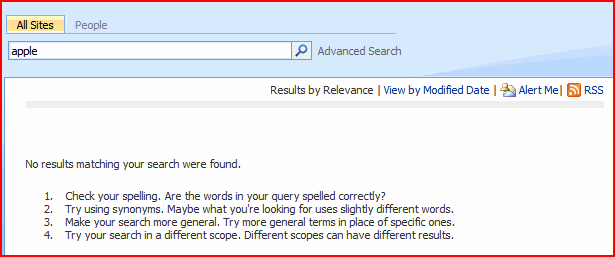
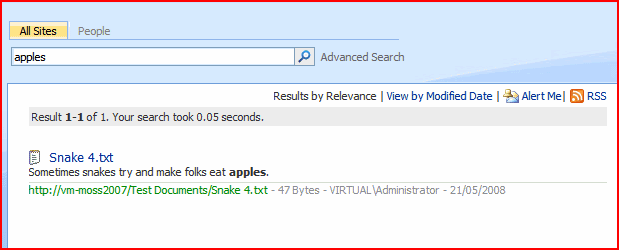
So, my playing with search recently has shown that the search stemming in SharePoint is turned off by default. Search stemming is what takes a search term like ‘Fill‘ and also matches against ‘Filling‘ and ‘Filled‘. This is different to wildcards – ‘Fill*‘ would also match words like ‘Fillet‘. Here is an example of searching for Apple and Apples without stemming…
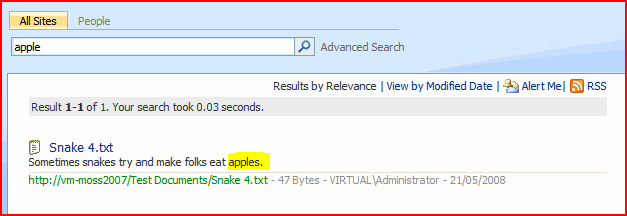
And if I turn on stemming and search right away I get:
I was curious, so I looked up about SharePoint search stemming. I found some posts about it from Mike Taghizadeh (parts one and two) which were interesting, but didn’t tell me much about how it applies to SharePoint. I found another article I could understand better from Joining Dots. According to them, search stemming can increase the size of your index – although I’m not clear how the Core Results Web Part can affect how the indexing works, so I’m not entirely convinced. Certainly I can turn on stemming and get stemmed results without recrawling, which suggests that the index isn’t the issue.
Personally, I suspect that stemming is turned off by default because it doesn’t work so well in some languages (and, as Mike points out, for some languages can’t really).
Anyway, if you want to turn it on, edit your search results page, then ‘modify’ the Core Results Web Part:
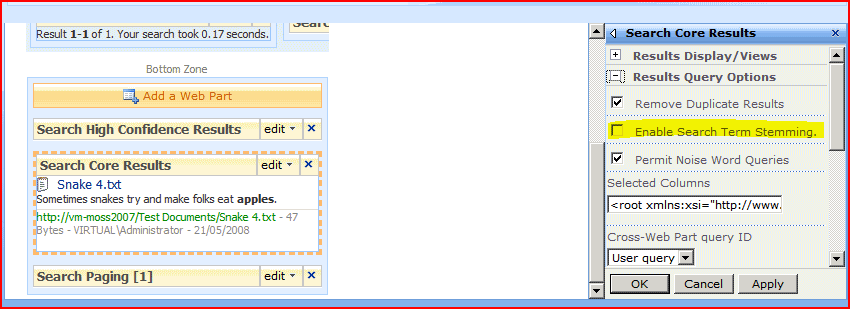
Check the ‘Enable Search Term Stemming’ box, press OK and save your page.
 Andy Burns' Blog
[…] I described Search Stemming and how to set it up. I thought I’d have a look at Wildcard searching and discovered (to my […]
Hi,
Search stemming not working properly for word Manage.
It should search for Manageability, management, managing.
But is only searching for managing.
Managebility
Regards,
Dharmesh Sarang
I meand any word like manage.