Rounded Corners are cool in SharePoint, apparently

I’m not a designer; I neither wear cool enough glasses, a turtleneck, nor sport an iPhone. But I do have to build other peoples designs, and I’ve noticed something – every design I get handed has rounded corners all over it.

I do see their point – SharePoint is a bit, well, ‘Square’. “Boxy but good”.

So instead we have designs with corners, well, all over them. Here’s the one I’ve been working on:

Things to note there – Rounded corners on the tabs in the top nav, and a rounded corner (only one) on the web part title. How did I do this? Continue reading “Rounded Corners are cool in SharePoint, apparently”

Rounded Corners are cool in SharePoint, apparently

PlaceholderLeftActions – what is it?

I’ve been doing some branding for the last week or so, and today was the turn of the left nav menu. I’ve gotta admit, I don’t like doing this – it’s complex, fiddly, and leaves me with what I call “SharePoint Branding Tourettes”.

While going through the code for the left side of the page, I came across the PlaceHolderLeftActions placeholder. By default, it’s empty.

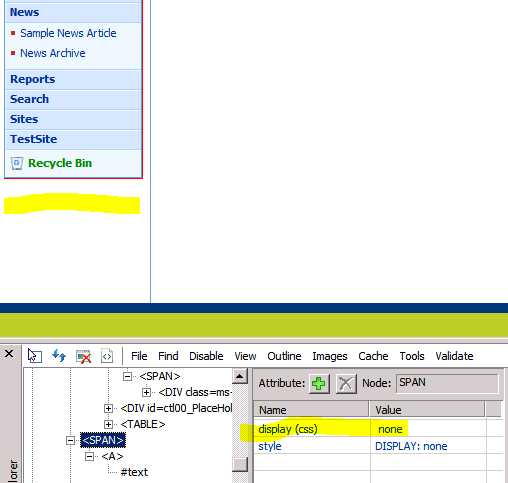
It was a bit of a puzzle to me though – it sits just underneath the normal left navigation area of the page, and I couldn’t think of anything that puts content down there. Just to check though, I took a look in IE Explorer:

I’ve highlighted where the content goes, and you can see from the IE dev bar, there is a hidden link there (to the List Settings page, if you’re interested).

Hmm. So some stuff uses it. I tried different lists in case they all used hidden content – and fairly rapidly came across another – Wiki pages:

I guess the real annoyance here is that it is so hard to see what pages in SharePoint use what placeholders. It’s not like you can just search over the file system, even. I guess it’s a matter for experience.

Anybody else know what the PlaceHolderLeftActions is used for? I might try and build up a library.

PlaceholderLeftActions – what is it?

Remove a Separator Character from the Global Links

I ain’t dead, just flat out busy. I’m working on a branding project at the moment, which I hope to write some more about. But here’s a tricky little problem that I was struggling with.

Our customer wanted to remove the ‘Help’ and ‘My sites’ links from the Global Links in the top right of the page (the Mysite link is going elsewhere on the page), so I removed these items from my new master page. I ended up with something like this:

I’ve highlighted the problem in yellow – a spurious trailing ‘|’ character which is being used as a seperator between links. I didn’t want this though! Looking at the code in my master page, though, showed that this link was being generated by a Delegate control:

Oookay. Not sure why the default value for this is coming from a delegate control, but there you go. Let’s have a look at the code for that delegate control:

Right, so the code is held in a control template -fair enough, let’s look in there:

There we go – a literal control. I have no idea what’s putting that separator character into the literal – and I don’t want to define my own delegate control to override the current delegate control.

So what to do? Well, simple answer – I copied the MyLinksMenuControl into my master page (but without any damn asp:Literal control). All this raises two questions though:

  1. Why are some of the Global links (though not all) rendered via Delegate controls?
  2. Who thought that rendering the control with a separator was a good idea?

All in all, it seems to be absurdly complex and highly effort-filled if you want to change anything here.

Remove a Separator Character from the Global Links

Adding a Custom View Style to MOSS 2007 or WSS3

Previously I’ve mentioned the intriguing idea of creating a custom view style for SharePoint 2007. Well, it turns out that instructions exist for how to do this in SharePoint 2003 – but I couldn’t find any for MOSS 2007 or WSS3. Well, it turns out that it’s not really that different, as far as I can see!

Continue reading “Adding a Custom View Style to MOSS 2007 or WSS3”

Adding a Custom View Style to MOSS 2007 or WSS3

Setting the Master Page of a Team Site with a Feature

Team sites don’t have the Publishing features of MOSS enabled by default, and for WSS systems, well, you don’t have them to enable. Consequently, if you deploy a master page as a feature, you’ll have a bit of fun setting it as the master page.

You can do this though SharePoint Designer, but it’s possible you don’t want your Site owners to have SharePoint Designer, or maybe you just don’t want the hassle of the second step when you provide the master page for a site. Instead, it is possible to set the Master Page through code, and to fire this using a Feature Receiver. This features shows just that – setting the master page through code. Note that to install it, you might well need to make some changes to install.bat. Continue reading “Setting the Master Page of a Team Site with a Feature”

Setting the Master Page of a Team Site with a Feature

Relative URLs in SharePoint Sites using $SPUrl

So, I was really stuck with a Master Page that I’ve been building as a demo. This master page was for use on a site without the publishing features, such as a Team Site.

I wanted to provide a separate CSS file and an image for with this example. However, I hit a snag – how to get relative URLs to the CSS file and image that I was putting into the site?

For Publishing sites, this isn’t normally a problem – you put things such as the master page or images or CSS near the root, and then reference them from the root of the site collection. But from the subsite I was using, this proved hard.

Well, in the end I turned up this post from Ben Robb about using $SPUrl. It turns out that this works nicely for images, and for links to other content, such as CSS files:
<link id="css1" runat="server" rel="stylesheet" type="text/css" href="<% $SPUrl:~site/_catalogs/styles/mystyles.css%>" />
or
<img id="img1" src="<% $SPUrl:~site/images/badger.png%>" />

Unfortunately, it relies on the Microsoft.SharePoint.Publishing namespace, which means that this solution isn’t WSS friendly; certainly I couldn’t get it working. Or rather, maybe it isn’t – perhaps the Microsoft.SharePoint.Publishing namespace is available in WSS3, even if the publishing features themselves aren’t. Does anybody know about that?

Relative URLs in SharePoint Sites using $SPUrl

Easy opening of SharePoint Designer

A tip that much has been made of, but good nonetheless – in Internet Explorer, set the Default program for editting pages to SharePoint Designer to make life easy. Go to Tools > Internet Options > Programs > HTML Editor and select SharePoint Designer.

Configuring IE options

Then in Internet Explorer you’ll have the option to open SharePoint Designer to edit the page. And that’s what it does.

Opening the page in SharePoint Designer.

Easy opening of SharePoint Designer

How do I get the File Extension in my Search Results?

Following on from my previous post, I’ve been looking some more at the code that one of my colleagues has created for styling up some search results. In it he needs the file extension for the item resulting, and he does this by, um, assuming that it’s the last 3 letters of the items URL. Yes, I am not amused. For example, if you look at the results from my last post… Continue reading “How do I get the File Extension in my Search Results?”

How do I get the File Extension in my Search Results?

Breadcrumbs – Rendering the current link

So one of yesterdays posts brought up a question about rendering the link to the current site. This sort of set me investigating.

There are a number of settings you can use with the ASP:SiteMapPath control. One is the RenderCurrentLink option. This defines whether the current location indicator in the breadcrumb should be shown as a link.

Examples of various breadcrumb settings and different SiteMapProvider's output

(Yes, this screenshot shows other settings – I’ll discuss them in other posts)

Looking at the top 4 rows you can see the effect of the the RenderCurrentLink option – it determines whether the last item is displayed as a link or not.

Breadcrumbs – Rendering the current link

My Breadcrumbs have "> Pages > default.aspx" in them

I’ve written about this before, but really it was just an addendum to another point I was trying to make. It might be worth bringing out as a post in itself.

ASP.NET navigation controls take data from a navigation provider, and render it into HTML. The breadcrumbs used in SharePoint use the one navigation control, but give it different navigation providers…

… the point relevant to whether or not the “> Pages > default.aspx” is displayed in the breadcrumbs is the SiteMapProvider. The CurrentNavSiteMapProviderNoEncode provider doesn’t seem to include the ‘Pages’ bit of the path – hence it is used by the page layouts. The Default.master’s SPContentMapProvider provides a breadcrumb that includes the ‘Pages’.

So, if your page is using a breadcrumb such as…

<asp:SiteMapPath id="ContentMap" SiteMapProvider="SPContentMapProvider" SkipLinkText="" NodeStyle-CssClass="ms-sitemapdirectional" runat="server"/>

… then your breadcrumb will include the “> Pages > default.aspx”. Note that this is the default content of the breadcrumb in default.master. Thus, if you’re creating a brand new page layout, you’ll probably want to override that content using an ASP.NET Content control something like this…

<asp:Content ContentPlaceHolderId="PlaceHolderTitleBreadcrumb" runat="server">

<asp:SiteMapPath ID="siteMapPath" SiteMapProvider="CurrentNavSiteMapProviderNoEncode" RenderCurrentNodeAsLink="false" SkipLinkText="" NodeStyle-CssClass="ms-sitemapdirectional" Runat="server"/>

</asp:Content>

This code defines a content control that overrides the default content for the Title Breadcrumb. It uses the CurrentNavSiteMapProviderNoEncode (nice name!) navigation provider, and so won’t show the “> Pages > default.aspx” bit in the breadcrumb.

So, in short, when you’re creating a new Page Layout, make sure you override the Title Breadcrumb with something that uses the CurrentNavSiteMapProviderNoEncode provider.

My Breadcrumbs have "> Pages > default.aspx" in them