I was recently doing some token replacement of field values using a processor that I was adding to the RenderField pipeline. The problem was, it wasn’t running in Glass. Debugging in Visual Studio, the pipeline was never hit. Standard Sitecore rendering of the field was fine, but Glass – nope. Continue reading “Glass, ForceRenderField, and the RenderField pipeline”
Sitecore
XdbModelException: Field could not be found in the model or the field is not enabled for indexing/searching
I was creating a custom segmentation rule predicate for Sitecore 9, and when I tried to create a segment using the rule, I got an error inside Sitecore’s List Manager:

Field could not be found in the model or the field is not enabled for indexing/searching
That’s kind of annoying. What caused this? Well, it was a long, painful odyssey finding out.
TL;DR – If you’re using an extension method to get a facet for your CreateContactSearchQuery method – like Sitecore do – it’s method name must match the Facet Key name.
No, I’m not kidding.
XConnect – Get a contact by their TrackerId…
So, Sitecore 9 has the replaced xDB in MongoDB with XConnect. Fine. Our contacts will be stored there (ultimately, in SQL server). Fine too.
One question though – how do we get the Sitecore.XConnect.Contact object for the current (possibly unidentified) contact?
It used to be that you could get the Contact record from Tracker.Current.Session.Contact, but that doesn’t work any more – that gets the Sitecore.Analytics.Tracking.Contact, which isn’t the same type at the Sitecore.XConnect.Contact which is replacing it. Confused yet?
Well, to make matters worse, the Sitecore.Analytics.Tracking.Contact.ContactId may or may not match the Sitecore.XConnect.Contact.ContactId. I think.
I couldn’t find any information about how to resolve the Tracker ID to the XConnect contact. What’s a boy to do?
EDIT: Sadly, there is a better way than below. Unfortunately, it’s in a different bit of the documentation. See https://doc.sitecore.net/developers/xp/tracking-and-session/tracker/tracking-contacts/contact-facets/update-facets.html
Continue reading “XConnect – Get a contact by their TrackerId…”
XdbModelException – “The type of this instance does not correspond to any type in the model”
Working with xConnect to save custom facet data, I started getting this error:
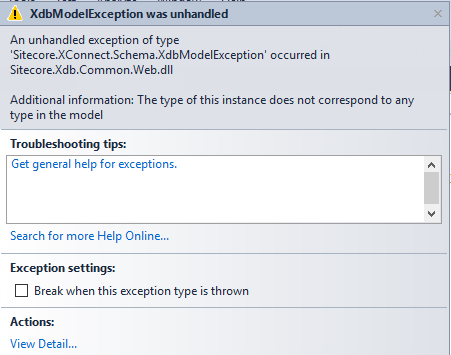
An unhandled exception of type ‘Sitecore.XConnect.Schema.XdbModelException’ occurred … The type of this instance does not correspond to any type in the model
Weirdly, the other 3 (nearly identical) facets worked just fine. Tracking down the issue was “fun”…
Use Sitecore Image Resizing even for Background-Images
Recently, I’ve looked at two Sitecore sites (not written by me!) where areas of the page (<div> tags) have a background image set by inline-CSS. For example, something like this:

Which has markup like this:

Okay, what’s wrong with this? Continue reading “Use Sitecore Image Resizing even for Background-Images”
Chrome – OTS parsing error: invalid version tag
I saw this weird warning in Chrome’s DevTools while looking at a site:
OTS parsing error: invalid version tag

Uh-huh. That’s a bit strange. Unable to download fonts? What caused that?
Well, I tried going to the font’s URL – and got the ‘Page Not Found’ page! Well, that’s annoying – but a 404 page is clearly not a font.
However, this site’s error pages return HTTP 200 – so Chrome expects a font…
Make sure your error pages return a correct HTTP status code. If you don’t, it can cause problems. Normally, I find that it’s false positives on automated penetration tests, but this is a new and exciting variation.
Scott Helme on SSL Certificates…
Scott Helme has posted a number of interesting blog posts recently:
- Debunking the fallacy that paid certificates are better than free certificates, and other related nonsense
- Are EV certificates worth the paper they’re written on?
- Do SSL warranties protect you? As much as rocks keep tigers away…
I mean, he’s a bit of a LetsEncrypt fan, but equally, their certificates are as good as others, and EV Certs and SSL Warranties do seem to be sources of revenue generation, rather than offering something useful.
What I’d really like is an easy way to use LetsEncrypt with IIS; for a long time it has seemed like a second-class citizen. Or maybe scripting is just more awkward in Windows. Either way, it’d be great to have simple tooling to support automatically renewing IIS site certs.
Then we could reduced certificate lifetimes and overcome the problems of the broken revocation process in certificates.
Statically add a Rendering to a layout
Recently I stumbled across this excellent note from Nathanael Mann – Did you really mean .Controller() in Sitecore MVC? – it’s worth a read.
The short form – you’ll want to use:
@Html.Sitecore().Rendering("[GUID of the Rendering]", new { Cacheable=true, Cache_VaryByData=true })
… so you don’t skip caching.
Sitecore – The type or namespace name ‘WebViewPage’ could not be found
A gentle note to myself – If I suddenly start getting errors from Sitecore of the form:
Exception: System.InvalidOperationException
Message: Error while rendering view: ‘/Views/Common/Layouts/WebLayout.cshtml’ (model: ‘Sitecore.Mvc.Presentation.RenderingModel, Sitecore.Mvc’).
or
Exception: System.Web.HttpCompileException
Message: c:\Windows\Microsoft.NET\Framework64\v4.0.30319\Temporary ASP.NET Files\root\4f078900\f158f9a6\App_Web_weblayout.cshtml.b31435e0.agxyl06t.0.cs(44): error CS0246: The type or namespace name ‘WebViewPage’ could not be found (are you missing a using directive or an assembly reference?)
… check that you’ve not delete the /Views/Web.config file. Again.
I keep causing this when I clear out my Views folder of old, obsolete, or test views.
Create a self-signed certificate for development
This has been updated by: Create a self-signed certificate for development (2025 ed.)
This is a bit of an aide-memoire, based on https://blogs.msdn.microsoft.com/benjaminperkins/2017/11/15/how-to-create-a-self-signed-san-certificate-wildcard-certificate-vs-san/
The short form is, you can do this in PowerShell:
- Open Powershell, running as administrator.
- Run:
New-SelfSignedCertificate -CertStoreLocation Cert:\LocalMachine\My -DnsName "example.local" -FriendlyName "example.local" -NotAfter $([datetime]::now.AddYears(5))
- Go to “Manager Computer Certificate” or run CERTMGR. You should see your certificate
Next, we want to trust this certificate. We’ll need to export it.
- To export the certificate file you just created as a .PFX file, right click on the certificate, All Tasks -> Export…
- When the Export menu item is selected, an export wizard is run. On the first window read through the information and click the next button.
- In the next window, select the radio button “Yes, export the private key” and then click the next button.
- Select Export Extended Properties, and click next
- Set a password for the .PFX file you want to create#
- Choose a path and export the .pfx file
Now import it into the “Trusted Root Certification Authorities” that you can see in Certificate Manager
- Expand Trusted Root Certification Authorities –> right-click Certificates –> All Tasks –> Import.
- Select the file you just exported. Note that you may need to change the file type to Personal Information Exchange.
- Click Next, Fill in your file’s password, and complete the import.
That should be it completed.
Edit:
An alternative to export the cert:
Copy the Thumbprint of the cert in your Powershell window.
$pwd = ConvertTo-SecureString -String "" -Face -AsPlainText

Export-PfxCertificate -cert cert:\localMachine\my\#Thumbprint# -FilePath #FilePath# -Password $pwd
 Andy Burns' Blog