Breadcrumb Path Separator and Path Direction

There are several settings you can apply to breadcrumbs in MOSS, although really some of these are really ASP.NET settings rather than most specific. Previously I’ve mentioned using different SiteMapProviders and rendering the current location as a link. Let’s have a look at another couple of settings:

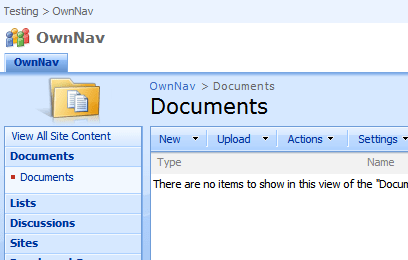
Examples of various breadcrumb settings and different SiteMapProvider's output

(Yes, this screenshot shows some other settings – they’re mentioned in the other articles)

Looking at the screenshot we can see how the Path Separator setting allows us to set what we want shown between nodes – rather than ” > ” I’ve used “:”. Not sure when/why you’d want to change that, but I’m sure I’ll be given a design where that is useful sometime!

There’s also the Path Direction setting, which allows us to set whether the breadcrumb should have the current node on the left or right of the breadcrumb – hence the two settings, RootToCurrent and CurrentToRoot. Note, though, that the default path separator doesn’t swap from ” > ” to ” < “.

Breadcrumb Path Separator and Path Direction

Hit Highlighting inside Adobe PDFs using SharePoint Search

So, I’ve posting about some work I’ve been doing with SharePoint Search. Now, to pull it all together – I’ve been trying to do hit highlighting inside Adobe Reader, so if a user clicks on a search result Adobe Reader opens and automatically searches for occurances of the search term. Doing this requires knowing your file extension (so you only process PDFs this way), knowing the query string parameter for what is being searched for, and that you can pass parameters into Acrobat Reader. I’m not going to go too much into that last part, but you can find documentation about this on Adobe’s website (pdf). Continue reading “Hit Highlighting inside Adobe PDFs using SharePoint Search”

Hit Highlighting inside Adobe PDFs using SharePoint Search

Using a Query String parameter in the Search Results Web Part

Further work on fixing a colleague’s code. Like some of the posts I’ve found, he seems to have thought that to get the query string parameter he’d have to use Javascript – something like this. However, I found myself thinking of the Data View web part – it allows parameters based on the query string. Most people know about that. What I found, and what I think some folks don’t realise, is that the Search Core Results Web Part allows you to have query string parameters too… Continue reading “Using a Query String parameter in the Search Results Web Part”

Using a Query String parameter in the Search Results Web Part

What columns can I use in my Search Results?

In a previous post I described adding the FileExtension column to the XML you get back from a SharePoint search, so that you can use it in your results page. This raises the question – what columns are available for use in the Selected Columns setting on the Core Search Web Part?

Well, these columns are Managed Properties, and they’re configured on the Shared Service Provider (SSP)… Continue reading “What columns can I use in my Search Results?”

What columns can I use in my Search Results?

How do I get the File Extension in my Search Results?

Following on from my previous post, I’ve been looking some more at the code that one of my colleagues has created for styling up some search results. In it he needs the file extension for the item resulting, and he does this by, um, assuming that it’s the last 3 letters of the items URL. Yes, I am not amused. For example, if you look at the results from my last post… Continue reading “How do I get the File Extension in my Search Results?”

How do I get the File Extension in my Search Results?

How do I get the XML of my search results?

So I’ve just started customising SharePoint Search results for the first time. It’s an area that I’ve never really touched before, to be honest – I’ve set up the crawling, and that’s the limit. Now I find myself reverse engineering a colleagues code in order to fix it.

Well, from what I can fathom, SharePoint search results actually come from the Search.asmx webservice in the _vti_bin of your site. The results are actually returned as XML, and in the web parts (not sure which ones, but certainly the Search Core Results web part) you then render this XML to HTML via XSLT. (If that means nothing to you, I’m afraid you’ll have to look it up. That concept is a whole can of worms. Maybe even a crate of worms. Anyway…)

An obvious question is, what does that source XML look like. Well, it’s whatever you get back from the web service, and there are various ways of find that, but I found a neat little solution on a post from Tobias Zimmergren’s blog (in fact, it’s an interesting looking series for a search rookie like myself – I think I’ll have to read that). I’ll blatantly plagiarise that in a bit. Basically, his idea was to define some XSLT that just emits the XML unaltered, and then look at what you’re getting back from the search service on the search results page.

So, to test, I copied the normal search results page (mine was in a search center) to give myself somewhere isolated to test in. I went to it – and it was all empty. Not surprising – there were no web parts. I added a Search Core Results web part:
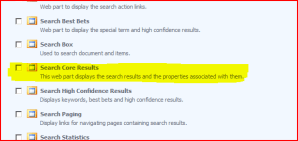
Adding a Search Core Results Web Part

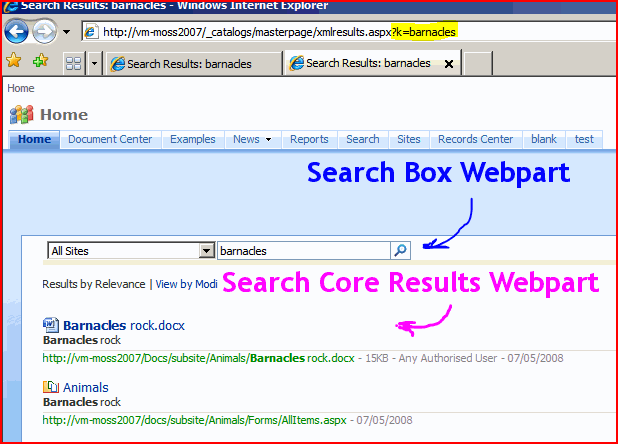
You might want to add a Search Box web part to give yourself somewhere to enter your search terms, though I’m a bit of a geek and was typing directly into the URL of the browser. For example,
?k=barnacles
will search for documents about, um, barnacles.
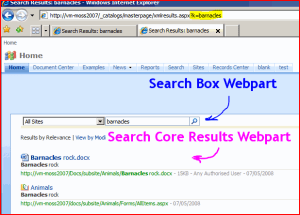
Results Page with Search Box and Core Results Web parts

Fine. Now we need to apply the XSLT. Edit the Search Core Results Web Part:

Editing the Web Part

and edit the XSL:

The XSL Editor

Blatant Plagiarism alert – Tobias’ XSL was just:

<xsl:stylesheet version="1.0" xmlns:xsl="http://www.w3.org/1999/XSL/Transform">
<xsl:output method="xml" version="1.0" encoding="UTF-8" indent="yes"/>
<xsl:template match="/">
<xmp><xsl:copy-of select="*"/></xmp>
</xsl:template>
</xsl:stylesheet>

Note: Don’t just copy the above text – use this link. WordPress has changed the speechmarks in the code above, and it won’t work.

Apply it and voila – XML:

The Search Results page showing XML

Now I can get on with Styling it.

How do I get the XML of my search results?

Breadcrumbs – Rendering the current link

So one of yesterdays posts brought up a question about rendering the link to the current site. This sort of set me investigating.

There are a number of settings you can use with the ASP:SiteMapPath control. One is the RenderCurrentLink option. This defines whether the current location indicator in the breadcrumb should be shown as a link.

Examples of various breadcrumb settings and different SiteMapProvider's output

(Yes, this screenshot shows other settings – I’ll discuss them in other posts)

Looking at the top 4 rows you can see the effect of the the RenderCurrentLink option – it determines whether the last item is displayed as a link or not.

Breadcrumbs – Rendering the current link

My Breadcrumbs have "> Pages > default.aspx" in them

I’ve written about this before, but really it was just an addendum to another point I was trying to make. It might be worth bringing out as a post in itself.

ASP.NET navigation controls take data from a navigation provider, and render it into HTML. The breadcrumbs used in SharePoint use the one navigation control, but give it different navigation providers…

… the point relevant to whether or not the “> Pages > default.aspx” is displayed in the breadcrumbs is the SiteMapProvider. The CurrentNavSiteMapProviderNoEncode provider doesn’t seem to include the ‘Pages’ bit of the path – hence it is used by the page layouts. The Default.master’s SPContentMapProvider provides a breadcrumb that includes the ‘Pages’.

So, if your page is using a breadcrumb such as…

<asp:SiteMapPath id="ContentMap" SiteMapProvider="SPContentMapProvider" SkipLinkText="" NodeStyle-CssClass="ms-sitemapdirectional" runat="server"/>

… then your breadcrumb will include the “> Pages > default.aspx”. Note that this is the default content of the breadcrumb in default.master. Thus, if you’re creating a brand new page layout, you’ll probably want to override that content using an ASP.NET Content control something like this…

<asp:Content ContentPlaceHolderId="PlaceHolderTitleBreadcrumb" runat="server">

<asp:SiteMapPath ID="siteMapPath" SiteMapProvider="CurrentNavSiteMapProviderNoEncode" RenderCurrentNodeAsLink="false" SkipLinkText="" NodeStyle-CssClass="ms-sitemapdirectional" Runat="server"/>

</asp:Content>

This code defines a content control that overrides the default content for the Title Breadcrumb. It uses the CurrentNavSiteMapProviderNoEncode (nice name!) navigation provider, and so won’t show the “> Pages > default.aspx” bit in the breadcrumb.

So, in short, when you’re creating a new Page Layout, make sure you override the Title Breadcrumb with something that uses the CurrentNavSiteMapProviderNoEncode provider.

My Breadcrumbs have "> Pages > default.aspx" in them

Outlook 2003 to SharePoint 2007 Email Integration

So what has Andy been working on lately? Well, lately I’ve been writing an integration between Outlook 2003 and SharePoint 2007. It was all a bit fraught – some of the web services I was using are a bit dodgy, uploading files and metadata as one transaction doesn’t seem to be possible, and everyone always underestimates the effort involved in coping with the metadata about an email. I’ve written an integration between GroupWise 6.5 and Open Text Livelink before now, and again, dealing with the metadata was a bigger effort than browsing the system or uploading the document.

Now, email saving into SharePoint seems to be an overlooked thing. Microsoft have their Exchange 2007 Managed Folders, which can push emails into a SharePoint Records center. Liam Cleary has written his usual high-quality description of setting it up, and the MS Records management team blogged about it in parts I, II, III and IV.

However, a lot of our customers aren’t impressed with this solution. They want to be able to save emails into particular SharePoint Libraries within their usual collaboration environment, rather than just booting them off into a Record Center.

U2U built an Outlook 2007 addin which is very nice – though a bit of a different take. Their approach requires defining the save location up front and mapping to the data, but that then saving emails is dead easy – just drag them into the folder. Nice.

Anyway, this is what I built – I’ll contrast with the U2U offering lateer…

Continue reading “Outlook 2003 to SharePoint 2007 Email Integration”

Outlook 2003 to SharePoint 2007 Email Integration

Are SharePoint Breadcrumbs completely wrong?

I upgraded the version of WordPress I’m running recently and I enabled statistics on the blog. It’s been a bit of an eye-opener. My posts on ‘What the heck is going on with SharePoint Breadcrumbs‘ and ‘More SharePoint Breadcrumbs WTF‘ have together more hits that any of my other articles, and both are visited about evenly.

This is pretty interesting. Breadcrumbs should be pretty simple. I mean, we all use them on the web, probably every day, and often without noticing. So how come people are clearly looking up information about SharePoint breadcrumbs? Clearly something is wrong with them.

So this set me thinking – what’s wrong with them? And here’s what I could think of:

  • There are two breadcrumbs. You’ve got the Global breadcrumb, and then the PlaceholderTitle breadcrumb. Seriously, how many websites do you come across that have two?
    Image showing the Global and Title Breadcrumbs
  • ‘Site’ levels of the hierarchy can appear in one or the other breadcrumb. Depending on whether or not your navigation inherits it’s navigation from it’s parent site, the ‘Site’ links can appear in the global or title breadcrumbs. Thus, there’s no consistency as to where a site appears – if it appears at all! I can see why it’s been built this way – essentially it allows us to ‘skip’ levels in the site hierarchy as shown on the global breadcrumb, and it shortens the title breadcrumb. I wonder if this wouldn’t be better facilitated by a ‘show in Global breadcrumb’ site setting. Or just show all sites in the path to the site?
  • Why is what is shown in the breadcrumbs tied to what is shown in the site’s top navigation? That’s just confusing.
  • Having some breadcrumbs in the Page Layout (i.e. in the main content area) and others coming from the master page is just plain confusing.

I don’t quite know what the answer to this is; after all, we need a way to navigate back up the site hierarchy, though we might not always want to allow that. And breadcrumbs could get very long, so yes, maybe we want to skip levels. But I think I’d be tempted by showing all sites in the Global navigation. This would also divorce the breadcrumb from the top navigation settings, and I think would be easier.

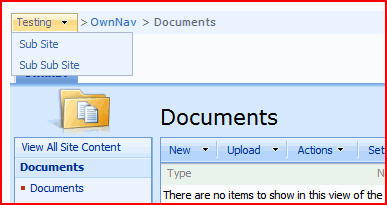
And if the Global navigation gets too long? Well, that seems quite possible. In that case, how about a setting on each site to ‘Display in Menu in the Breadcrumb’ to give something like this:

Concept of single breadcrumb using drop down menus

This way you can still have your ‘Main’ sites in the hierarchy, but all levels are still available. Of course, you might want to make it that all the subsites of last ‘Main’ site are always visible irrespective of that setting. I think that would work, and would require less getting used to.

It’s a bit like the Vista breadcrumb in Windows Explorer – but a bit different, which might count against it…

The breadcrumb in Windows Explorer in Vista

That said, I’m open to thoughts from others! Comment if you’ve got an idea of how breadcrumbs should work!

Are SharePoint Breadcrumbs completely wrong?