Hidden fields, and controlling them with the Object Model

SharePoint’s fields can be ‘hidden’ or shown, by setting the SPField.Hidden property. That’s great, but sadly it isn’t that simple. You might want a field hidden, but allow administrators, etc., to ‘unhide’ the field. Then again, sometimes you might want your hidden field to be really hidden, and never ‘unhidden’.

That is actually what SharePoint allows. The SPField.Hidden property also relies on a second property ‘CanToggleHidden’. You can see this in the CAML definition of a field. So you could define a field like:

<Field Type="Text" ID="{449cf8bc-88ce-445a-ac55-11ea0cb71fed}" Hidden="TRUE" CanToggleHidden="TRUE" ... >

Okay, that’s fine – that’d give us a field which is hidden, but we can unhide. Note that by default CanToggleHidden is false, and this led to my problem. Continue reading “Hidden fields, and controlling them with the Object Model”
Hidden fields, and controlling them with the Object Model

Determine if a user is a farm administrator

Sometimes you just need to know if a user is a farm admin; conveniently SharePoint provides a couple of static methods on the SPFarm object to check this:

if( SPFarm.CurrentUserIsAdministrator() ) { ... }

Neat, but one tip – it’s not obvious but it seems that if you want to check this within a content web application, you have to use the method that accepts a boolean and that bool needs to be true:

if( SPFarm.CurrentUserIsAdministrator(true) ) { ... }

Otherwise you will only ever get a ‘false’ response.

Determine if a user is a farm administrator

Tokenisation and the Ribbon

A useful post on the MS SharePoint developer blog – “Tokenization in the SharePoint 2010 Server Ribbon“. I always find it a little tricky remembering what token works in which place; this explains it.

In general, and as a reference for myself:

Location ListUrlDir ItemId ItemUrl RecurrenceId SiteUrl ListId Source SelectedListId SelectedItemId
List View Yes No No No Yes Yes Yes Yes Yes
List Form Yes Yes Yes Yes Yes Yes Yes No No
Tokenisation and the Ribbon

Annoyance: GUIDs for Views must be upper case

So, I have a list where I’m using one of the views for my own nefarious purposes; I don’t want users to be able to see it normally, so I set it to hidden in my List Schema. That was fine, and worked.

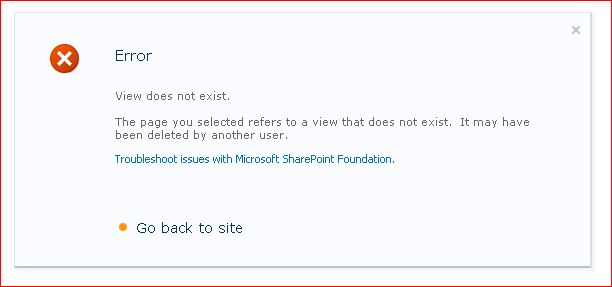
However, I do need administrators to be able to edit that view – so I gave them a link that would take the to the ViewEdit.aspx page. This worked, except that whenever you tried to save any changes to the view, all you got was an error:

This seemed spurious – “View does not exist” – we’d just looked at the view, so how can it not exist? I tried unhiding the view, and testing, and I found that if I went by my link then I couldn’t save changes, but if I went by the standard UI, everything worked.

Great.

In the end I started comparing differences between the pages you got by my link and the UI. What I found was that some of the GUIDs in the page were, like my link, in lower case.

And that was the problem – the GUIDs in the URL needed to be upper case.

I surmise that someone is comparing strings during the ViewEdit save, rather than the GUIDs that they actually are. #FAIL.

Annoyance: GUIDs for Views must be upper case

Bloody Stupid SPWeb properties

So, like many SharePoint objects, the SPWeb object has a property bag. Unlike many, it has two – Properties and AllProperties.

The problem I encountered with this was that I was trying to set some Search Center settings on a newly created Site Collection, and their capitalization was being persisted wrongly:

newRootWeb.AllProperties["SRCH_ENH_FTR_URL"] = settings.SearchCenterUrl;

This would be persisted as lower case – which was wrong. Lower case capitalisation isn’t the same upper. Nice. Continue reading “Bloody Stupid SPWeb properties”

Bloody Stupid SPWeb properties

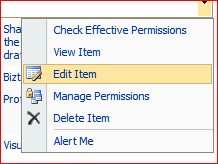
HideCustomAction doesn't work with the EditControlBlock

So, this is a new fact about SharePoint for me – HideCustomAction Feature element doesn’t work with the EditControlBlock. Normally, you add links to menus, toolbars, etc., using a CustomAction, and hide them using ‘HideCustomAction’. Works a treat in most of the interface.

However, with the Edit Control Block (ECB) Hide custom action doesn’t work. It looks like ‘cos the menu is rendered by JavaScript, you can’t hide them. Liam Cleary posted a good article about it for SharePoint 2007, and I suspect this will be the same in 2010. It means you’re likely to have to use JavaScript to remove things off the menu :/

Don’t know how I managed to avoid this problem for 4 years!

HideCustomAction doesn't work with the EditControlBlock

List Type Icons for Custom List Definitions

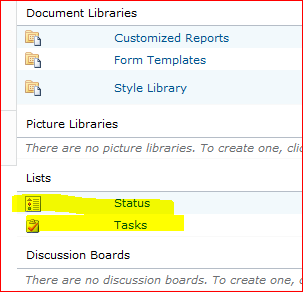
In SharePoint, different types of list can have different icons:

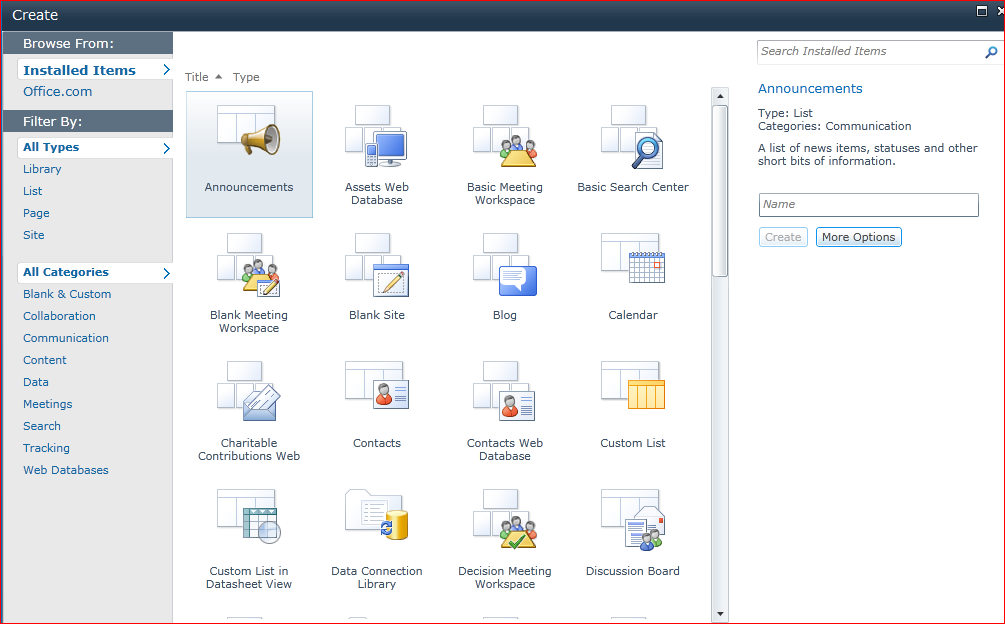
That’s fine, but SharePoint 2010 adds a second icon – one that’s used in the Silverlight control for creating new Sites/Lists:

I wanted to specify that for a list definition I was upgrading from a 2007 version. But there doesn’t seem to be a property to set the name/url for this file.

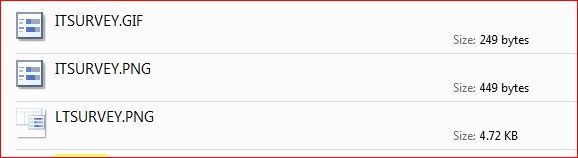
In SharePoint 2007 the icons were usually .GIF files. In SharePoint 2010, those still seem to be in the IMAGES folder in 14-Hive, but there are .PNGs of the same images too. There are also the larger PNGs used by the SilverLight control. The small sized ones all seem to be called ‘ITxxx.PNG’, and the larger ‘LTxxx.PNG’:

So, I tried changing the Image property of my list definition to use a file with a .png extension (e.g. ITandy.png )

I converted my GIF to PNG format, and I created a 64×64 pixel PNG for the SilverLight control. I called this new PNG file LTandy.png – and low, the SilverLight control picked it up. It seems that the Silverlight dialog replaces the IT at the start of the image file name with an LT when looking for an icon – but only for lists where the smaller icon also has the .png extention.

Therefore, I’d recommend always using PNGs for icons in SharePoint now.

List Type Icons for Custom List Definitions

SharePoint 2010 Theme colours

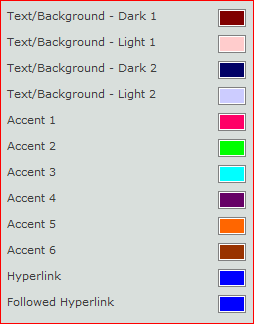
Themes in SharePoint 2010 are so much better than 2007 – and so much easier to generate! You can either create them with a .thmx file from PowerPoint, or just set them up through the user interface.

One problem, though, is what areas of the page are controlled by these colours? Well, I’d been going to set up an experiment to find out, but fortunately Erik Swenson had already taken the time to map this out. So, rather than reinvent the wheel, I’ll just use that – it’s well worth a read.

SharePoint 2010 Theme colours